Accessibility
We build tools for everyone
Pachca is a team chat app that helps people talk and work together.
We want Pachca to be easy to use and accessible to everyone, however they see, hear, move or perceive the world.
Keyboard accessibility
Send messages, jump between chats and open menus with keyboard shortcuts.
We keep expanding keyboard navigation to cover more of the interface.
.jpg)
Threads
Bugs
Visual settings
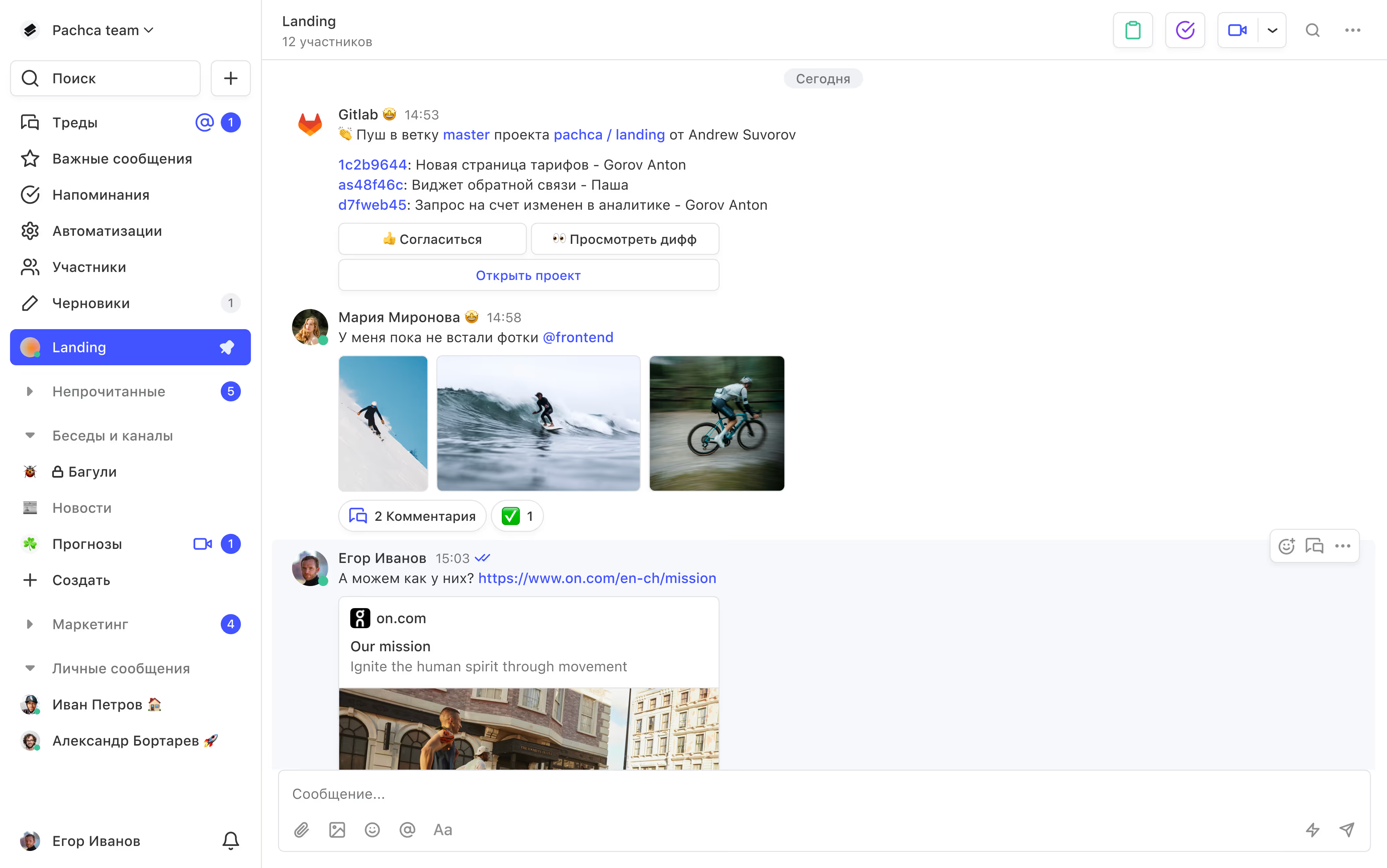
Contrast and dark mode
We make sure content stays readable in both themes. Light mode fully meets contrast standards, and we keep refining individual elements in dark mode.
Scaling
The interface adapts when you zoom in or change the font size, without breaking the layout. That makes Pachca comfortable to use on phones, tablets and laptops.
Animations
Pachca has no harsh flashing effects, strobes or jarring transitions. The interface is designed to stay visually calm and comfortable for people who are sensitive to motion or light.
Screen orientation
Pachca works in portrait mode on mobile devices. Landscape mode is supported on iPad.
Interacting with the interface
Sound and visual cues
Every important event in Pachca, like a new message, reaction or notification, comes with a visual indicator as well as a sound. So you won't miss a thing, even with sound off.
Errors and alerts
If something goes wrong when you enter data, the field is highlighted and the problem is explained in text. You can quickly see what happened and fix it.
Form
Notification controls
You can snooze notifications or turn them off entirely, except for alerts about critical system events. The interface has no time limits: forms and messages never close on their own, so everyone has plenty of time to respond.
Notification settings
Critical system notifications are always on
Mobile devices
Screen readers like TalkBack are fully supported: you can read chats, navigate the interface and interact with messages.
Web app
Screen readers announce your actions, from typing a message to using buttons and menus.
Screen readers and assistive technology
Pachca works with the standard accessibility tools built into your devices, such as screen readers and spoken feedback.