How to keep your team engaged
How to build an effective communication environment in the Pachca team chat app
Communicating in team chat apps almost always improves team results. Employees solve tasks faster, talk through tricky questions and stay focused on work. But setting up that kind of environment isn't always easy: the app needs plenty of options for flexible user management. Here's how it works in Pachca 👇
A flat chat structure means higher engagement
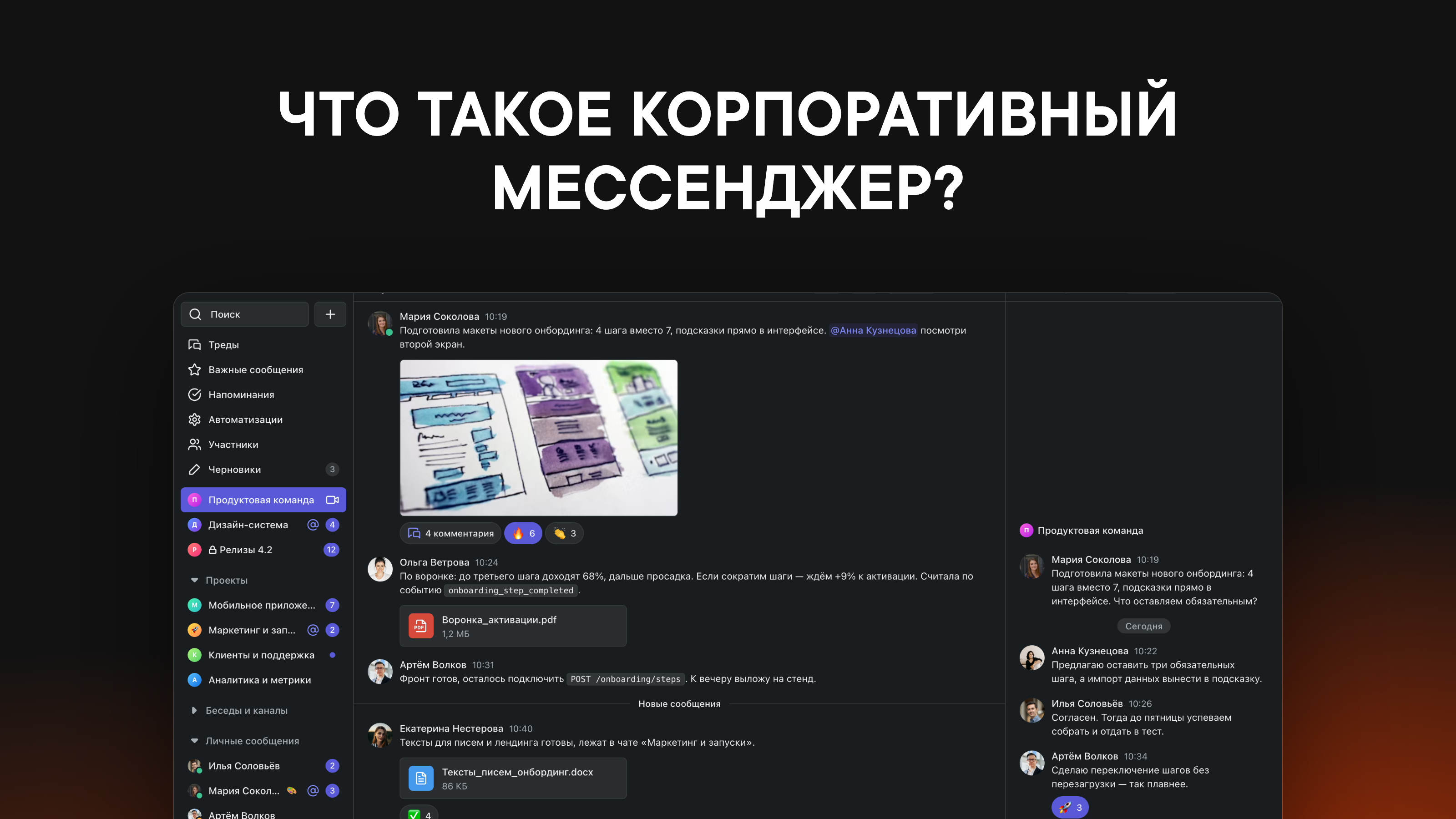
Everything we build is aimed at keeping people talking in their team chat app during work, instead of drifting off to personal messaging apps for work questions. The biggest factor here is a flat chat list: the open chat and all your other work chats are within easy reach in one window, with no jumping to other sections.
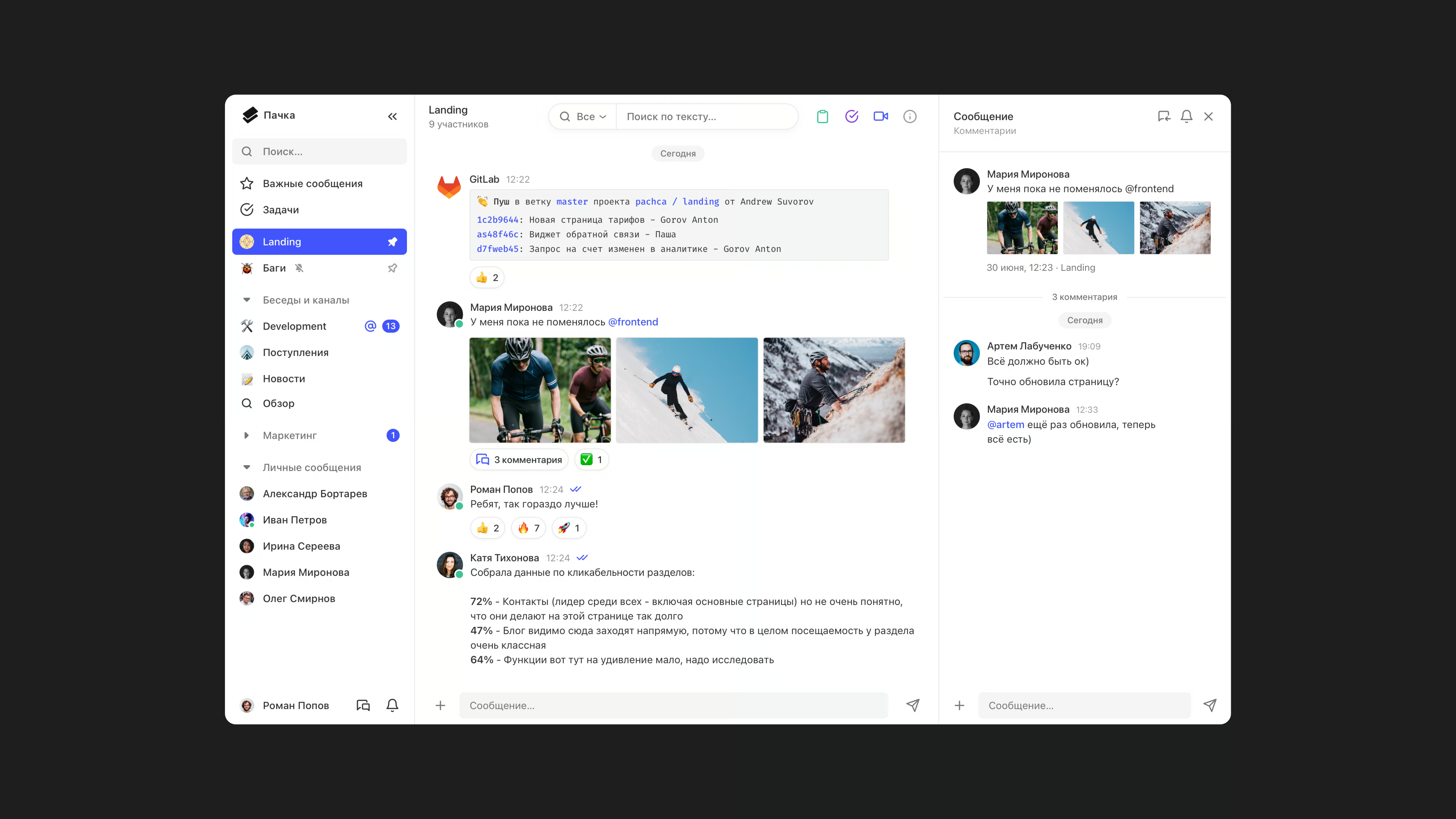
With this structure, it's much easier for people to send messages, react to them and discuss work topics. A flat chat structure typically boosts user engagement by 15–20% (the average number of messages and reactions per employee goes up).
You'll see this chat structure in the interfaces of many team chat apps: Slack, Mattermost, Rocket Chat and others. But a flat chat structure usually has one drawback: it's pretty disconnected from the company's org structure. That makes it hard to organize work by department or project when only a limited number of employees are involved. And the apps themselves may lack advanced user management.
Advanced management and high engagement
In Pachca, we set out to solve the problem of managing employees in a flat chat structure and built:
Flexible management with tags
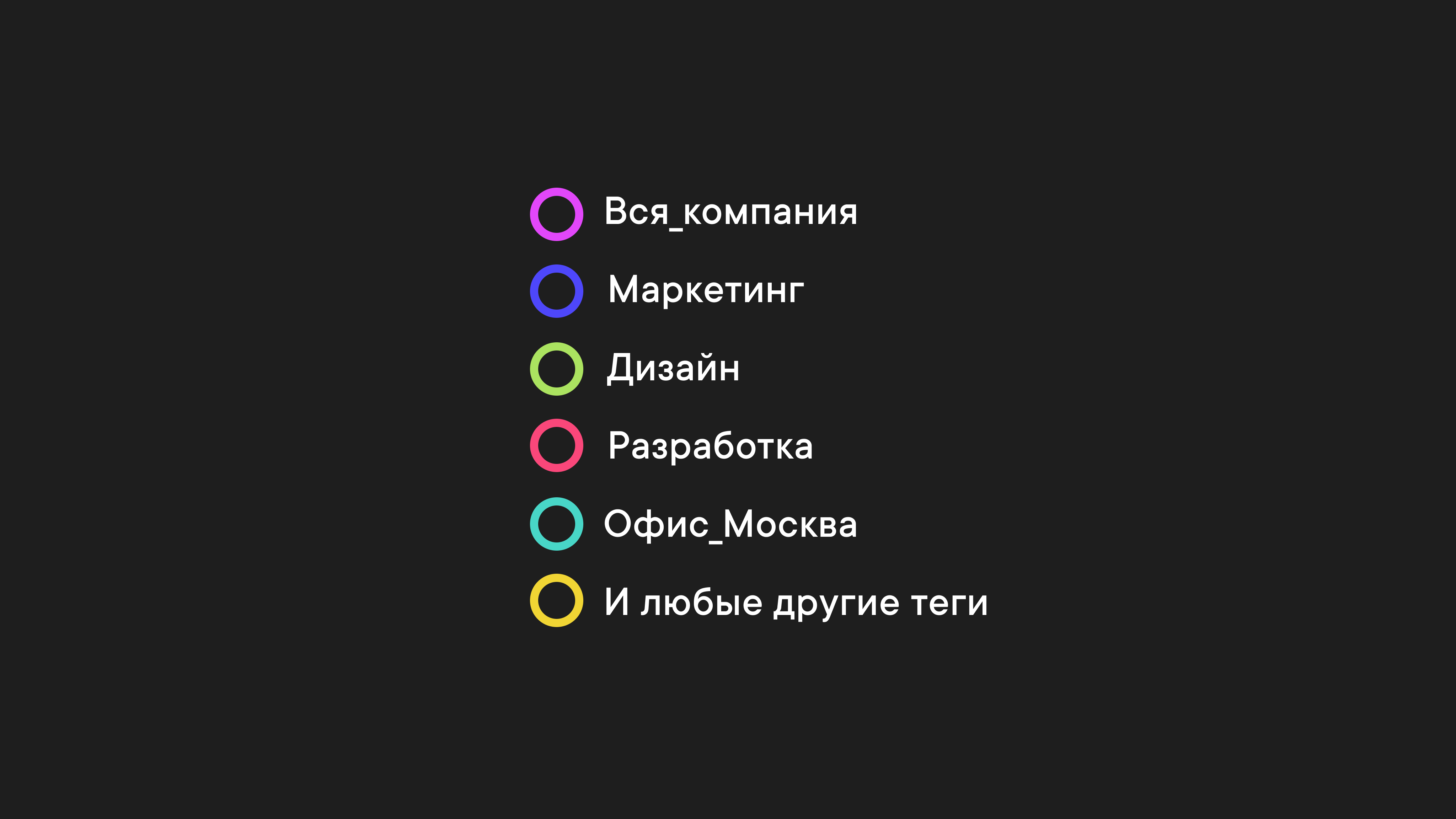
Tags let you quickly manage large groups of users in Pachca. When you add new employees to the app, you can assign them tags. A tag groups users by any attribute, like their department, project or the city their office is in.
With tags, you can add lots of employees to chats in a couple of clicks. Just add a tag to a chat, and everyone with that tag joins. And when someone new joins the team, you can quickly add them to every chat they need: assign them tags, and they'll automatically land in the right places. Learn more about tags in this article.
User management through the API
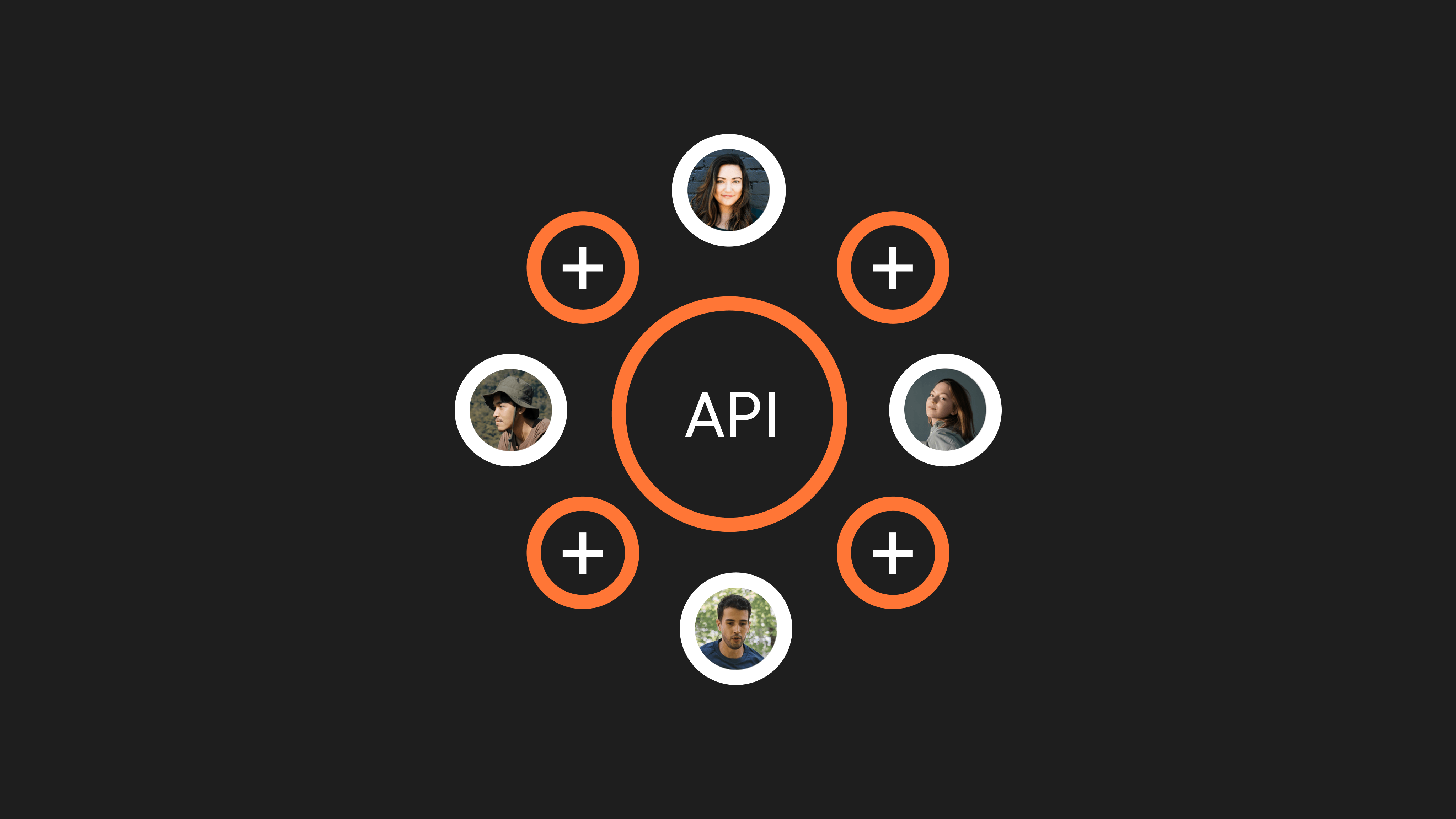
Pachca's API lets you automate nearly all user management. You can use it to add employees to the app, fill in their profiles, assign tags, add users to chats and more.
For example, some companies run their entire onboarding process for new users this way. It saves time on managing employees and helps avoid small mistakes along the way.
Integration with company directories and role management
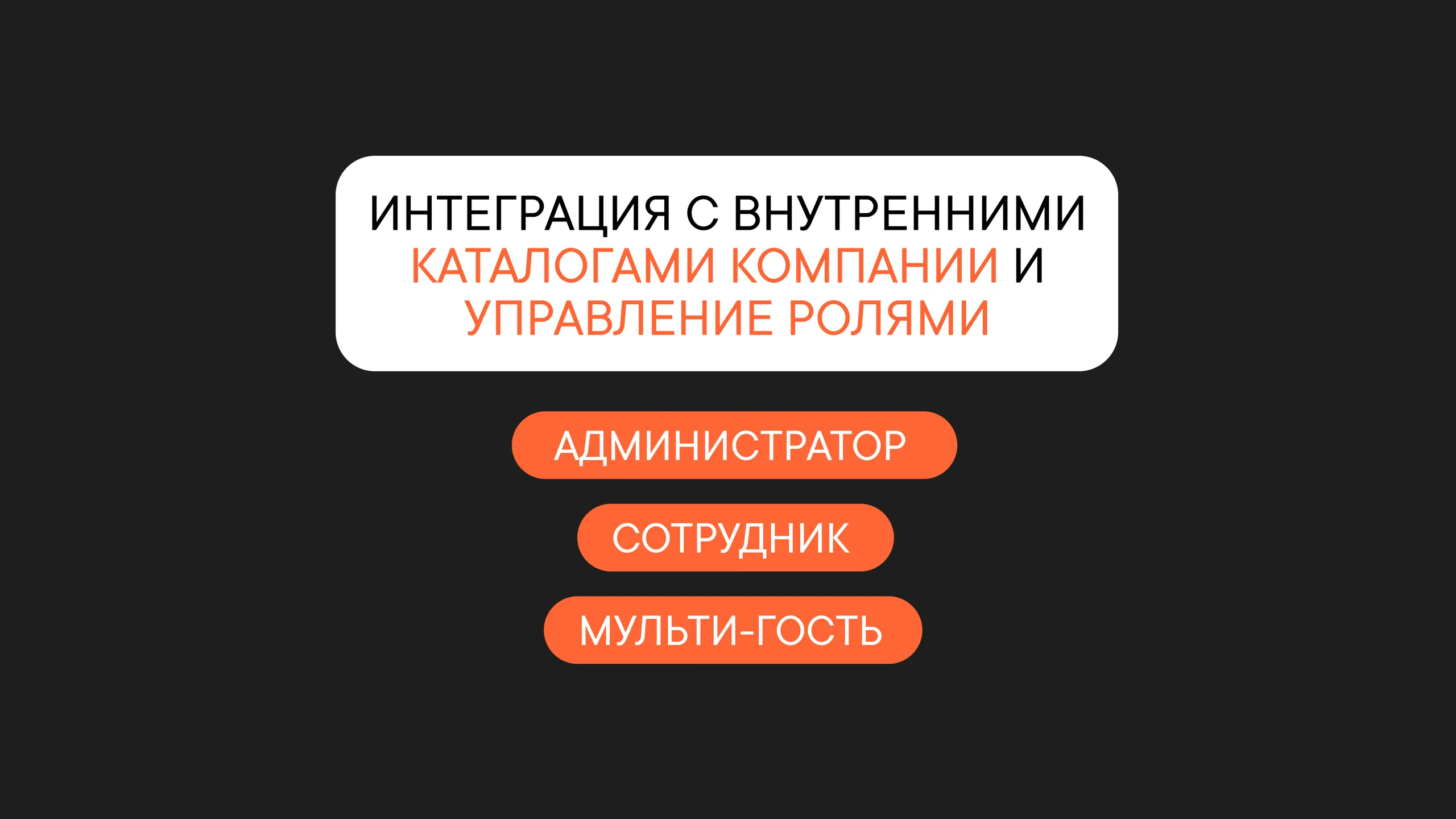
To make managing large groups of employees easier and boost security, you can integrate Pachca with AD. It also lets you create Pachca accounts for every employee in advance, so they can log in with their work email and password.
Pachca has Administrator and Employee roles, plus two types of guest accounts: Guest and Multi-guest. Administrators can add, remove and manage users in the app. Employees get the standard features: they can chat, create chats and set up integrations with third-party services. Guest roles let you bring contractors or partners into your workspace: a guest has access to one chat, and a multi-guest can join any number of chats.
All these features in Pachca let you manage users flexibly and automate most processes. At the same time, employee engagement in conversations and work stays high, thanks to the flat chat structure and plenty of social features.