How to export your data from Slack
How to save your data before you leave Slack

On March 21, 2022, Slack restricted access to its service for companies from Russia. Their work data stayed on Slack's servers for two more months and was then deleted. This guide still applies to anyone leaving Slack: here's what data you can get out of the app and how to do it.
Slack plans offer different data export options. The only difference is which types of chats you can export. Some plans only let you export public channels, while others cover public channels, private channels and direct messages.
On the Free and Pro plans, you can export:
- public channels
- threads
- chat names
- emoji
On the Business+ and Enterprise plans, you can export:
- All chat types (public, private, direct messages)
- Messages
- threads
- chat names
- emoji
Can you get anything else out of Slack?
Yes, but it takes a few extra steps, since a basic Slack export doesn't include files or the emails of users added to the workspace. If you want to export more data, follow our other guide: https://vc.ru/services/616183-kak-ne-poteryat-vsyu-perepisku-v-slack-podrobnaya-instrukciya-chto-mozhno-seychas-sdelat
How to export your conversations:
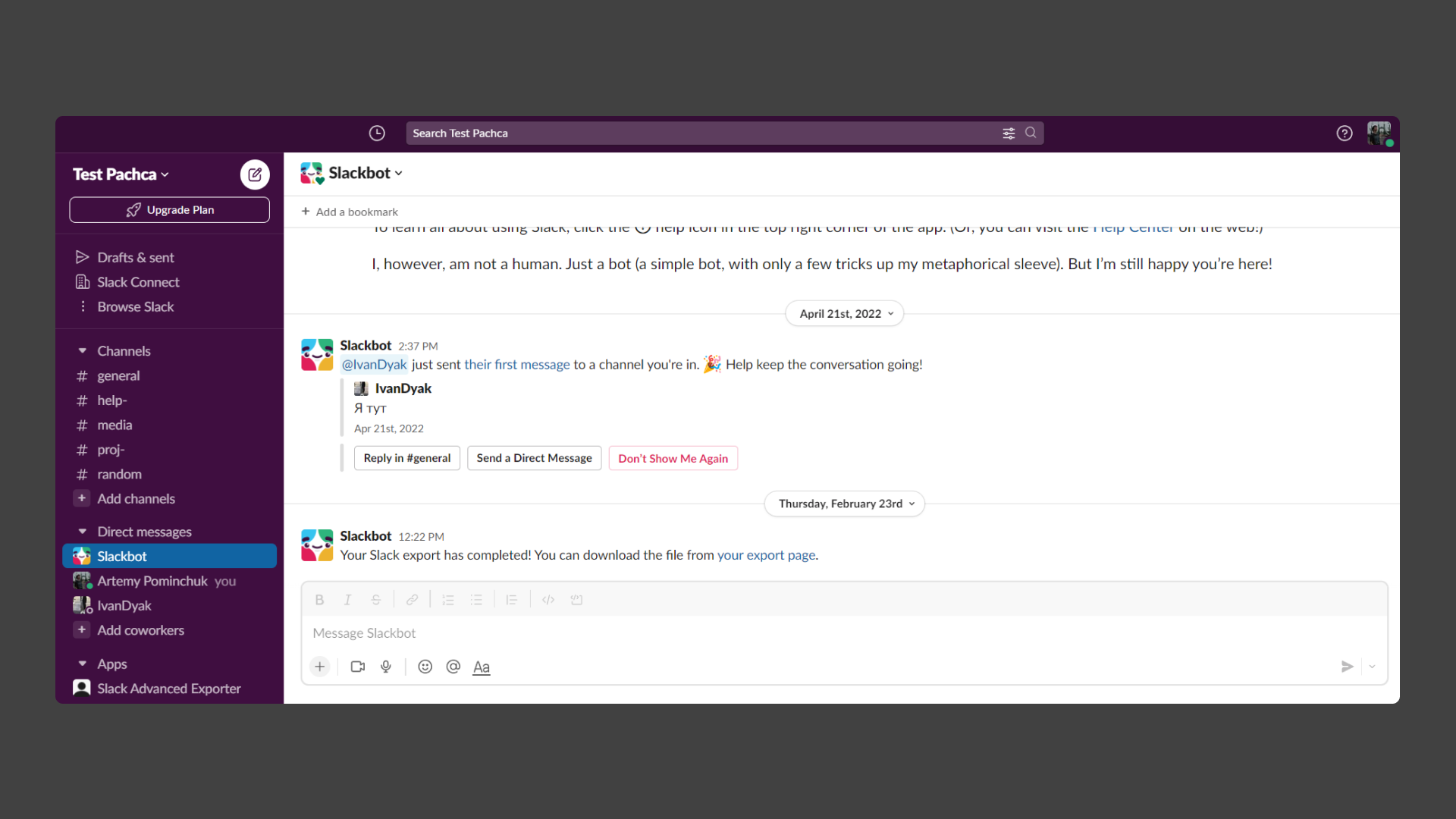
This is the main workspace view in Slack:
Click the company name in the top left corner. In this case, it's Test Pachca. This menu will pop up:
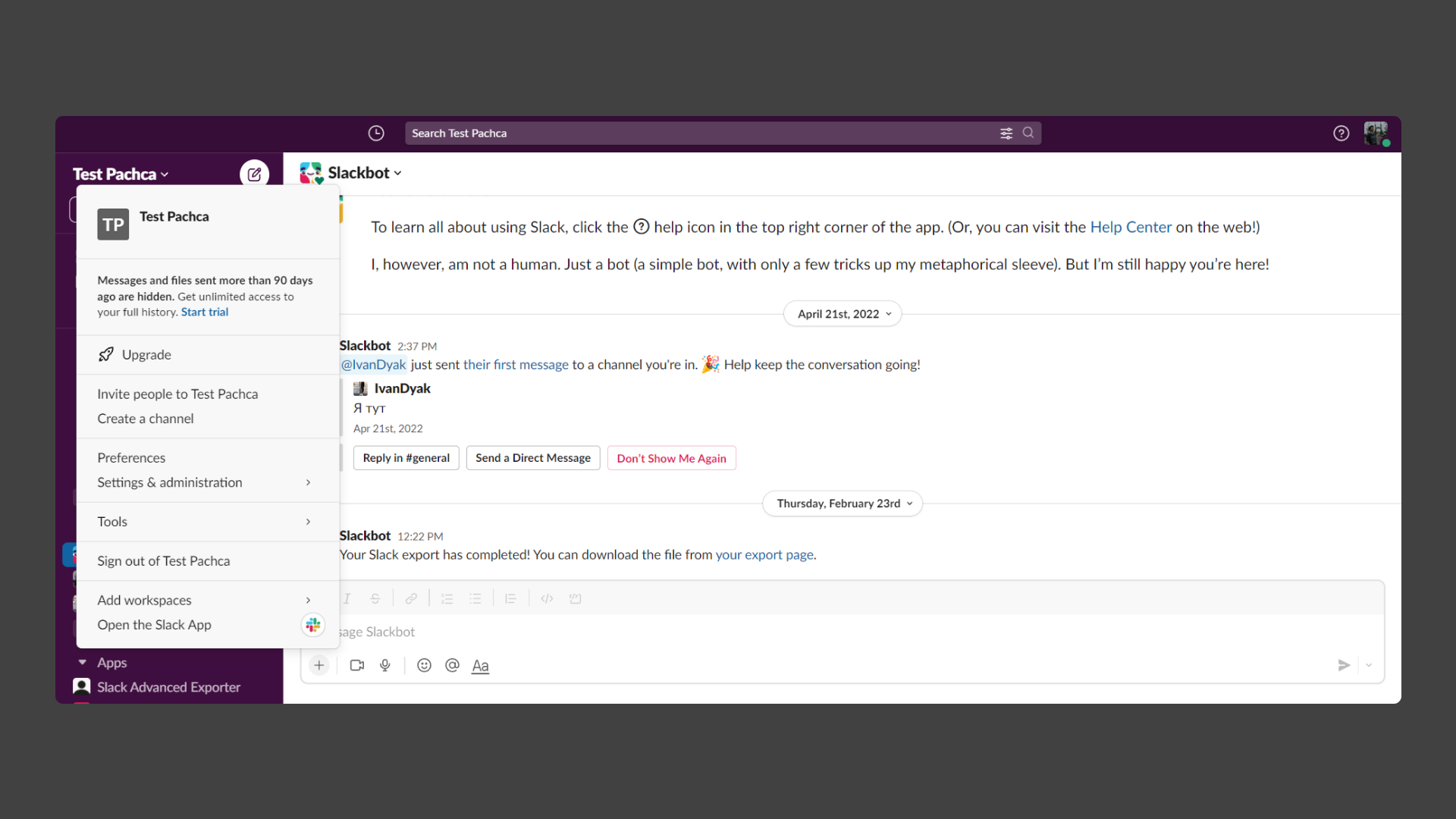
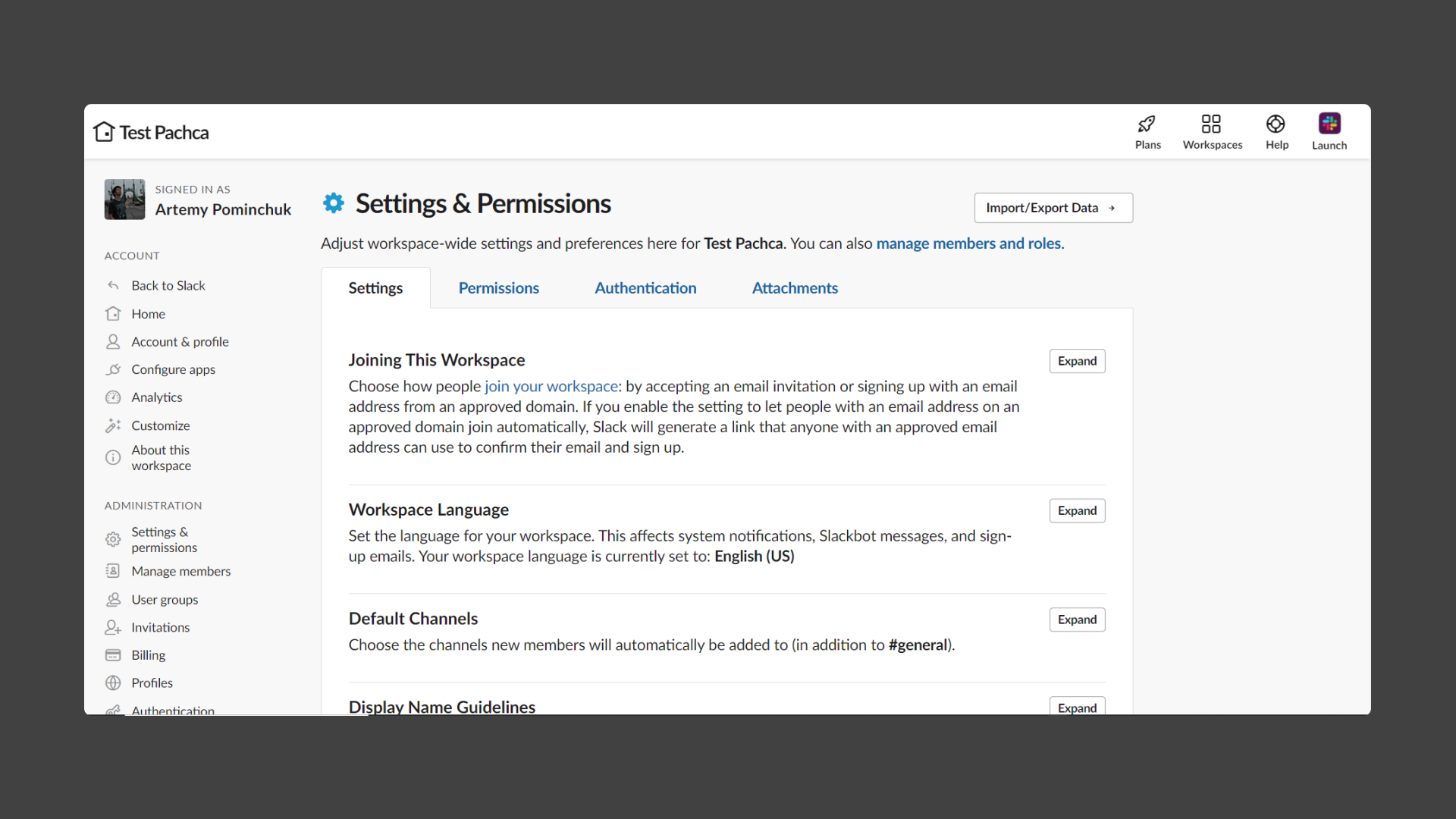
Next, click Settings & administration and go to Settings & Permissions.
You should land on this page. Click the Import/Export Data button in the top right corner.
This takes you to a page where you can set up the export you want:
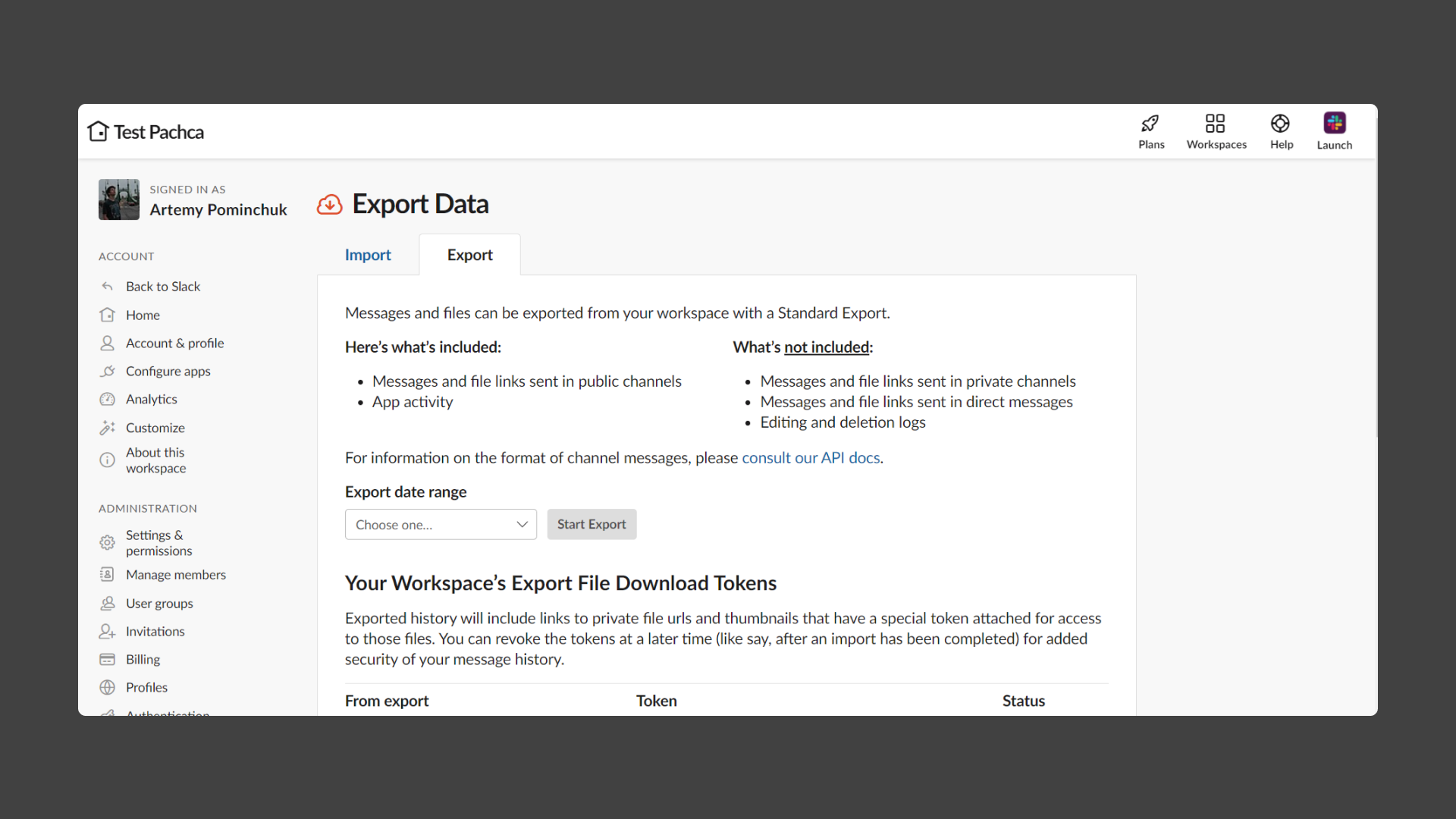
Under Export date range, choose the time period you want to export. Then click Start Export. The export file will appear below. That's it, your basic export is done.
If you want to move your conversations from Slack to another service, read more about moving them to Pachca or to another team chat app. And our 2026 ranking of team chat apps will help you decide where to move.