Import chats from Slack
How to import your chat history from Slack into Pachca: a step-by-step migration guide
Pachca lets you bring over your team's conversation history from your Slack account.
In short, here's how it works: your Slack history is moved into Pachca, and every message keeps its original sender.
The import brings over more than just text messages. It also includes channel names, images, files and even threads. On higher Slack plans, you can also export direct messages and private channels.
What you can export on each Slack plan
The only difference between Slack plans is which types of chats you can export: some plans allow public channels only, others allow both public and private ones.
Note: on Business+ and higher plans, you need Slack's approval to export private channels and direct messages. Without it, Slack's built-in tools only let you export public channels, whatever your plan. You can request an expanded export (private channels and direct messages) from Slack support.
Free and Pro plans:
- Public channels only
- Chat names
- User messages
- Threads
- Files and attachments (with an expanded export, following our guide)
- Member emails (with an expanded export, following our guide)
Business+ plan:
- All chat types (public, private and direct messages)
- Chat names
- User messages
- Threads
- Files and attachments (with an expanded export, following our guide)
- Member emails (with an expanded export, following our guide)
Learn more in Slack's help articles and in your Slack account
Limits and requirements for importing chats from Slack into Pachca
A Slack import consists of 2 archives: one with the text data of your messages and one with member emails and the attachments you shared in Slack chats.
Archive size limits for importing into Pachca:
- The message archive can be up to 5 GB. The limit applies to the unzipped size
- The archive with files and member emails has no size limit
Data that can't be moved to Pachca:
- Bots and bot messages can't be imported at this time
Requirements for an import:
- Any Pachca plan paid for 1 year or more
- The import is done once. You can't upload additional archives later
How to run the import
Note: Importing from Slack into Pachca is done on request and is only available with annual billing. To request an import, contact our support team on Telegram or MAX. The import file must be in the same format that Slack produces when you export chats with its built-in tool.
1. Set up your company workspace in Pachca
We recommend creating a new workspace. You can import into an existing one, but none of its chat or channel names should match the ones you're importing.
2. Run a basic export from Slack
Follow the instructions for your Slack plan to export your data. You can also use our basic export guide.
Important: don't unzip or re-zip the archive. Send it to us exactly as Slack gave it to you.
A basic export doesn't include attachments or emails. That's what step 3 is for.
3. Prepare an expanded export from Slack
An expanded export from Slack works through a bot account. We'll need the bot's OAuth token from you to pull the data required for the import.
3.1 Go to https://api.slack.com/apps
3.2 Click Create New App
3.3 Select From scratch
3.4 Name the bot "Slack exporter" and select your workspace
3.5 Select OAuth & Permissions and scroll down to Scopes
3.6 Under Bot Token Scopes, add [users:read] and [users:read.email]
3.7 Scroll back to the top and click Install to Workspace
3.8 Grant the app the requested permissions
3.9 Copy the bot's OAuth token
4. Send everything to Pachca support and wait for the import to finish
Contact the Pachca team on Telegram or MAX and ask us to set up the import. We'll need the archive and the bot's OAuth token from you.
Imports are processed in the order they're received. We can give you a more accurate timeline once we have your archive. We'll let you know when the import is complete.
5. Invite your team to Pachca
When the import is complete, everyone who was in your Slack workspace will be added to Pachca. If you haven't added them yourself before, you'll need to activate them so they can log in.
To activate members and let them log in to Pachca:
5.1 Go to Members
5.2 Switch to table view using the toggle on the right side of the screen
5.3 Apply the Deactivated filter
5.4 Select the checkboxes next to the members you want to activate
5.5 Click the three-dot icon and select Activate
5.6 That's it. Your team can now log in to Pachca with their email
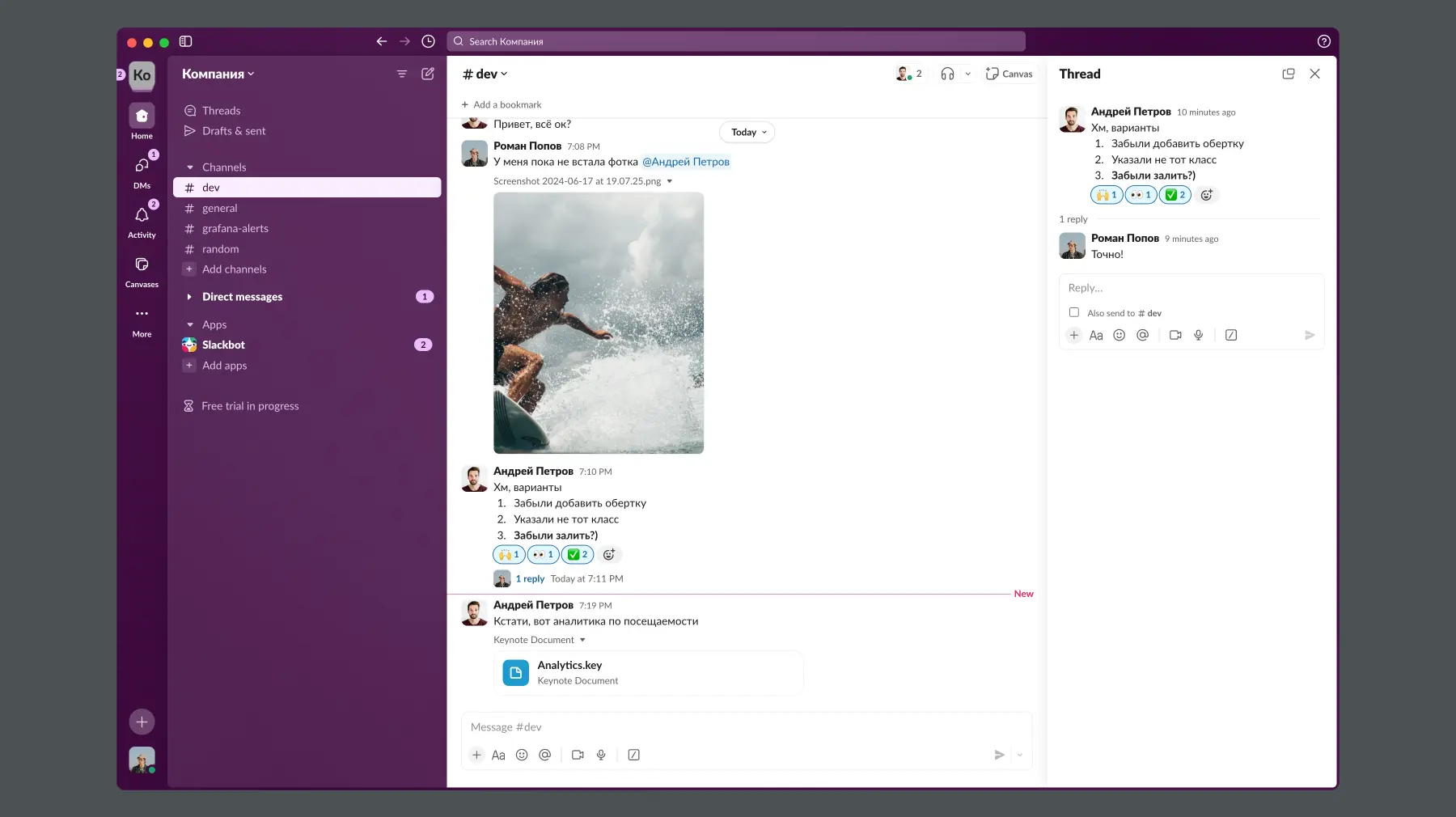
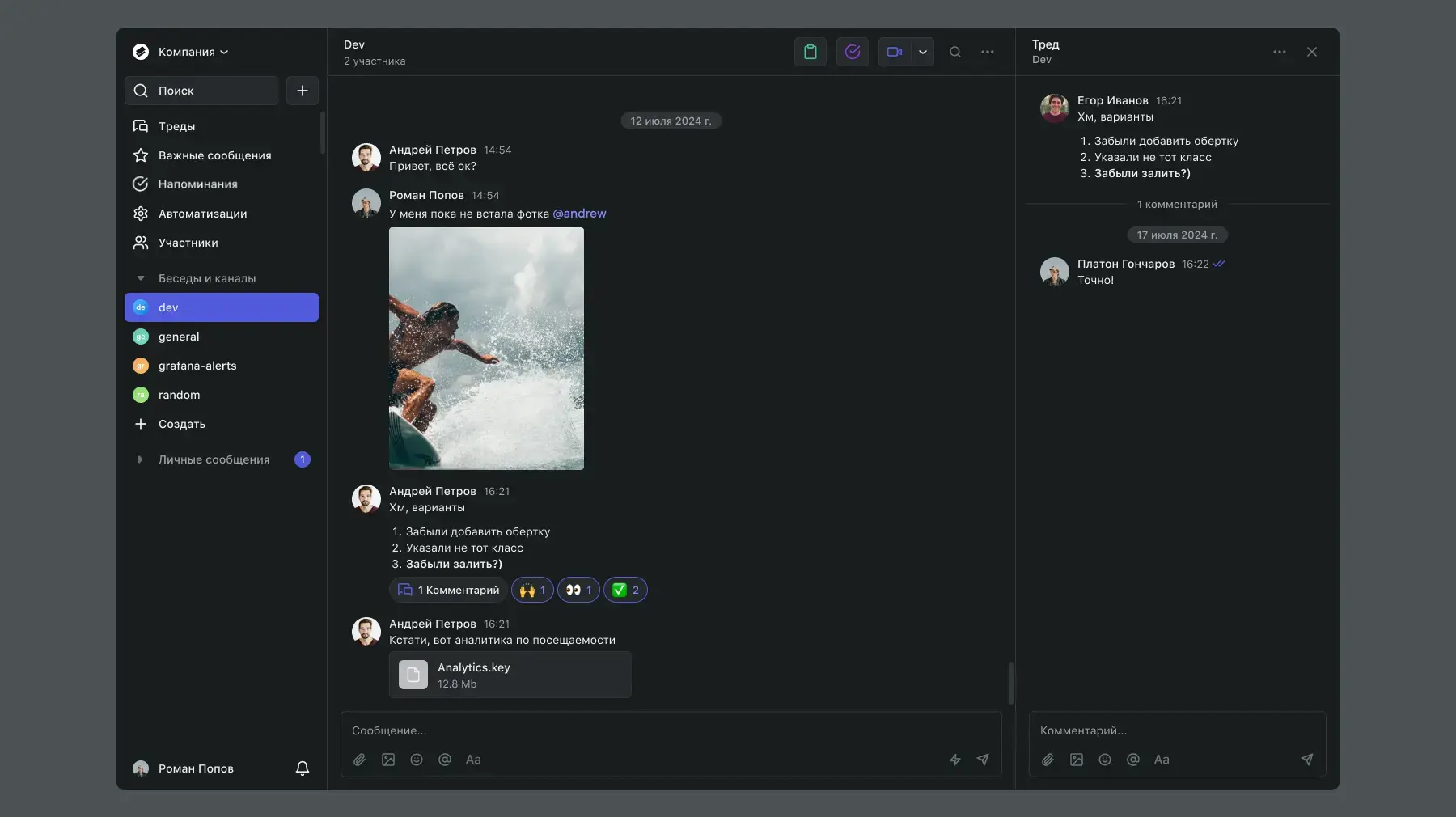
What an imported chat looks like in Pachca
A chat in Slack:
The same chat after the import into Pachca:
FAQ
How long does it take to move chats from Slack?
It depends on how many messages and files you want to move. We can give you an estimate once we have your archive.
Can I import direct messages and private channels?
Yes, as long as Slack lets you export that data.
Can I import group direct messages with three people?
Yes, but they'll show up in Pachca as group chats.
Are Slack bots imported into Pachca?
No, bots and their message history aren't imported into Pachca yet.
Can every company use the import?
Yes, as long as you pay for a year of service.
Do I have to pay extra for the import?
No. Free with annual billing on any plan.
Does imported data count toward my plan's limits?
Yes, imported data counts toward your file and message limits.
Are files and images imported?
Yes, and they count toward the storage limit included in your plan.
If a Slack user isn't in Pachca, what happens to their messages?
Their messages won't be imported.
Can we use Pachca before and during the import?
Yes, as long as you don't use direct messages or chat names that are part of the import. Otherwise, messages in those chats will get mixed up once the import is complete. Alternatively, you can import chats with a prefix, such as CHAT_NAME_imported
What if my message archive is larger than 5 GB unzipped?
Try leaving out chats with logs or notifications from other services, along with any chats you don't need. You don't have to actually delete them: just estimate their size and tell support to exclude them from the import. If the archive is still too large, try exporting a shorter time period or ask support to skip direct messages.