Internal/external file access
How to set up internal and external zones in Pachca to protect your company documents
Pachca lets you split your company workspace into two zones for working with files: a secure internal zone and an external one. This way, confidential documents, images and other files never leave your company's network. They can be accessed only from networks you trust and aren't available from external addresses.
Here's how it works:
-
Files sent from the secure zone (an IP allowlist) can be viewed and downloaded only by users inside that zone.
- Users in the external zone (outside the allowlist) can't view or download these files.
-
Files sent from the external zone can be viewed and downloaded by all workspace members, no matter which zone they connect from.
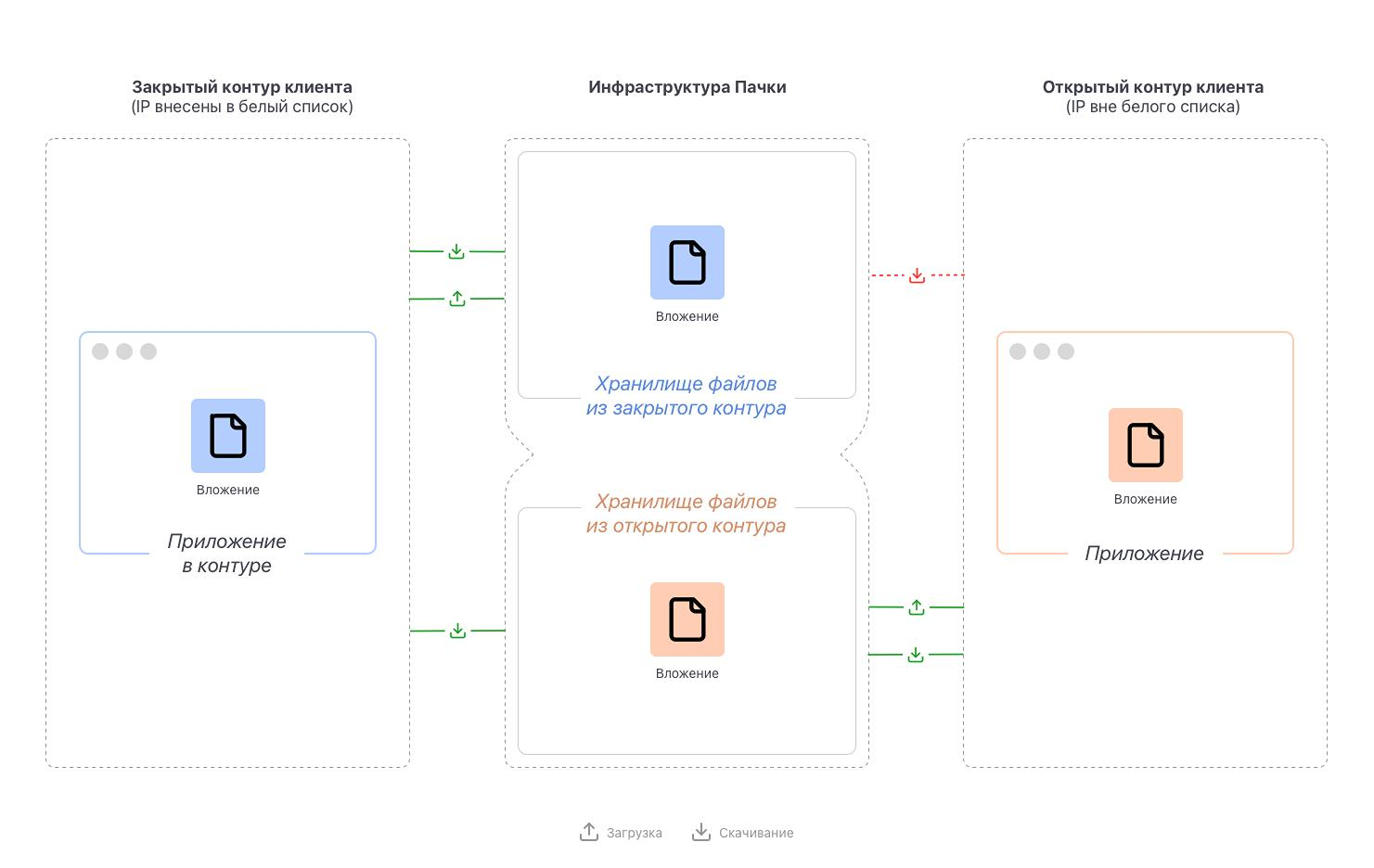 How the two zones handle files
The easiest way to set up the two zones is with a corporate VPN (with a list of subnets in CIDR notation). Your company's users can then go online through one or two public IP addresses. Add these addresses to the IP allowlist in Pachca, and Pachca uses them to determine which zone a user is in when working with files.
To add IP addresses to the allowlist:
- You need the workspace Owner role on the Corporation plan
- Go to Workspace settings. To open it, click the workspace name in the top-left corner.
- Go to the IP allowlist tab and enter the address you want to allow.
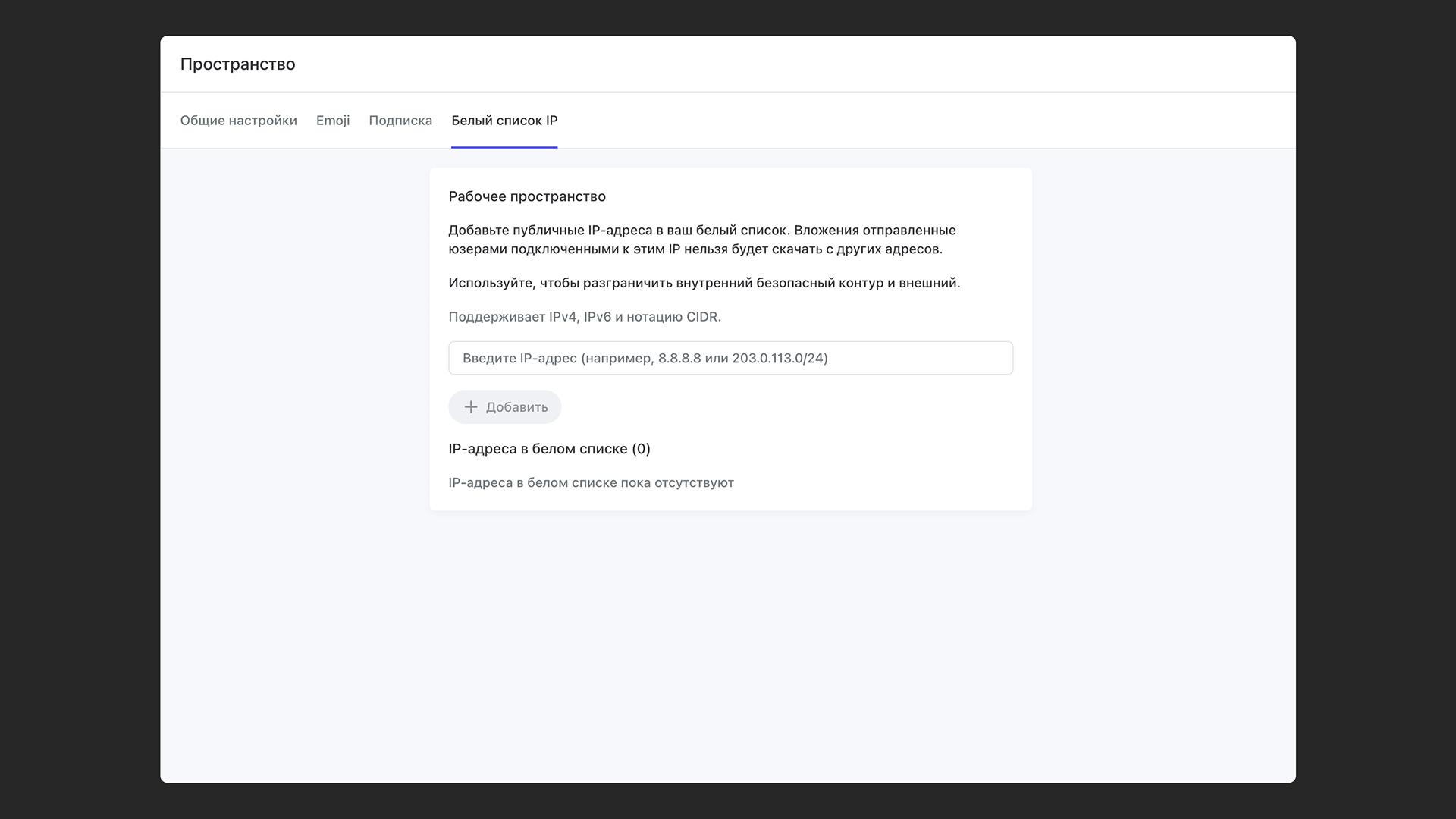
In practice, the two zones work like this:
-
Employees connect to the corporate VPN on their devices and go online through an IP address from the secure zone.
-
When an employee uploads a file while on the corporate VPN, it's marked as an attachment for the secure zone. Users whose IP addresses aren't on the allowlist can't view or download it.
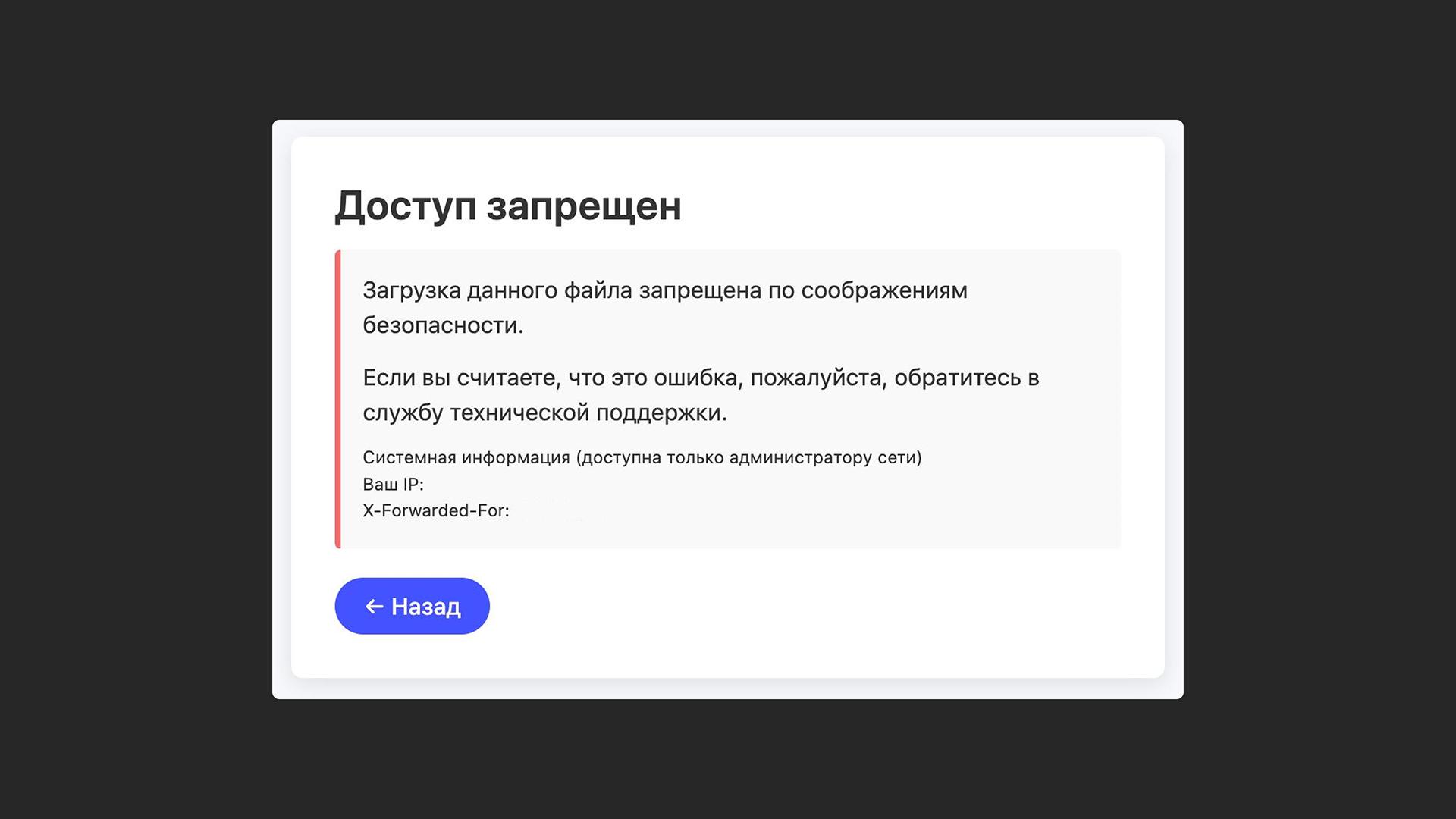
- Users whose IP addresses are outside the allowlist can't preview or download files sent inside the secure zone. These files are marked with a lock, and a download attempt shows a placeholder saying the file isn't available.
-
If users in the external zone (on a home network or in a coffee shop) send files in Pachca, these attachments can be viewed and downloaded by all workspace members, whatever their IP address.
If you have questions about separate file access or ideas for improving this article, contact our support in Telegram or MAX. We'll do our best to help and update the article :)