Яндекс.Метрика
Two-factor authentication (2FA)

Two-factor authentication (2FA)

How to turn on two-factor authentication in Pachca for extra account security

Two-factor authentication adds an extra layer of security to your account with temporary one-time codes.

You can turn on two-factor authentication only if you signed up for Pachca with your email. Each user turns it on for themselves. The workspace owner can't make it mandatory, but they can see which teammates use it to log in. 2FA applies to your whole account, so you can't have it on in one workspace and off in another.

Apps for generating 2FA codes

To generate temporary codes, install an authenticator app on your device. You can pick one from the list below.

Android: Google Authenticator, Microsoft Authenticator, Yandex Key, FreeOTP or Twilio Authy.

iOS: Google Authenticator, Microsoft Authenticator, Yandex Key, FreeOTP, Step Two or Twilio Authy.

Windows: WinAuth.

macOS: Step Two.

Linux: Keysmith.

Turn on two-factor authentication

Go to your profile and click Set up code generation in the Two-factor authentication (2FA) section.

Download an authenticator app and add your Pachca account to it. You can scan the QR code or enter the setup key manually. The app shows a generated code right away. Click Continue in Pachca and enter the code.

That's it: two-factor authentication is set up.

Backup codes

Backup codes come in handy if you need to log in to Pachca but don't have access to your authenticator app.

To get them, go to the same Two-factor authentication (2FA) section and click Get backup codes. Enter a generated or temporary code again, and you'll see a new list of backup codes.
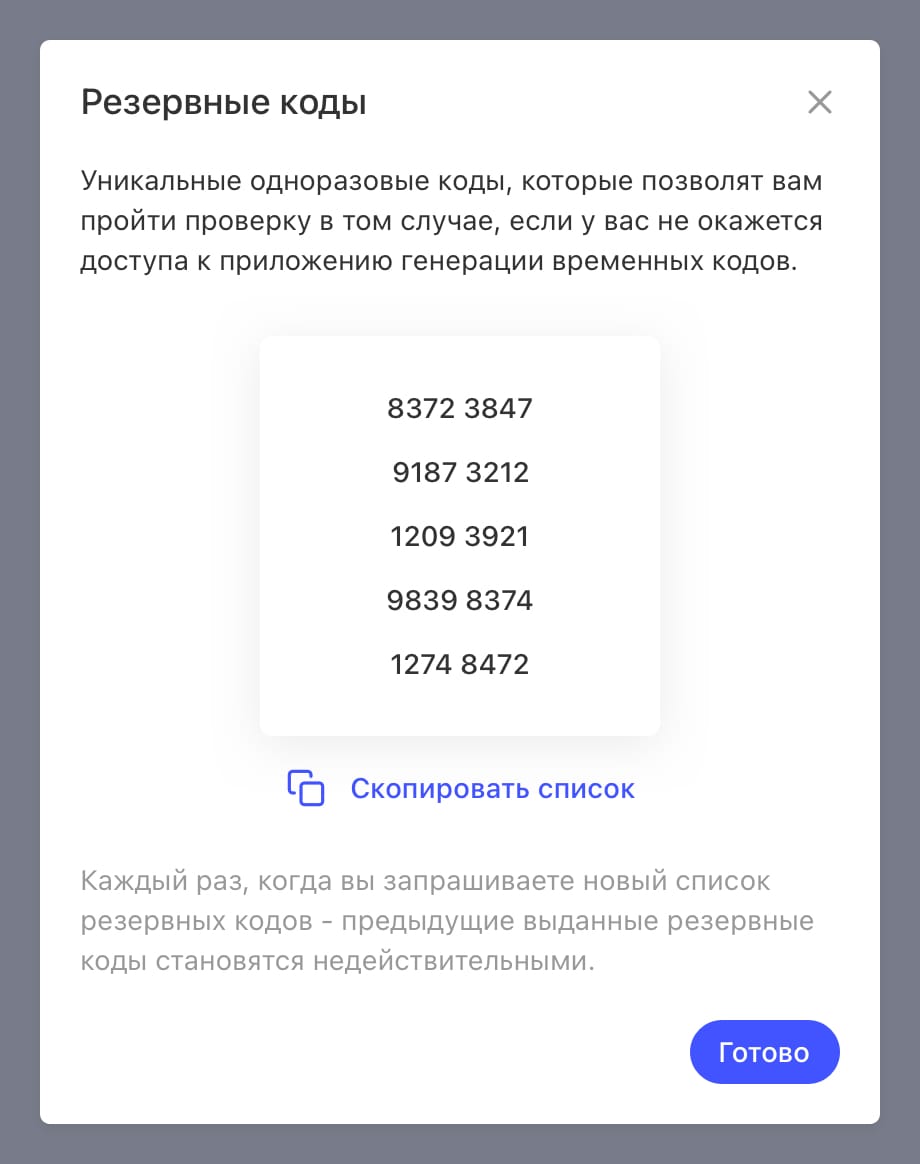
List of backup codes

Each backup code is unique and works only once. If you run out of backup codes, you can request a new list.

Every time you request a new list, all previously issued backup codes stop working.

Log in with two-factor authentication

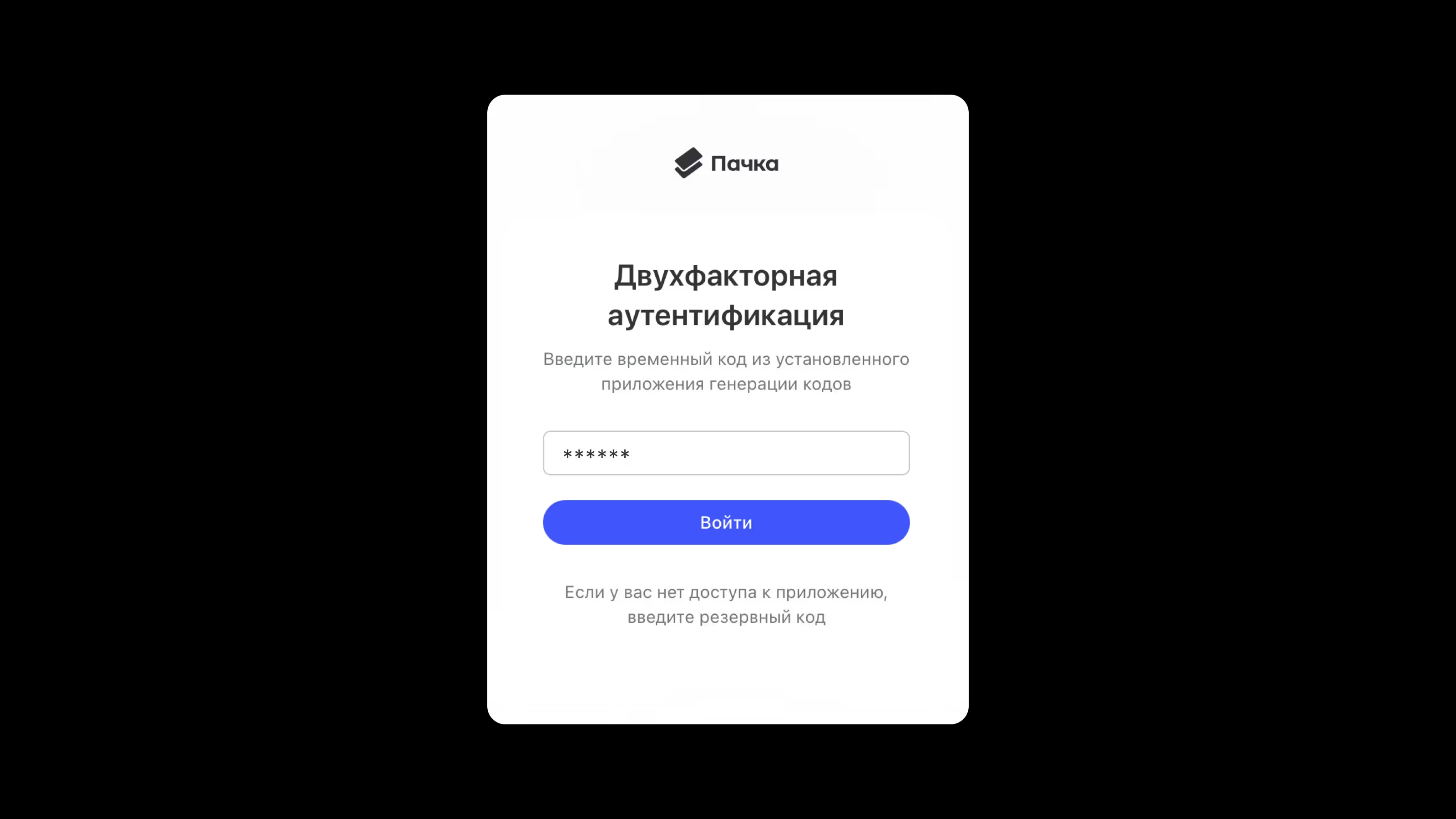
After you enter and confirm your email, you'll see a screen asking for a code. Open your authenticator app and enter the code it shows in Pachca (or enter a backup code).

Turn off two-factor authentication

To turn off two-factor authentication, click Turn off verification in the Two-factor authentication (2FA) section. Then enter a generated or backup code and confirm.

Updated: November 21, 2024

More in Administration

Accounts in Pachca
How Pachca is structured: the difference between an account, a user and a member profile
Inviting your team
How to invite your team to Pachca, the team chat app: two ways to add employees
Change your email in Pachca
How to change your email address in Pachca: a guide for employees and administrators
Errors when adding people by email
Common errors when adding users to Pachca by email and how to fix them
Managing members in Pachca
Managing members in Pachca: how to add, edit and remove people from your team
Group tags
Add employees to all the chats they need at once with group tags
Advanced administration via API
How to automate user administration in Pachca with the API: creating users, managing them and tags
Ports and addresses Pachca needs
Ports and addresses Pachca needs to work properly: setting up your corporate firewall
Storage in Pachca
Everything about file storage in Pachca: limits, managing storage space and working with documents
Setting up DLP in Pachca
Add an extra layer of protection for personal data, tokens and passwords
Internal/external file access
How to set up internal and external zones in Pachca to protect your company documents
Import chats from Slack
How to import your chat history from Slack into Pachca: a step-by-step migration guide
Import chats from Mattermost
Pachca lets you move your chat history and files from Mattermost into your workspace.
Import chats from Telegram
If your team is moving to Pachca from Telegram, you can bring your chat history over to your team chat app.
Exporting messages from Pachca
How to export messages from Pachca: data format, settings and export limitations
SSO options in Pachca
Single sign-on (SSO) in Pachca: SAML, LDAP and Keycloak connection options and step-by-step guides
SSO in Pachca with LDAP
SSO in Pachca with Multifactor.ru
SSO in Pachca with Blitz Identity Provider
SSO in Pachca with Authentik
SSO in Pachca with Keycloak
SSO in Pachca with Azure OpenID
SSO in Pachca with ADFS OpenID
This guide explains how to configure ADFS on Windows Server 2016 or later to connect it to Pachca.
SSO in Pachca with Google Workspace SAML
SSO in Pachca with Indeed IdP over SAML
SSO in Pachca with Yandex 360
SSO in Pachca with Yandex Identity Hub
BYOK: Bring Your Own Key in Pachca
How encryption with your own key (BYOK) works in the Pachca team chat app
Advanced encryption in Pachca
How to set up advanced encryption in Pachca for extra protection of your company data
Set up BYOK with HashiCorp Vault
Set up BYOK with Yandex KMS
Set up BYOK with Cloud.ru KMS