Import chats from Mattermost
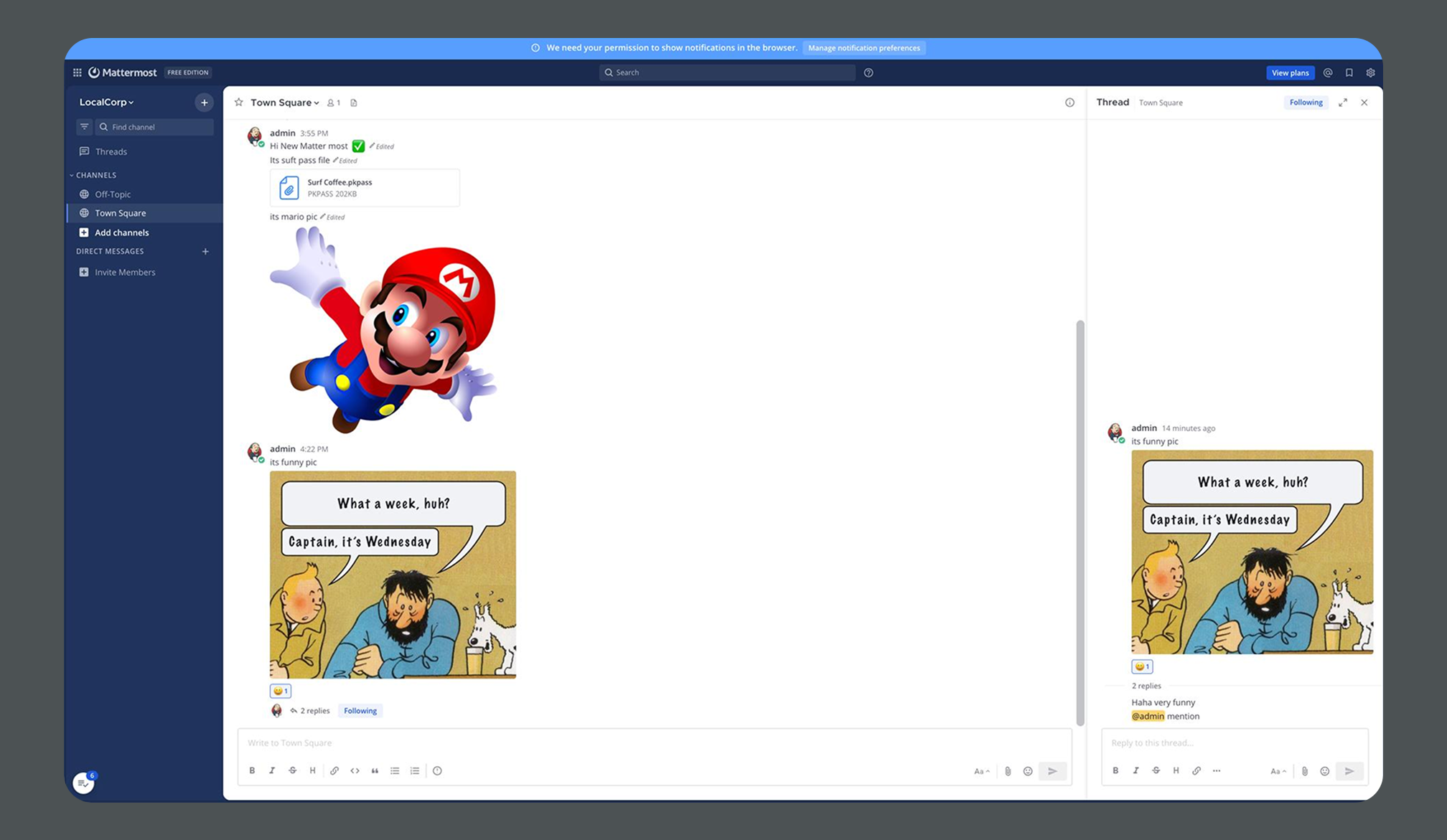
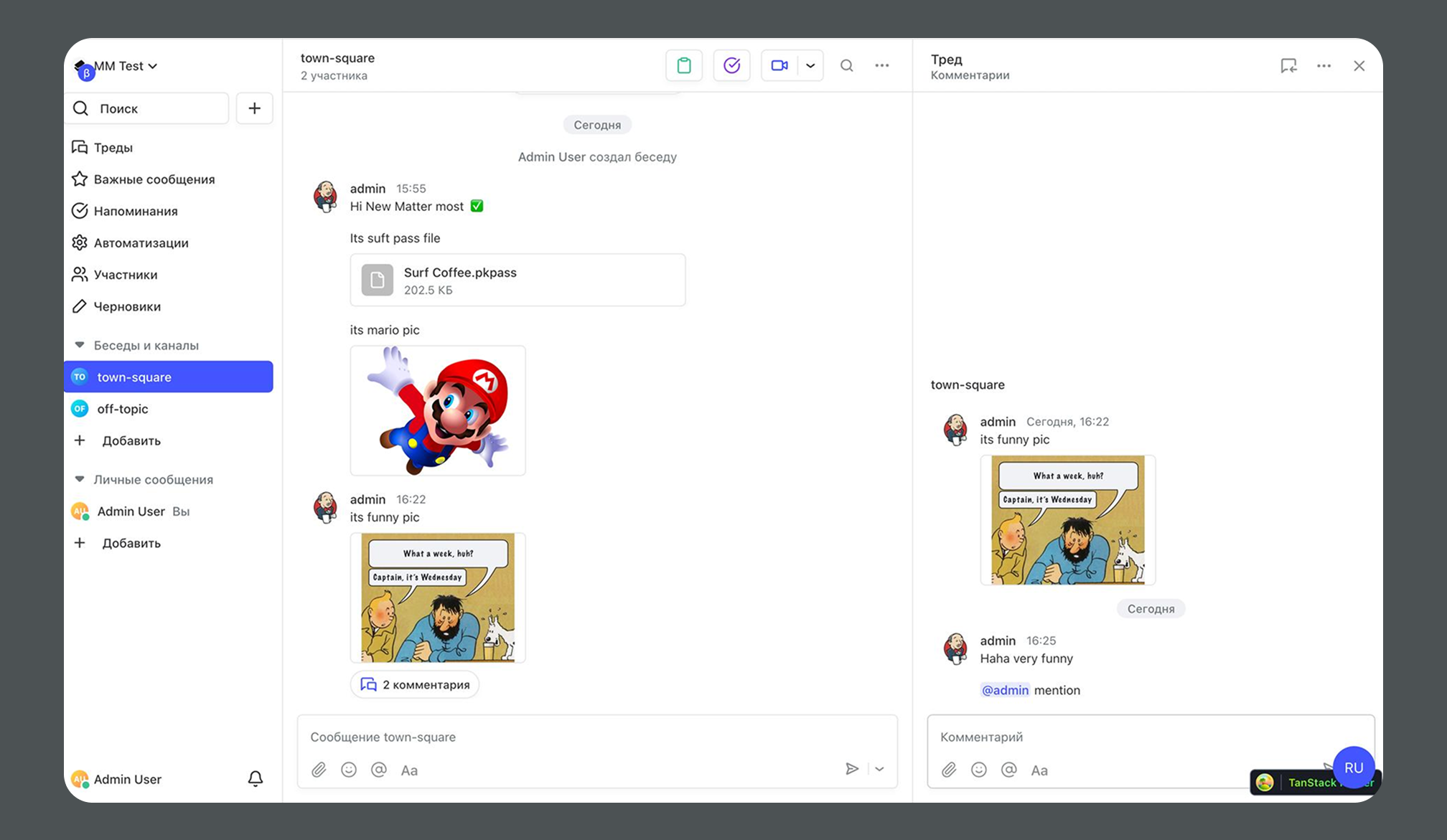
Pachca lets you move your chat history and files from Mattermost into your workspace.
Pachca lets you move your chat history and files from Mattermost into your workspace.
What you can import
- Chats (public and private channels)
- Message history
- Threads
- Files and attachments
Import requirements
Plan requirements
To import your data, you need any Pachca plan paid for 1 year or more.
Technical limits
- The import is done once. You can't upload additional archives after the import is complete.
- Bots aren't imported. Bot messages aren't moved either.
- The message archive can be up to 5 GB (unzipped).
Before you start
- We recommend creating a new workspace in Pachca for the import to avoid conflicts with existing chats.
- While the import is in progress, we recommend not using:
- Direct messages with users who are included in the import.
- Chats with the same names as the ones you're importing.
- To match imported messages to the right people in Pachca, each user must have the same email in Mattermost and Pachca.
How to run the import
Step 1. Set up your Pachca account
- Create a new workspace in Pachca, or make sure none of the chat names in your current one match the ones you're importing
- Pay for any Pachca plan for 1 year or longer
Step 2. Export your data from Mattermost
- Create a data archive of your Mattermost workspace. Run these commands:
mmctl export create --include-attachments
mmctl export list
mmctl export download <JOB_ID>
- Check the archive size (up to 5 GB of unzipped message data)
Step 3. Send the archive to Pachca support
Step 4. Wait for the import to finish
- While the import is in progress, don't create chats or direct messages with users from the archive
- We'll let you know when the import is complete
Step 5. Activate members
- Activate user accounts in Members
FAQ
How long does it take to move chats from Mattermost?
It depends on how many messages and files you want to move. We can give you an estimate once we have your archive.
Can every company use the import?
Yes, as long as you pay for a year of service.
Do I have to pay extra for the import?
No. Free with annual billing on any plan.
Are files and images imported?
Yes, files and images from Mattermost are moved to Pachca. Keep in mind that the message archive can be up to 5 GB unzipped.
Can we use Pachca before the import starts?
Yes, but to avoid conflicts, don't create chats or direct messages with the same names and users that are included in the import.
What if my archive is larger than 5 GB?
Try leaving out chats with logs or notifications from other services, along with any chats you don't need. You don't have to actually delete them: just estimate their size and tell support to exclude them from the import. If the archive is still too large, try exporting a shorter time period or ask support to skip direct messages.
Are threads imported?
Yes, threads from Mattermost are moved to Pachca with their structure intact.
If a Mattermost user isn't in Pachca, what happens to their messages?
Their messages stay in the chats but appear under an inactive or deleted user.
Can I run the import again or upload more archives later?
No, the import is done once. You can't upload additional archives after it's complete.
Are bots and their messages imported?
No, bots and bot messages aren't moved to Pachca.
Does imported data count toward my plan's limits?
Yes, all imported messages, files and storage usage count toward the limits of your current plan.
Do I need to create a new workspace in Pachca for the import?
We recommend creating a new workspace to avoid conflicts with existing chats and users. You can also use your current workspace if nothing overlaps.
What if something goes wrong after the import?
Contact Pachca support on Telegram, by email at team@pachca.com or on MAX. The team will help you sort out any issue.
Need help?
If you have questions about the import, contact Pachca support.