Workspaces in Pachca
How they work, how to create them and how to switch between them
In Pachca, a company can have several workspaces, and you can switch between them. Here's how it all works.
How workspaces work
Workspaces are linked to an account by email. One account can have access to up to 10 workspaces. When you log in to your account, you get access to every workspace you're a member of.
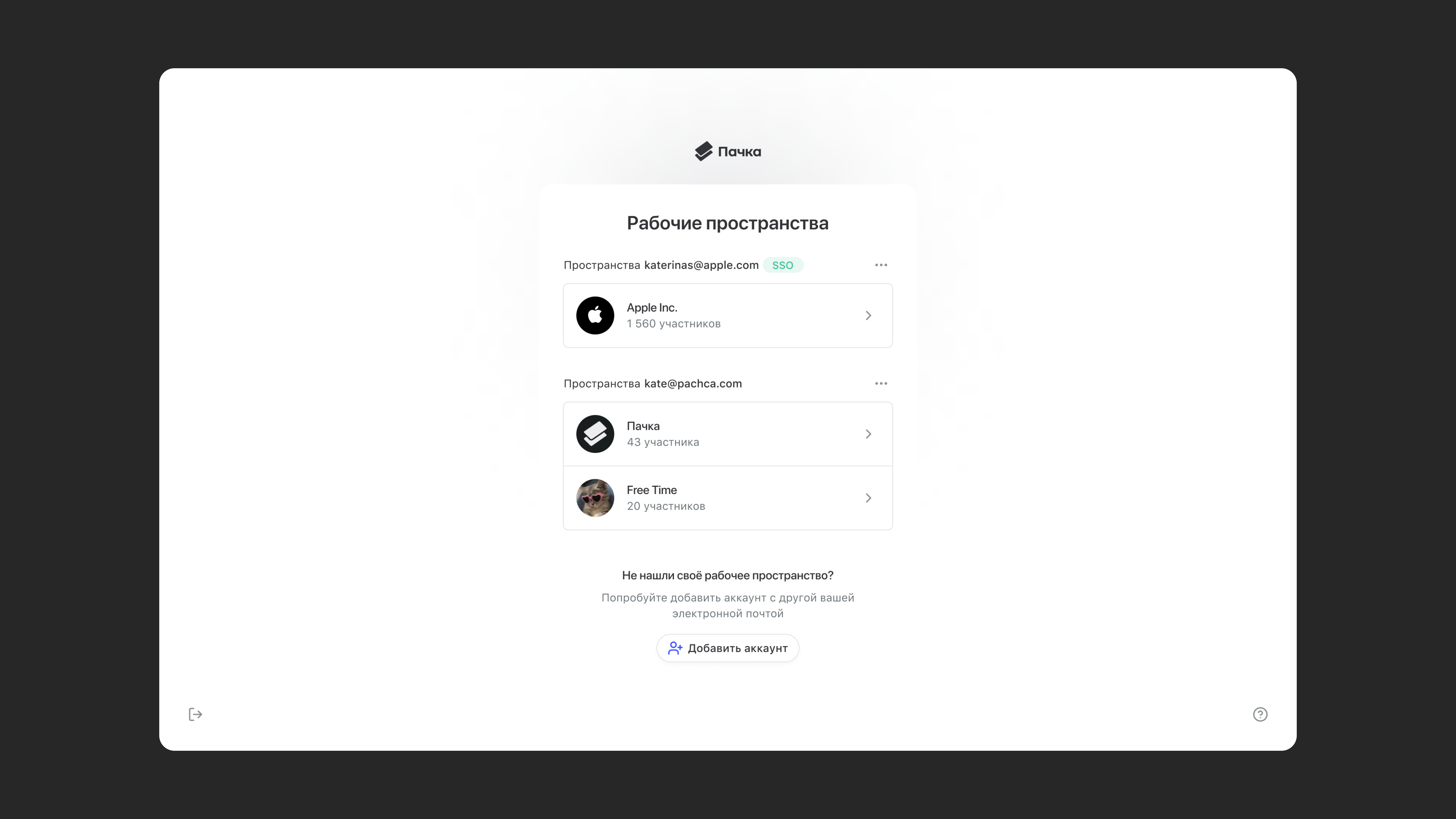
Your available workspaces appear in the lobby. The lobby is the screen that shows the accounts you're logged in to (and the workspaces linked to them). In the lobby, you can add another account, choose or create a workspace and log out of one or all accounts.
You get to the lobby:
- after logging in, if your account is linked to several workspaces or you're logging in to another account.
- after logging out of your account from the workspace sidebar or from the Account section of your profile.
If your account is linked to only one workspace, it opens right after you log in, skipping the lobby.
💡 Keep in mind that you can't chat with people from different workspaces in one workspace, even if both workspaces are available to you and your teammates.
How to create a workspace
If you haven't signed up for Pachca before, you'll go straight to the workspace creation screen after logging in.
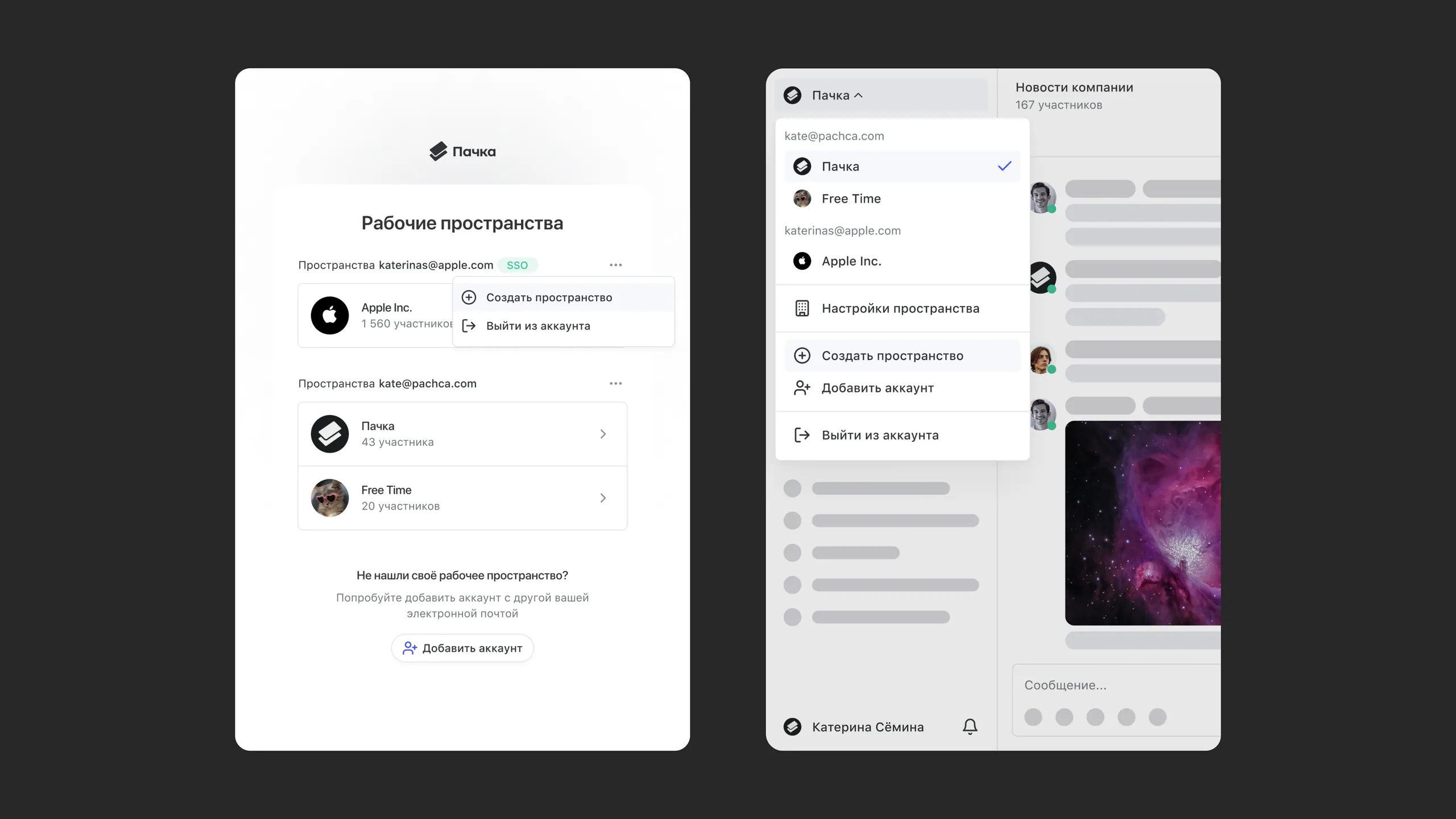
There are a few ways to add a new workspace:
- In the sidebar, click the workspace name → Create workspace. Once created, it's linked to the account you're logged in to.
- In the lobby, click the three dots next to your email → Create workspace. Once created, it's linked to your account.
You can add a new account the same way:
- In the sidebar, select Add account and log in. You'll return to the lobby, where you can choose the account and workspace you need.
- In the lobby, click Add account at the very bottom of the page. The rest works the same as above.
How to switch between workspaces
The lobby and the switcher menu show the workspaces linked to all the accounts you're logged in to.
To switch between them, click the workspace name in the top-left corner and choose the workspace you need. To go from a workspace to the lobby, click Add account in the same menu, then click Back to lobby at the bottom of the page.
The mobile apps work the same way: tap the workspace name at the top of the chats screen and go to the workspace you need.
If the workspace you need isn't in the list, it's probably linked to another account. In the switcher menu, click Add account, enter your login details and open the workspace. You can be logged in to up to 10 accounts at once. If the account has no workspaces, you can create a new one.
How to delete a workspace
If you created a new workspace by accident and don't plan to use it, follow these instructions to delete it.