Chat roles
What roles there are and how they differ
Chats and channels in Pachca have different roles. They let you manage chats flexibly and are separate from workspace access levels (Administrator, Employee, Multi-guest). Here's how they work.
What roles are there in chats
Pachca has two types of group chats: chats and channels. Their roles differ slightly.
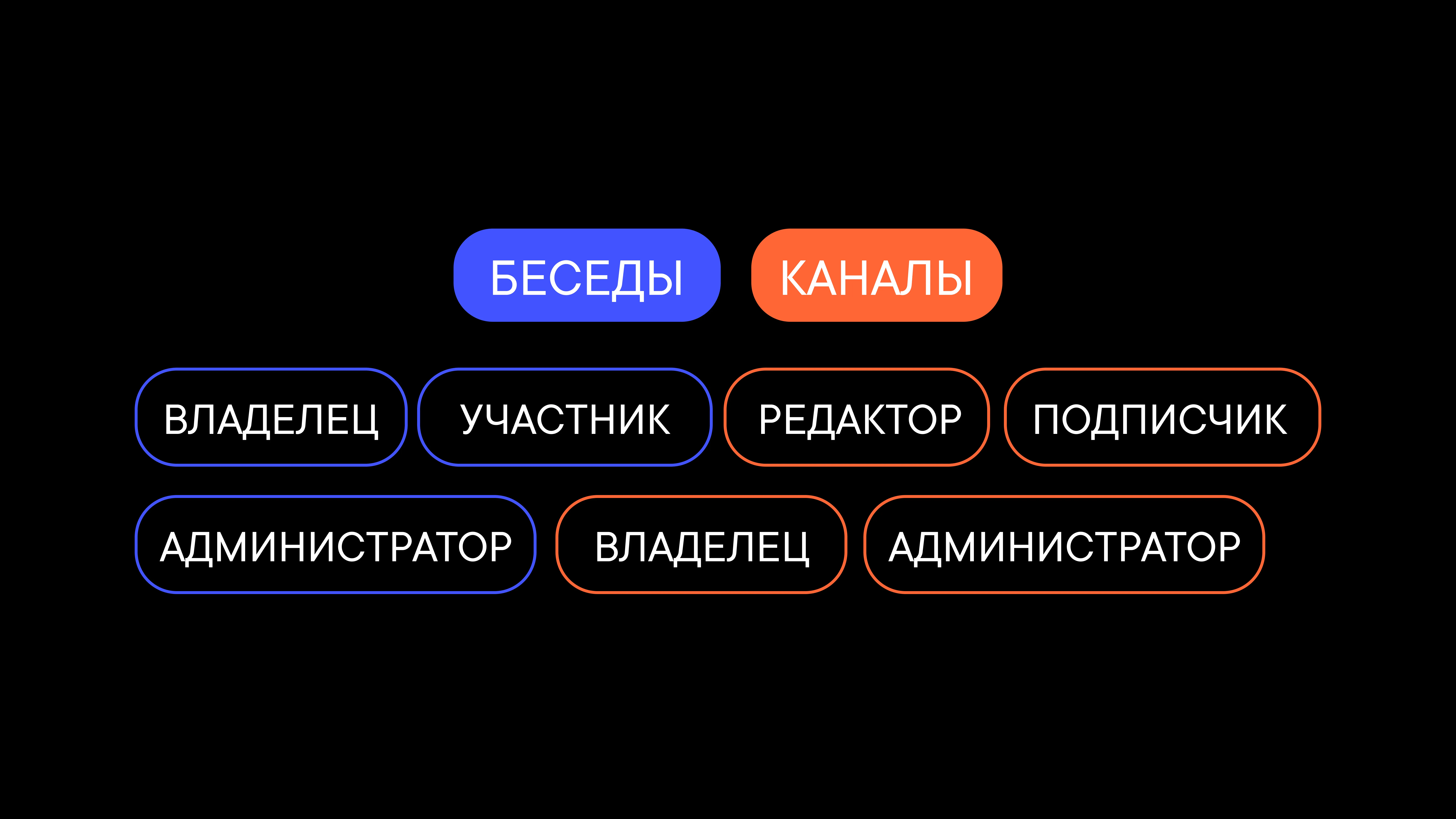
Chats have three roles:
Creator. The user who created the chat. They can change other users' roles in the chat, delete their messages and change chat settings (make it public or private and more). The creator can also archive the chat. The creator role can't be transferred to other members.
The chat creator and the workspace owner are different roles. The workspace owner has to be a member of the chat to change other people's roles.
Admin. A chat can have several admins at once. Admins have the same permissions as the chat creator.
There's one difference: an admin can lose their role and become a regular chat member.
Member. Can post and delete their own messages in the chat. They can also add other users to the chat, depending on their workspace access level. Users with the Employee access level can add others. Users with the Multi-guest or Guest access level can't.
Channels have four roles:
The Creator and Admin roles have the same permissions as in chats.
Editor. Can post and delete their own messages in the chat. They can also add other users to the chat, depending on their workspace access level. Users with the Employee access level can add others. Users with the Multi-guest access level can't. A chat can have several editors at once.
Subscriber. Can add members, read the channel, react to messages and join threads under posts.
Admins assigned automatically in chats
If a user's workspace access level is Administrator or Owner, they automatically get the admin role when added to a new chat. You can change their chat admin role to another one at any time.
If a chat has no admin or creator
This can happen if these members leave the chat themselves or are deactivated in the workspace. Then none of the remaining members has permission to assign a new admin or manage the chat.
Here's how to fix it:
- If a chat has one admin who wants to leave, they need to make another member the new admin first.
- If a chat no longer has any admins or its creator, add a workspace member with the Owner or Administrator role to the chat. They automatically get admin permissions in the chat.
- You can also add such a member, ask them to make someone from the chat the new admin and then remove the Administrator you added.