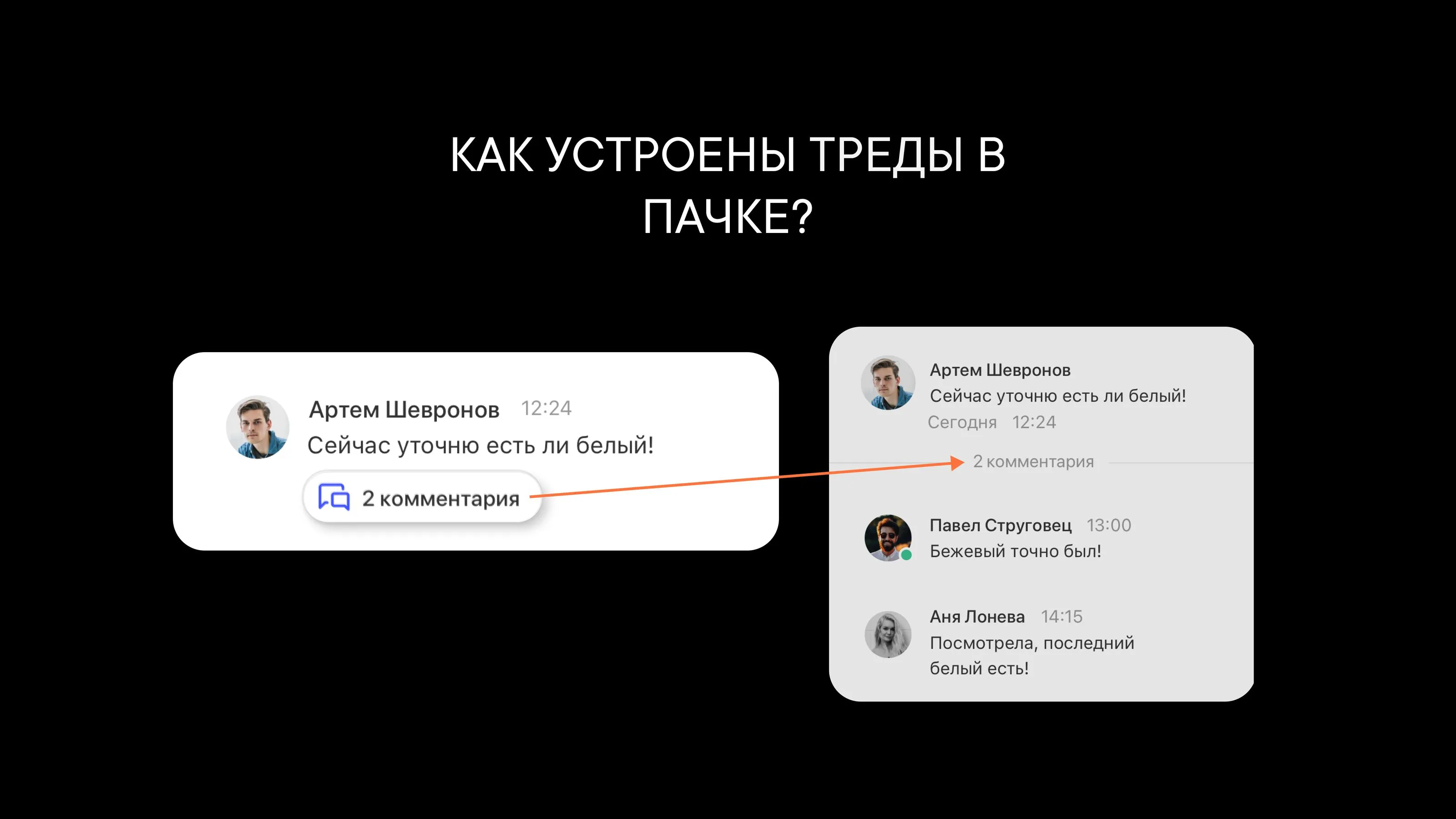
How threads work and why you need them
How threads work in Pachca: a detailed look at discussion threads in the team chat app
Threads in Pachca may work a little differently than in other team chat apps. In this article, we'll look at how threads work in Pachca and how to use them.
What are threads, and how are they different from comments?
A thread is a discussion under a single message, and it's made up of comments. You probably know how this works from social media: someone comments on a post, and then others start replying to that comment. That's a thread.
Threads are popular and available in many team chat apps: Slack, Microsoft Teams, Mattermost, Pachca and others.
Why discuss things in threads?
The biggest advantage of threads is that you can discuss any topic from a chat without cluttering the chat itself. You've probably been in a chat where someone brings up a new question, and suddenly it's unclear what was being discussed before. Threads prevent that: the chat keeps only the main topics, and the discussion happens in the comments.
Threads also help you avoid distracting busy teammates. Thread notifications go only to thread members, people who reacted to the message and people who were mentioned.
How threads change the way your company communicates
Threads help you keep chat discussions focused:
- It's easier to bring in people from other departments
- There are fewer unnecessary push notifications
- Chats stay clutter-free
- Messages become more thoughtful
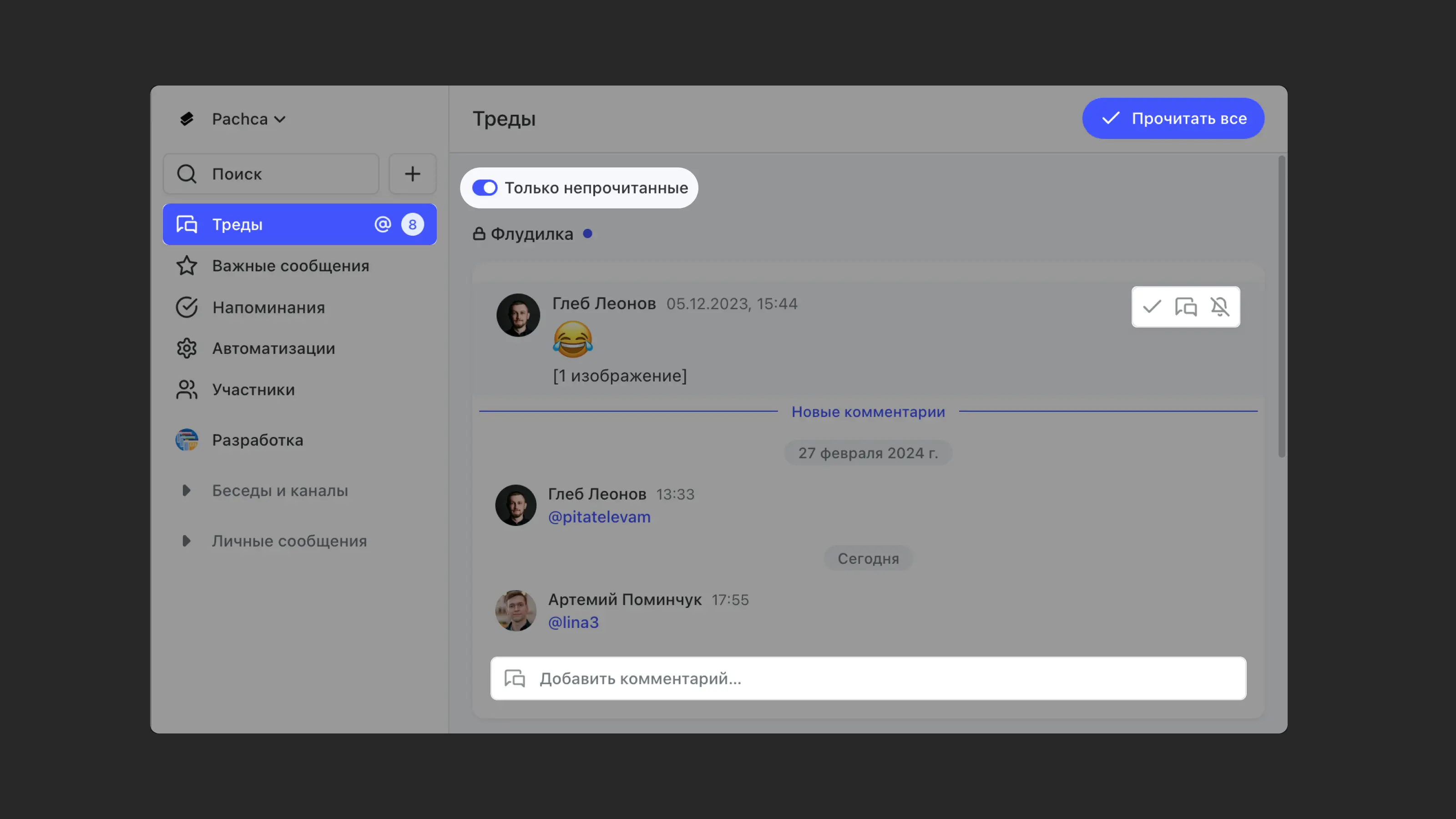
How the Threads section works in Pachca
The section is sorted by the date of the latest comment in each thread, so threads with the newest comments are at the top. Older threads also stay in the section, sorted by the date of their latest comment.
To quickly filter unread threads, turn on the Unread only toggle.
To read a thread in the Threads section, open it by clicking any message in it. You can also use the Add comment button at the bottom, or in the top-right corner when you hover over the thread.
To read all threads at once, click Mark all as read in the top-right corner of the Threads section.
To quickly mark one thread as read, click the ✓ button (it appears in the top-right corner when you hover over an unread thread).
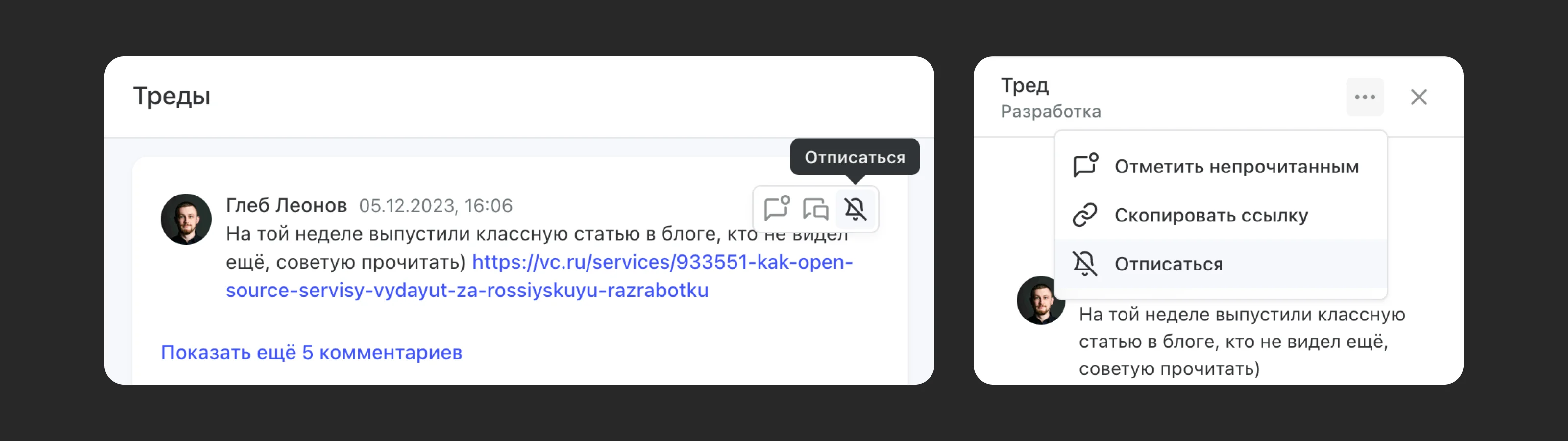
To mark a thread as unread, hover over the top-right corner of the thread and click the first button in the row.
How to start a thread and see new comments
You can create a thread to discuss a specific message or on its own, without linking it to a chat.
Create a standalone thread
Click + and select New thread. Add your teammates and start a discussion, or start a conversation with an AI agent that you can set up separately. To create a thread quickly, use the Ctrl + O keyboard shortcut.
Start a thread from a message
You can start a thread in any type of chat, even in direct messages. Here's how:
- Right-click a message → Discuss in thread
- Hover over the top-right corner of a message → Discuss in thread

If a thread has already started, you can join it:
- Click Comments under the message and add your own
- You can leave unfinished comments in threads and come back to them from Drafts
If there's a new message in a thread or someone mentions you, you'll get a notification. To open the thread:
- Click the notification on the web, desktop or mobile app
- Or go to the Threads section and click any message in the thread to read the new messages
A mention subscribes you to a thread only if the person who mentioned you turned on the Add @mentioned people to thread option
How to follow a thread
Sometimes a thread is interesting and you want to keep up with it, even if you don't have anything to add. In that case, you can:
- React to the message that started the thread. You'll get notifications about new comments in the thread, even if you haven't written anything there. Reacting subscribes you to the thread.
- Open the thread → three-dot icon at the top → Follow
You're also subscribed automatically when you:
- Wrote the message that started the thread
- Commented in the thread
You can also follow a thread in advance, before it's created:
- In the desktop version, right-click the message whose thread you want to follow and click Follow thread
How to unfollow a thread
You can do it in one of four ways:
- In the Threads section, hover over the thread and click the crossed-out bell icon in the top-right corner
- In the chat, click the message with the thread and click Unfollow thread
- Inside the thread → three-dot icon at the top → Unfollow
- Remove your reaction from the parent message in the chat
How to see everyone who has access to a thread
At the top of every thread, there's a small button that shows how many people are currently following it. Click it to see the full list of these members.
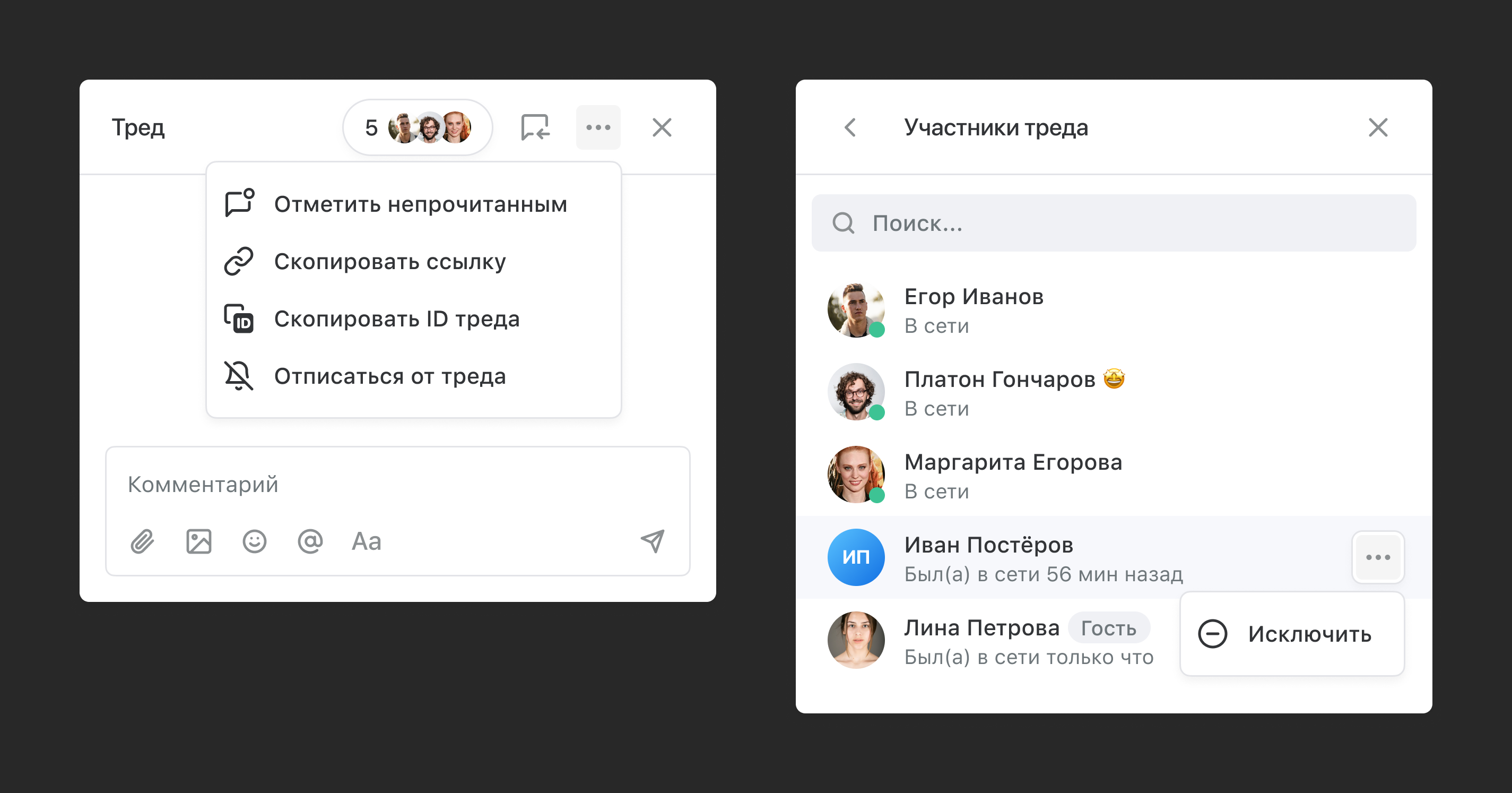
Cross-chat threads
A cross-chat thread is a thread you've invited someone to who isn't a member of the chat where the thread's parent message was posted. For example:
- You're chatting with a teammate in DMs and invite another teammate to a thread under one of the messages. They get access to the thread and its parent message, but not to the rest of your direct messages.
- Also, if you mention someone in any thread, the mentioned person is subscribed to the thread too.
All subscribed users get notifications in the Threads section in the sidebar and in the chat with the thread's message, if they're a member of that chat (new messages show up as a blue dot on the button that opens threads).
Thread activity notifications don't appear next to the chat where the thread started in the sidebar.
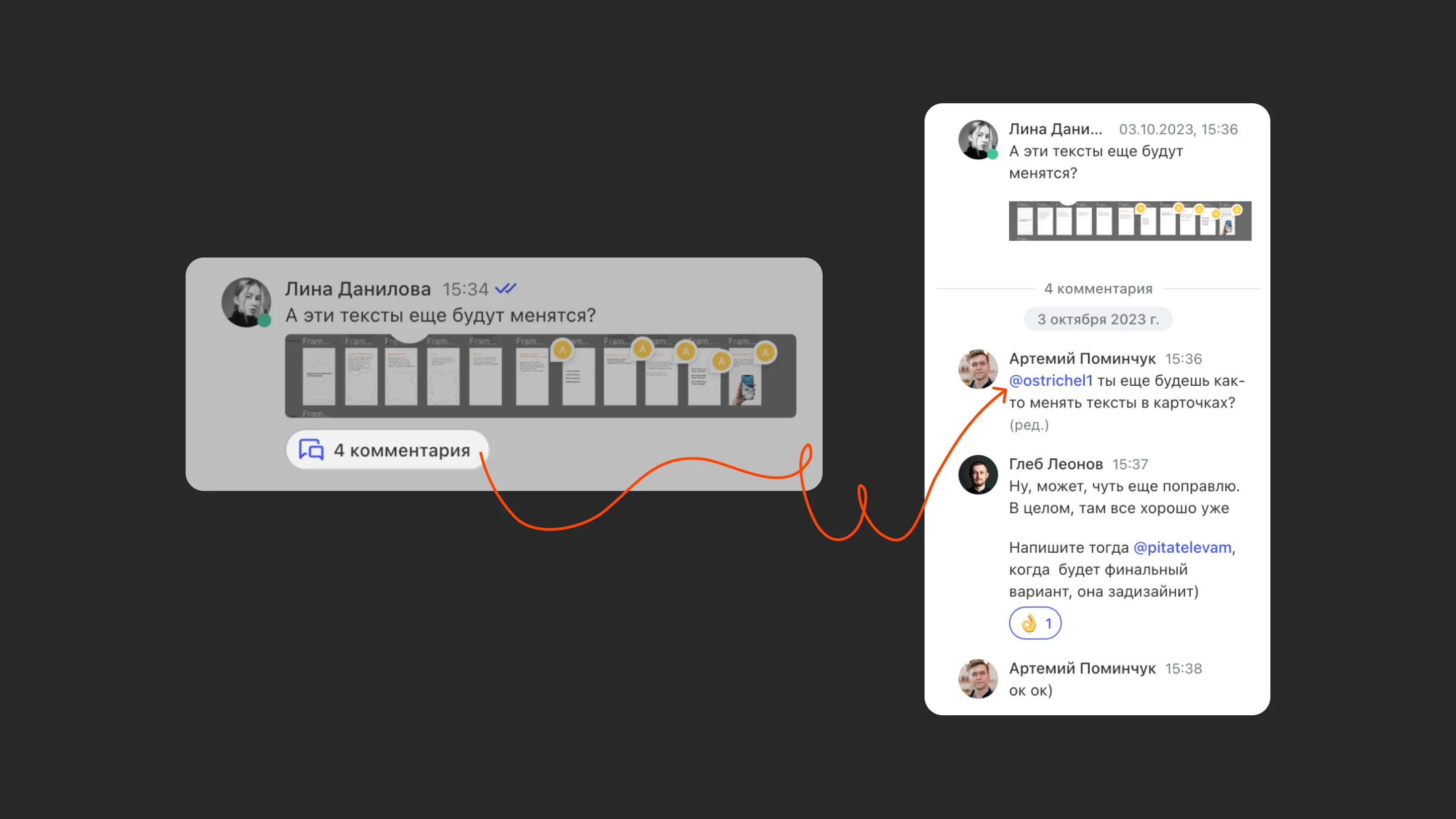
Who can mention others in threads
Users with the Administrator and Employee roles can mention anyone in the company in threads. Even if the person they want to mention isn't in the chat where the thread started, that person gets access to this thread only.
Users with the Multi-guest and Guest roles can mention in a thread only people they share chats with.
Limitations for guests
- Guests can mention only users they share chats with. If a guest mentions someone they don't share any chats with, neither the thread invite nor the mention works.
- Guests can be mentioned in a thread they don't have access to by anyone with the Employee, Administrator or Owner role, or by another guest who shares a chat with them. The guest gets access to that thread only, not to the chat where it started.
- Guests have access to threads in the chats they're members of and to threads they've been invited to. They don't get access to the chats where those threads started.
When you get thread notifications
You get notifications on every device where you have Pachca installed if:
- Someone mentioned you in the thread
- You wrote the message that started the thread
- You followed the thread yourself or reacted to its parent message