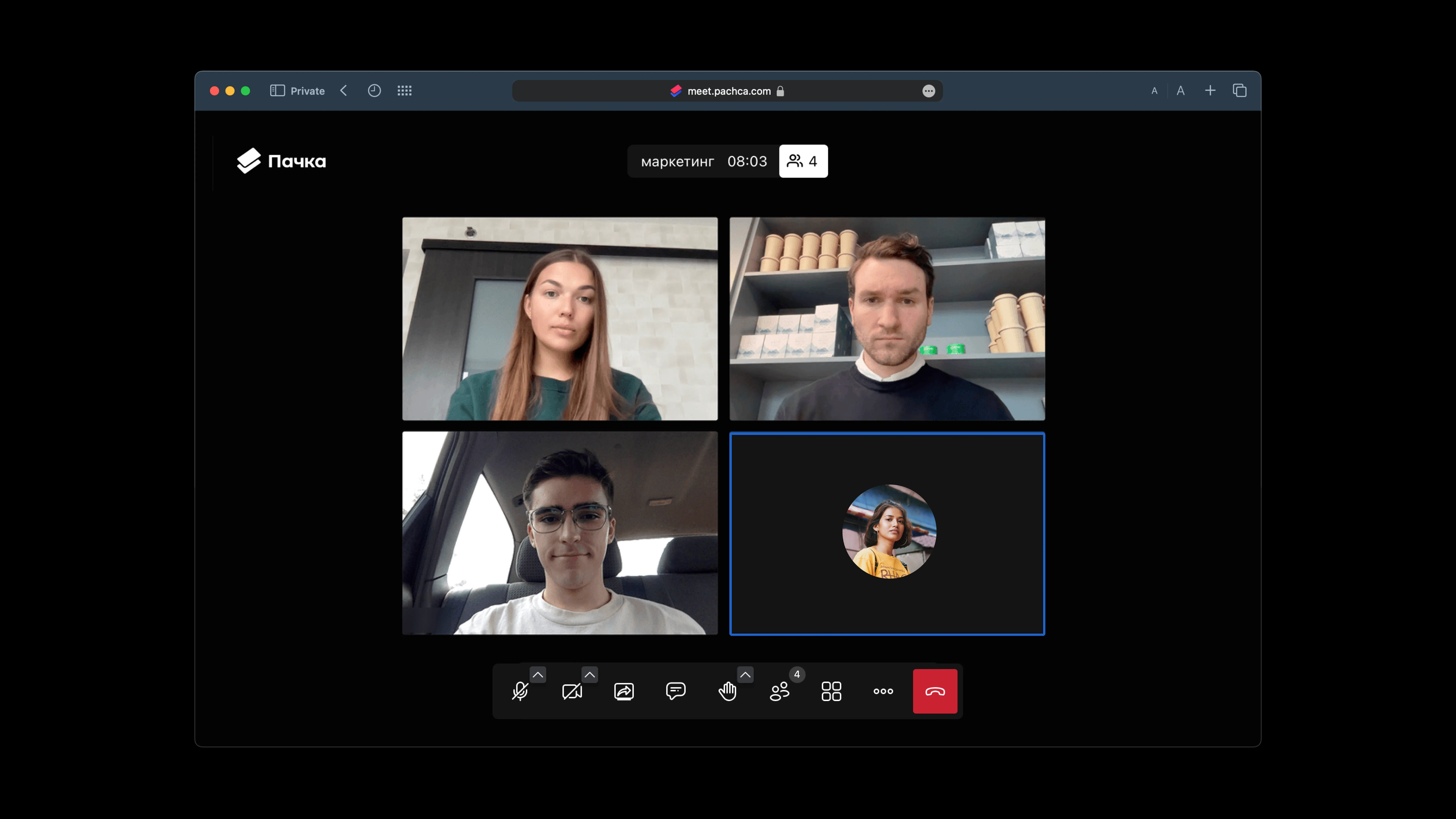
Legacy calls in Pachca
Video calls in Pachca: how to call your team, share your screen and record meetings
You can hold calls in Pachca in a direct or group chat, or create a standalone call.
How to start or join a call in a chat
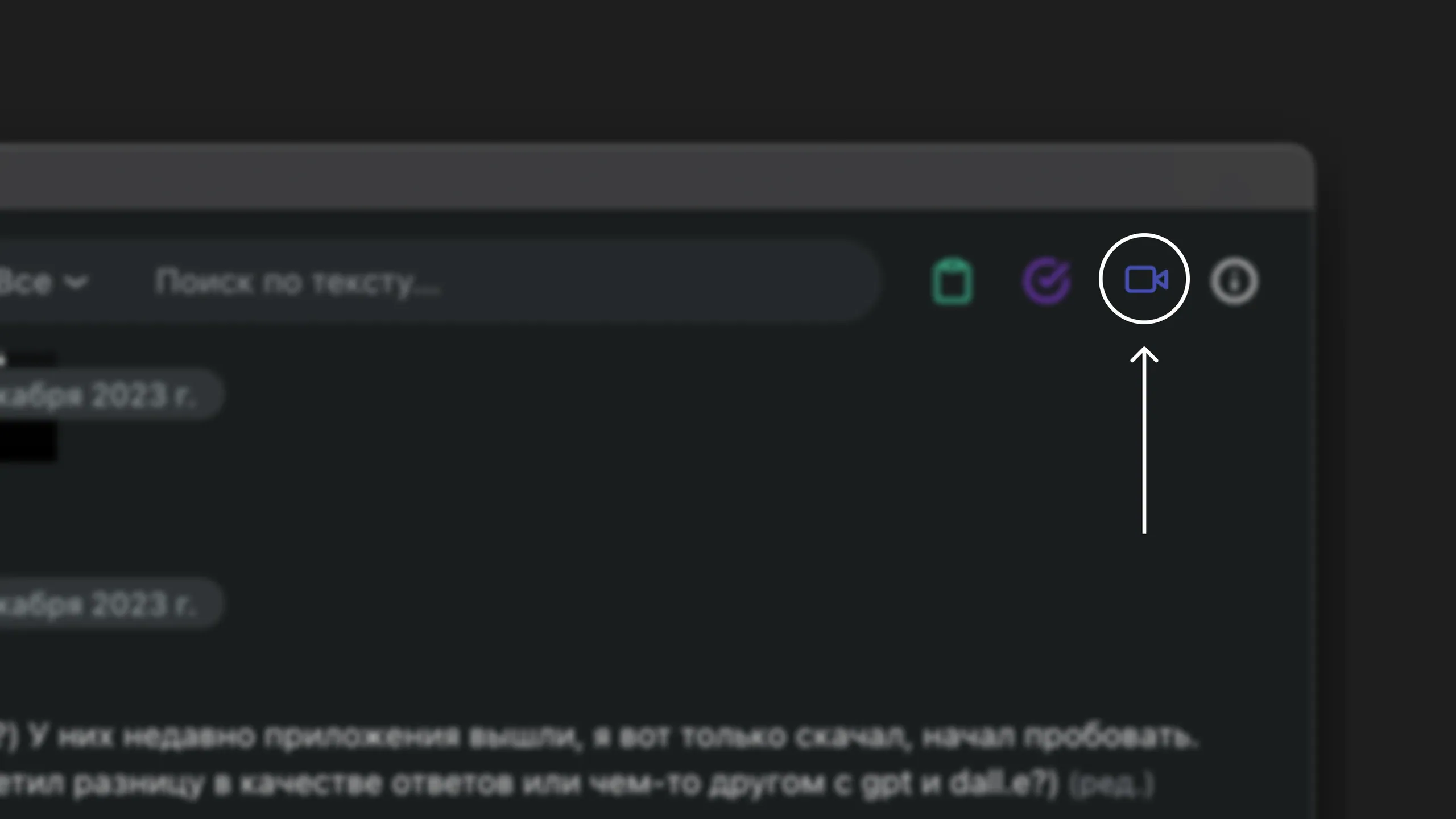
To start a call in a chat, click the video camera icon in the chat's top menu. To join an active video call, click the camera icon next to the chat. A message about the video call appears in the chat, and anyone with access to that chat can join the call.
Calls run in the browser and support up to 1,000 participants at once.
To invite someone who isn't in Pachca or isn't in the chat where the call started, just copy the link from the browser's address bar and share it.
After the call, you can change the link so participants can't rejoin the call. To do this, open the dropdown next to the call icon in the chat and click Set up link -> Update link
For meetings with people who aren't in the same chat, we recommend starting a call in your chat with yourself. You can then invite teammates with a link.
How to start or join a "quick" call
In Pachca, you can create a standalone call that isn't tied to a chat. To do this, click + in the sidebar, next to global search. You can only create a standalone call in the desktop version, and you'll need to send the call link to everyone who should join.
Before you join a call
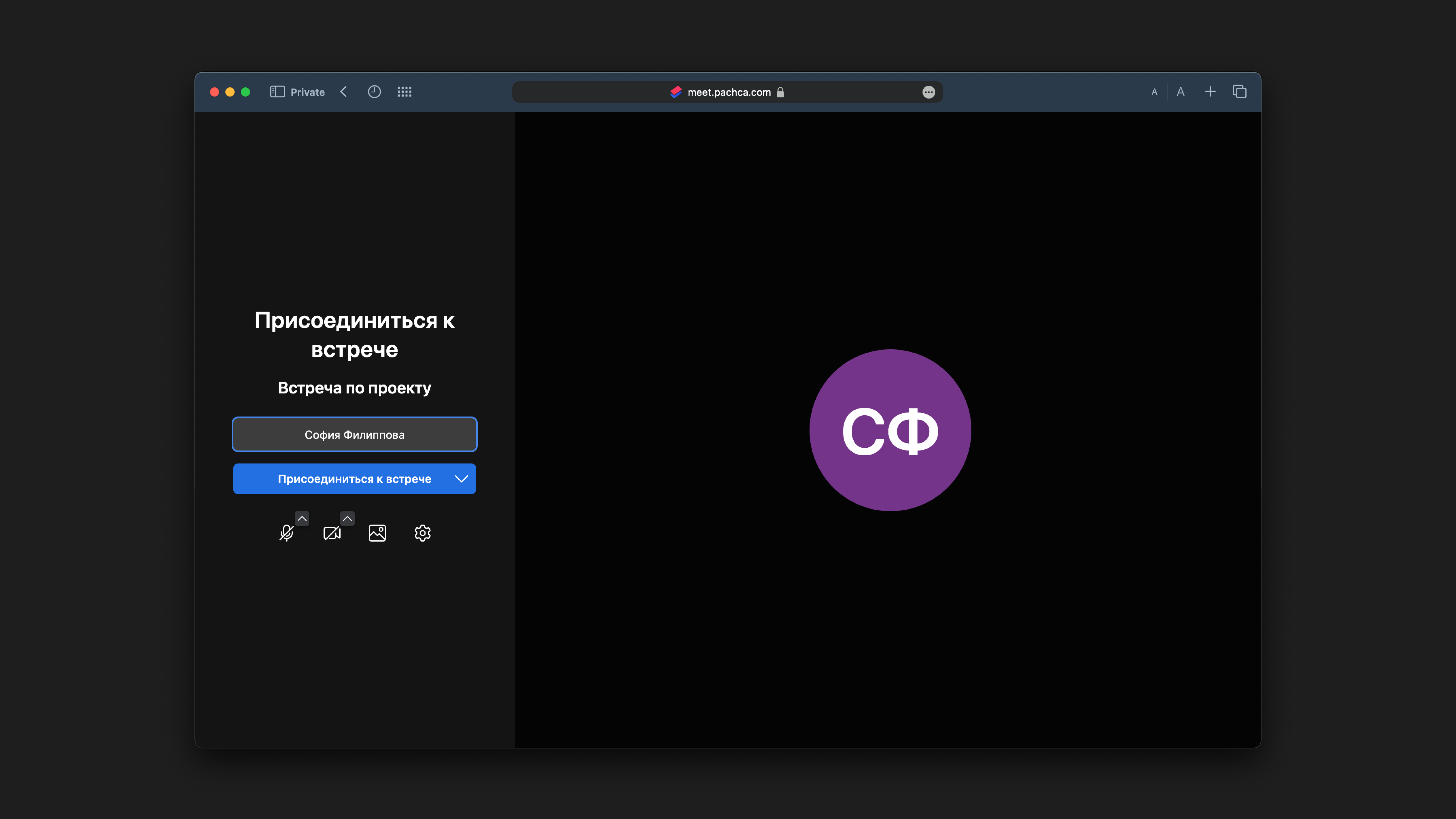
The call join page has some settings you can adjust in advance. You can enter your name, choose your audio and video sources, add a background and set up other options. These features are also available in the call itself.
If you're the first person in the meeting, you'll have moderator rights, which you can pass to another participant (see Moderator features).
Call features in Pachca
Important: the call interface may vary depending on your browser. Some of the features described here may not be available if your browser doesn't support them.
Video and audio settings
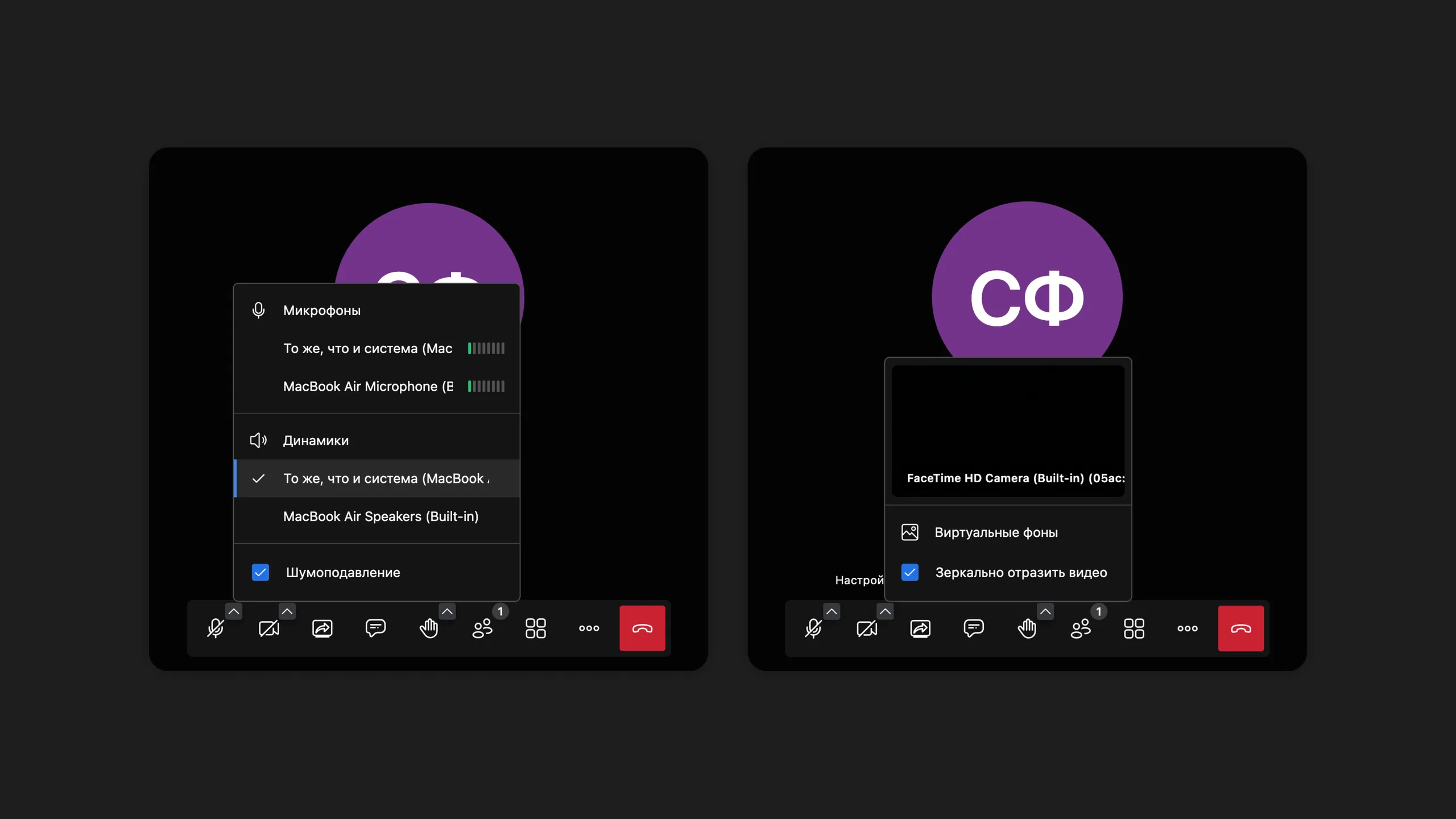
On the pop-up bottom bar, the microphone and camera icons have arrows. Click them to open quick settings.
Click the arrow next to the microphone icon to choose which microphone and speaker to use and to turn noise suppression on or off.
Click the arrow next to the camera icon to choose your video source, mirror your camera image or quickly jump to background selection.
Choose a background
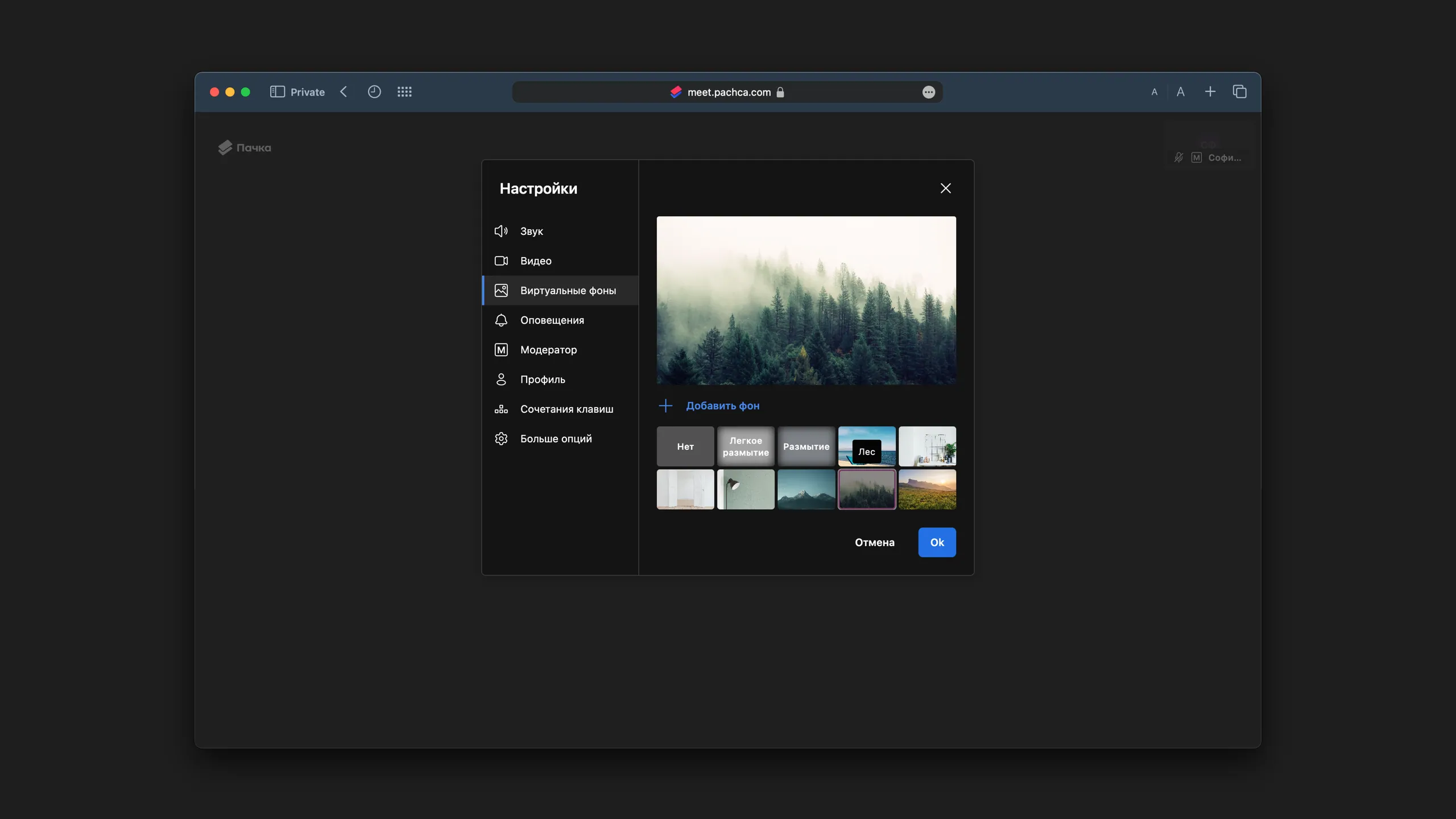
You can choose a background before joining the call (the landscape icon), during the call by clicking the arrow next to the camera icon or through the settings menu (the three dots icon) on the bottom bar → Select background image.
In the window that opens, choose one of the options or upload your own image with Add background.
Share your screen, audio or a YouTube video
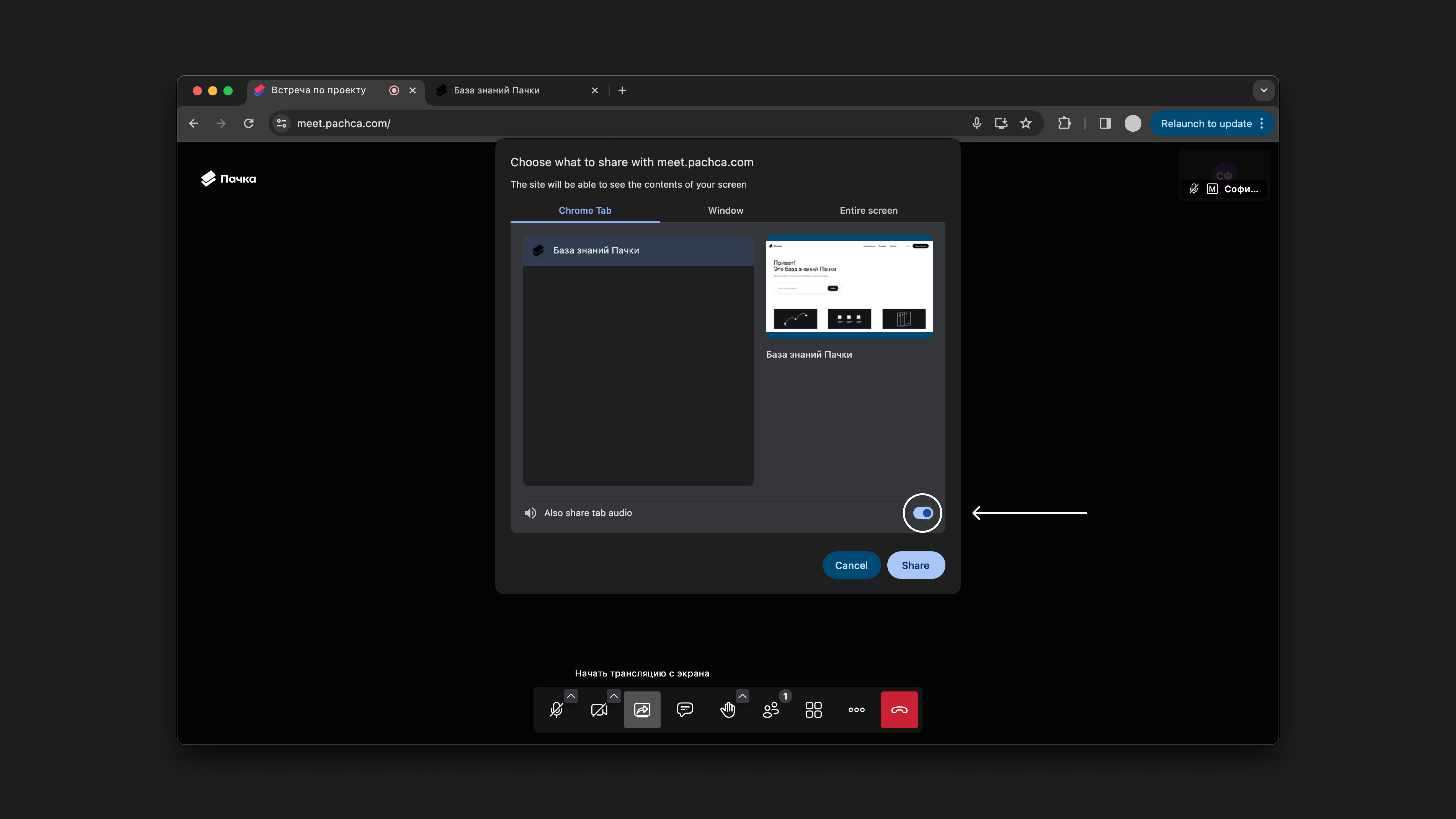
In the sharing window, choose a tab, a browser window or your entire screen. To share audio, choose a tab and turn on audio sharing at the bottom of the window.
To play a YouTube video right in the call, click the three dots icon → YouTube video and paste the video link. It's added as a separate call participant, and everyone can see it. The person who started sharing the video controls playback. To turn the video off, click the three dots again → Stop YouTube video.
Chat and polls
The chat is available to everyone on the call. Important: the chat history isn't saved after the call.
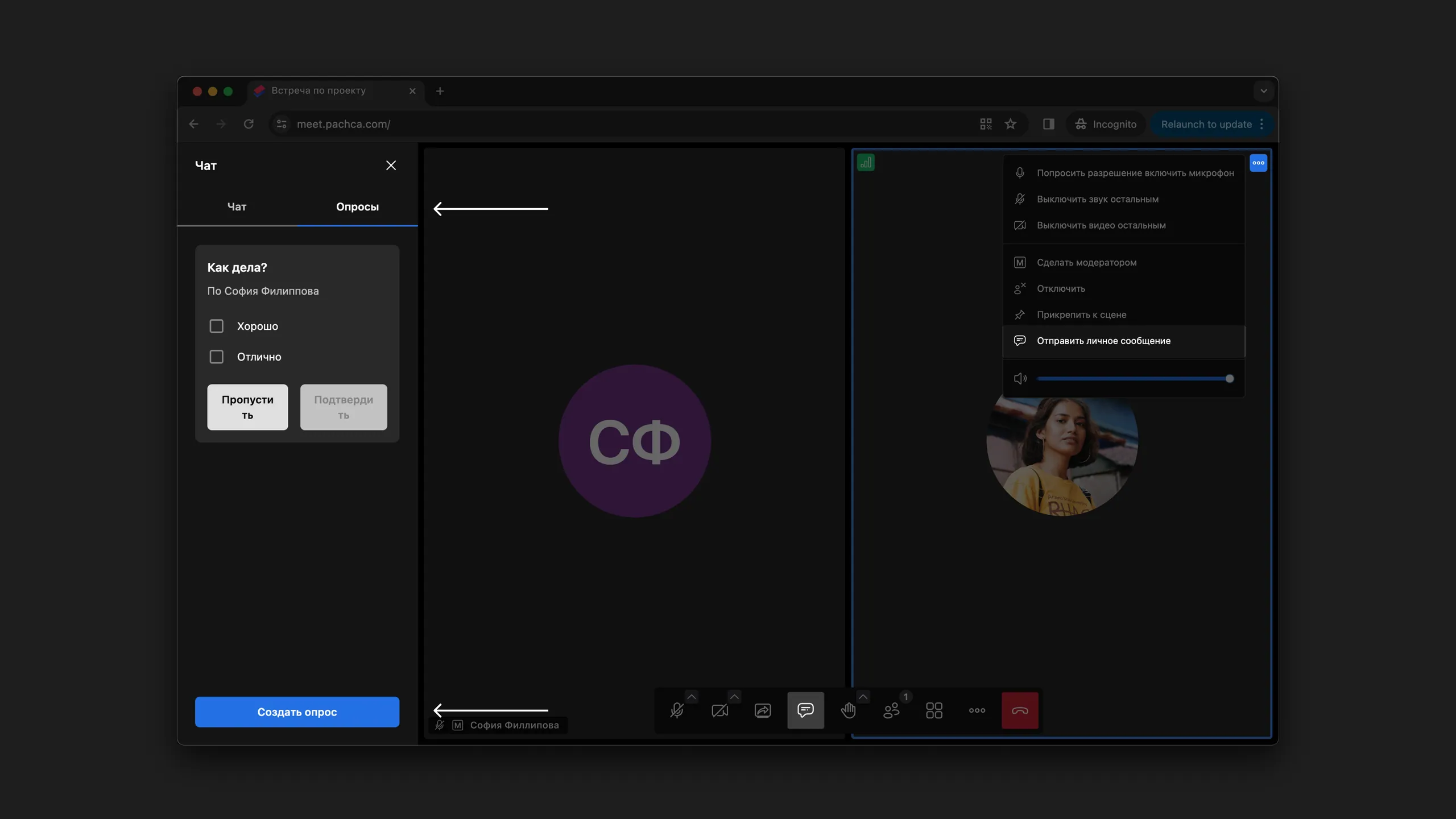
To send a direct message to someone on the call, hover over their video, then click the three dots in the top-right corner → Send private message.
To run a poll, click Polls at the top of the chat window → Create poll. Enter your question and answer options. Once the poll is created, everyone on the call gets a notification.
Raise your hand, send a reaction
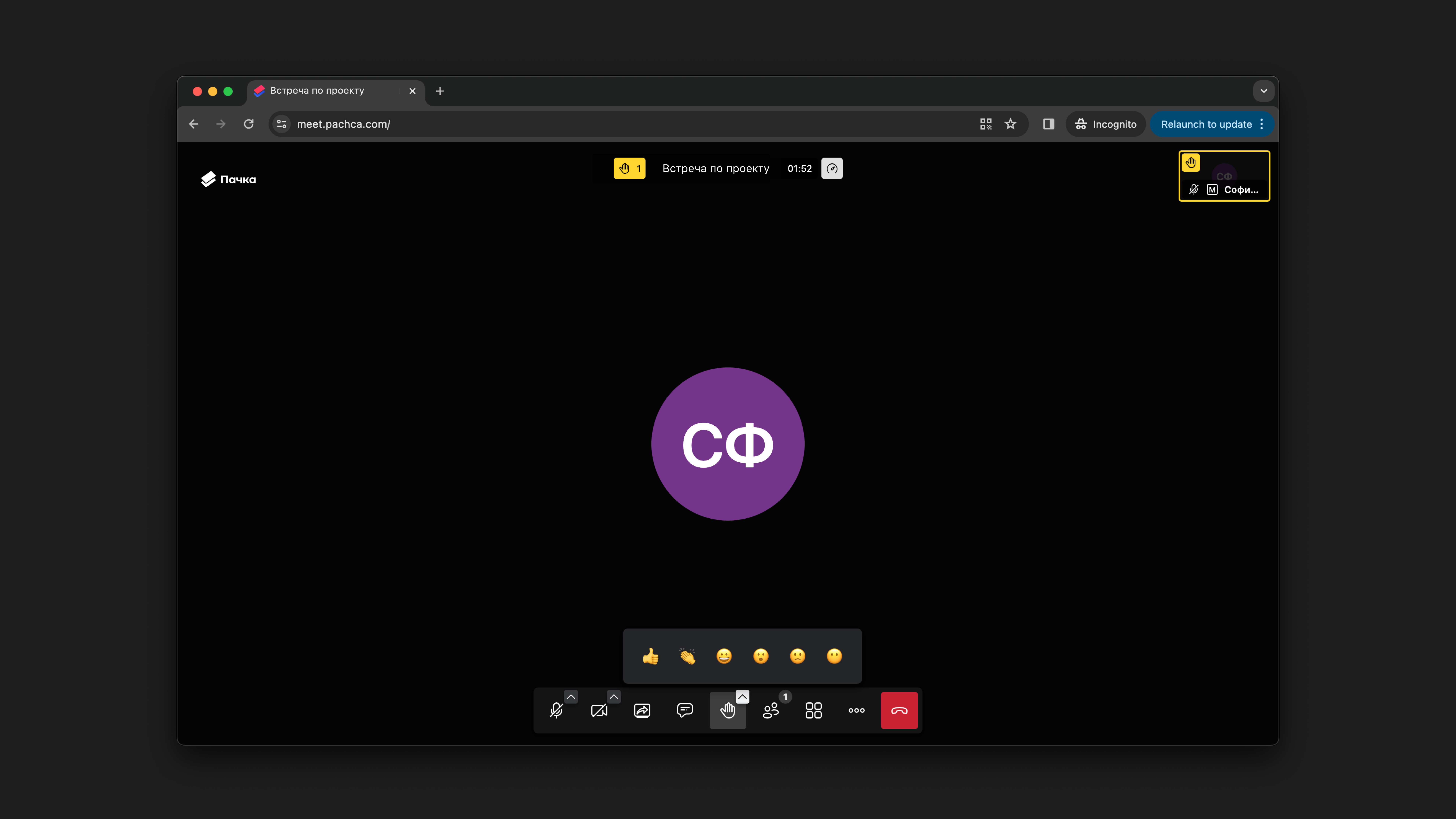
Click the hand icon to let others know you want to say something.
Click the arrow in the corner of the icon to open reactions. Everyone in the chat can see reactions. If you click a reaction several times, you'll send a burst of reactions. If you're curious who reacted, you can see it in the call chat.
Search participants
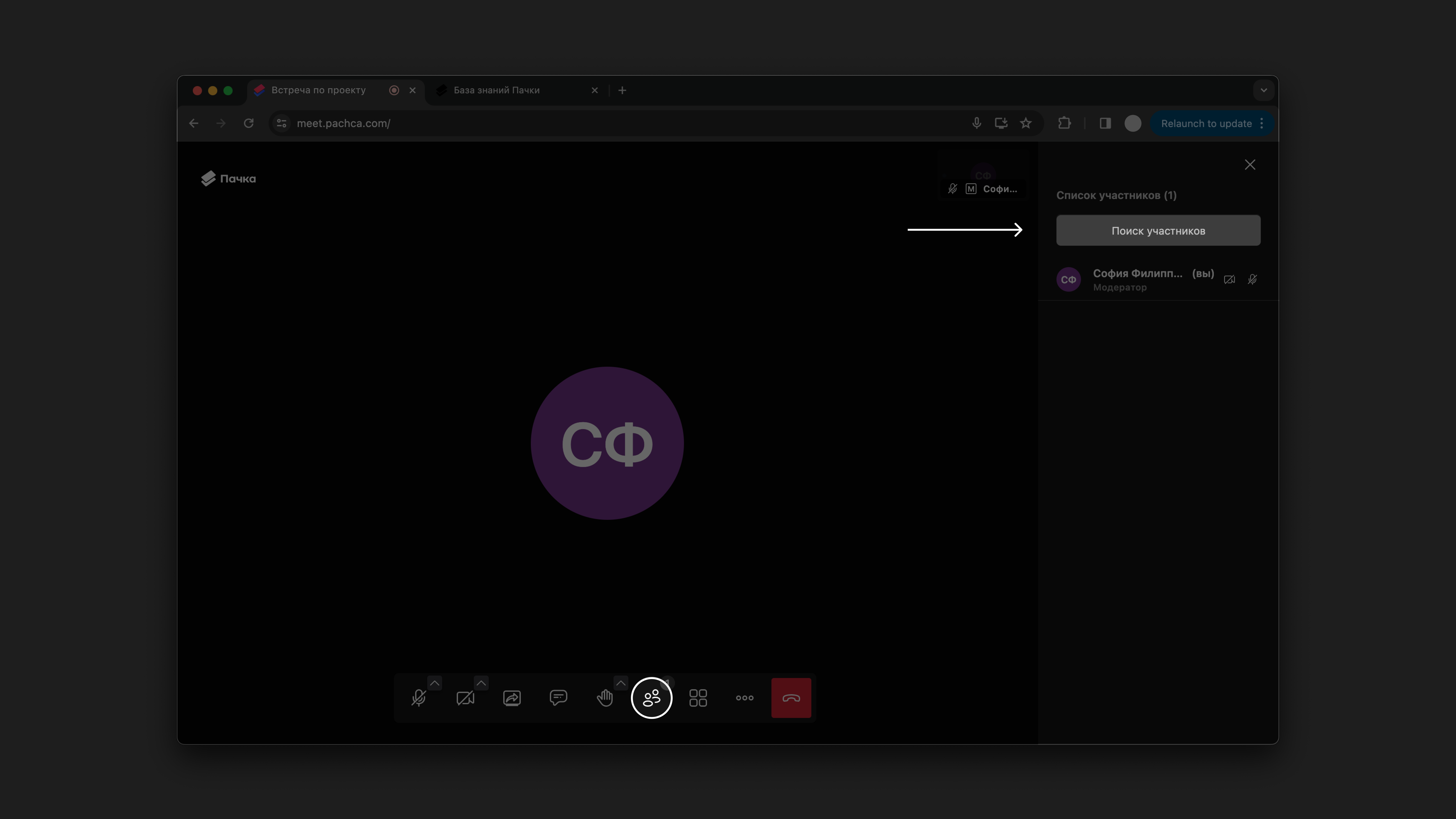
Click the icon with two people to see the full list of participants. If lots of people have joined, there's a search bar in the same window.
Moderator features
Note: this section covers moderators in legacy calls. In the new video calls, moderator roles and features are different. We cover them in Moderation in video calls.
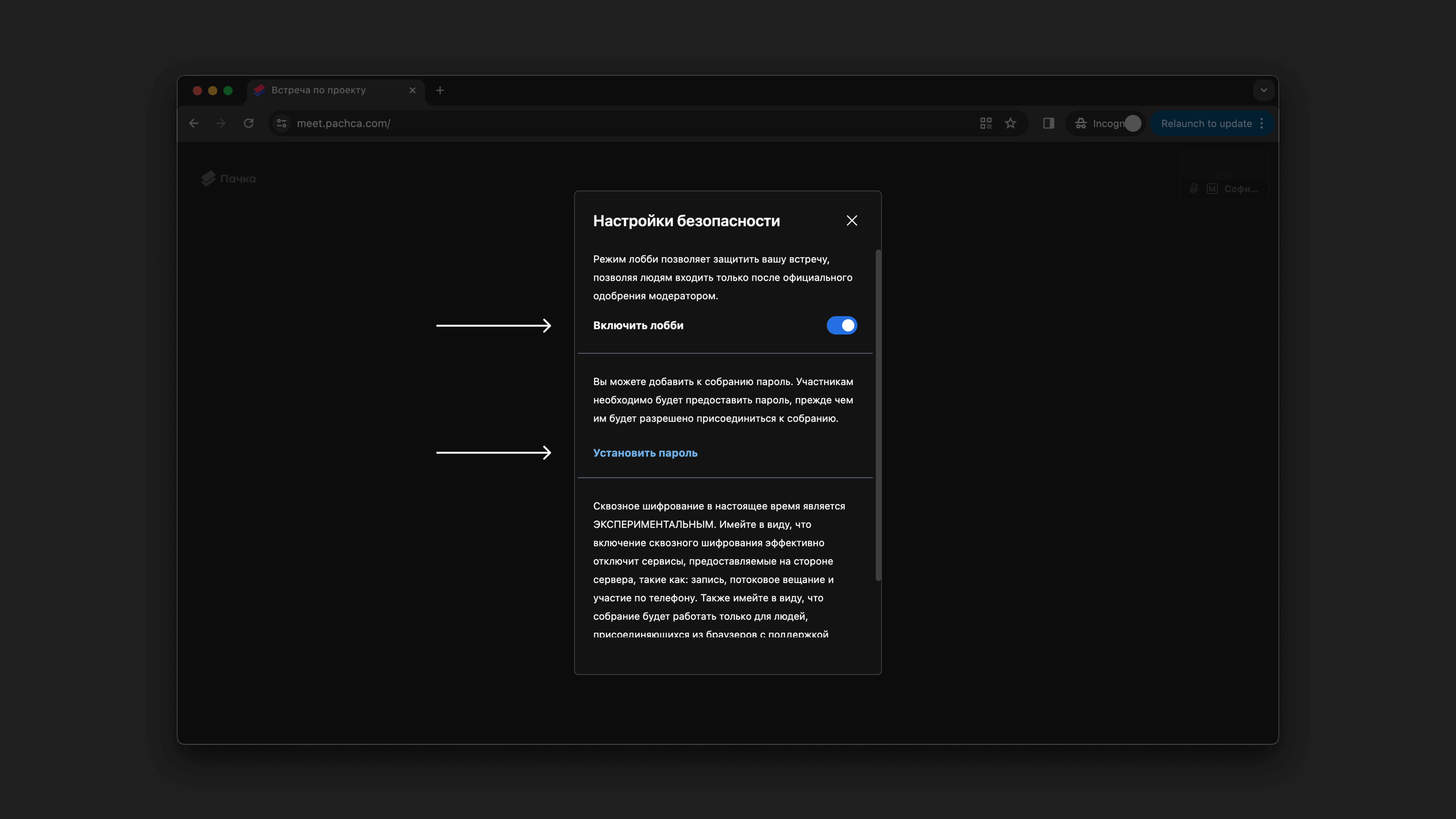
Lobby
The lobby is a waiting room: people joining the meeting wait there until a moderator lets them in. Only a moderator can turn on the lobby. To do this, click the three dots on the bottom bar → Security settings → Enable lobby.
The moderator gets a notification in the call when someone wants to join.
Meeting password
To turn it on, click the three dots on the bottom bar and go to Security settings.
If you turn on both the lobby and a password, participants can join either with moderator approval or with the password.
Manage participants
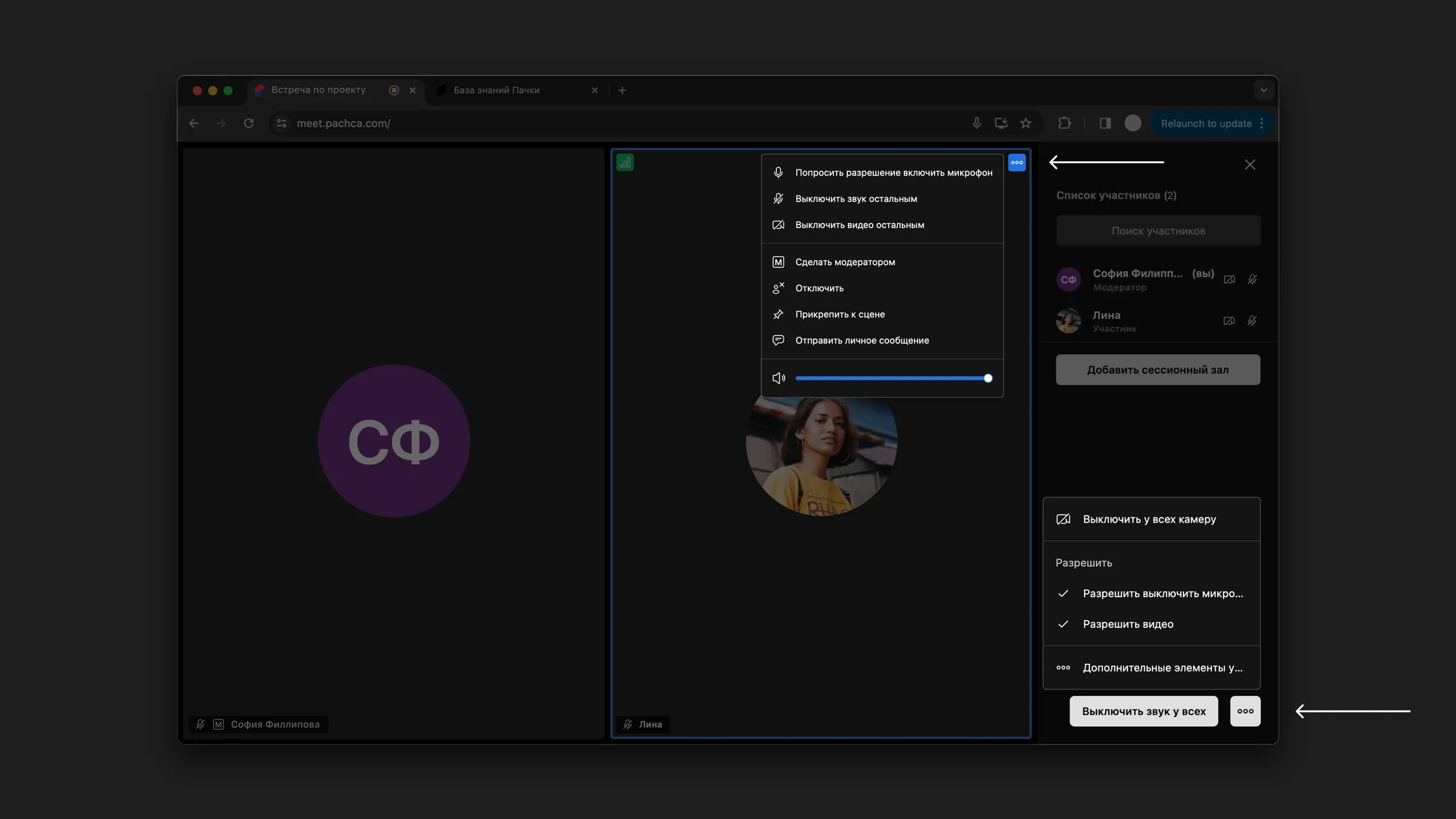
A moderator can set up settings for all participants at once or for each one individually. General settings are in the More actions menu (the three dots icon) → Settings → Moderator settings. For quick access to the main settings, open the participants tab by clicking the people icon on the bottom bar.
To manage settings for a specific participant, hover over their video and click the three dots in the top-right corner.
Transfer moderator rights
By default, whoever starts the call becomes the moderator. To pass moderator rights to someone else, hover over their video and click the three dots in the top-right corner → Grant moderator rights.
Record a call
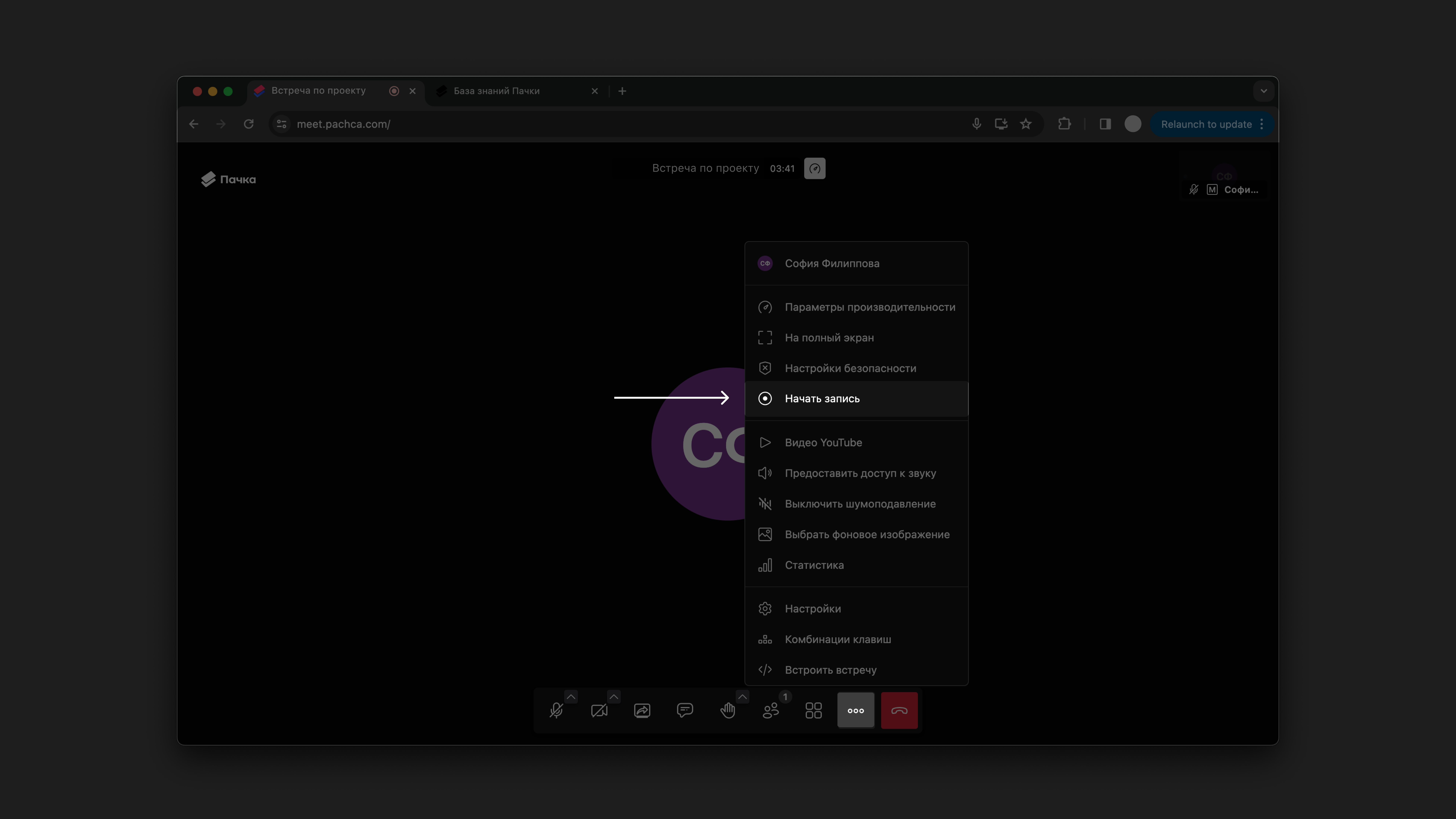
Only moderators can record calls. To start recording, click the three dots on the bottom bar → Start recording. To stop, choose Stop recording in the same menu.
After the call, the recording is posted as a message in the chat where the call started.
Breakout rooms
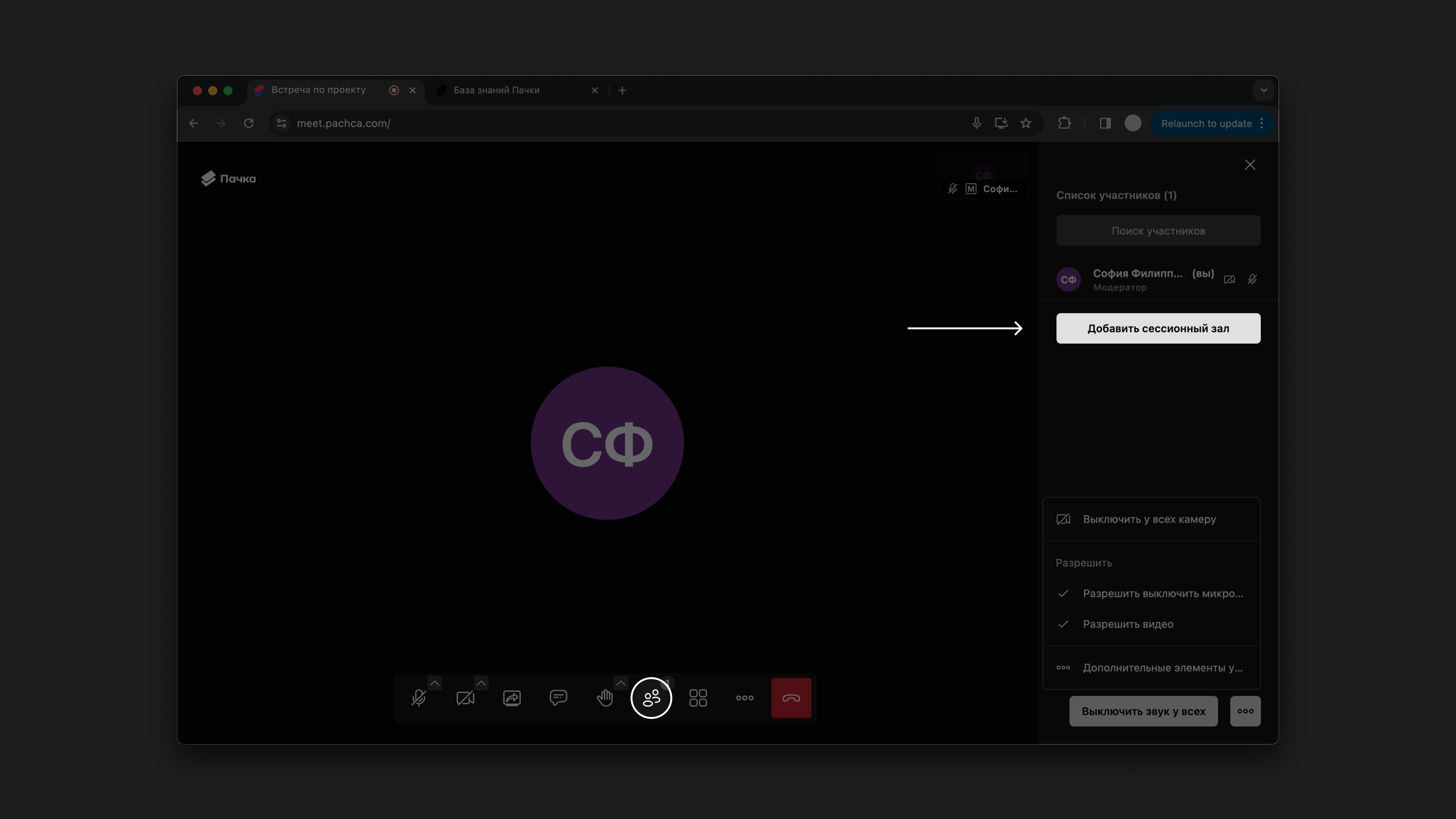
To create rooms, click the people icon at the bottom, then click Add breakout room in the window that opens. Participants can find the rooms in the same window.