Яндекс.Метрика
Members in Pachca

Members in Pachca

What the Members section offers your team

The Members section helps you quickly find teammates and get to know your company better. This article covers what the section offers to members.

Choose a view

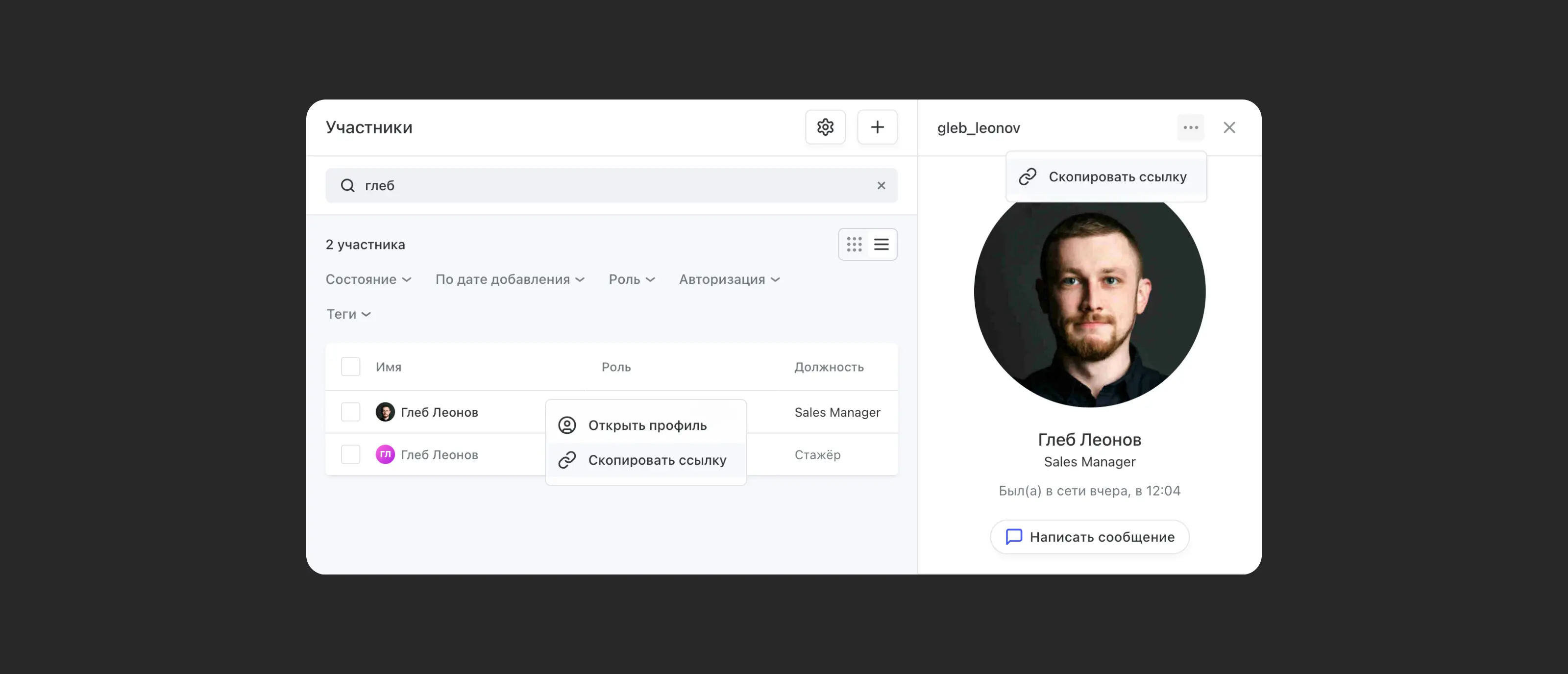
You can view the member list as cards or as a table. The switch is on the right, below the search bar. The Cards view works well for finding teammates by their photo or getting an overview of the company. The Table view is handy for searching by specific details and learning more about your teammates.

When there are lots of members, search and filters help you find the right person.

Use filters

The Status filter separates active, deactivated and invited members. You can select several options, for example, active and invited members at the same time.

The Role filter shows members with a specific access level in Pachca. You can select several roles here, too.

You can sort members alphabetically or by the date they were added (oldest first).

Use one filter or combine several.

Search members

The search bar in Members looks up people by full name, nickname, email, job title and department. You can search by the full name, nickname, email address and so on, or just by part of it.

You'll get the best results by combining filters, search and the view switch. Filters narrow down your search, and the view helps you recognize the right teammate by their photo (if names match) or see their profile details without opening it.

__wf_reserved_inherit

Member profile actions

Click a member to open their full profile. To start a chat with them, click Send message right in the profile.

To copy a link to a profile, click the three-dot icon at the top of the profile → Copy link. You can also right-click the member's card or row. The owner and administrators can also copy profile links by hovering over a row in Members.

Administrators in Pachca have more options for managing members. Learn more here.
__wf_reserved_inherit

Updated: December 7, 2024

More in Features

Text formatting
How to make text bold or italic, add a link or insert a code snippet
Scheduled messages
How to schedule a message and why you'd want to
Custom reactions
Custom emoji for message reactions
Drafts
All your unsent messages in one place
Folders
Organize your workspace with folders
Guest accounts in Pachca
What guest roles can do in Pachca
Workspaces in Pachca
How they work, how to create them and how to switch between them
Chat roles
What roles there are and how they differ
Notification types in Pachca
Notification types in Pachca and how they work: setting up push notifications and sounds
Badges in Pachca
What the visual indicators for new activity mean
How threads work and why you need them
How threads work in Pachca: a detailed look at discussion threads in the team chat app
How mentions work in Pachca
A detailed guide to mentions
Custom statuses
Let your team know what you're up to with an emoji
Unread folder
All your unread chats in one place
Installation guide
Spoiler: you might not need one
Reminders
Tasks and reminders in Pachca: plan your day and stay on top of important work right in your team chat app
Sidebar
How to set it up, what's in it and tips from the Pachca team
Access levels
How an employee differs from an administrator
Member profile
What you can add to a member profile
Message actions
How to pin, reply to or edit a message
Legacy calls in Pachca
Video calls in Pachca: how to call your team, share your screen and record meetings
Video call moderation
How to assign moderators and manage participants, settings and restrictions in a video call
Chats and channels
Which one to use and when
Public channels and chats
Public channels in Pachca: how to create an open space for company news and announcements
Threads
Discussion threads under messages to keep conversations organized
New video calls in Pachca
A refreshed interface and new features for video calls
Permission settings for video calls
How to set up access to your camera, microphone and screen sharing on different devices
How Pachca links open from other apps
Set links to open automatically in the desktop app