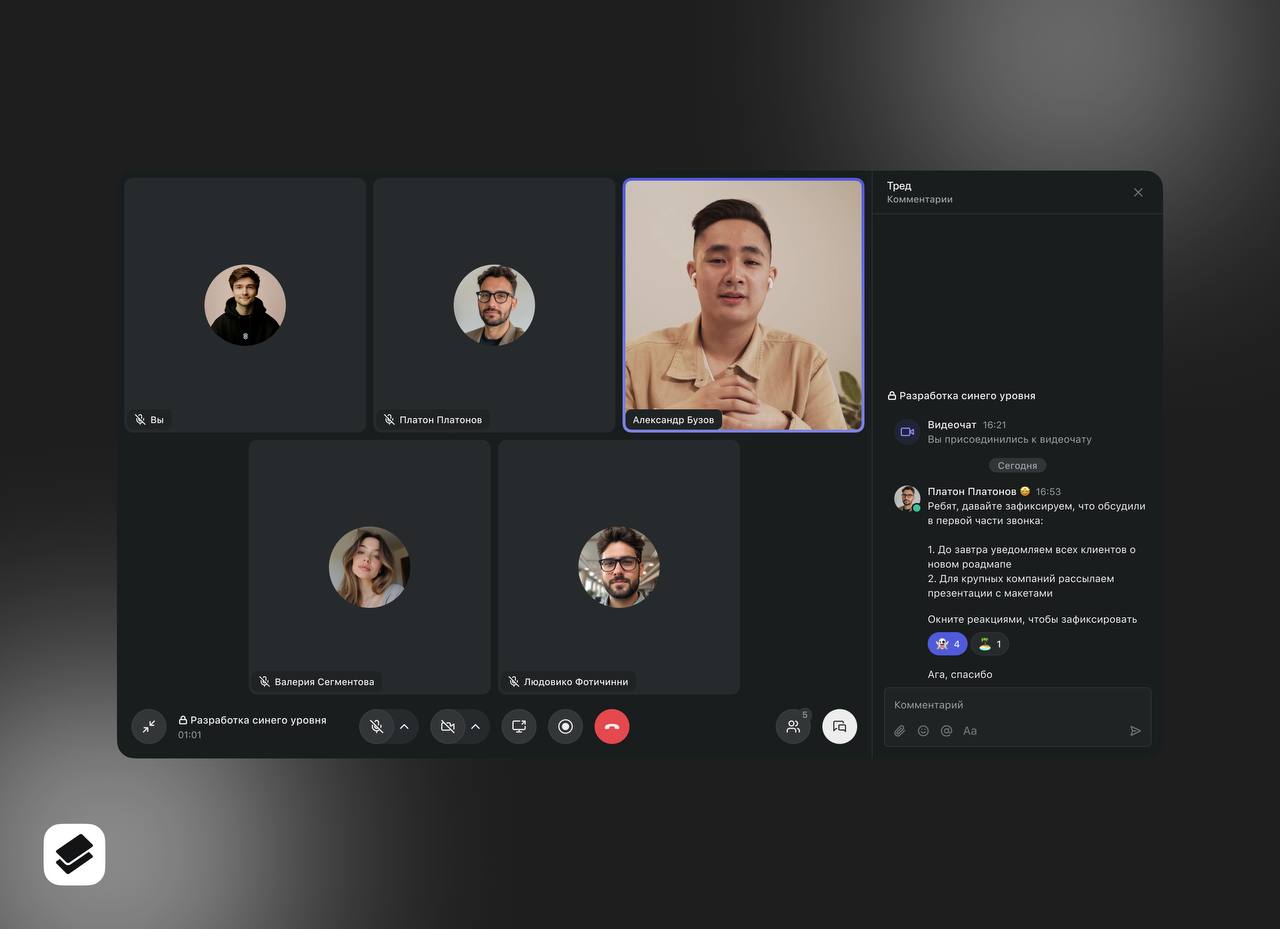
New video calls in Pachca
A refreshed interface and new features for video calls
The biggest change in the new platform: video calls no longer open in a separate browser window. They now run right inside the app, so switching between chats and calls is quicker and easier.
There are other improvements too:
- The call chat stays under the call's system message and is still available after the call ends.
- Up to 1,000 people can now join a single call.
- The call participant list now shows each person's job title.
- You can minimize a video call to a small window and keep working in your workspace without switching tabs.
- Group video calls have moderators who manage microphones, cameras, screen sharing, recording and transcription.
- More stable audio, video and screen sharing quality
Note: Companies that used the old calls need to switch to the new video platform using the toggle in workspace settings.
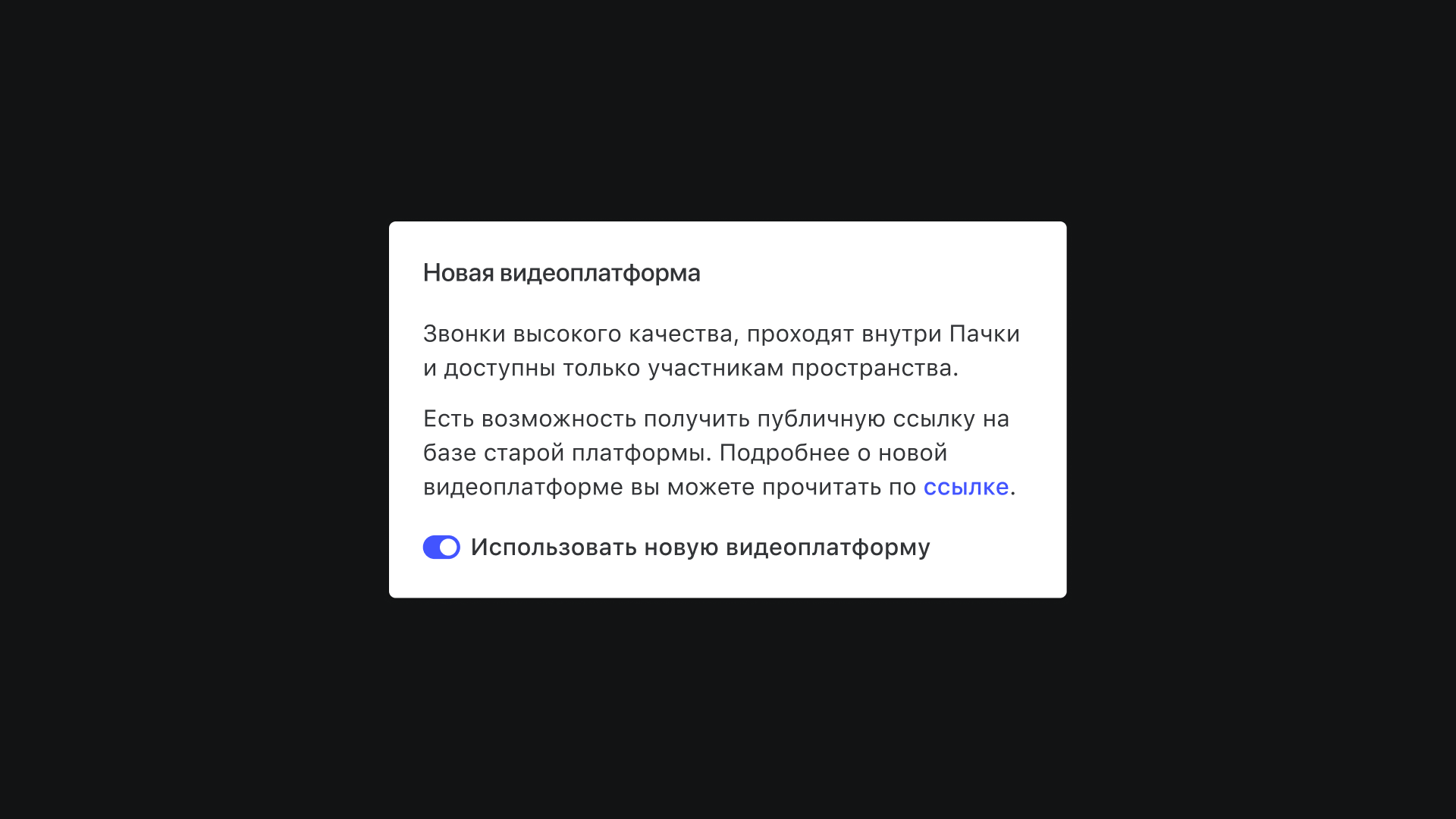 All new workspaces get the new video platform by default.
Learn how to set up camera and microphone permissions on different devices in this article.
Important: The new platform currently supports calls within your workspace only, so links for external video calls are created in the old format. To get one, click "+" in the sidebar on the main screen.
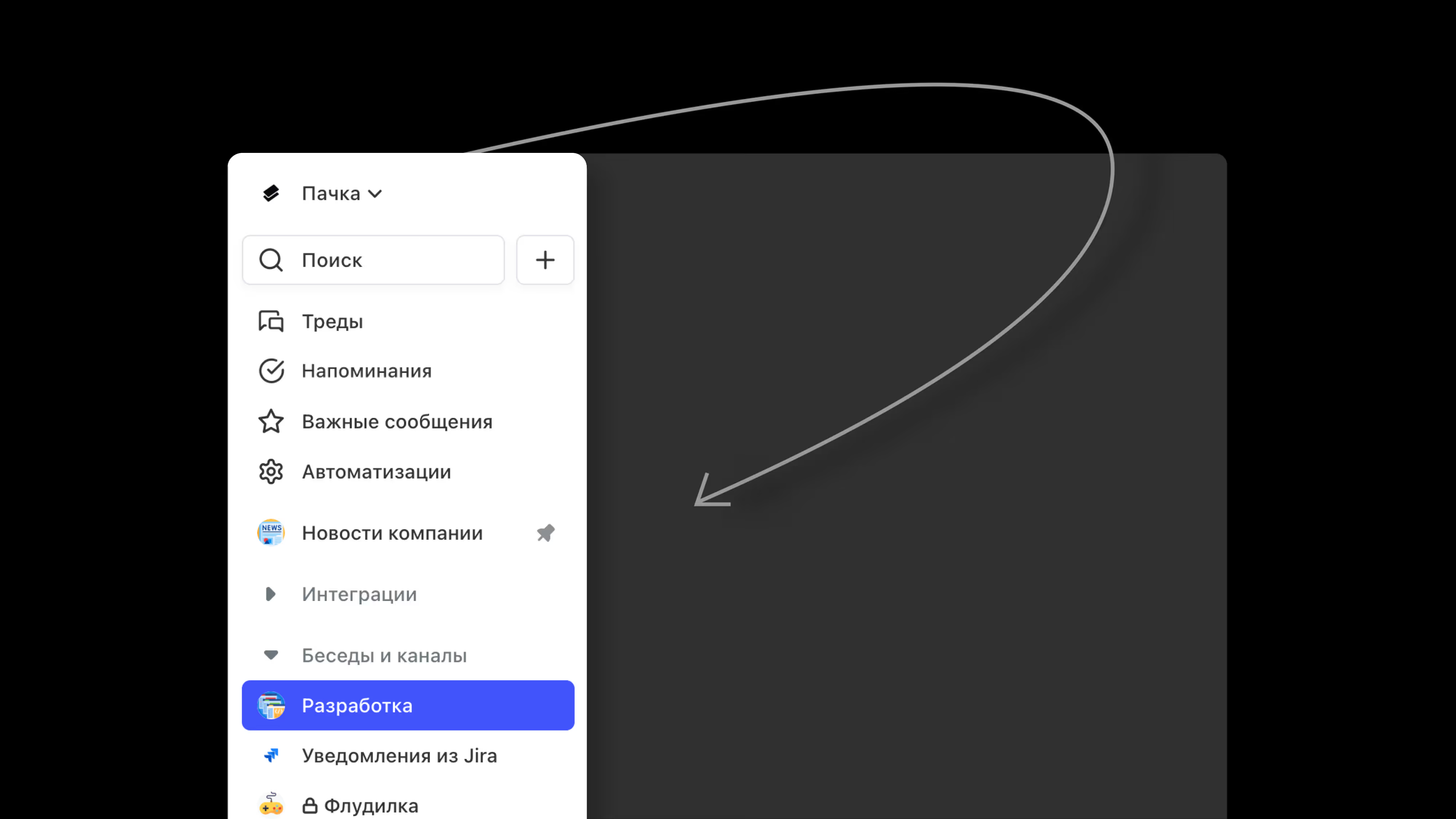 You can also invite the person to your workspace as a "Guest."
How to start or join a call in a chat
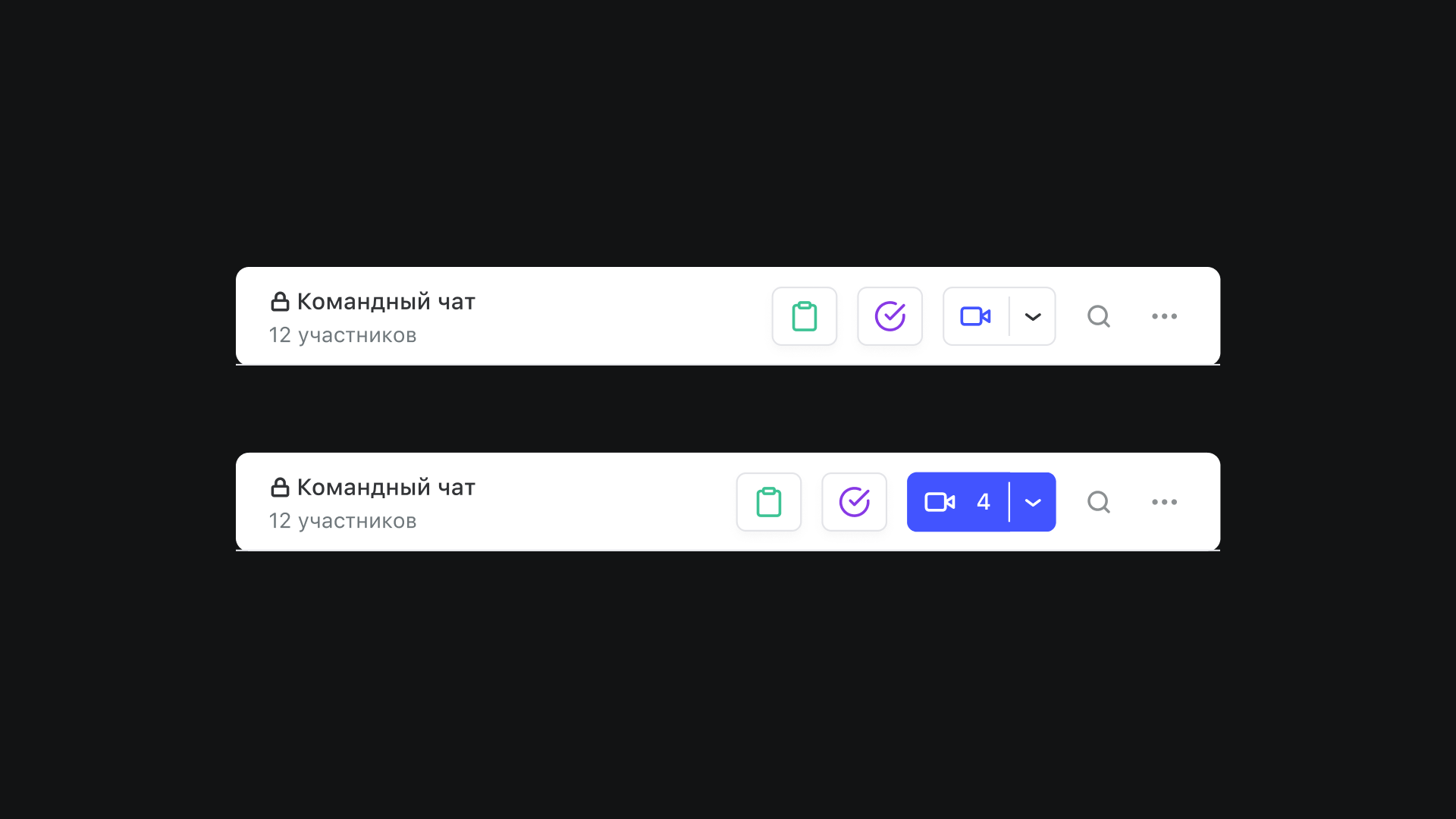
To start a call in a chat, click the video camera icon in the chat's top menu. A message about the call appears in the chat. Everyone with access to the chat can join by clicking Join or the camera icon next to the chat.
In the iOS app, you can call a teammate without opening your conversation: press and hold their chat in your direct messages list and select Call from the menu.
Preview window
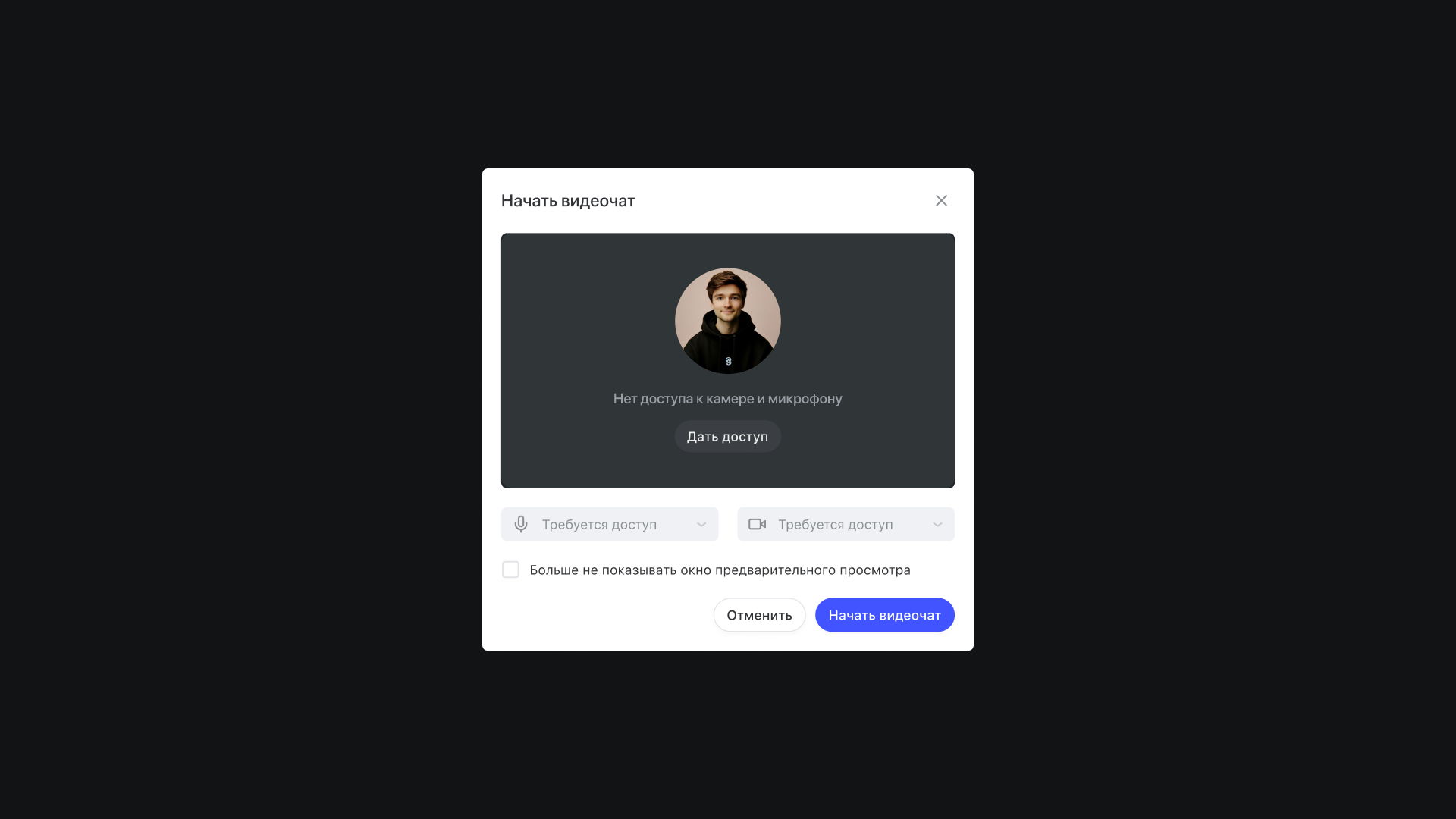 Before you join a video call, you can get ready: pick your microphone, camera and headphones, check how you look on camera and make sure others can hear you. This way you know everything works before you click Start video call.
Screen sharing
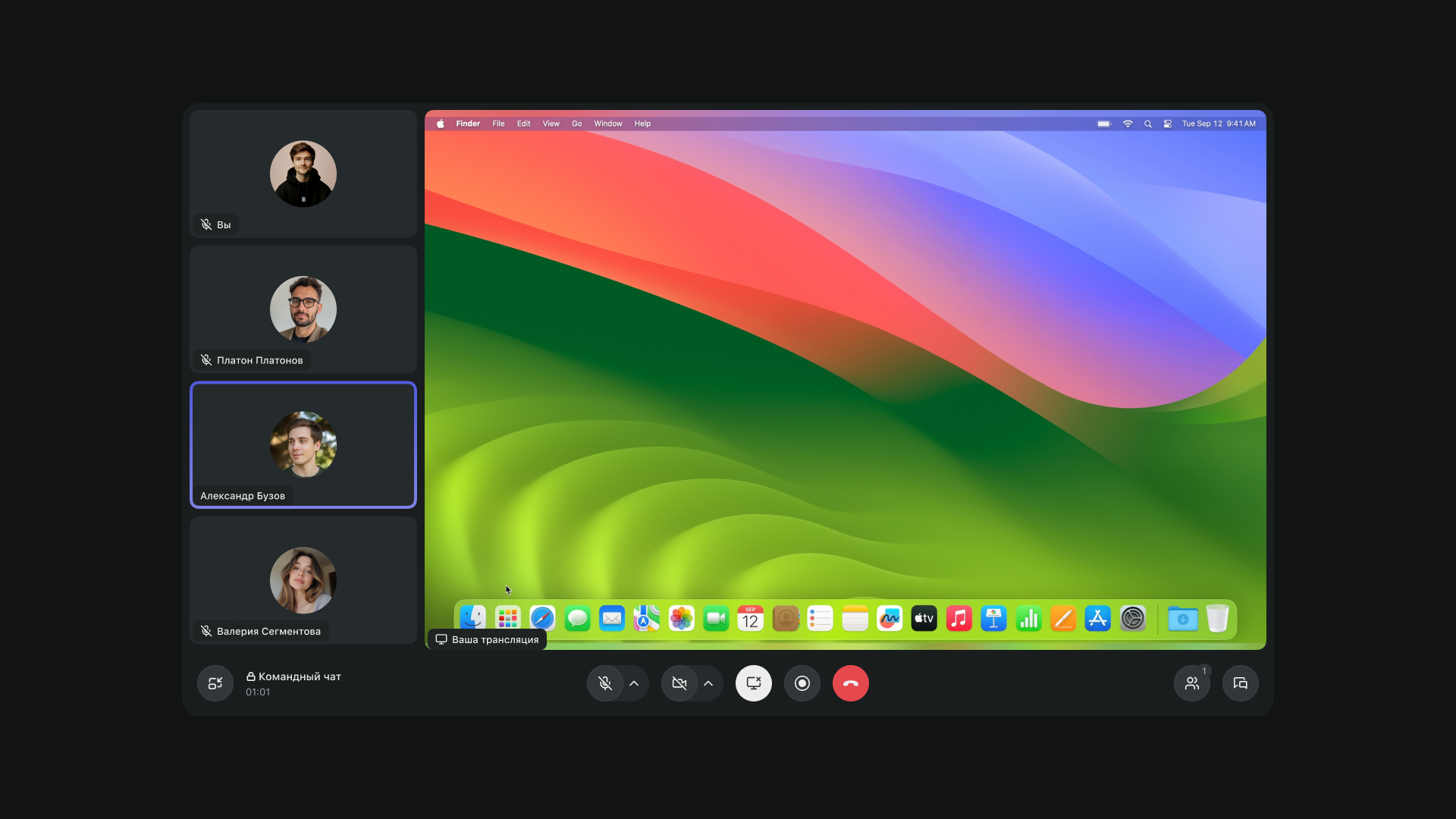 During a video call, you can share your screen with other participants. Click Share screen in the bottom panel and choose what to share: a tab, a window or your entire screen. To stop sharing, click the button again.
In group video calls, a moderator can stop someone else's screen sharing or prevent participants from starting a new one. Then only moderators and the people they allow can share their screen.
Screen recording
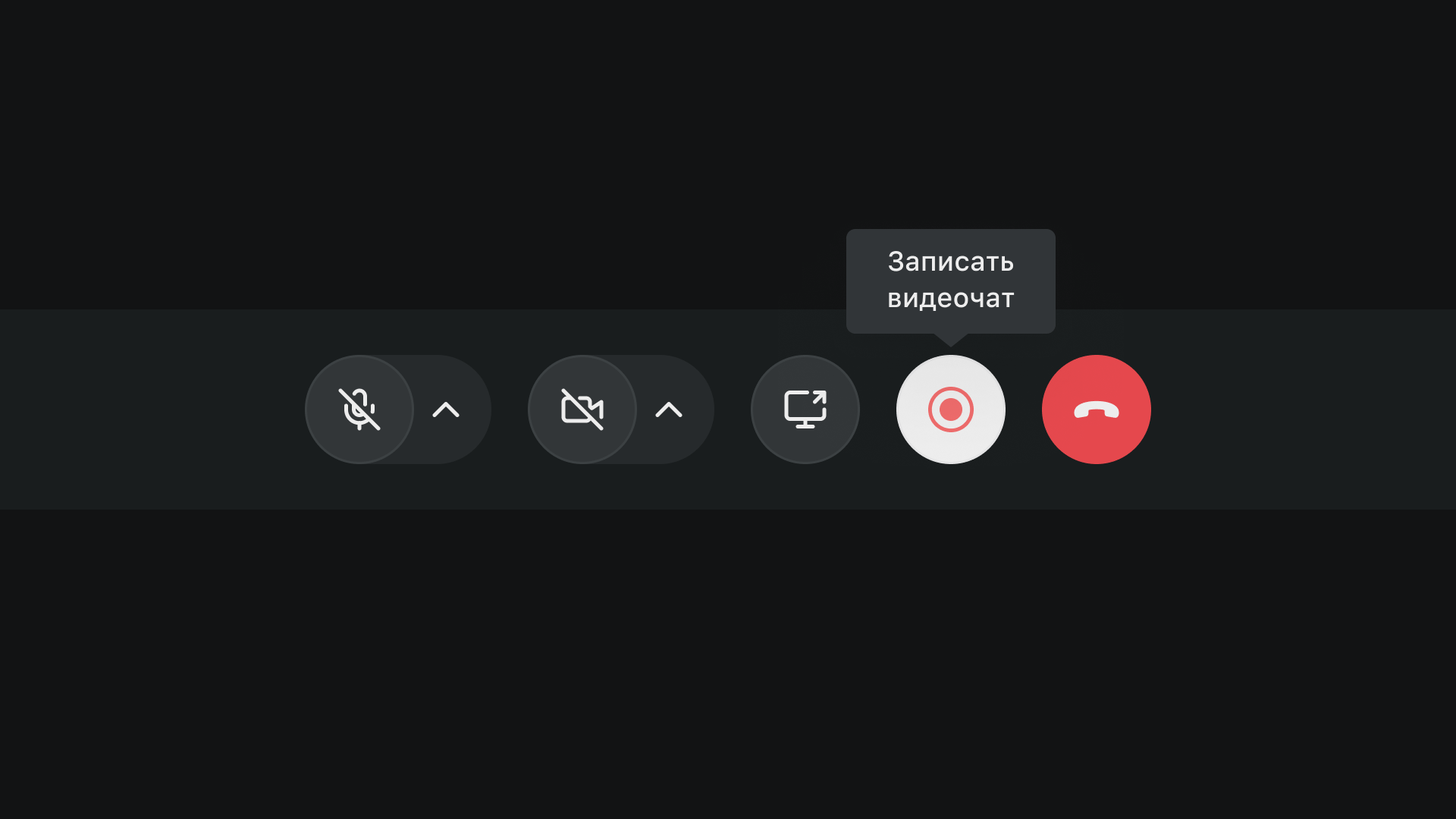 By default, any participant can record a video call. To do this, click Record video call in the bottom panel. When you want to stop recording, just click the same button again, and the recording ends automatically.
In group video calls, a moderator can prevent participants from starting a recording, so only moderators can record.
When the video call ends, the recording appears in the thread. From there, you can watch it, download it or forward it to others.
Transcription and AI summaries
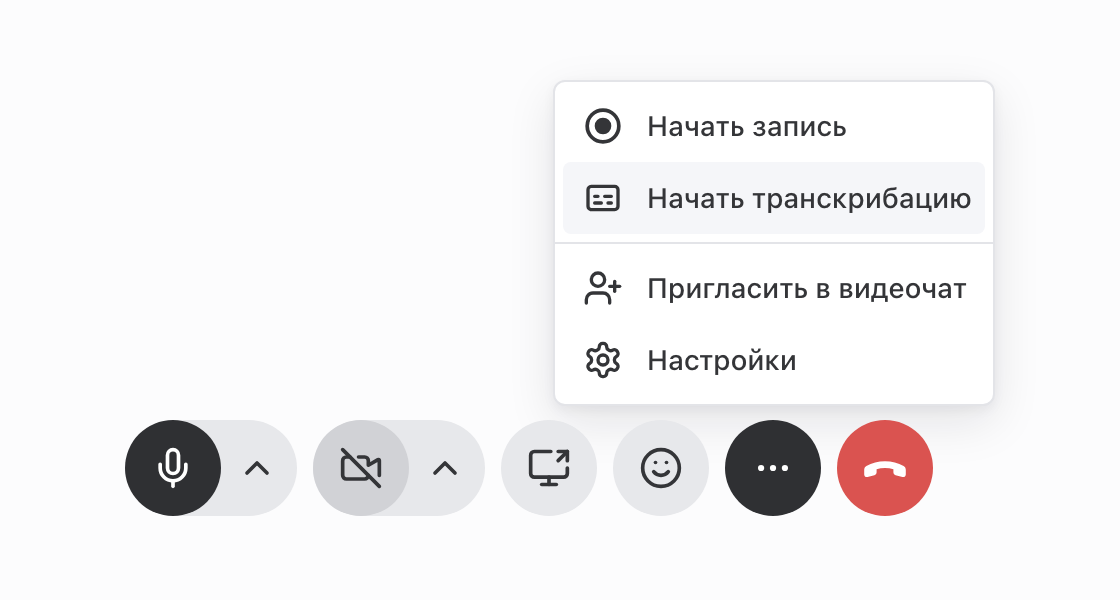 Pachca can transcribe your calls. After the meeting, an AI summary (a short recap) and a full transcript of the conversation arrive in the thread under the call message. In chats and channels, transcription turns on automatically. In one-on-one calls, choose Start transcription in the "⋯" menu.
You can set up auto-start and your own prompt for summaries in the chat: click the arrow next to the video call button in the chat header and choose Set up AI summary. The feature is rolling out as a public beta and is being turned on for workspaces gradually. If you don't see Start transcription in the menu, the beta hasn't reached your workspace yet.
Input devices
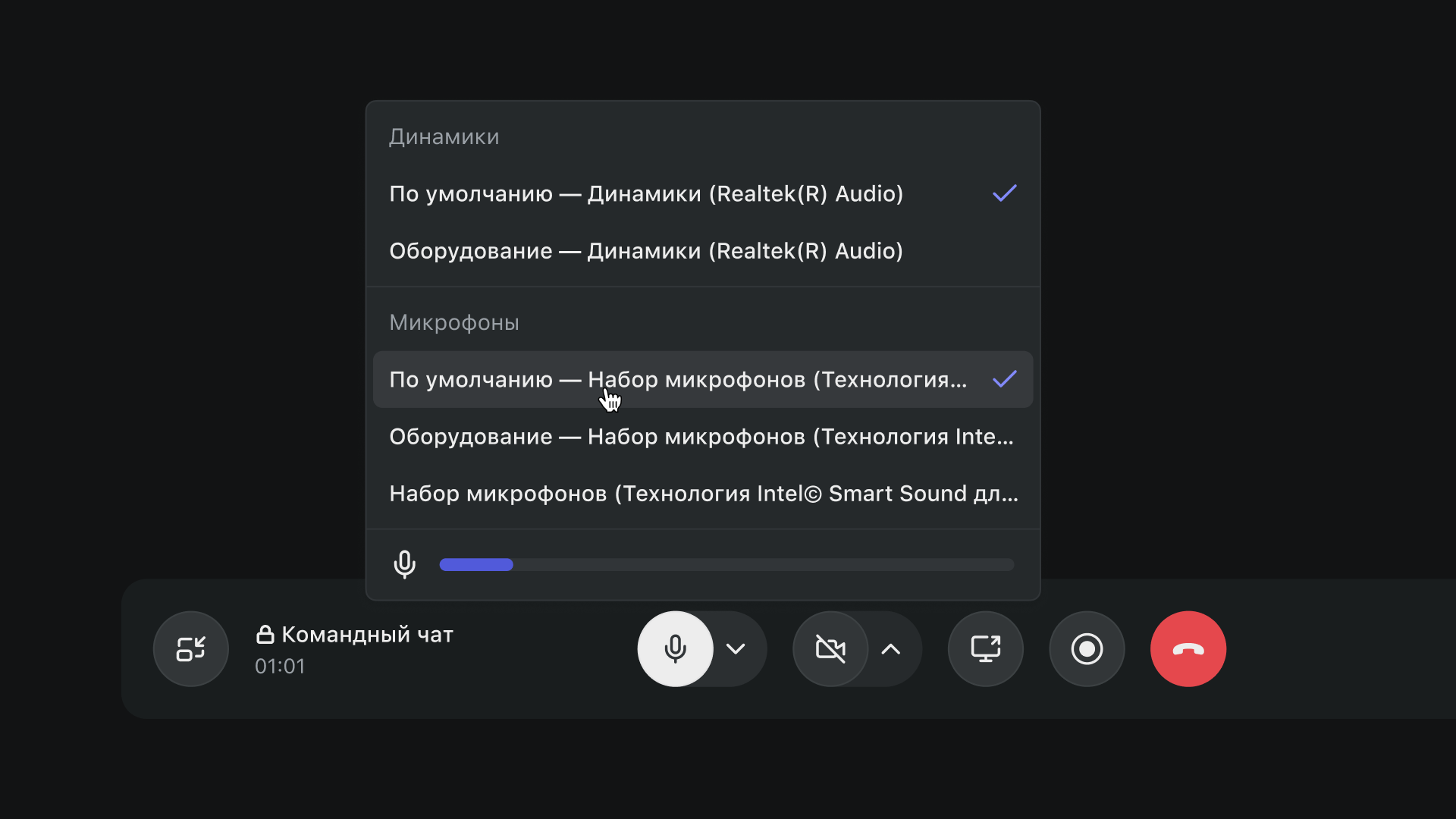
During a video call, you can change your audio or video source. Click the arrow next to the microphone or camera to open a drop-down menu where you can choose another device. Changes apply right away, so you don't need to leave the call.
Find participants
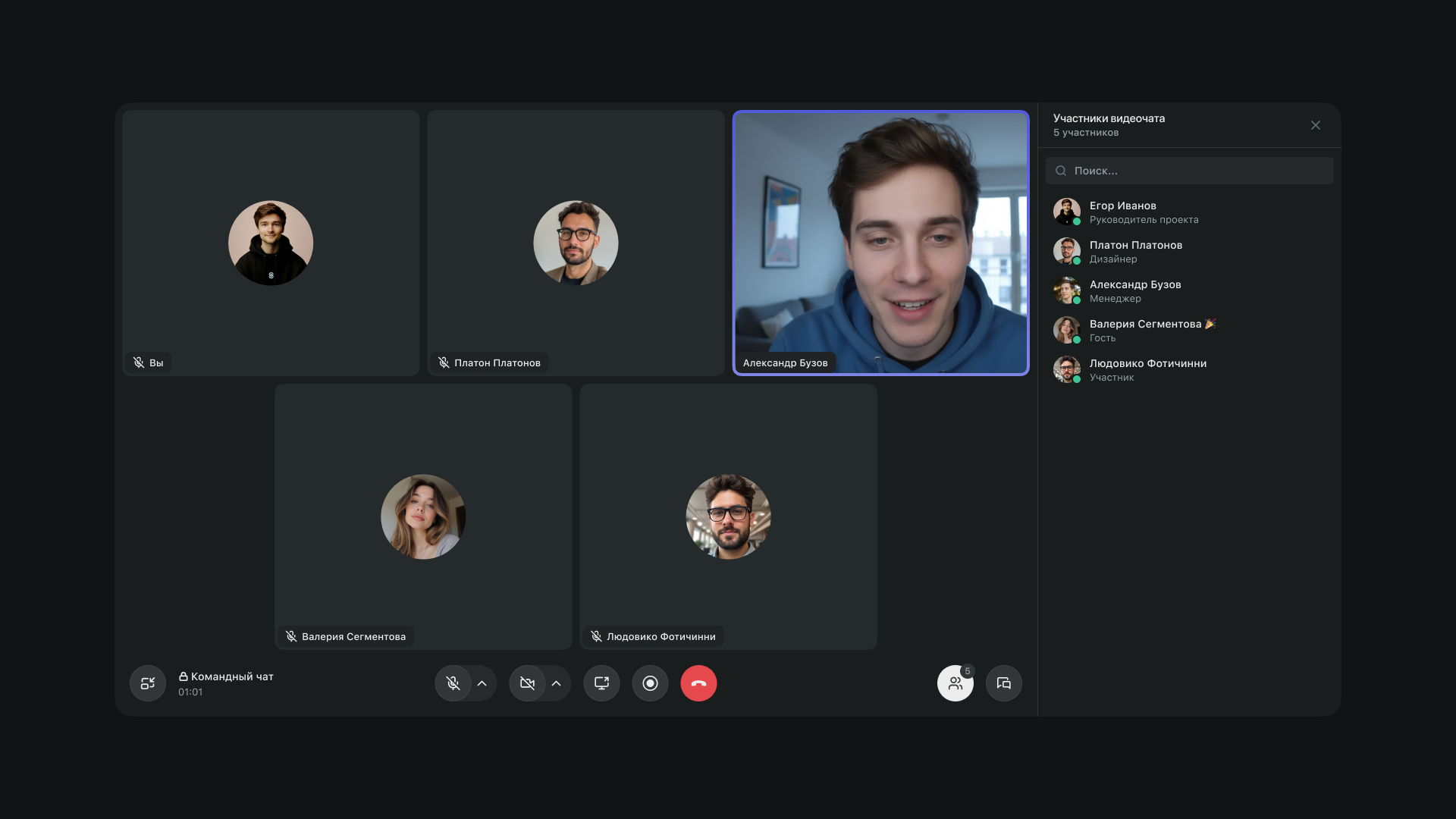
The Participants section shows a list of people along with their departments. From here, you can open anyone's profile and send them a direct message.
In group video calls, moderators use the same section to manage participants' microphones and cameras and assign co-moderators. Learn more about what moderators can do in the article "Moderation in video calls".
Chat thread inside a call
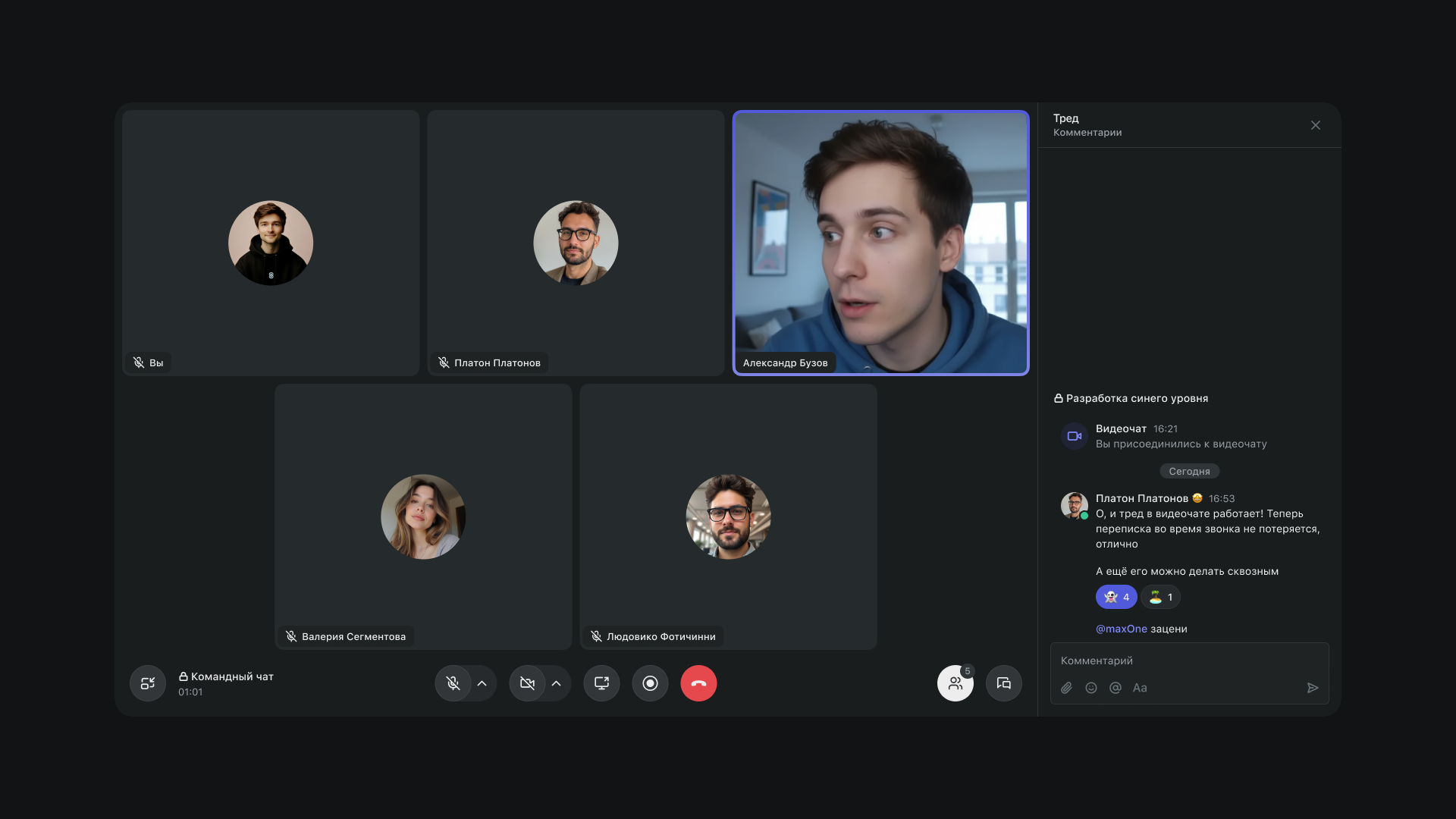 The chat is available to everyone in the call and appears as a thread under the call's system message. The chat history is saved after the call ends.
Video call hotkeys
- Alt(⌥) + S: share screen
- Esc: minimize the call window
- Alt(⌥) + T: open the chat thread
- Alt(⌥) + P: open Participants
- Alt(⌥) + L: leave the call
- Alt(⌥) + V: turn camera on/off
- Alt(⌥) + M: turn microphone on/off
If you're still choosing a video conferencing platform, read our guide to choosing a video conferencing platform for business. It covers the key criteria and includes a checklist.