Яндекс.Метрика
Custom statuses

Custom statuses

Let your team know what you're up to with an emoji

Most team chat apps have two statuses: online and offline. But for work, that's not always enough. For example, someone might be in an important meeting, on vacation or out sick. Messages may distract them, or they may not be able to reply quickly, and they need a way to let their teammates know.

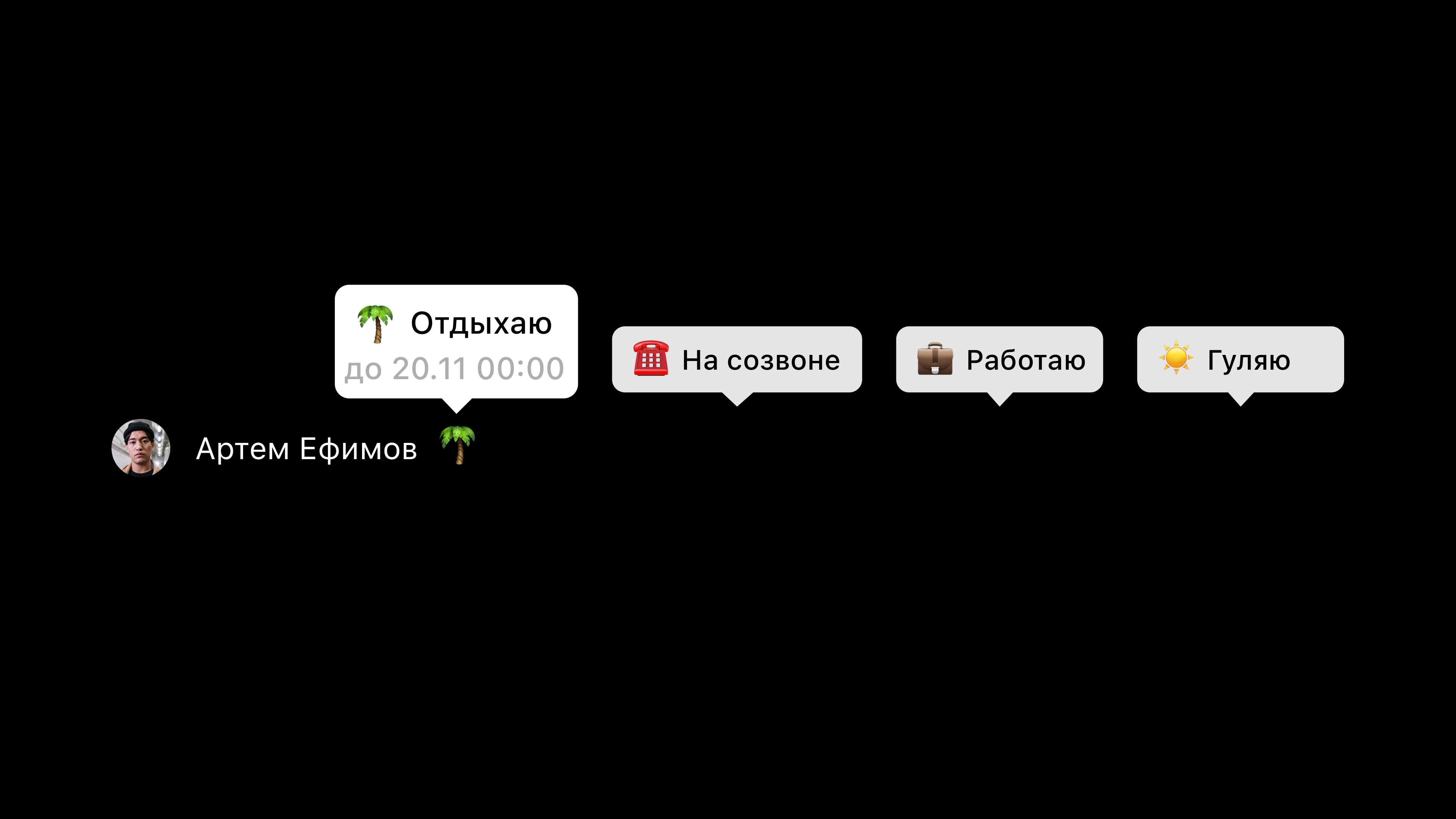
That's what member statuses in Pachca are for. They're emoji shown next to the account name everywhere in the app. There can be lots of statuses, so to avoid confusion, hover over a status to see what it means.
Member status emoji next to the name

How does it work?

Default statuses

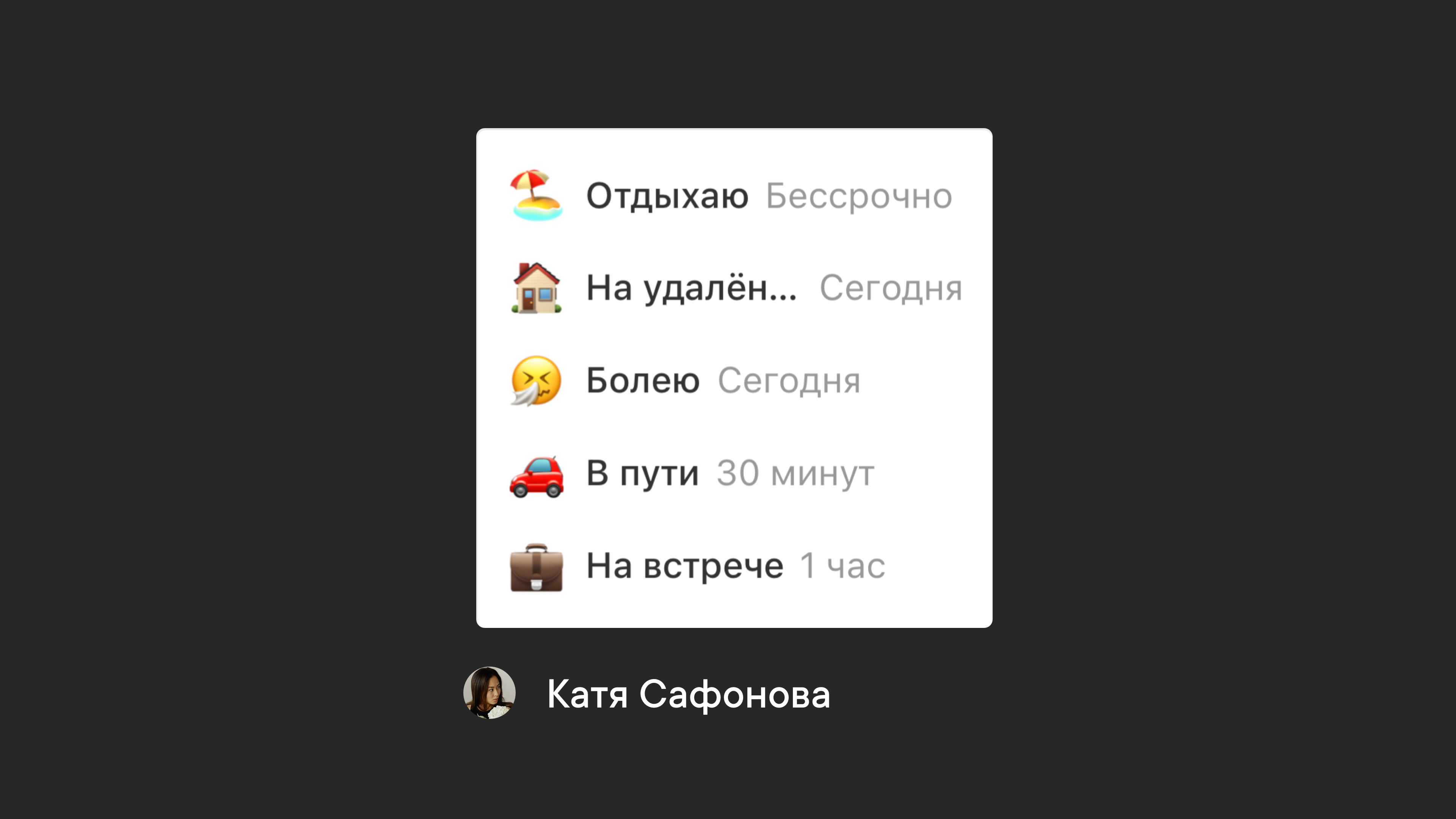
Pachca has 5 default statuses: In a meeting, Commuting, Out sick, Working remotely and On vacation. Each status clears automatically after a set time.

Custom statuses

You can also create your own status. Choose an emoji, set how long the status lasts and add a description your teammates will see. The status is then saved, so you can set it again later

❗️Note: You can save up to 5 statuses. If you already have 5 and want to create a new one, one of the existing statuses is removed.

How do I set a status?

  • Click your profile photo in the bottom-left corner of the screen to open the menu.
  • Open the drop-down list under Set a status and choose one of the available statuses.
  • To create your own status, click the emoji icon and enter a name and how long the status lasts.

"Away" status mode

This is a status with an extra note. If you want to let your teammates know not only that you're on vacation, but also who's covering for you, which device you can be reached on and so on, turn on "Away" mode. The note appears:

  • in your profile
  • in your mini profile
  • above the message field when someone @mentions you in a chat
  • above the message field in a direct message with you
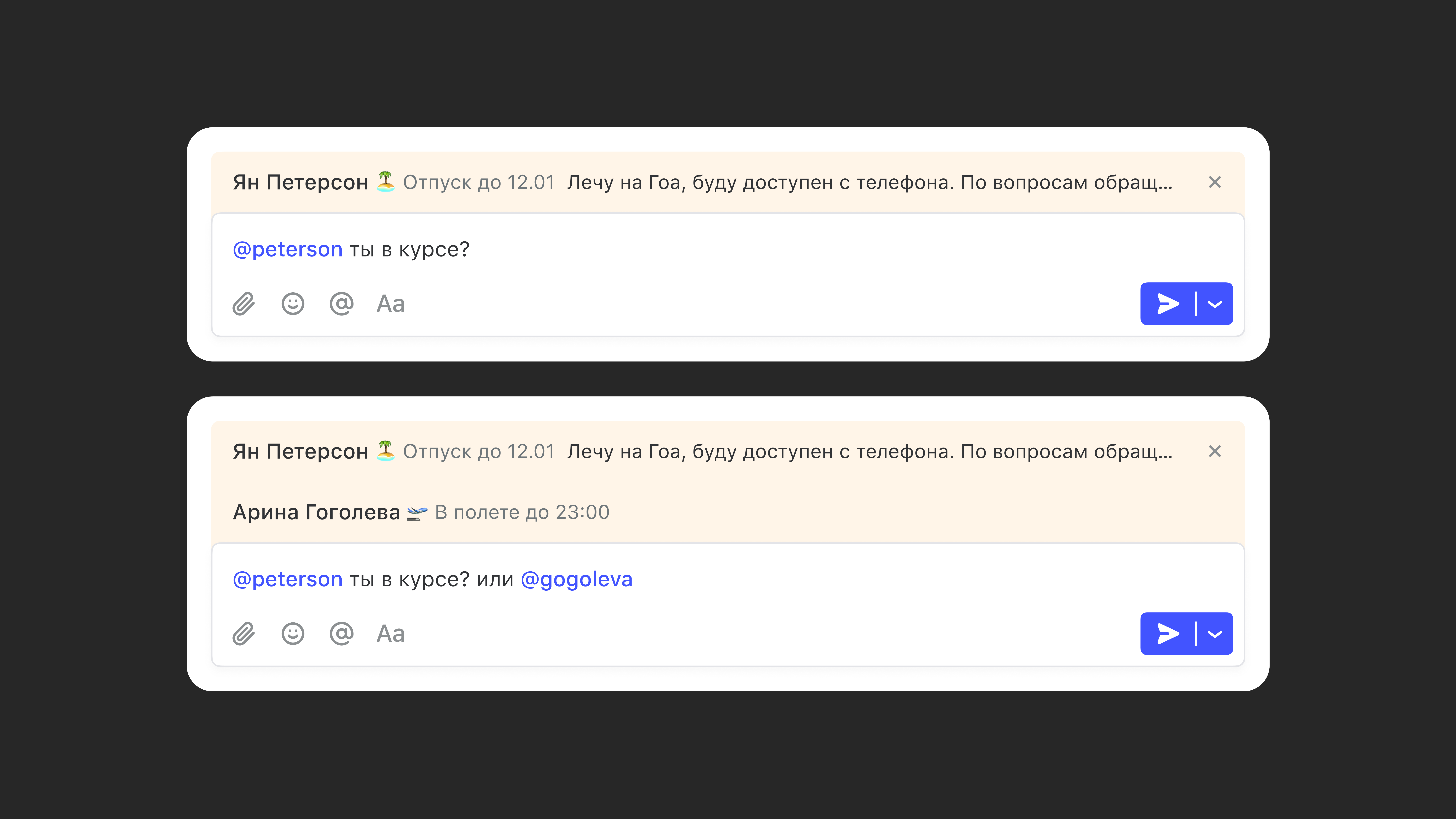
"Away" status note above the message field in a direct message

Updated: February 5, 2024

More in Features

Text formatting
How to make text bold or italic, add a link or insert a code snippet
Scheduled messages
How to schedule a message and why you'd want to
Custom reactions
Custom emoji for message reactions
Drafts
All your unsent messages in one place
Folders
Organize your workspace with folders
Guest accounts in Pachca
What guest roles can do in Pachca
Members in Pachca
What the Members section offers your team
Workspaces in Pachca
How they work, how to create them and how to switch between them
Chat roles
What roles there are and how they differ
Notification types in Pachca
Notification types in Pachca and how they work: setting up push notifications and sounds
Badges in Pachca
What the visual indicators for new activity mean
How threads work and why you need them
How threads work in Pachca: a detailed look at discussion threads in the team chat app
How mentions work in Pachca
A detailed guide to mentions
Unread folder
All your unread chats in one place
Installation guide
Spoiler: you might not need one
Reminders
Tasks and reminders in Pachca: plan your day and stay on top of important work right in your team chat app
Sidebar
How to set it up, what's in it and tips from the Pachca team
Access levels
How an employee differs from an administrator
Member profile
What you can add to a member profile
Message actions
How to pin, reply to or edit a message
Legacy calls in Pachca
Video calls in Pachca: how to call your team, share your screen and record meetings
Video call moderation
How to assign moderators and manage participants, settings and restrictions in a video call
Chats and channels
Which one to use and when
Public channels and chats
Public channels in Pachca: how to create an open space for company news and announcements
Threads
Discussion threads under messages to keep conversations organized
New video calls in Pachca
A refreshed interface and new features for video calls
Permission settings for video calls
How to set up access to your camera, microphone and screen sharing on different devices
How Pachca links open from other apps
Set links to open automatically in the desktop app