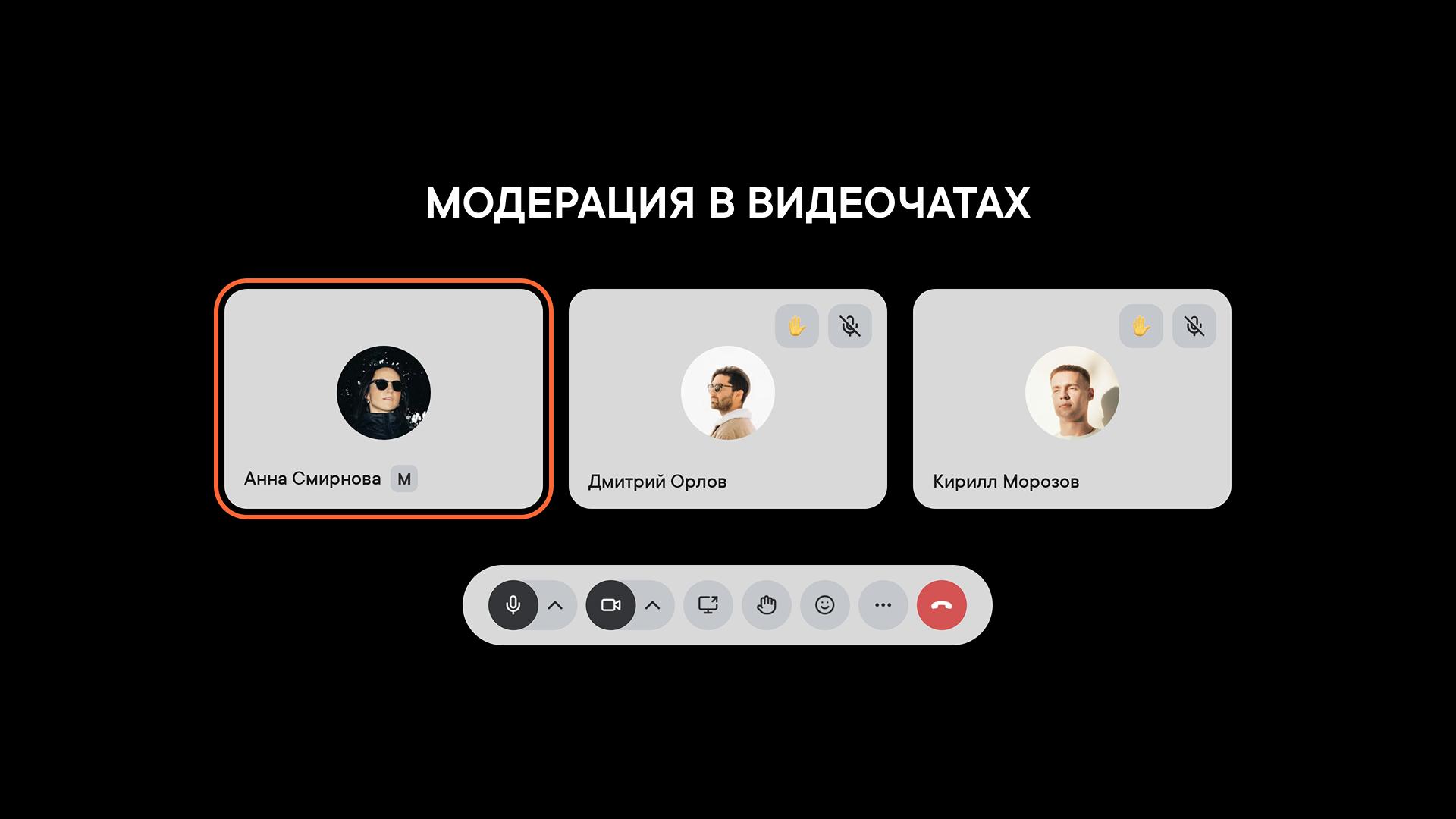
Video call moderation
How to assign moderators and manage participants, settings and restrictions in a video call
In group video calls, you can assign moderators. They help run the call: keep things in order and manage participants' microphones and cameras, screen sharing, raised hands and recording.
Moderation is available in the web and desktop versions of Pachca and is coming soon to the mobile apps.
Who becomes a moderator
- Automatically: the person who starts a group video call, if they're the workspace owner or an administrator, or the chat's creator or admin. If the person who starts the call doesn't have these permissions, they become a co-moderator.
- With the Become moderator button: participants with the same permissions can click it in the Video call participants section.
- By assignment: a moderator can make anyone else a co-moderator by choosing Make moderator in that participant's menu.
Roles and permissions
| Permission | Moderator | Co-moderator |
|---|---|---|
| Manage call participants | ✓ | ✓ |
| Manage call settings | ✓ | ✓ |
| Assign co-moderators | ✓ | — |
Take the role away from a co-moderator | ✓ | — |
Remove the role from another moderator | ✓ | — |
Remove a moderator from the call | ✓ | — |
Manage microphones
A moderator can mute one participant or everyone at once.
A moderator can't unmute someone else's microphone. Instead, they send the participant a request to unmute. The participant sees a pop-up where they can accept or decline.
Important: If a moderator mutes all participants at once, Pachca asks them to confirm first.
Manage cameras
Cameras work the same way. A moderator can:
- turn off a specific participant's camera;
- turn off everyone's cameras;
- ask a participant to turn on their camera.
In the last case, the participant gets a request and decides for themselves whether to turn on their video.
Important: If a moderator turns off everyone's cameras at once, Pachca also asks them to confirm.
Manage screen sharing
If a participant is sharing their screen, a moderator can stop it.
A moderator can also prevent participants from starting new screen shares. After that, only moderators and participants the moderator has specifically allowed can share their screen.
For example, on an all-hands call, you can turn off screen sharing for everyone but keep it available for two colleagues who are presenting.
If a participant with this permission briefly leaves the video call and rejoins, they keep the permission.
Manage raised hands
A moderator can lower a specific participant's hand or all raised hands at once.
This comes in handy after a Q&A block, for example, when you need to clear the list and move on to the next topic.
Manage recording
By default, participants can start recording a video call.
A moderator can prevent other participants from starting a recording. After that, only moderators can record.
Manage transcription
By default, participants can start transcription of a video call. After the call, an AI summary and a full transcript arrive in the thread.
A moderator can prevent other participants from turning it on with Disable transcription. Participants then see the note "Moderator disabled transcription," and only moderators can start it. To lift the restriction, use Allow transcription in the same place.
Remove a participant from a video call
A moderator can remove a participant: in the participant's menu, choose Remove from video call. To keep them from rejoining until the call ends, turn on Don't allow rejoining this video call in the confirmation window. Only a moderator can lift this restriction, using Invite to video call.
What happens when someone reconnects
A moderator or co-moderator doesn't lose their role if they briefly leave the video call.
The role is restored when they rejoin. This works both for moderators who got the role automatically or with the button and for assigned co-moderators.
If all moderators leave, the video call keeps going. A participant with the right permissions can click Become moderator and take over the call.
Important: All restrictions set by moderators stay in place. For example, if a moderator prevented participants from starting a recording, transcription or screen share, these restrictions remain even if all moderators leave the video call.
If the last moderator is about to leave the video call, Pachca warns them and offers to assign a replacement.
The role stays with the participant for the duration of the current call. If their workspace permissions change during the video call, they keep the moderator role until the call ends.
How participants learn about moderator actions
When a moderator takes an action on a specific participant, Pachca lets them know.
For example:
A moderator muted your microphone.
or:
A moderator turned off your camera.
The name of the person who took the action isn't shown.
If an action needs the participant's consent (for example, when a moderator asks them to unmute or turn on their camera), a pop-up with buttons appears instead of a regular notification. The participant accepts or declines the request themselves.
Limitations
Keep a few rules in mind:
- There's no moderation in one-on-one video calls
- Guests and multi-guests can't be made moderators
- A call can have up to 10 moderators at a time
- A co-moderator can't remove the role from another moderator
- A co-moderator can't remove another moderator from the video call
- A moderator can't turn on someone else's microphone or camera. They can only ask the participant to do it