How mentions work in Pachca
A detailed guide to mentions
Mentions in Pachca may work a little differently than in other team chat apps. This article covers everything mentions can do in Pachca and how they work.
How mentions work for different roles
Administrators and Employees can mention any chat member in Pachca by their unique username or name.
Multi-guests can mention only people they share chats with. For example, if your workspace has 100 people but a multi-guest shares chats with only 20 of them, those 20 are the only people the multi-guest can mention in their messages.
If a multi-guest mentions someone they don't share any chats with, the mention won't work and that person won't get a notification.
How mentions appear in Pachca
If someone mentions you in a chat, an @ icon appears next to that chat in the chat list on the left. Important: the number badge on a chat doesn't show the number of mentions. It shows the number of unread messages in that chat.
If someone mentions you in a thread, a number badge appears next to Threads at the top of the sidebar. Important: this number shows the total number of unread comments, with or without mentions. Learn more about how badges work in this article.
Mention someone in a chat
To mention someone in a chat, type @ followed by their name or username in your message. They'll get a notification that they were mentioned. You can mention only people who have been added to the chat. When you reply to someone's message, they also get a notification, just like with a mention.
Mentions also get through muted notifications. So even if someone has turned off notifications for a chat, they'll still be notified when you mention them.
System mentions @all and @here
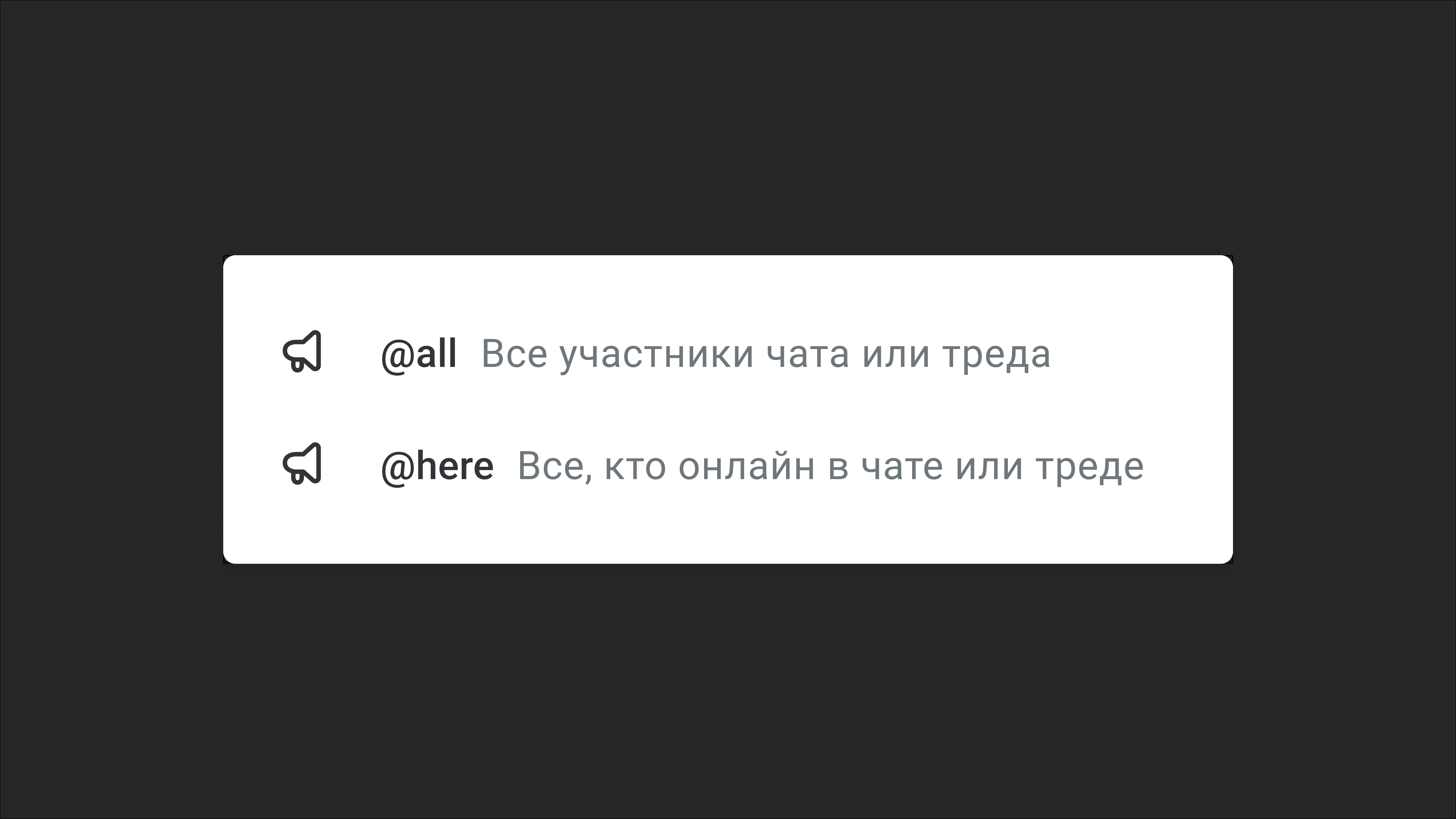
To mention everyone in a chat or thread in Pachca, use the system mention @all. To reach only the chat or thread members who are online, use @here.
Once you send a message with a system mention, everyone in the chat gets a notification, even if they've turned off notifications for that chat.
Mentions work a bit differently inside threads. A person becomes a thread member as soon as they open the thread and view its messages. They aren't automatically subscribed to the thread, though, and don't get notifications about new replies.
Mentioning @all in a thread subscribes all its current members. That means everyone who either subscribed to the thread themselves or just opened it (and so became a member) gets notified. After an @all mention, they'll get notifications about every new message in that thread.
The @here mention is also addressed to all thread members. Unlike @all, though, it doesn't subscribe you to the thread automatically. You'll get a notification only about the message where you were mentioned with @here, and only if you're online at that moment. To follow the rest of the discussion, you'll need to open the thread yourself.
Mention a group of people by tag
In Pachca, you can create tags to manage different groups of people. Learn more about them in this article.
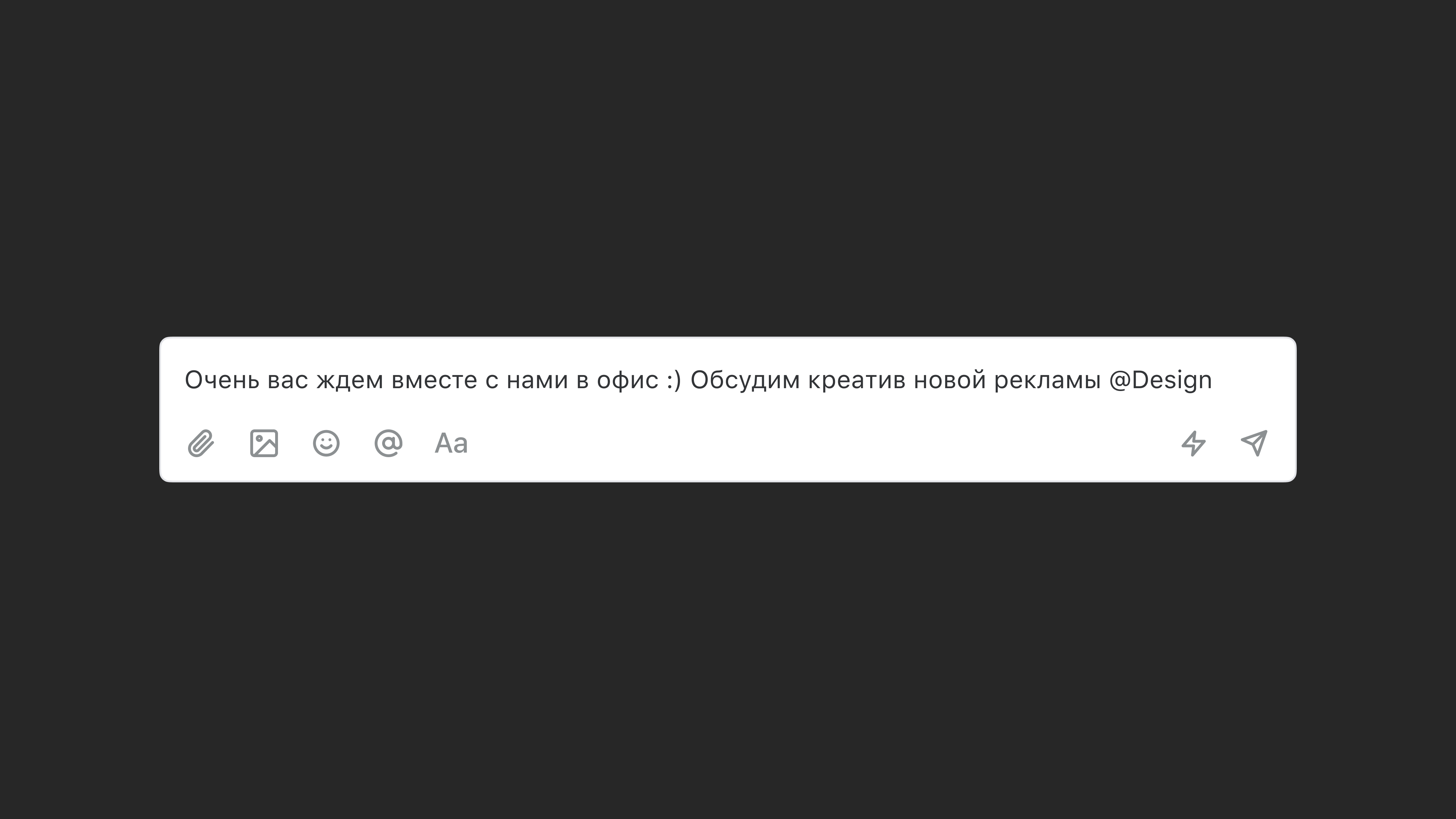
To mention a group of people in a chat, add the tag you need, or the people with that tag, to the chat. You can then mention the tag with @, like this: @Engineering. Only the people with that tag who are members of the chat will get access to the thread.
If you mention a tag right in the thread and turn on the Add @mentioned people to thread option, everyone with that tag gets access to the thread.
Mention someone in a thread
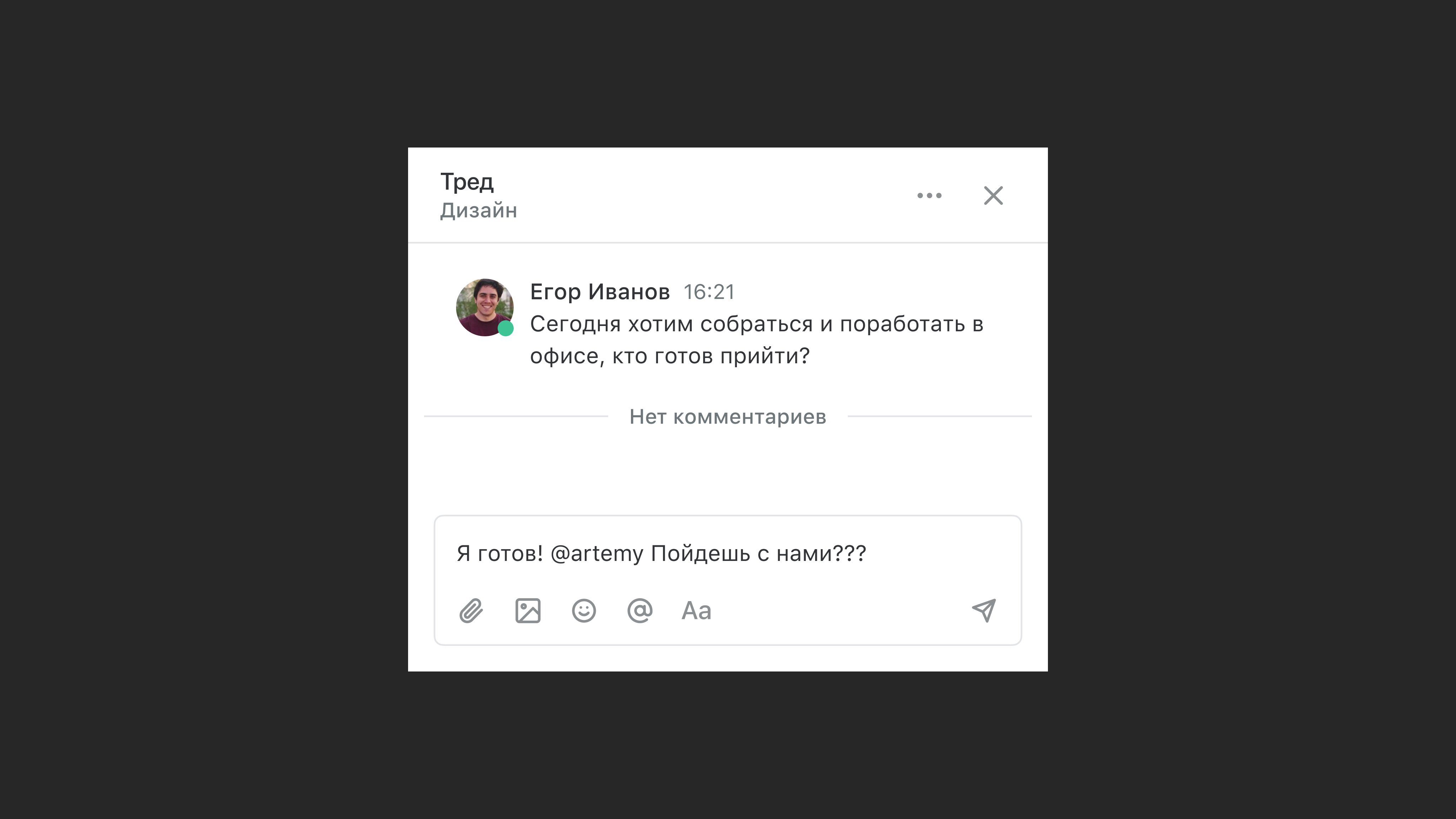
To mention someone in a Pachca thread, type @ followed by their name or username in your thread message.
Threads in Pachca aren't tied to chat members. So if you start a thread in the Support or Engineering chat, you can invite someone who isn't in that chat to the thread at any time. We explain how to use this in your day-to-day work in our article on team chat best practices.
Multi-guests are limited in who they can mention in threads. They can mention only people they share chats with.
Mention a chat
In Pachca, you can mention chats the same way you mention people. The suggestions show only chats you have access to: private chats you're a member of and any public chat. Chat mentions work in threads too. When you click a mention, Pachca opens the chat right away if you have access. If you mention a private chat someone doesn't have access to, Pachca shows them a notice that access is restricted.
Mentioning a chat doesn't notify its members. This comes in handy when you need to give context: for example, you can link to your engineering team's chat to show where the main discussion is happening without distracting anyone.