Folders
Organize your workspace with folders
Organize your workspace with folders
Folders help you keep chats organized and never miss new messages. Here's how to use them.
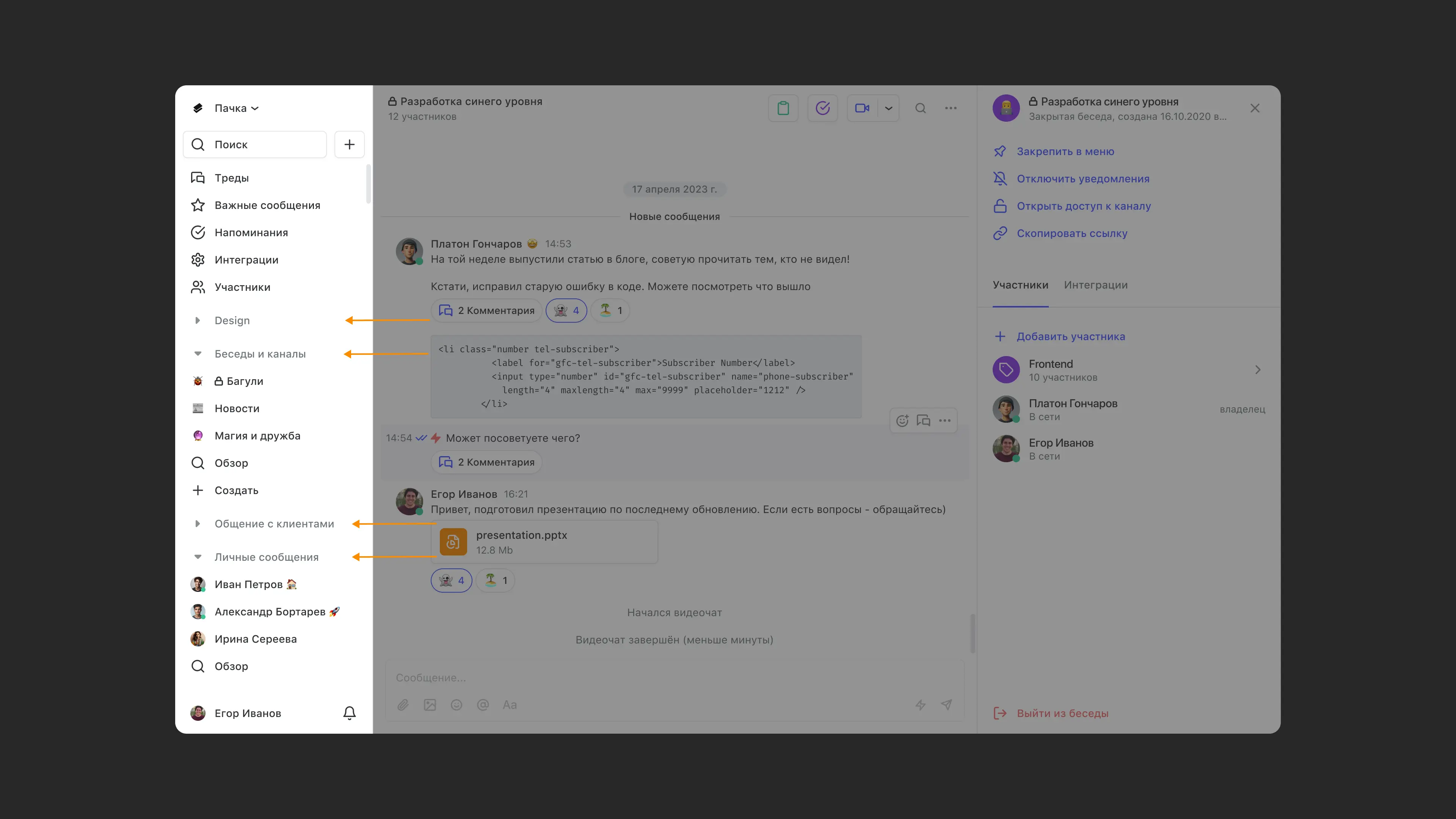
Pachca comes with two folders: one for group chats and one for direct messages. You can also create custom folders for your chats. Reorder them to set your priorities (you can't place a folder above the unread folder). Your folders are visible only to you.
Working with folders
Create a folder
Hover over an existing folder, click the more actions icon and select Add new folder.
Add a chat
To add a chat or a channel, just drag it into the folder you want. You can even move direct messages into folders.
Move a folder
Hover over the folder and drag it. You can move folders only in the web version. The unread folder can't be moved.
Delete a folder
To delete a folder, click the more actions icon and select Delete folder.
Important: You can't delete the Direct messages and Chats and channels folders.
Create a new chat
You can create a new chat or channel right inside a folder and choose whether it's private or public.
To create a new chat, click + or the more actions icon when you hover over the folder.
Browse
In the Chats and channels folder, you can find any chat and read all its messages. To post messages and get notifications, join the chat or channel.
Unread folder
To turn on the unread messages folder:
- Hover over a folder and click the three dots
- Click Add new folder
- Add the unread folder by clicking the button on the blue banner
Here's how it works: as soon as you get a new message in any chat, that chat pops up in the unread folder. Once you've read the message, the chat disappears from the unread folder.