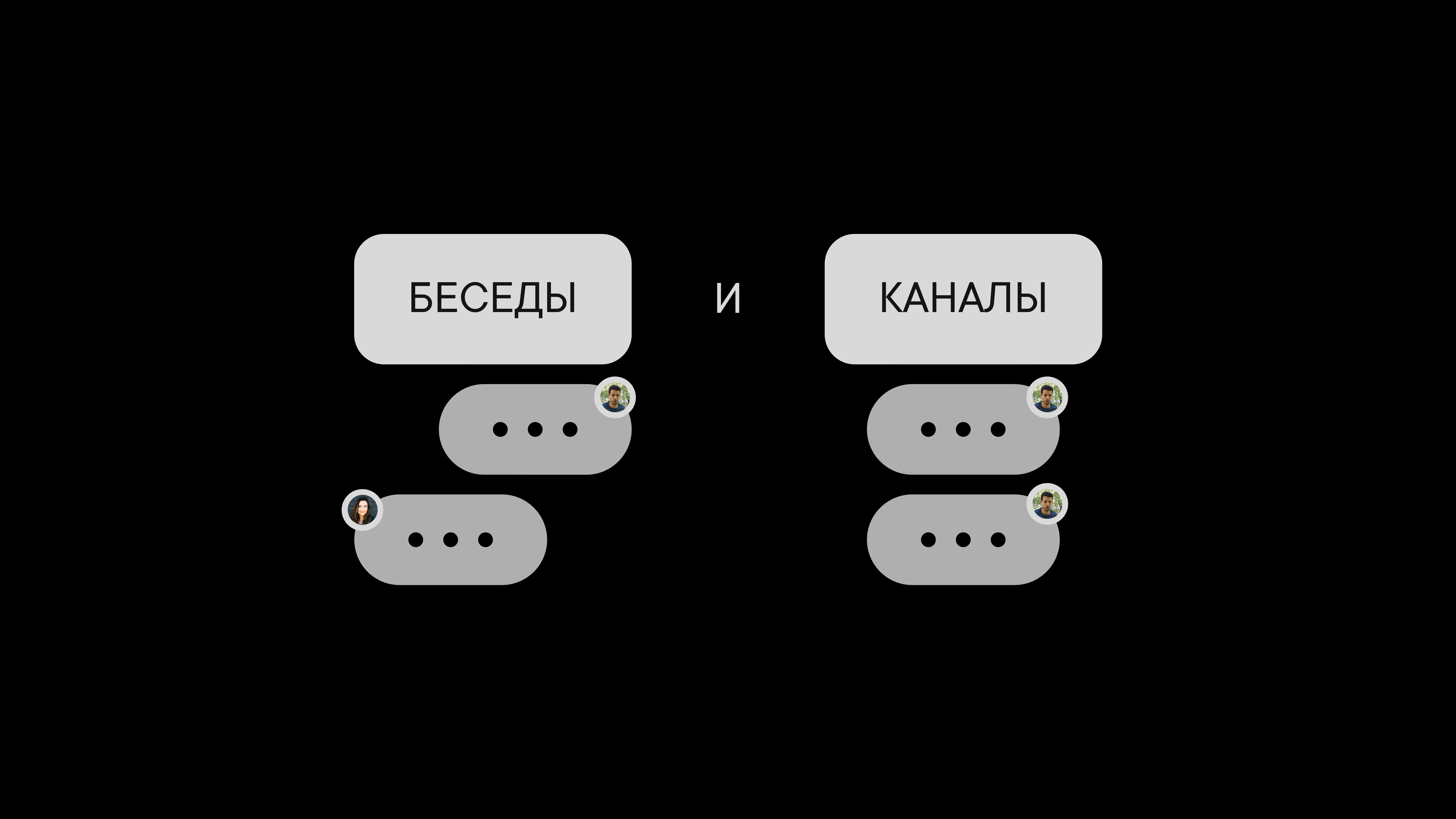
Chats and channels
Which one to use and when
Pachca has chats and channels for team communication
To keep your team's communication effective, it helps to know what each type of chat is for.

In chats, any member can post a new message. They work best for discussions.
In channels, only the creator and the editors they assign can post. Channels are a good fit for news, information and any messages that need to keep their structure and not get lost in the flow of discussion.
You can make either type of chat public or private.
Public chats
Anyone in the company except Multi-guests and Guests can join public channels and chats. You'll find a list of these chats in the Browse section. You won't get notifications from these chats until you click Join. After that, you can adjust notifications by clicking the bell.
Private chats
Private channels and chats are visible only to the people invited by the channel creator or a chat member. You can add and remove members in a channel or chat at any time.
Which one should you use? Examples
-
A "Time off" chat where employees let the team know about upcoming vacations or days off. A public chat works best here, so everyone knows who's available and can post about their own plans.
-
An "Analytics" chat where the person in charge posts site traffic reports for a given period. A private channel works best here, since this information probably shouldn't be available to everyone, and only the person who compiles the analytics should be able to post. Everyone else can leave comments.
-
A "Marketing ideas" chat where everyone involved in marketing brainstorms. A private chat is the way to go, so nobody peeks at the creative process. By the way, you can add everyone you need here at once with tags.
-
A "Press mentions" chat where the whole team can follow every time your company shows up in the media. Most likely, only one person posts here, and everyone else can respond with reactions and comments. A public channel is perfect for this.
Archiving chats
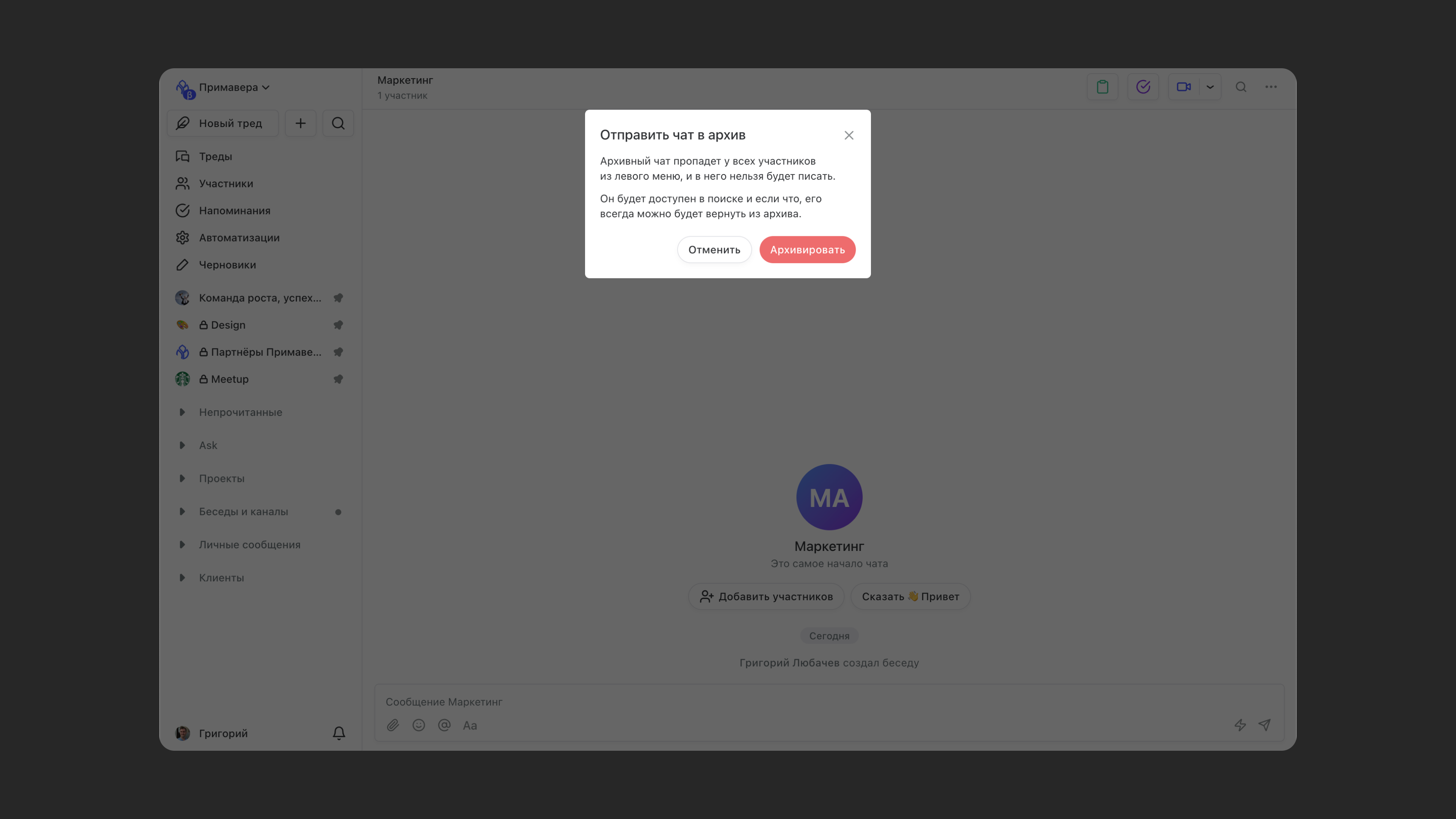
You can't delete a chat in Pachca, but you can send it to the archive. An archived chat doesn't disappear from your chat list. Archived chats still show up in global search, but their names turn gray and get an icon.
To keep access to the information in an archived chat, copy its link and save it. You can do this while archiving the chat or at any time by clicking the three dots in the top-right corner. You can restore a chat from the archive without losing any of its message history.
To restore a chat from the archive, type its name in global search at the top of the left sidebar. Click the chat in the results to open it, click the three dots in the top-right corner and choose Restore from archive.