How Pachca links open from other apps
Set links to open automatically in the desktop app
When someone sends you a link to Pachca (to a chat, message or thread) in another app, like a team chat app or email, you can open it right in the Pachca desktop app and skip the browser.
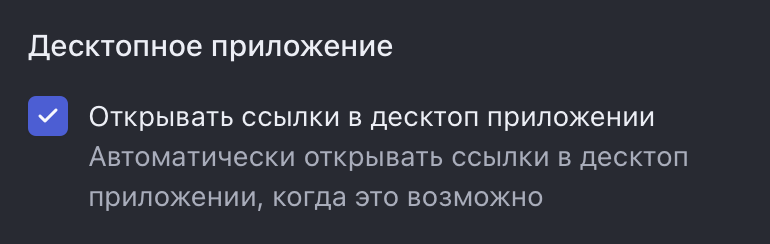
That's what the Open links in desktop app option is for. When it's on, clicking one of these links automatically opens Pachca in the desktop app, right on the chat or message you need.
How it works
- Option on. You click a Pachca link in a team chat app, email or any other app, and it opens right in the desktop app on the chat, message or thread you need.
- Option off. The same link opens in your browser, in the Pachca web app.
This setting only applies to links to content in Pachca itself. External links (to other sites and services) always open in your system's default browser.
How to turn it on or off
The setting is in the Pachca web app (in your browser):
- Click your name in the bottom-left corner.
- In the menu that opens, click your name again to go to your profile.
- Scroll down your profile page to the Desktop app section.
- Check Open links in desktop app (or uncheck it to open links in your browser).
Changes apply right away. There's nothing else to save.
If the link still opens in your browser
- Make sure the Pachca desktop app is installed and running. You can download it from the Pachca apps page.
- Check that Open links in desktop app is checked (see the steps above).
- The first time you open a link, your system may ask for permission to open the app. Allow it.
Updated: June 6, 2026