Sidebar
How to set it up, what's in it and tips from the Pachca team
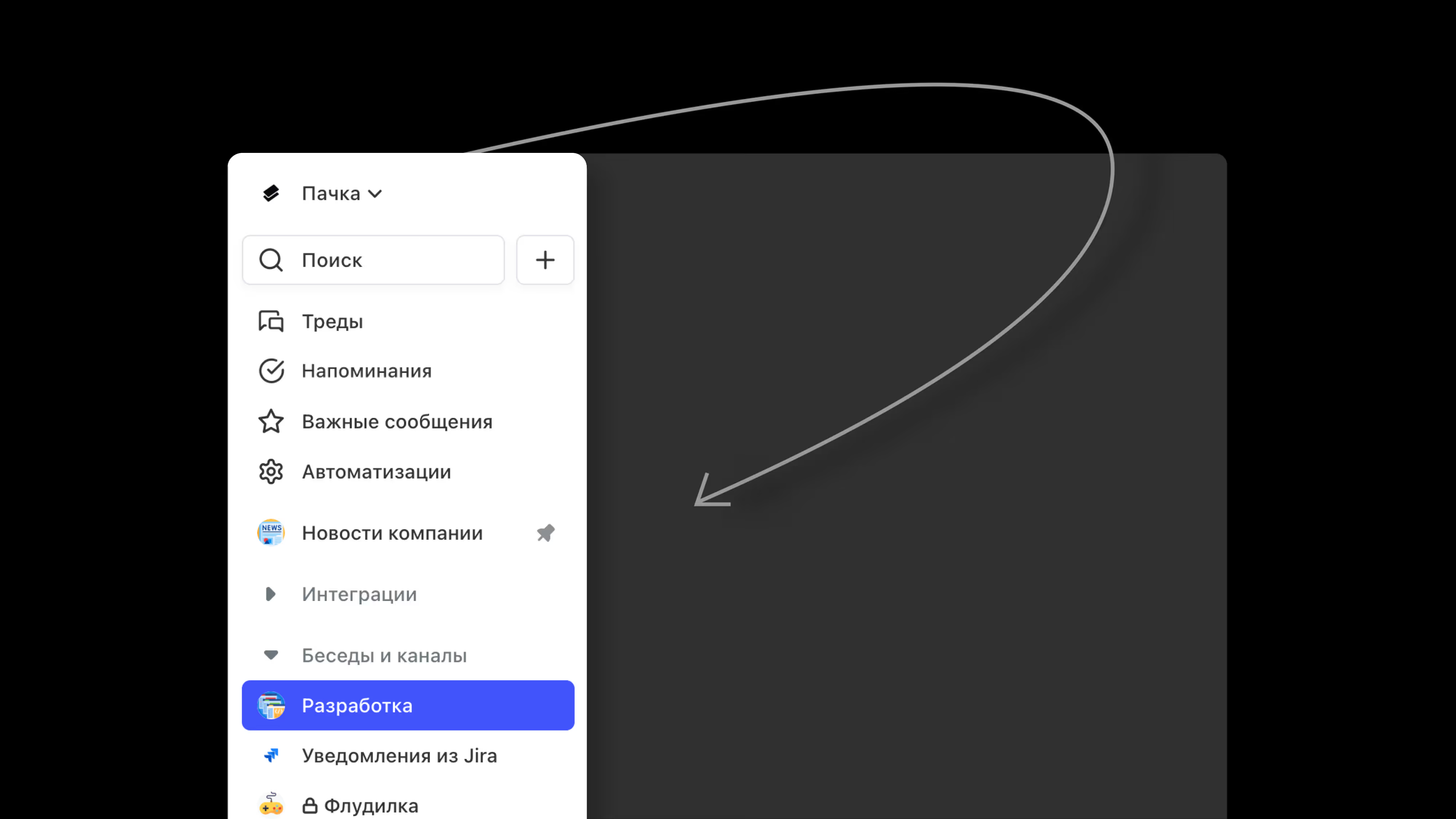
Pachca has a sidebar. It's on the left side of the screen and available from anywhere in the app, for example, from an open chat or the task window.
What's in the sidebar?
Here's a quick rundown of the sidebar sections, from top to bottom:
1. Workspace
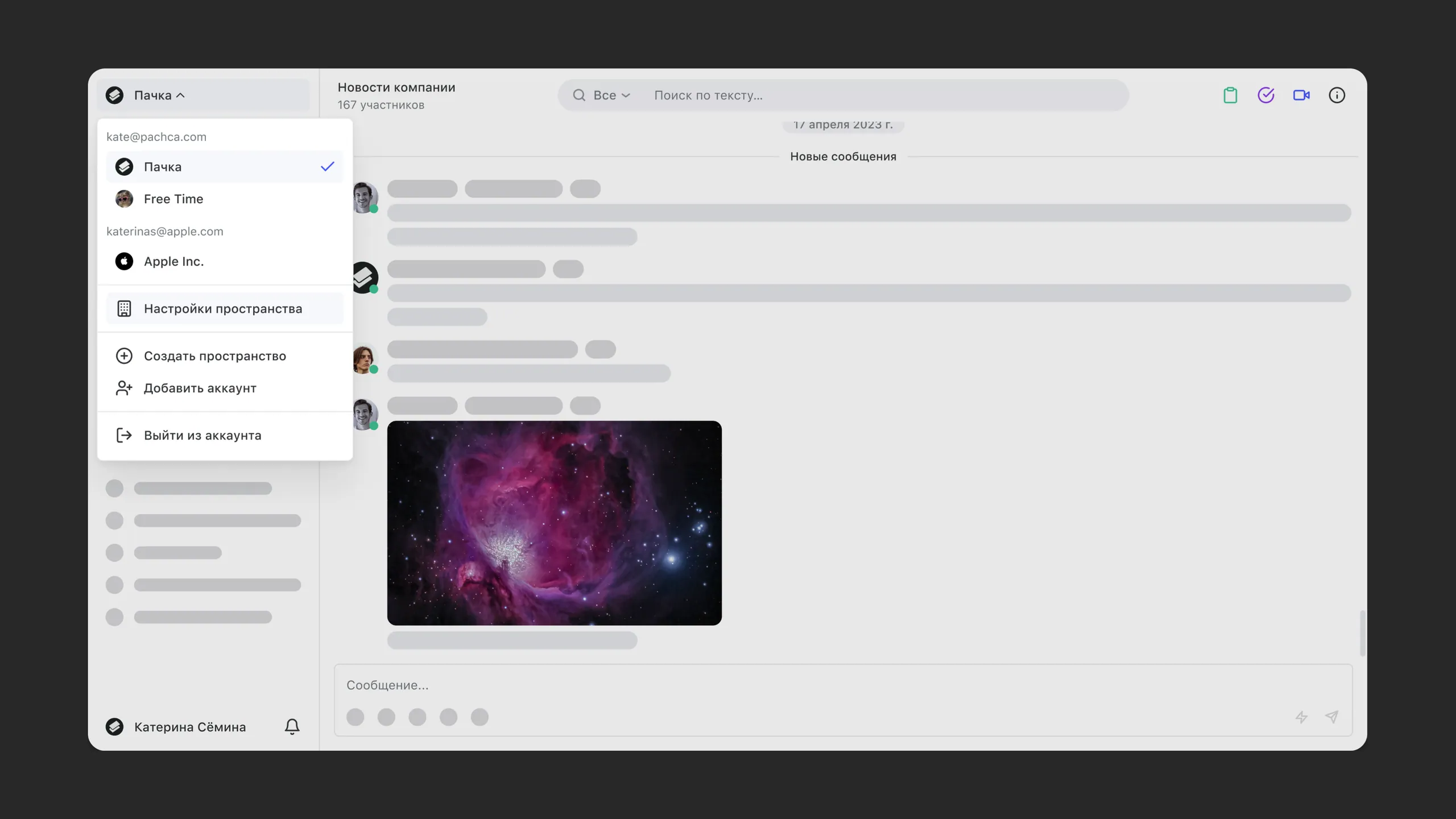
It's in the top-left corner of the screen. Here you can manage your subscription and set up your company profile by adding a logo and name. Click the workspace name to open a drop-down menu where you can add another workspace or account. Learn more about workspaces and switching between them here.
2. Global search.
The search bar helps you find other members, chats and any message sent in them. Just type a word, and Pachca shows every chat and message that contains it.
3. Quick chat creation
The Plus icon next to search opens a window for quickly creating a chat. You don't even have to enter a name. Just invite your teammates. You can come up with a name together later :)
4. Threads
All the threads you're part of are collected here. Learn more about what threads are in this article and how they work in Pachca in this one.
5. Reminders
This is your built-in reminder list. Plan your day and set reminders for yourself and your teammates.
6. Favorites
You can add both chat messages and thread comments to Favorites. If you have no saved messages, the section disappears.
7. Members
Here you'll see everyone added to Pachca. Quickly find a teammate, check their job title and department and look up their contact details.
8. Drafts
Drafts help you keep track of chats and threads with unsent messages. All your unfinished message drafts are one click away in this section, on any device.
9. Chats
By default, all company chats are split into group chats and direct messages. You'll find them in two folders: Chats and channels and Direct messages. From there, it's simple: create as many folders as you like, arrange them in the sidebar and drag and drop chats into them however you want. Pin the most important conversations, where most of the work happens, above your folders.
10. Your profile
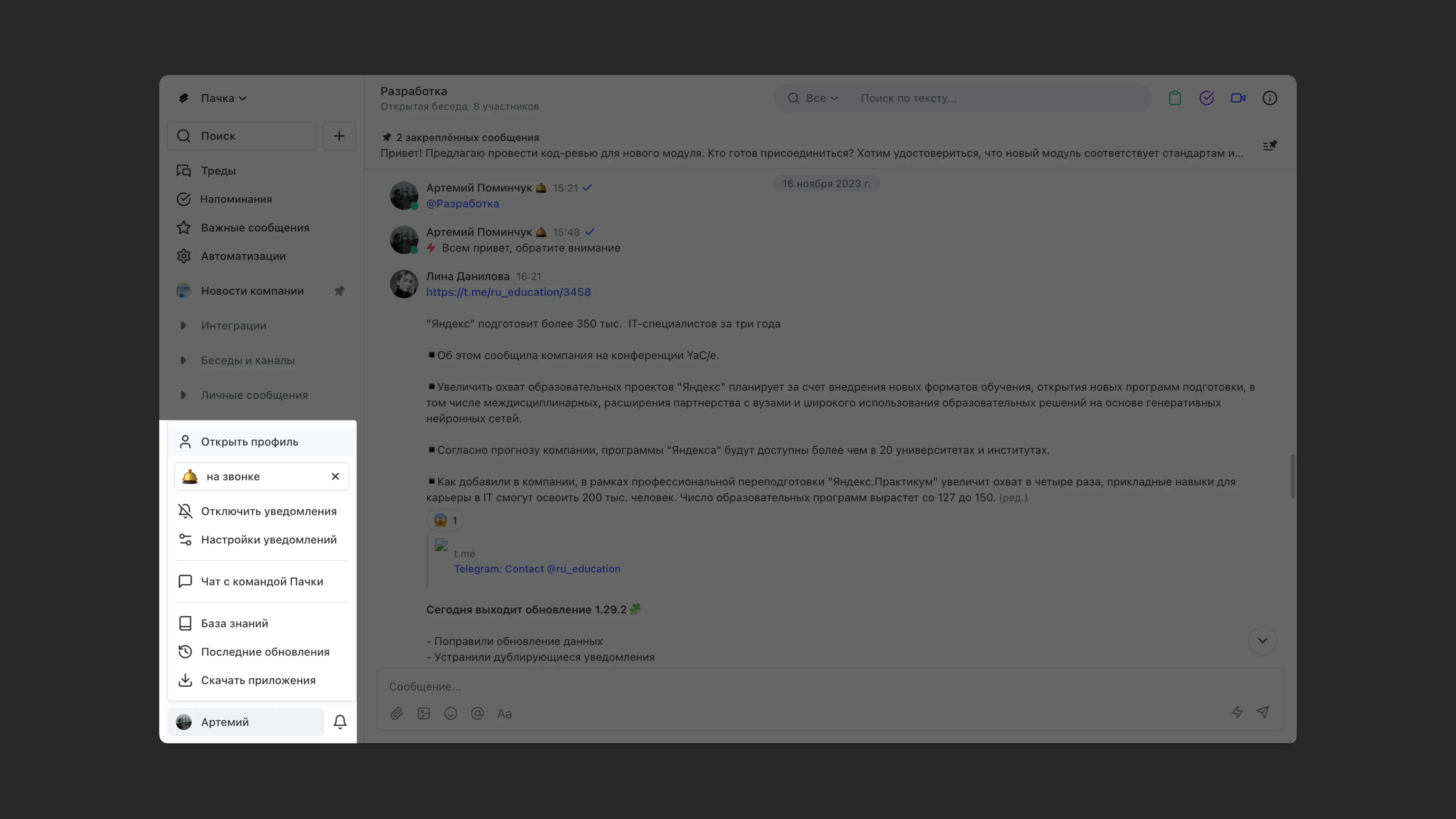
You'll find it in the bottom-left corner of the screen. It does a lot: here you can fill in your info, set a status, manage notifications, adjust Pachca settings or contact our support team.
Sidebar tips:
- Sort your folders by priority. Keep the ones you need most at the top and move the ones you rarely use to the bottom. This helps you stay focused on what matters most.
- You can adjust the width of the sidebar by dragging its right edge.
- We recommend pinning no more than 5 chats above your folders so you stay focused on what matters. That said, there's no limit on the number of pinned chats.
- To see the list of public chats you can join without an invitation, click Browse next to the Chats and channels folder.
- In the mobile apps, the sidebar looks a little different from the desktop version and sits at the bottom of the screen.