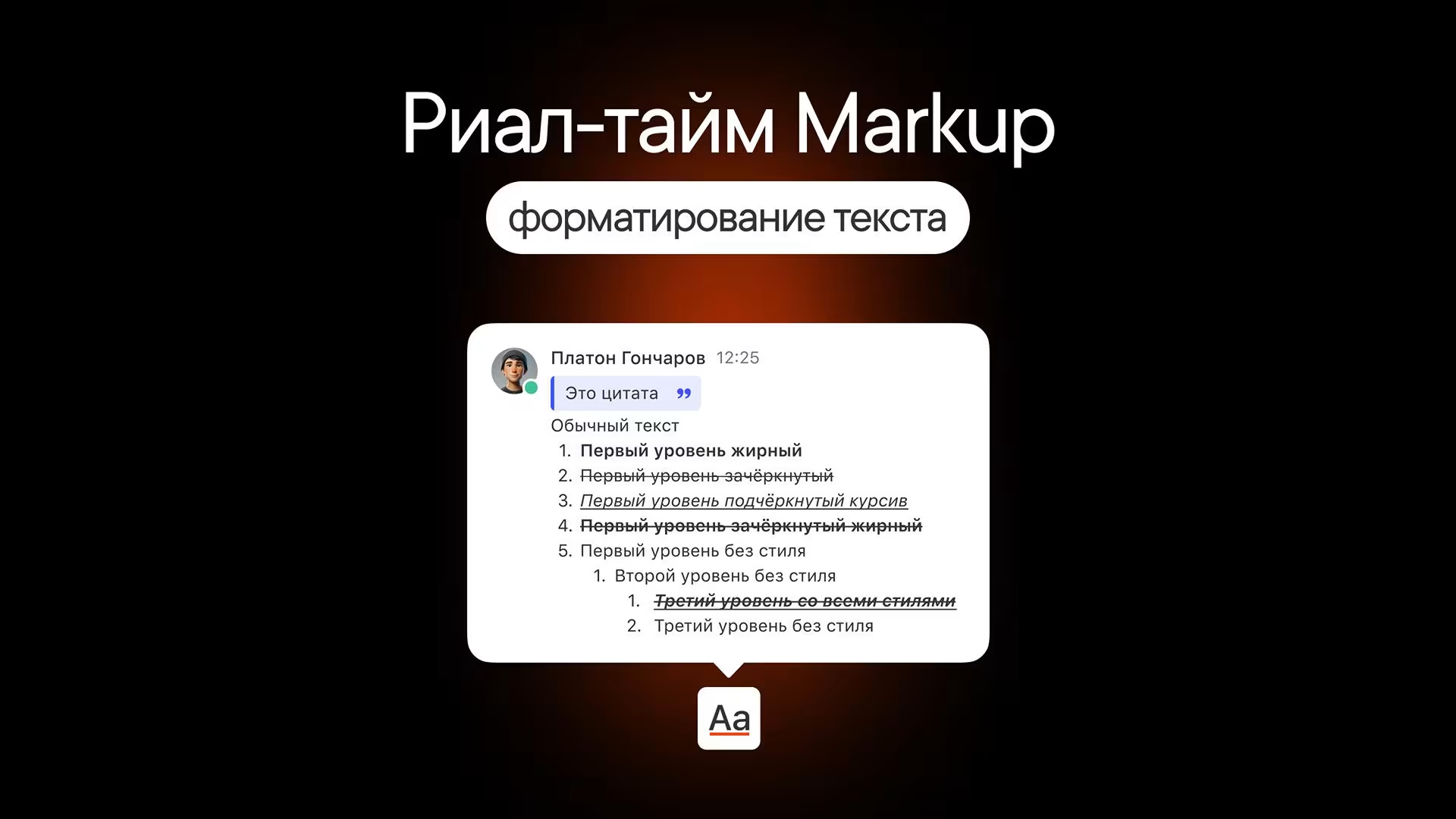
Text formatting
How to make text bold or italic, add a link or insert a code snippet
Real-time markup means text formatting where every style shows up right in the message field and stays in sync across all platforms.
Important! A single message can be up to 16,000 characters long. You won't be able to send a message that's longer than that.
How to format text
- Format text using the formatting menu or keyboard shortcuts. Bots still support Markdown. You'll find the full list of keyboard shortcuts and Markdown characters at the end of this article.
- To open the formatting menu, click the Aa icon below the message field.
- If the menu is hidden, select some text to use the pop-up menu.
- Select the part of the text you've written and choose the formatting you want.
- The formatting is applied right in the message field, and the menu shows which styles are applied to the text.
- If you paste text that's already formatted into the message field, it keeps its formatting.
Bold text
- B in the formatting menu
- Web and desktop: Cmd / Ctrl + B
Italic text
- I in the formatting menu
- Web and desktop: Cmd / Ctrl + I
Underlined text
- U in the formatting menu
- Web and desktop: Cmd / Ctrl + U
Strikethrough text
- S in the formatting menu
- Web and desktop: Cmd / Ctrl + S
Add a link to text
- 🔗 in the formatting menu
- Web and desktop: Cmd / Ctrl + Shift + U
You can add a link to an image the same way. The image preview appears, and you can hide it for everyone. You can also change the image's aspect ratio just for yourself.
Numbered list
- Button in the formatting menu
- Web and desktop: Cmd / Ctrl + Shift + 7
Numbered lists support three levels. To change the level:
- Start a new line with Shift + Enter
- Then press Tab
Bulleted list
- Button in the formatting menu
- Web and desktop: Cmd / Ctrl + Shift + 8
- Markdown characters: "-" or "*"
Bulleted lists support three levels. To change the level:
- Start a new line with Shift + Enter
- Then press Tab
Quote
- Button in the formatting menu
- Web and desktop: Cmd / Ctrl + Shift + 9
- Markdown characters: > text
Inline code
- Button in the formatting menu
- Web and desktop: Ctrl / Cmd + Shift + C
- Markdown characters:
code
Code block
- Button in the formatting menu
- Web and desktop: Ctrl / Cmd + Shift + Alt / Option + C
- Markdown characters:
```code```
In the web version and desktop apps, you can also pick a programming language from the drop-down list so code syntax is highlighted correctly.
Clear formatting
- Tx in the formatting menu
- Web and desktop: Cmd / Ctrl + Z
Mentions
If a colleague changes their username, hovering over their old mentions in a chat still opens their current mini profile.
Link previews
If a message contains several links, previews appear for the first five. You can hide them for everyone if needed.
Keyboard shortcuts
- Cmd / Ctrl + B: bold
- Cmd / Ctrl + I: italic
- Cmd / Ctrl + U: underline
- Cmd / Ctrl + S: strikethrough
- Cmd / Ctrl + Shift + U: link
- Cmd / Ctrl + Shift + 7: numbered list
- Cmd / Ctrl + Shift + 8: bulleted list
- Cmd / Ctrl + Shift + 9: quote
- Ctrl / Cmd + Shift + C: inline code
- Ctrl / Cmd + Shift + Alt / Option + C: code block
- Cmd / Ctrl + Z: clear formatting
Formatting messages for bots
Bots still use Markdown. The syntax for messages sent via the API and webhooks is described in the formatting guide on the developer portal.