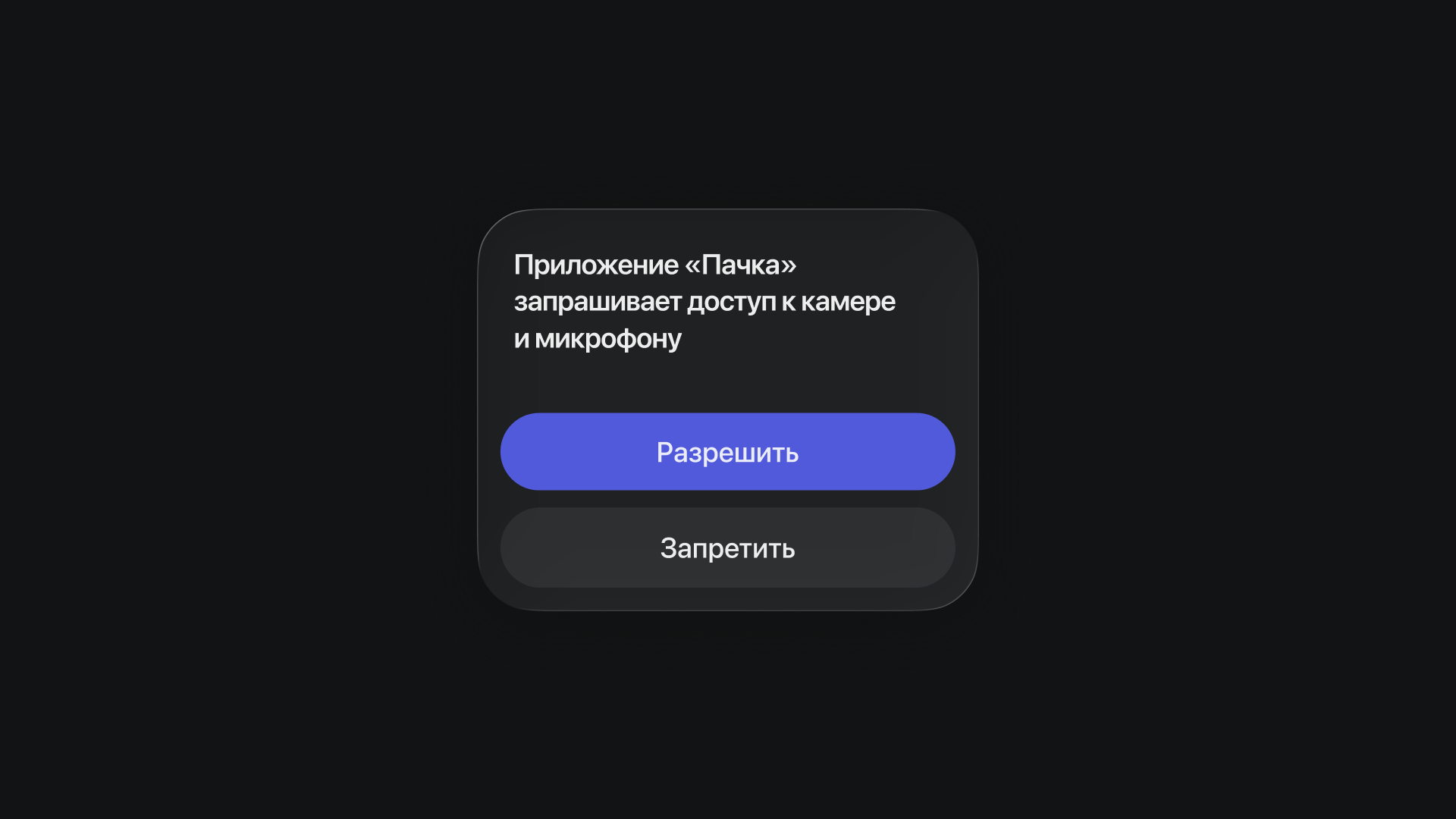
Permission settings for video calls
How to set up access to your camera, microphone and screen sharing on different devices
Web version settings (Safari/Chrome/Yandex/Mozilla)
The first time you join, your browser asks for permission to use your camera and microphone. Click Allow and choose the devices you want to use.
Yandex Browser
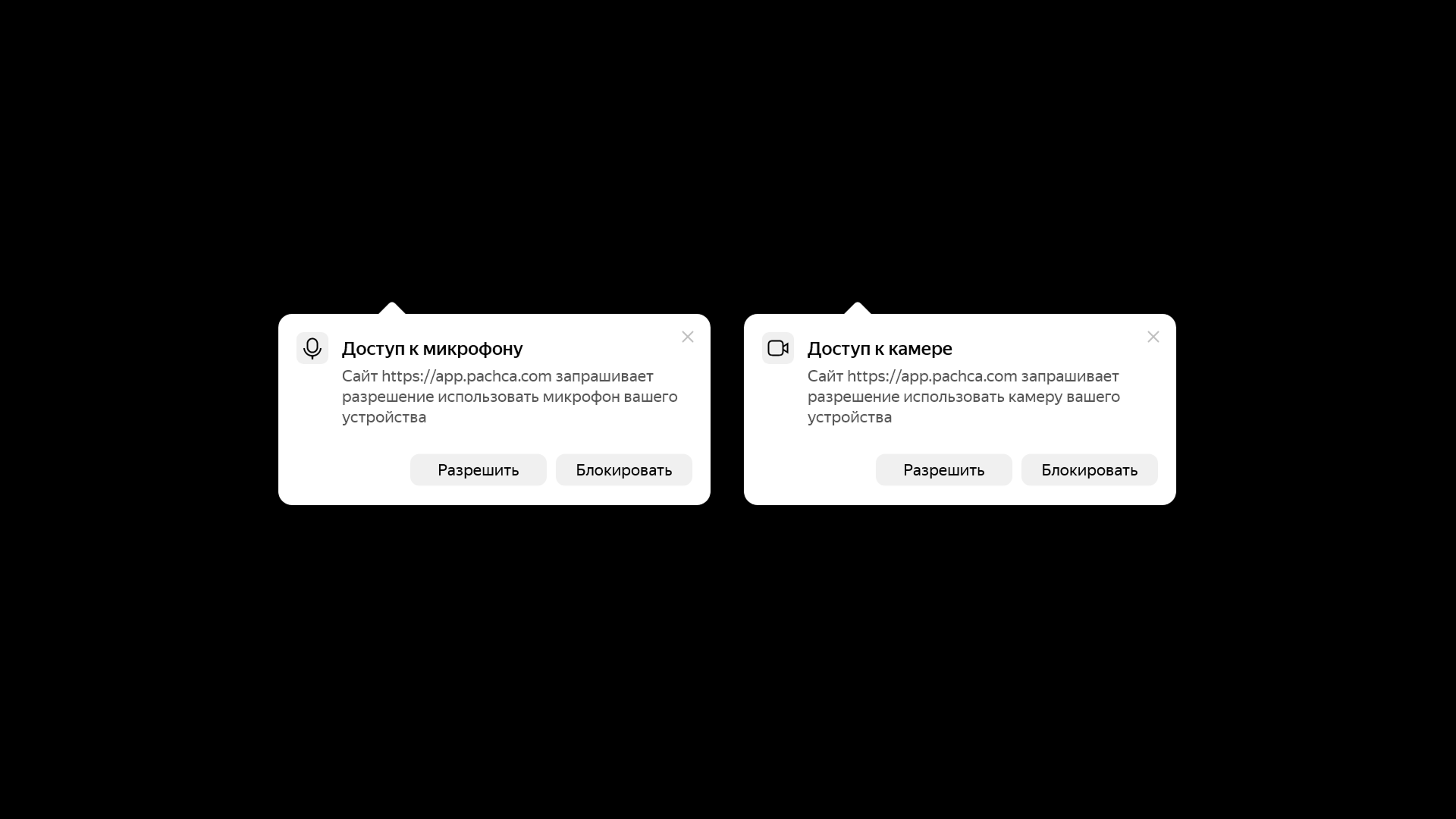 The request appears in the top-right corner of the browser. If it doesn't, click the lock icon in the address bar and turn on the permissions manually.
Chrome
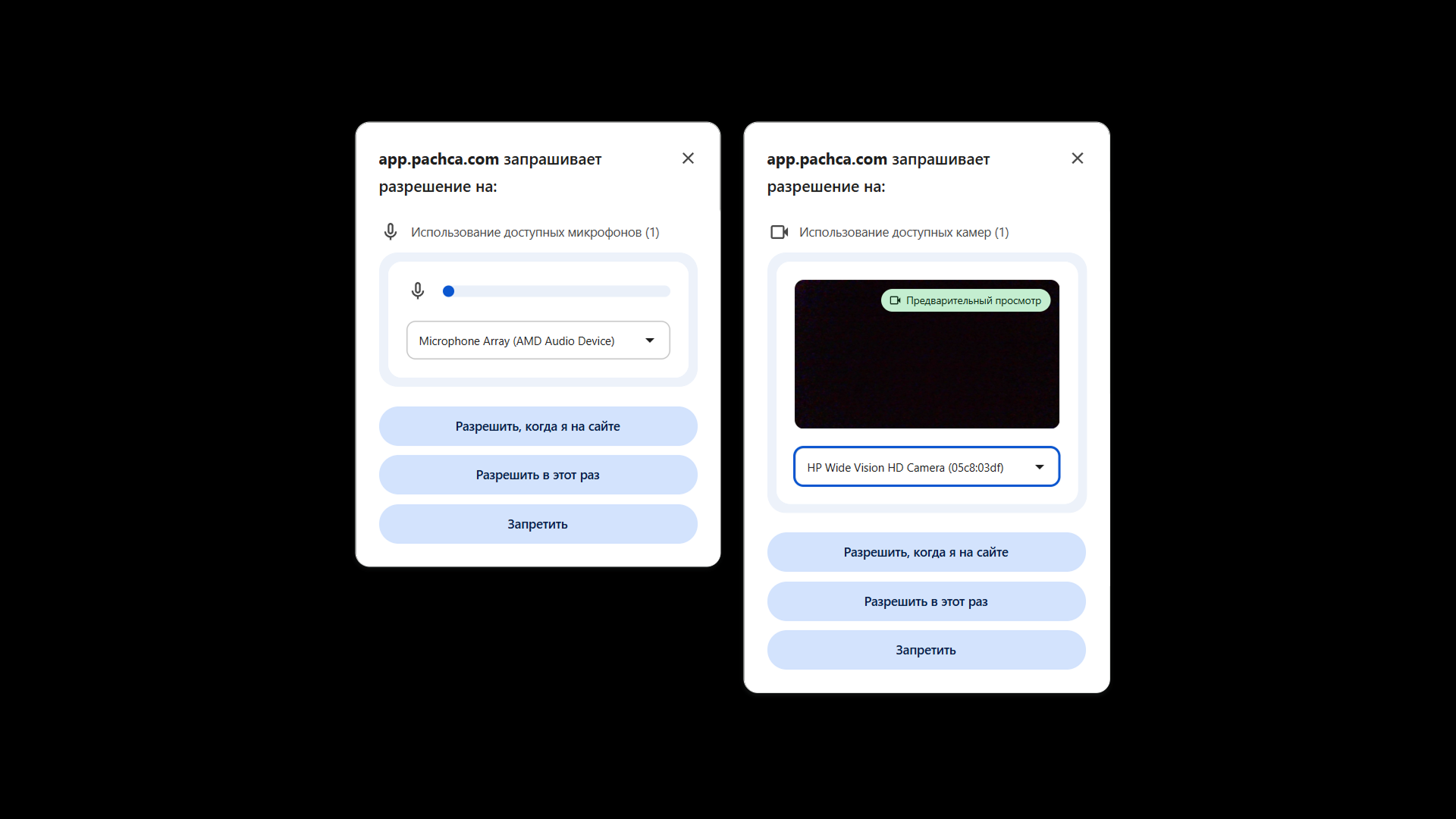 Chrome asks for access automatically. If you denied it, change the permissions using the lock icon.
Mozilla
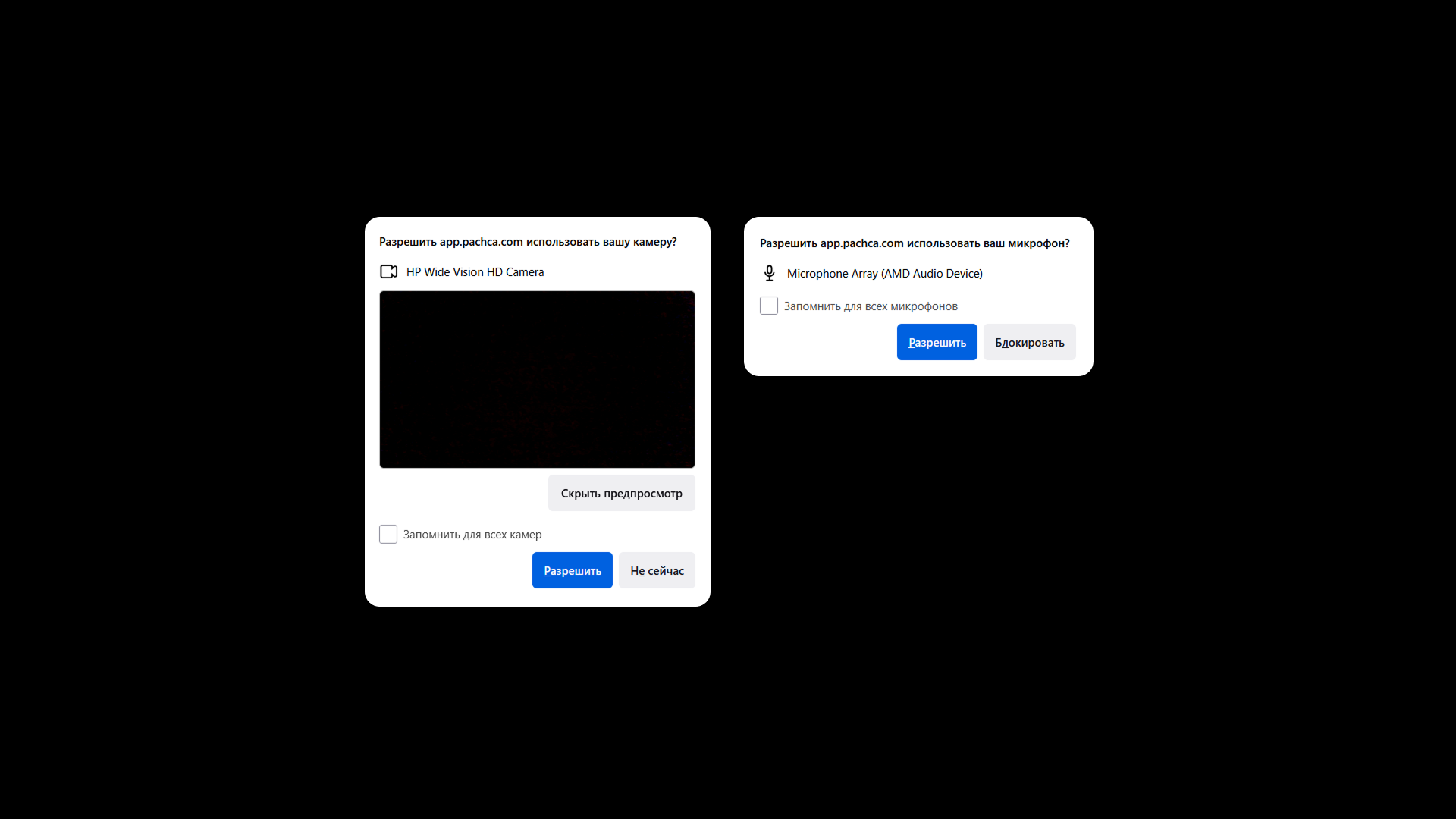 The browser shows a window where you choose your camera and microphone. Once you click Allow, the browser remembers your settings. You can change them using the camera icon or in your privacy settings.
Safari
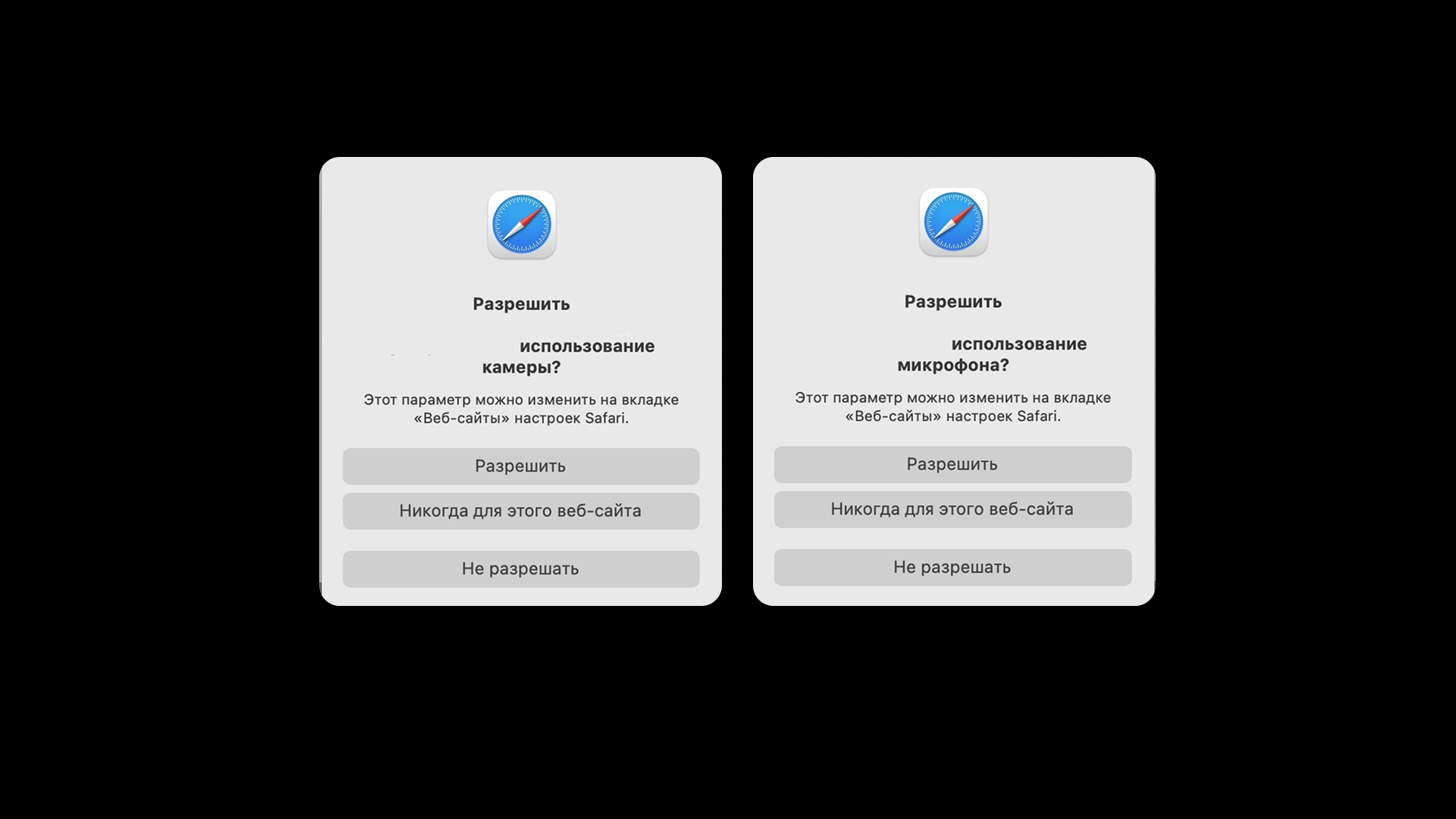 The first time you start a video call, the browser shows two dialog boxes. Click Allow. If you clicked Never for this website, go to your Safari Settings and turn on permissions for Pachca.
Desktop settings
Important: If you denied the system access to your camera, microphone or screen sharing the first time you started a video call, you'll need to grant these permissions yourself in your system settings.
macOS
To set up camera and microphone permissions on macOS:
- Open System Settings → Privacy & Security.
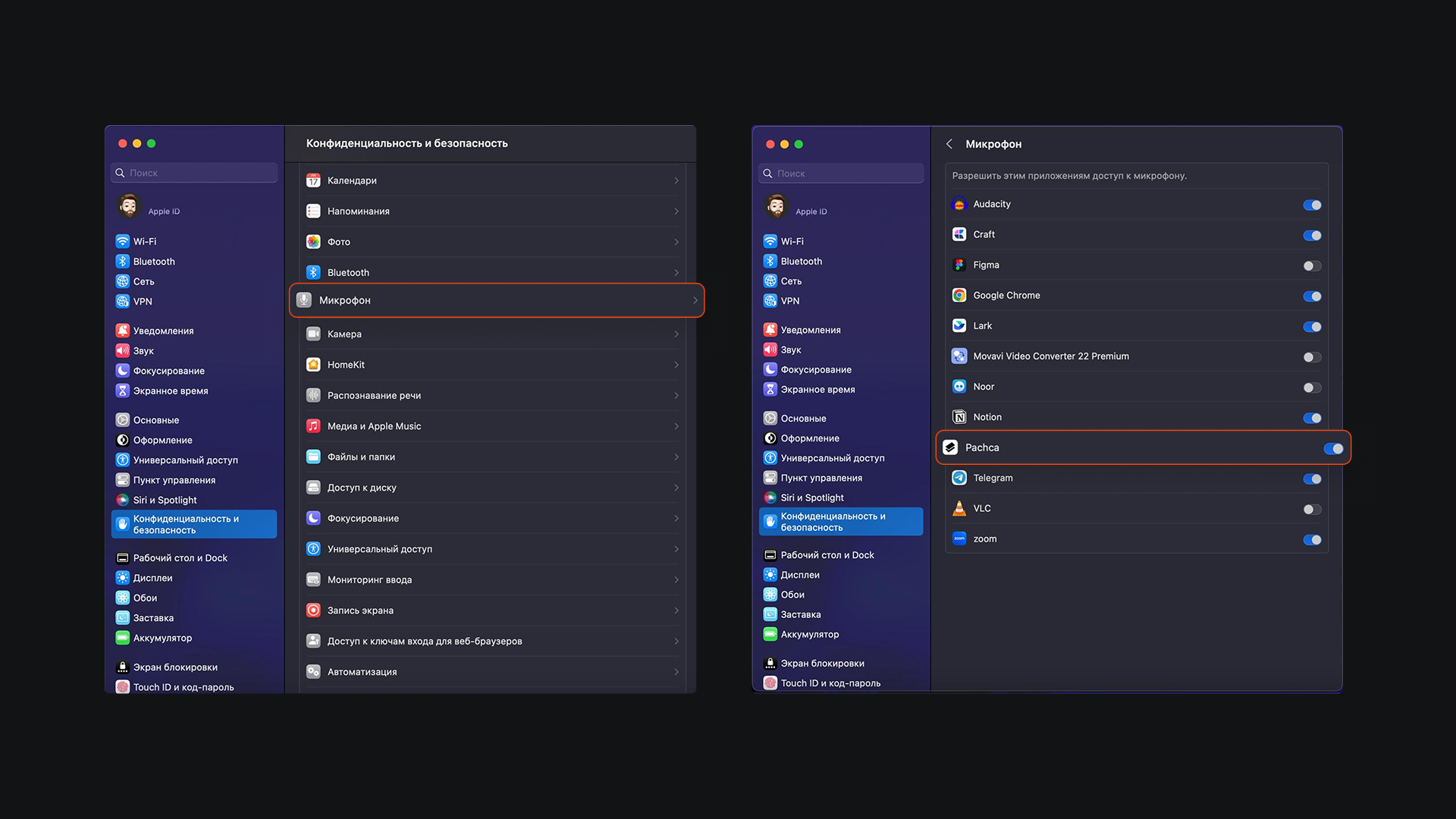
- Select Camera/Microphone.
- Select Screen Recording.
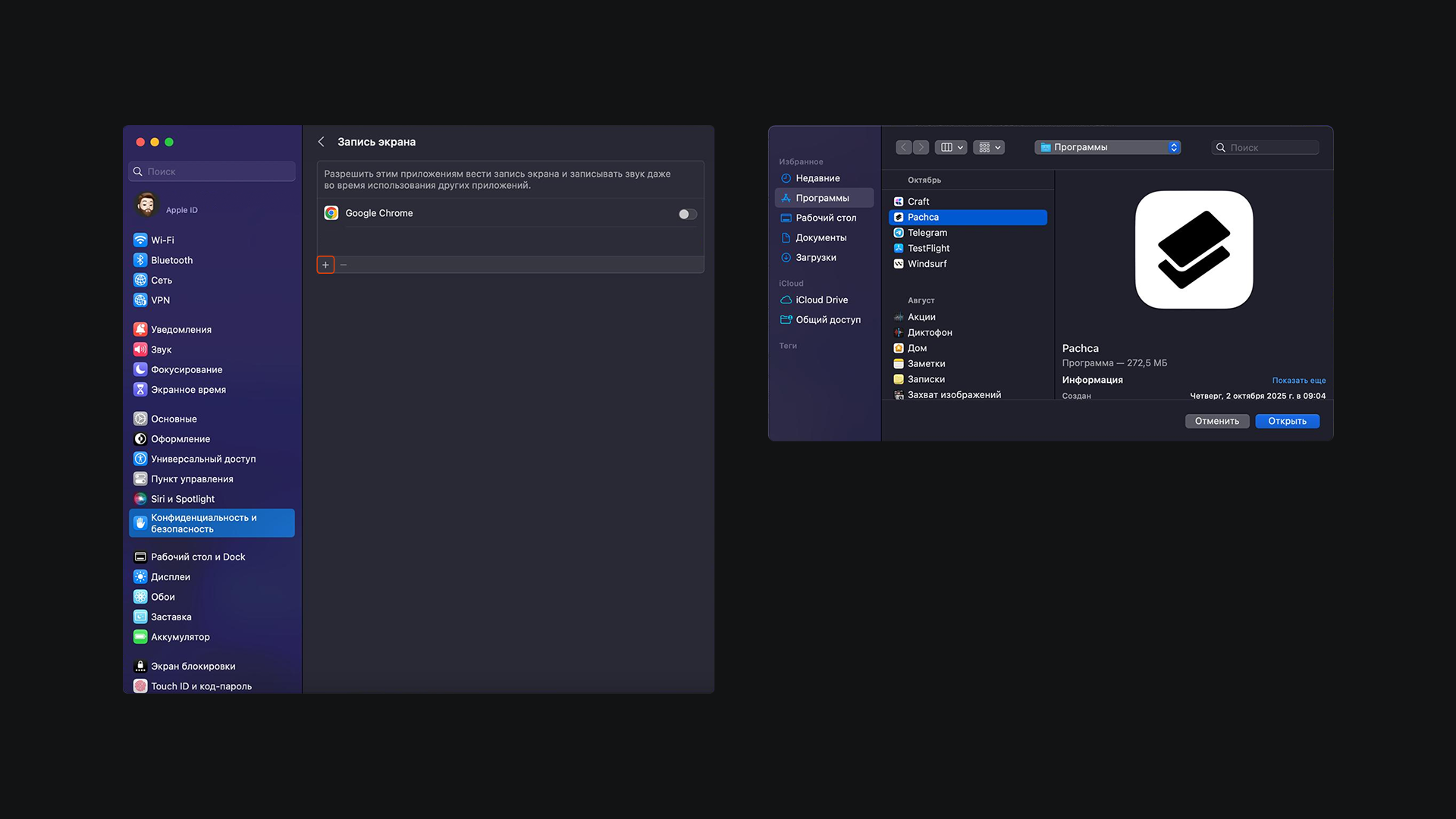
- Turn on access for Pachca.
If the app isn't listed, launch it again.
Windows
To set up camera and microphone permissions on Windows:
- Open Settings → Privacy & security.
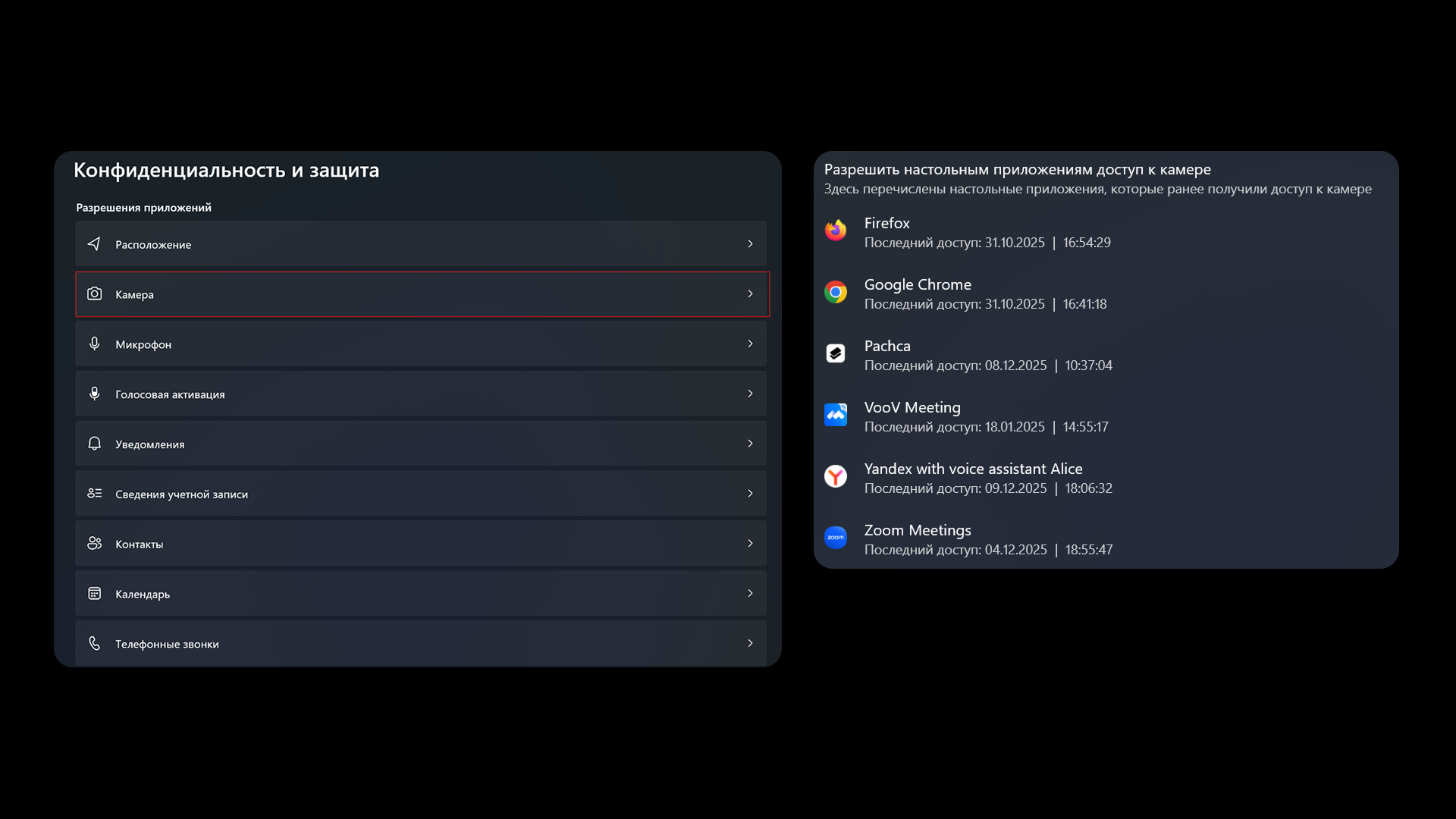
- Under App permissions, select Camera/Microphone.
- Turn on device access and app access, then allow Pachca.
Android settings
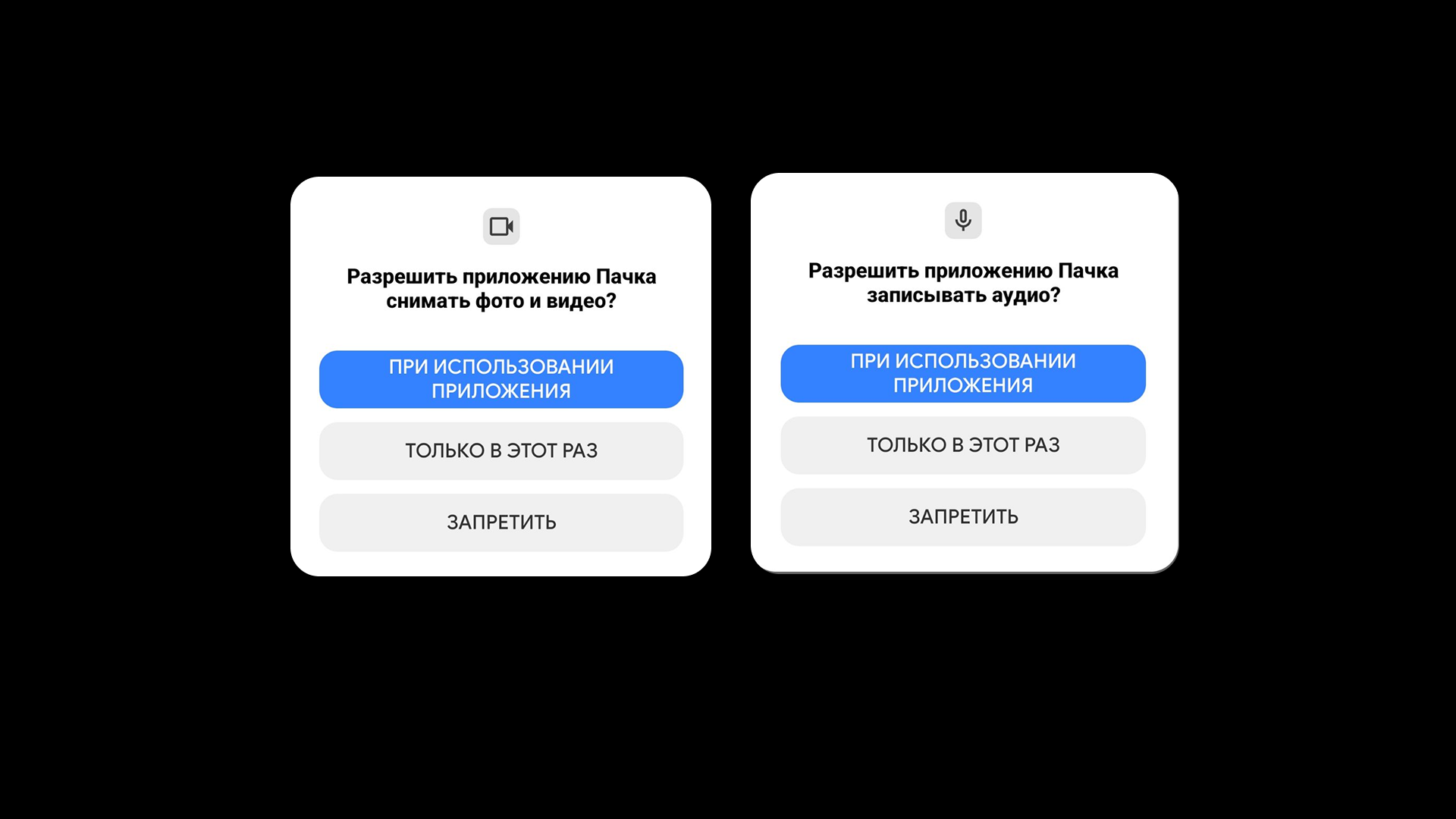 The first time you join a call, Android asks for access to your camera and microphone. If you didn't allow access, open Settings → Apps → Pachca → Permissions and turn on Camera and Microphone.
iOS settings
 The first time you join a call, iOS asks for permission to use your camera and microphone. If you didn't grant access, open Settings → Pachca and turn on Camera and Microphone.
You can still join a call without camera access. You'll just join without video. If you want to turn on your camera later, allow access the same way, in Settings → Pachca.