Reminders
Tasks and reminders in Pachca: plan your day and stay on top of important work right in your team chat app
Reminders in Pachca help you stay on top of all kinds of work: a call with a client, an email you need to answer, a looming deadline, an upcoming meeting and more. Here's how reminders work in Pachca and how to get the most out of them.
How the Reminders section works
Reminders are shown as a list in this order:
- overdue reminders
- reminders for the next 7 days
- other reminders, due in more than a week or with no due date
To sort reminders, use the filters and search bar at the top of the page. Filters let you see reminders set for you or by you, personal reminders or ones linked to chats, all reminders or only completed ones.
How to create reminders
There are three ways to create a reminder:
-
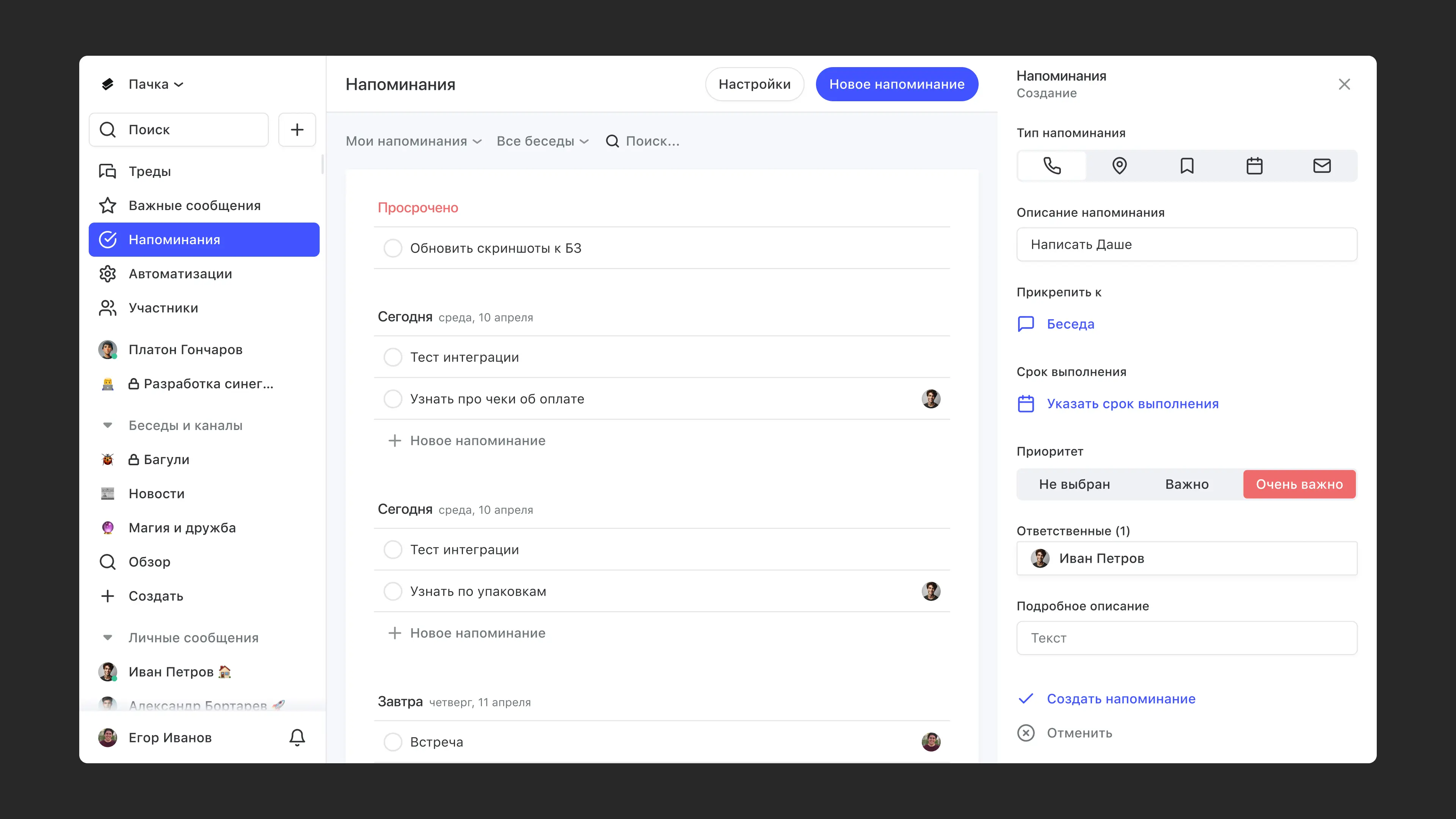
In the Reminders section, click New reminder in the top-right corner (the + icon on mobile).
-
You can create reminders from chats, but only from direct messages or chats, not from channels. To create a reminder from a chat, open the chat, then:
- On desktop, click the purple checkbox icon in the top-right corner, then New reminder. In the same section of the chat, you can always see all reminders linked to the chat.
- On mobile, tap the checkbox icon in the bottom-right corner, then tap +.
-
You can create reminders from chat messages. This is really handy when a reminder comes up in the middle of a conversation, or when it applies to everyone in the chat: members can see its status and notification time, and anyone can complete it.
To create a reminder from a message, hover over it, click the three-dot icon in the top-right corner → Create reminder. The message text is copied into the reminder description, and the reminder is linked to the chat you created it from.
Reminder card
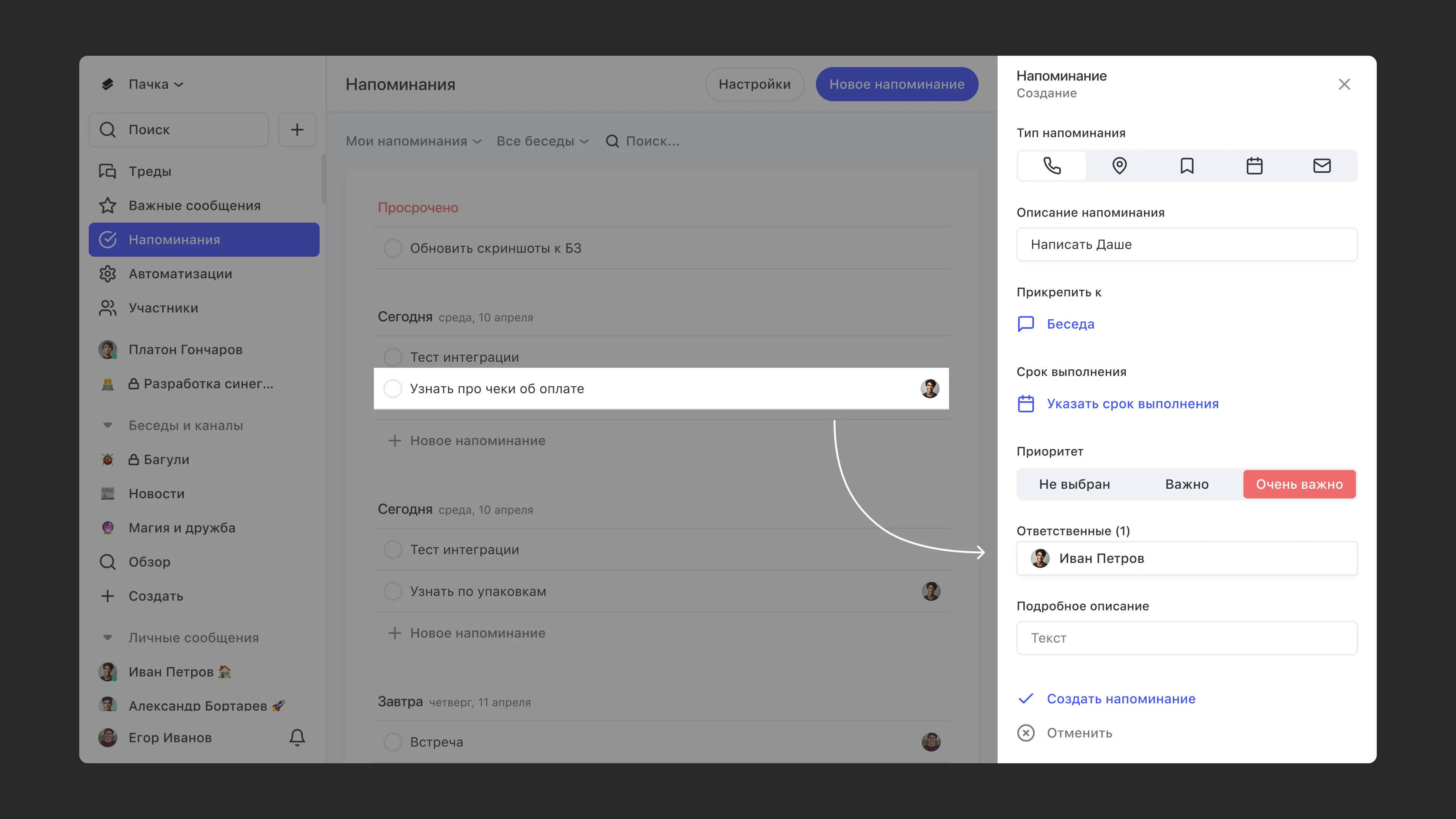
By default, a reminder card has these fields: type, description, linked chat, priority, due date and assignees.
Type
A reminder can be a call, meeting, simple reminder, event or email. This setting doesn't affect anything, so choose whichever type you like.
Priority
Set a reminder's priority to Important or Very important to highlight it in orange or red in the list.
Due date
This is the most important setting for reminders. Set a due date to get notified about the reminder at the right time.
To reschedule a reminder, just drag it to the day you need. The time stays the same, but if no time was set, it's set to 00:00.
Reminder times follow the time zone in your profile. So if a reminder has several assignees in different time zones, each of them gets notified according to the time zone in their own profile.
Assignees
Click the Assignees field to assign employees or a tag from the list. Everyone you choose can see the reminder and gets notified about it when it's due.
You can also link a reminder to a chat so it shows up in the chat's reminder list.
Customize card fields
Members with the Administrator role can change the reminder card template. To do this, click Settings at the top of the Reminders section. Here you can manage the fields shown on every reminder card.
- Click Add field → choose a field type from the drop-down list and enter a name → Save
You can rename, hide or delete any field. Just click the field in the list, choose an action → Save.
To reorder fields, hover over the two lines next to any field and drag it, then click Save.
Who can see which reminders
All chat members can see and edit reminders created from that chat.
Reminders that aren't linked to shared chats, as well as reminders created from a direct message with another employee or from a private chat, are visible only to their creators and assignees. Workspace administrators can't see them.
Reminder notifications
Make sure to set a due date and time, or you won't get a notification about the reminder. It will just be marked as overdue in your reminder list.
- If you set a due date with an exact date and time, you'll get notified at that time
- If you set only a date, you'll get notified at 10 a.m. on that day
- All assignees get notified
- If you created a reminder from a chat but didn't add chat members as assignees, they'll see the reminder but won't get notified about it
- Reminder notifications show up under the bell icon next to your profile on the web and arrive as push notifications from the Pachca app on your phone
- You can also set up extra email notifications. In your profile, choose one or both reminder email options. Emails are sent based on the reminder's due date