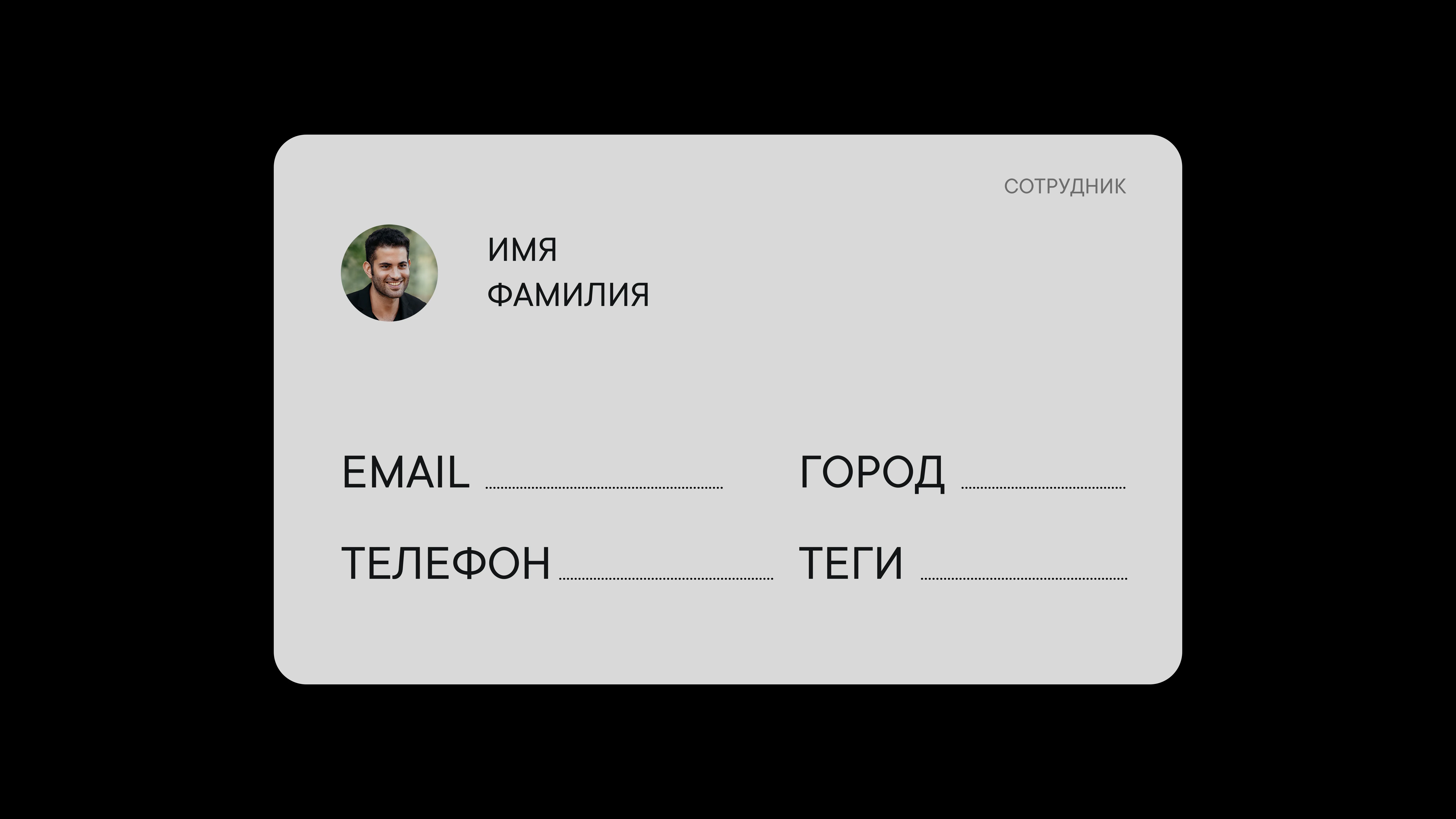
Member profile
What you can add to a member profile
A member profile is where people can share information about themselves so their teammates can see it.
For example, say someone needs to ask HR a question. They open the member list and find the right person by their department tag or name. Then they can email them at the address in their profile or give them a call.
Or say your company-wide chats have lots of members, and it's hard to tell who's posting. Just click the person to see their department and any other details in their profile.
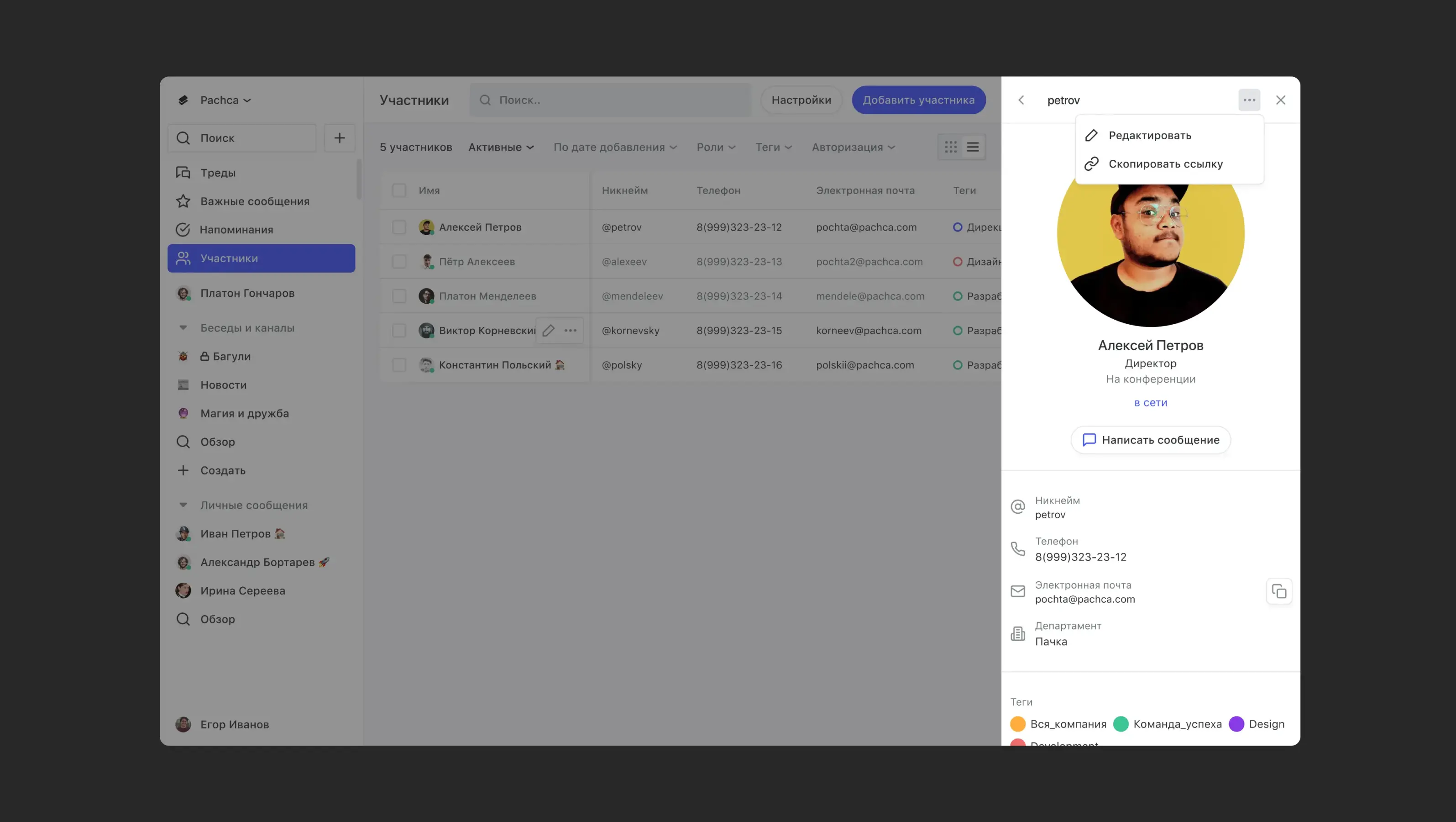
By default, a profile has a few standard fields, but you can add new ones. Users with Administrator access can do this in Members.
To open your profile, click your name in the bottom-left corner of the screen.
In your profile, you can also:
- Turn on two-factor authentication for extra account security.

- Set a status so no one disturbs you during vacation or an important meeting.

- Set your time zone manually or turn on automatic local time, so your teammates can pick a good time to message you.
Tips from Pachca:
-
Administrators can fill out any member's profile themselves. This comes in handy when the details are already in your HR spreadsheets and you just need to move them to your team chat app.
-
Member profiles can be filled out automatically when you connect the Active Directory integration.
-
Agree in advance on what information would be most useful to see in member profiles, and set up custom fields in Members.