Welcome Bot + Pachca integration
How to set up Welcome Bot to onboard new employees automatically in your team chat app

Guide to Pachca bots with events, API methods and code samples
Repository: https://github.com/pachca/public-integrations/tree/main/welcome-bot
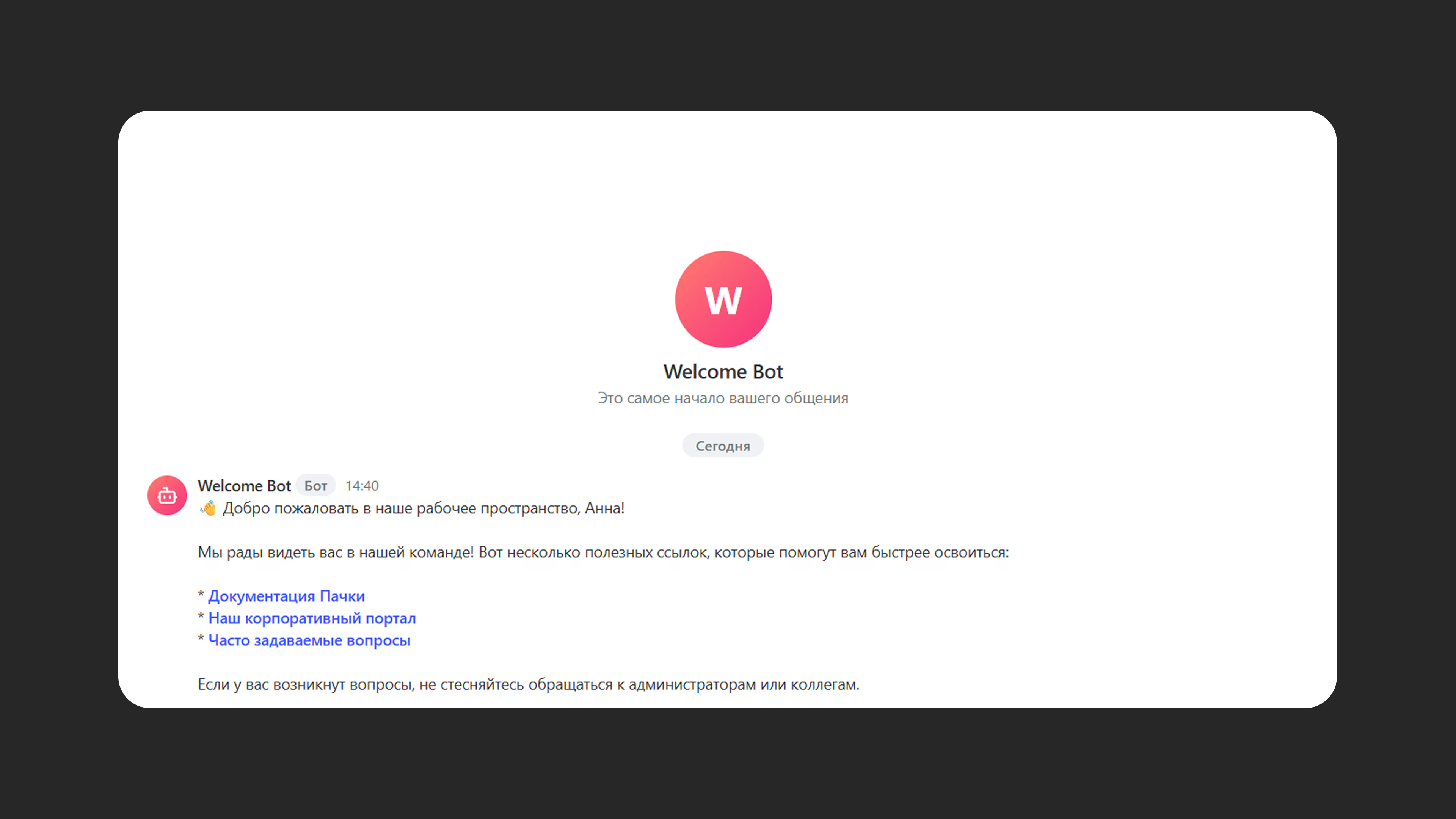
Welcome Bot helps you onboard new employees. It kicks in when someone joins your workspace and automatically sends them a direct message. That could be a short greeting, a list of useful links or an explanation of how your work chats are organized.
Deployment options
We've prepared three ways to deploy this integration:
- On your own machine, to test how the bot works
- On a third-party service (Vercel, in our example)
- On your own server
Below are instructions for running the bot locally and for a quick launch on Vercel, for teams that don't want to deal with renting and configuring their own servers. Other ways to run the bot are covered in the integration's README on GitHub.
General bot settings
Step 1. Create Welcome Bot in Pachca
- Go to Automations → Chatbots and webhooks.
- Add a new bot for multiple chats.
- Give it a clear name, like Welcome Bot.
- Make the bot public. Otherwise it won't be able to start direct chats with users.
- Choose the outgoing webhook event type: "Workspace member changes".
- Save the bot token (access_token) and the Signing secret. You'll need them later.
Step 2. Set up the .env file
The bot needs environment variables configured so it can send welcome messages.
The repository includes a sample file, .env.example, that lists the variables used. Copy this file, rename it to .env and fill in your values.
PACHCA_TOKEN (your bot's token)PACHCA_WEBHOOK_SECRET (secret for verifying the outgoing webhook signature)WELCOME_MESSAGE_TYPE (message template)- Templates live in the
messages.ymlfile, and that's where you edit the template you want. Short works for very brief one-line messages, Default is the standard template, and Extended is for when you want to include links and more detailed instructions.
The other variables in the file are optional. For extra security, you can remove the # to enable them. Check with your team's tech folks :)
Running locally with Docker
Usually you only need this step to check that the bot works. If you don't need to test the bot, you can deploy it straight to Vercel or your own server.
To make testing easier, we recommend running the bot with Docker. That way you don't have to install Ruby, its gems and dependencies. Download Docker from its official website, then follow the steps below.
1) Check your Docker version
docker --version and docker-compose --version
2) Download the project and set up the environment, if you haven't already
git clone https://github.com/pachca/public-integrations.git
cd public-integrations/welcome-bot
3) Start the container
docker-compose up -d
To work with Pachca, the bot needs a public URL that webhooks can be sent to. For that, you'll need to download ngrok.
4) Open a separate terminal (alongside the bot running in Docker), then install and run ngrok there:
npm install -g ngrok
ngrok http 4567
Once it's running, ngrok will show you a URL like https://xxxx-xx-xx-xxx-xx.ngrok-free.app. The bot will get notifications at this URL about new workspace members who need welcome messages.
5) Set up the webhook in Pachca using a URL in this format:
https://xxxx-xx-xx-xxx-xx.ngrok-free.app/api/webhook
Note: The free ngrok URL changes every time you start it, so it's only suitable for testing.
Running on Vercel
-
If you don't have a Vercel account yet, sign up on the official website at vercel.com.
-
Next, copy our repository to your GitHub or, if you downloaded it to your machine, upload it and sync it with Vercel

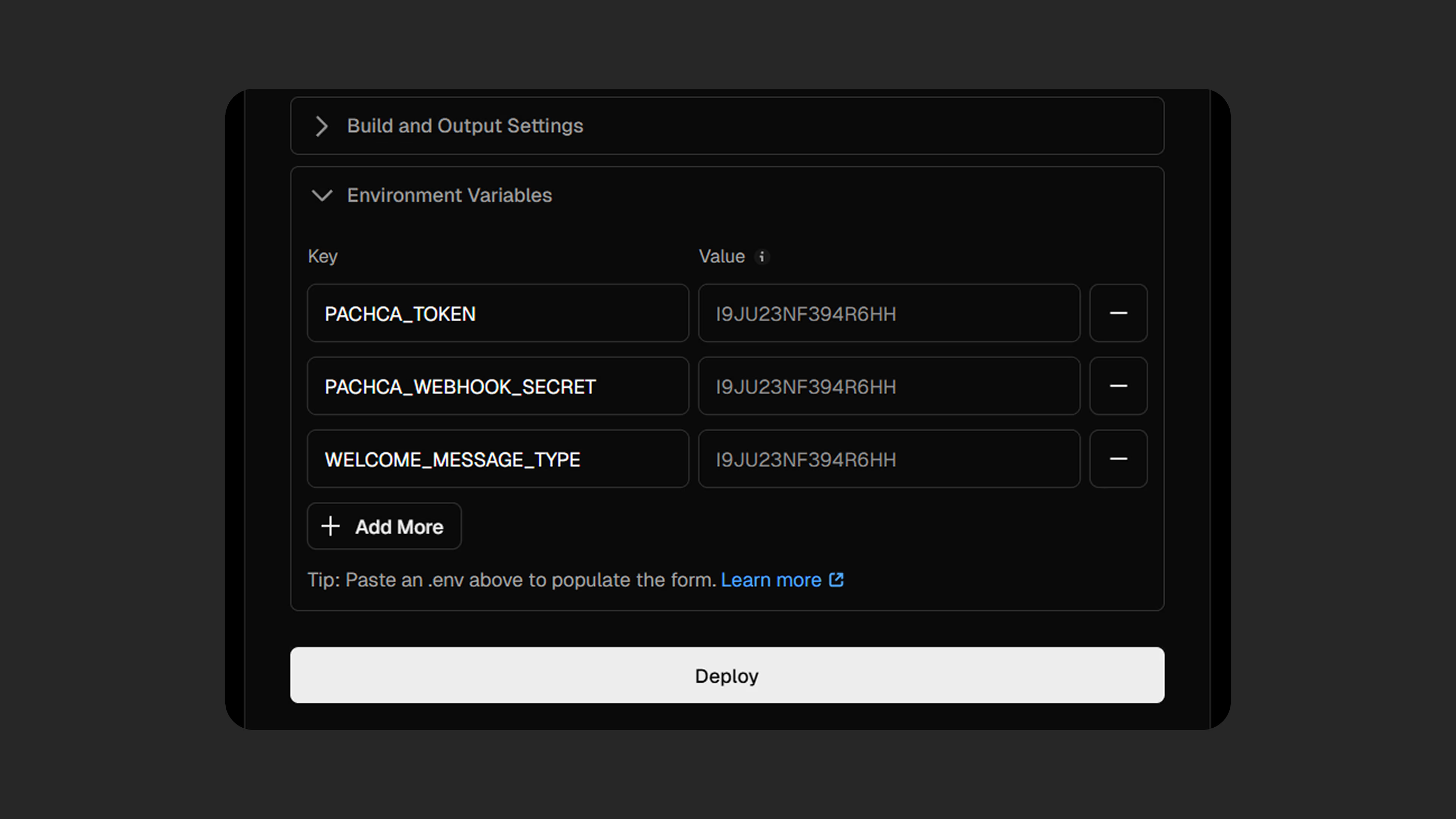
- After importing the repository into Vercel, set up the environment variables. On Vercel, they're set on the platform itself rather than in a .env file. You can set them when you import the project or later under "Settings" -> "Environment Variables":
PACHCA_TOKEN (your bot's token)PACHCA_WEBHOOK_SECRET (secret for verifying the outgoing webhook signature)WELCOME_MESSAGE_TYPE (message template)- Other tokens as needed
- Set up the webhook in Pachca using your app's URL with the
/api/webhookpath (for example,https://your-app.vercel.app/api/webhook)
If something didn't work, the instructions are unclear or you'd like to see more features in the integration, we'd love to hear from you so we can improve this guide. Just message our support team (Telegram or MAX)!