Unfurl bot + Pachca integration
How to set up an Unfurl bot that automatically creates informative link previews in Pachca

Unfurling via the API, with setup steps and sample requests
Repository: https://github.com/pachca/public-integrations/tree/main/Unfurling-bot
The Unfurl bot unfurls links from your work tools and shows previews for them in Pachca. For example, you can post a link to a Trello or Kaiten card, or to a Pachca message, in a chat. Instead of a bare link, everyone sees a small preview of what's behind it: a title, a description or an image.
When it comes in handy
- Access to some work tools needs to stay restricted, and a preview can help you respond quickly to server errors or other issues
- Communication between engineering and support. A support agent posts a link to a customer ticket in the helpdesk system, and thanks to the preview, engineers can see what the customer needs help with
- Quickly sharing context about the card you need to discuss
Deployment options
We've prepared three ways to deploy this integration:
- On your own machine, to test how the bot works
- On third-party services (Vercel, in our example)
- On your own server
The bot already comes with link handlers for Pachca, Trello and Kaiten. If you need handlers for other tools, the README has a template for writing them.
Below are instructions for running the bot locally and for a quick launch on Vercel, for teams that don't want to deal with renting and configuring their own servers. Other ways to run the bot are described in the integration's README.
General bot settings
Step 1. Create an Unfurl bot in Pachca
-
Open Automations → Chatbots and webhooks.
-
Add a new Unfurl bot. Save two variables:
-
UNFURL_BOT_TOKEN: the bot token on the API tab -
PACHCA_WEBHOOK_SECRET: the Signing secret on the Outgoing webhook tab. -
If you need previews for links to Pachca messages, create one more bot and save its token.
Step 2. Set up the .env file
The bot needs environment variables to authenticate with third-party services and show previews from them.
The repository includes a sample .env.example file that lists the variables the existing handlers use. If you use these services, you can simply copy .env.example, rename it to .env and fill it in with your values.
Variables with ready-made handlers:
UNFURL_BOT_TOKENPACHCA_WEBHOOK_SECRETPACHCA_API_TOKENTRELLO_KEYTRELLO_TOKENKAITEN_TOKEN
Friendly reminder: add new handlers and tokens for other services as needed. To make this easier, the README in our repository has an example of how to implement new handlers.
Running locally with Docker
As a rule, you only need this step to check that the bot works. If you don't need to test the bot, you can deploy it straight to Vercel or your own server.
To make testing easier, we recommend running the bot with Docker. That way, you don't have to install Ruby, its gems and so on. Download Docker from the official website, then follow the steps below.
- Check your Docker version
docker --versionanddocker-compose --version- Clone the project and set up the environment, if you haven't already
git clone https://github.com/pachca/public-integrations.gitandcd public-integrations/Unfurling-bot- Start the container
docker-compose up -d
To work with Pachca, the bot needs a public URL that webhooks can be sent to. To give the bot a public URL, you'll need ngrok.
Install ngrok on your machine:
-
On Mac:
brew install ngrokor download it from ngrok.com -
On Windows: download it from ngrok.com
-
On Linux:
sudo snap install ngrokor download it from ngrok.com -
Run ngrok in a separate terminal (alongside the bot running in Docker) with this command:
-
ngrok http 4567 -
Once it starts, ngrok shows you a URL like
https://xxxx-xx-xx-xxx-xx.ngrok-free.app. This is where Pachca will send the links that need previews. -
Set up the webhook in Pachca with a URL in this format:
-
https://xxxx-xx-xx-xxx-xx.ngrok-free.app/unfurl
Note: the free ngrok URL changes every time you start it, so it's only good for testing.
Other bot commands are described in the README in our repository.
Running on Vercel
-
If you don't have a Vercel account yet, sign up on the official website at vercel.com.
-
Next, copy our repository to your GitHub or, if you downloaded it to your machine, push it to Git and connect it to Vercel.
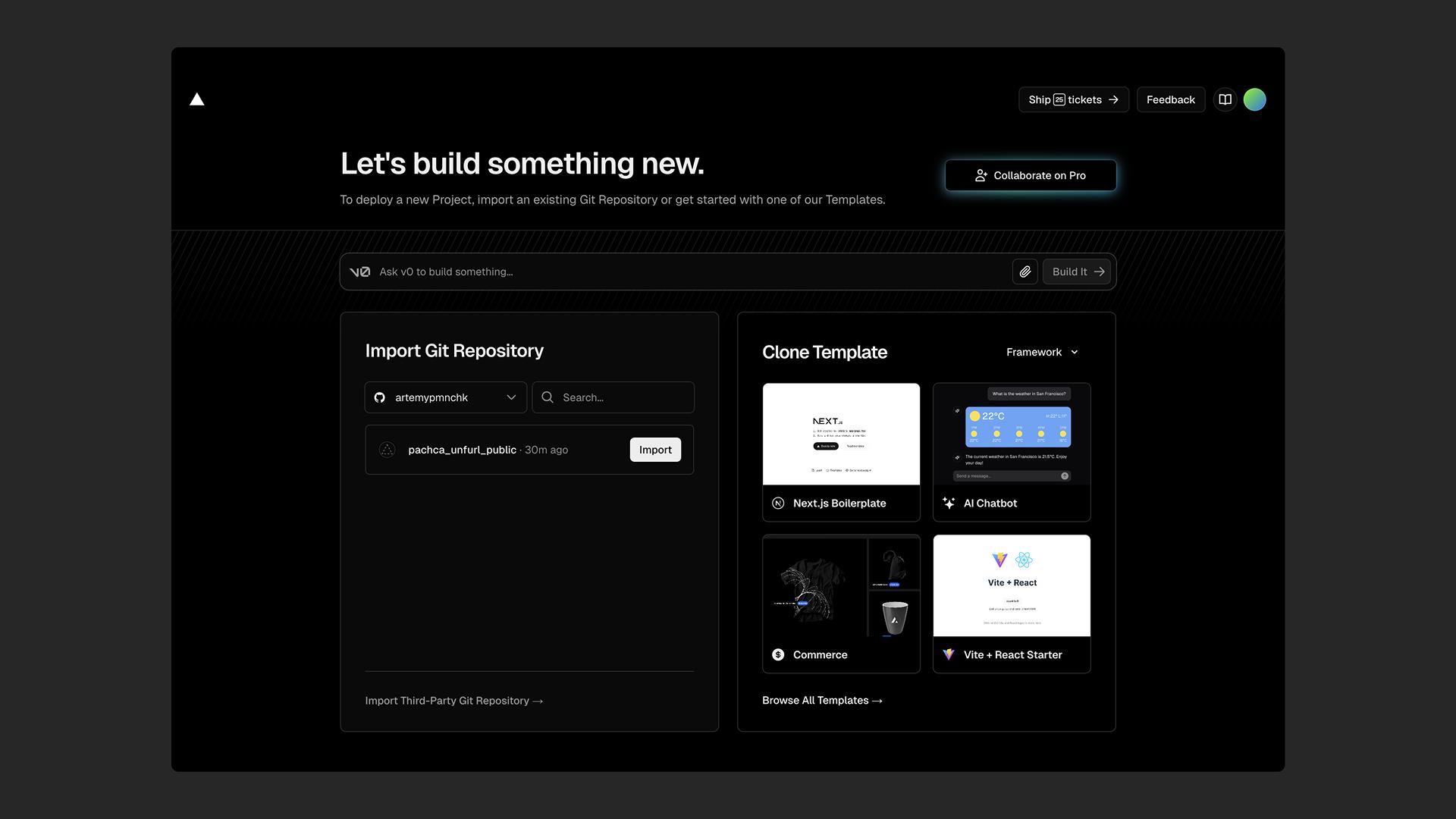
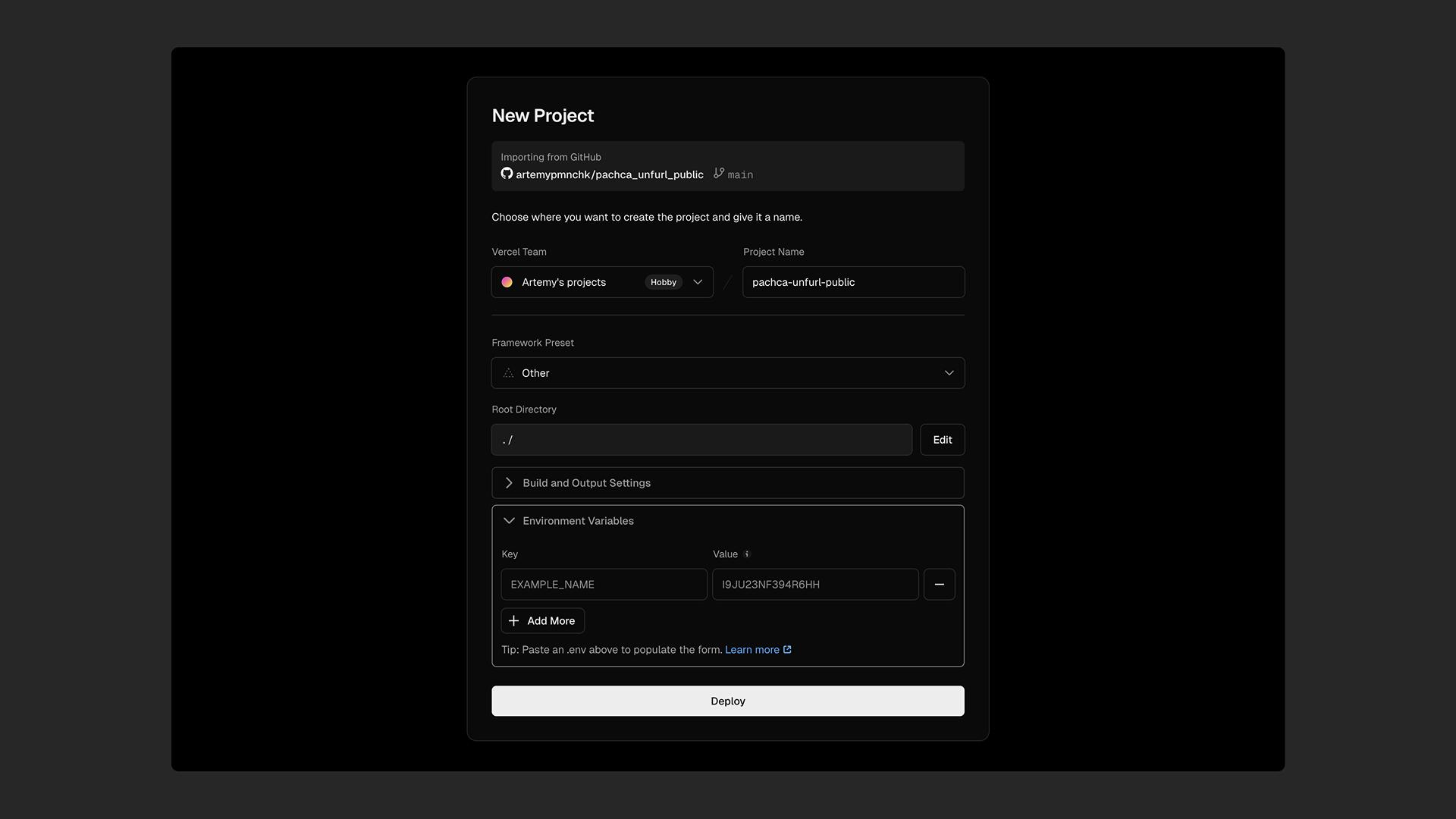
- After importing the repository into Vercel, set up the environment variables. On Vercel, they're set on the platform itself rather than in a .env file. You can set them when importing the project or under "Settings" -> "Environment Variables":
UNFURL_BOT_TOKEN: the token for authenticating with the Pachca APIPACHCA_WEBHOOK_SECRET: the bot's Signing secret in Pachca- Other tokens for the services you use (
TRELLO_KEY,PACHCA_API_TOKEN,TRELLO_TOKEN,KAITEN_TOKENand so on)
- Set up the webhook in Pachca with your app's URL and the
/unfurlpath (for example,https://your-app.vercel.app/unfurl)
If something didn't work, the instructions are unclear or you'd like to see more features in the integration, we're always happy to chat with you and improve this guide.