What's new in 2024
Everything we added to Pachca in 2024
2024 was a pretty packed year, both for our users and for us. We shipped more than 2,000 changes, big and small, and the number of chats in Pachca grew by 41%. But there's still plenty of room to grow!
For now, let's look back at the biggest updates of the year.
1. A new desktop app
The new version opened up a lot of new capabilities. Pachca now:
- wakes up from sleep instantly
- supports back/forward navigation between windows
- works through a proxy
- updates reliably, even on Linux
The new version also brought other features:
- launch at startup
- cache clearing
- a built-in file downloader
2. Multiple workspaces and switching between them
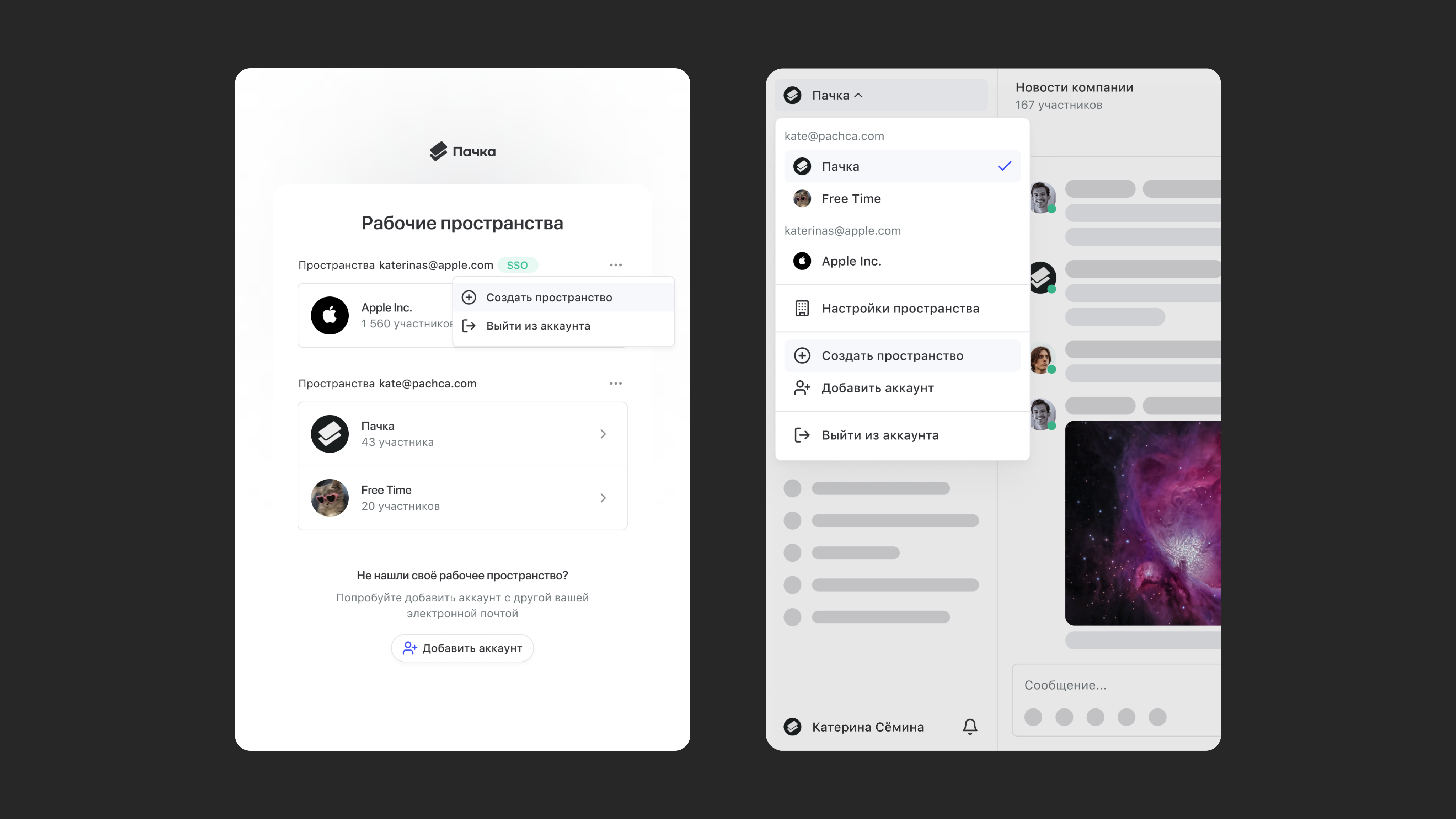
You can link up to 10 workspaces to one email account. Your available workspaces show up in the lobby. That's handy if you use Pachca for both online courses and work.
3. The Members section
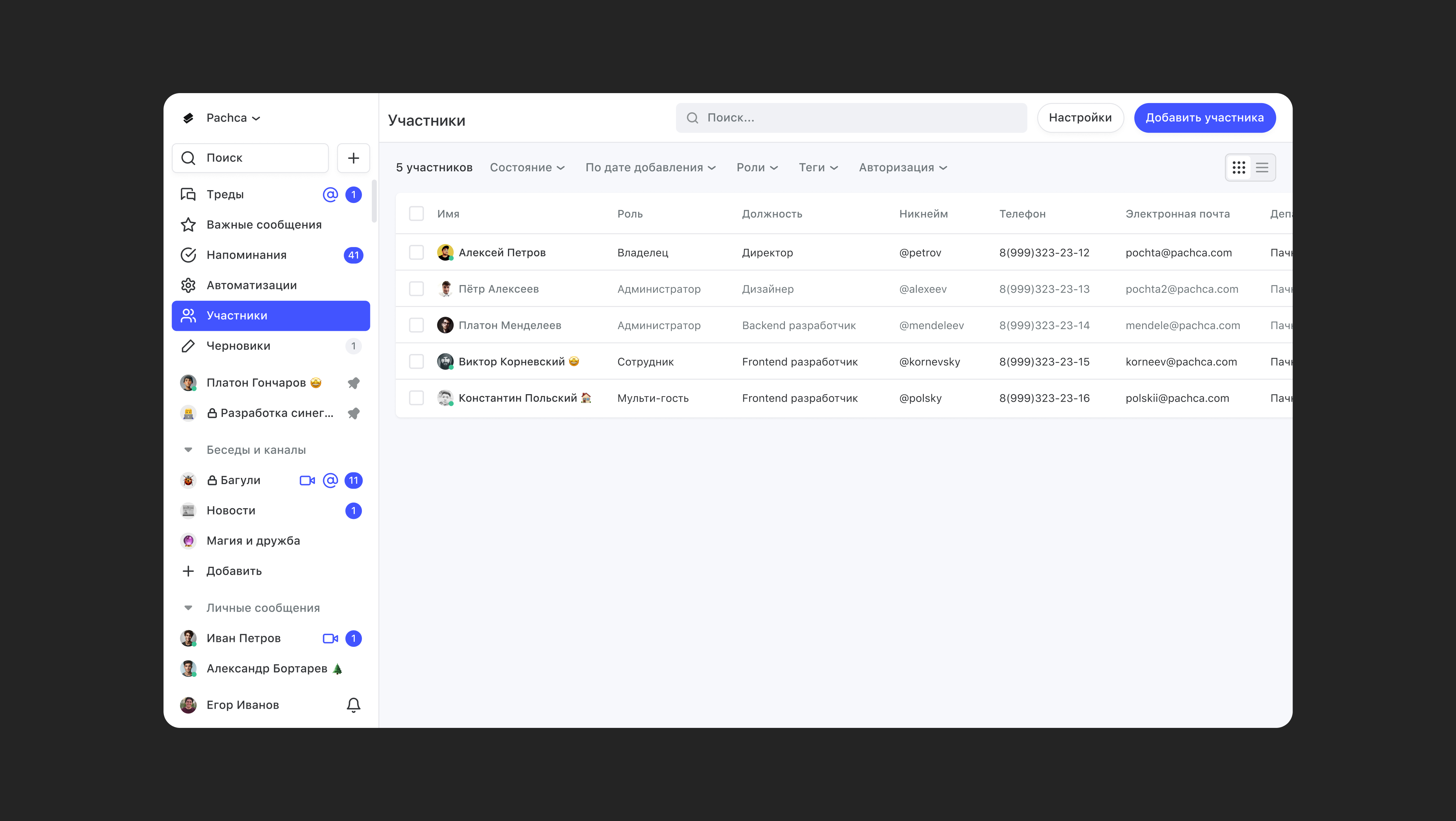
This section lists every member of the workspace. You can view them in two ways:
- as cards, which work well for finding colleagues
- as a table, like in the screenshot, which works well for admin tasks and searching by specific fields. There are both standard and custom fields.
Click a member to open their full profile. You can jump to a chat with them right from their profile with the Send message button.
This is also where you add new members to the workspace.
4. A free role: Guest
A new role in Pachca. A free Guest has access to only one chat, and they can't leave it on their own. They can't create or view other chats, use global search or other features. Companies usually invite contractors or clients as Guests.
Note that the number of free Guests is limited: you can add up to three of them per paid member.
5. The Drafts section
Every message you've written but haven't sent yet is saved here, with links and formatting intact. With this section, you can:
- save work-in-progress versions of messages
- come back to messages later to edit or send them

6. Scheduled messages
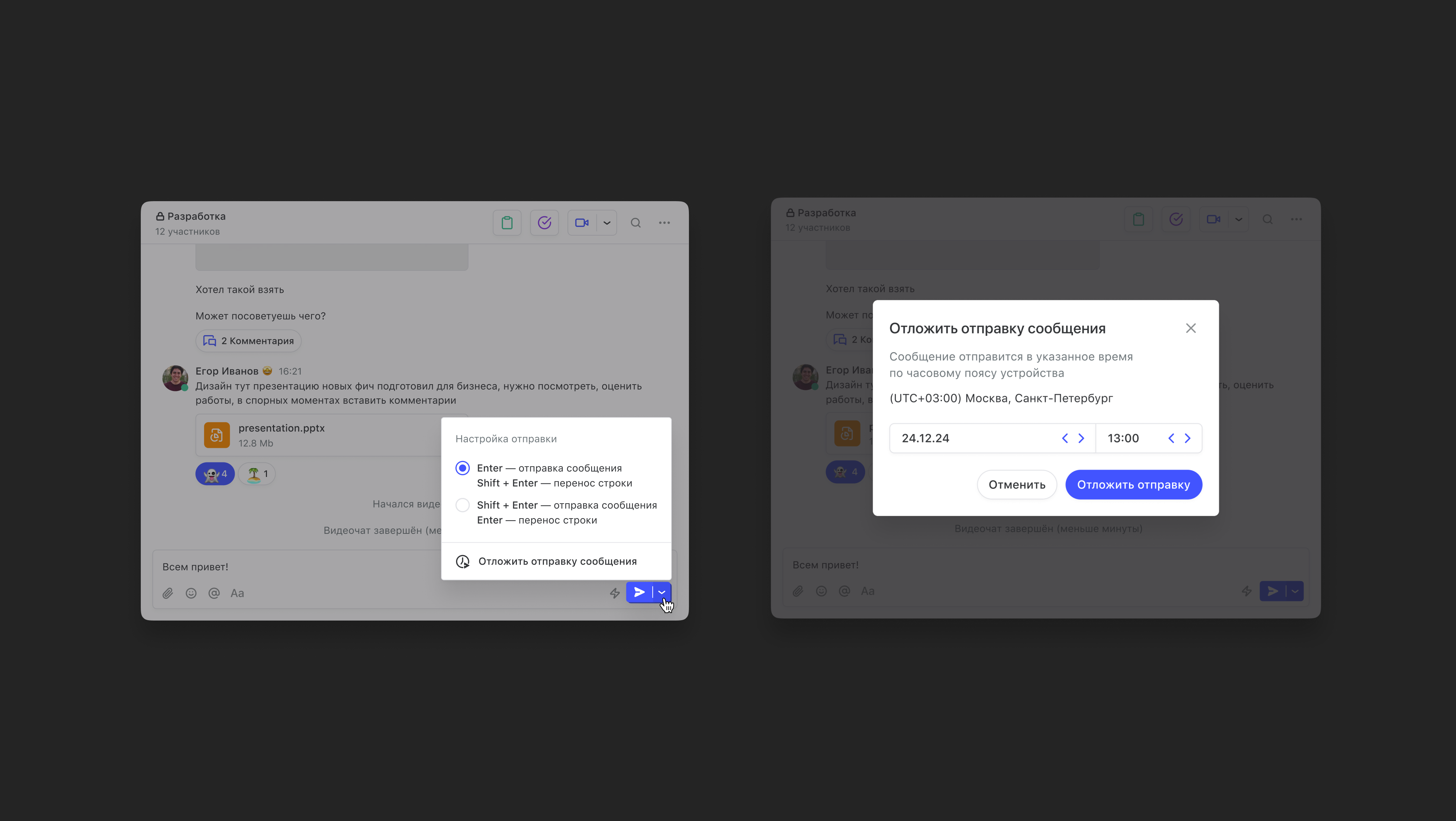
Scheduled messages are messages you can set to send at any time. They make it easy to stay in sync with colleagues in other time zones, set quick reminders for yourself or share important news.
Note: the message will be sent at the time you set, based on your device's time zone.
All scheduled messages live in the Drafts section, on a separate Scheduled tab. There you can change the send date and time or delete the message altogether.
7. Office document previews
On the web and desktop, you can open PDF, docx, xlsx and pptx files right in the chat. No need to download them to your device.
8. A new design for message attachments

9. Google Calendar integration
This integration syncs tasks, calendar events and your status in Pachca. So if you have an event scheduled in your calendar, Pachca picks it up and sets your status to In a meeting.
It works the other way too. All tasks you create in Pachca show up in Google Calendar. And if you create a task from a chat and set its type to Call, the calendar event will include a link to a Pachca video call.
10. Bot buttons
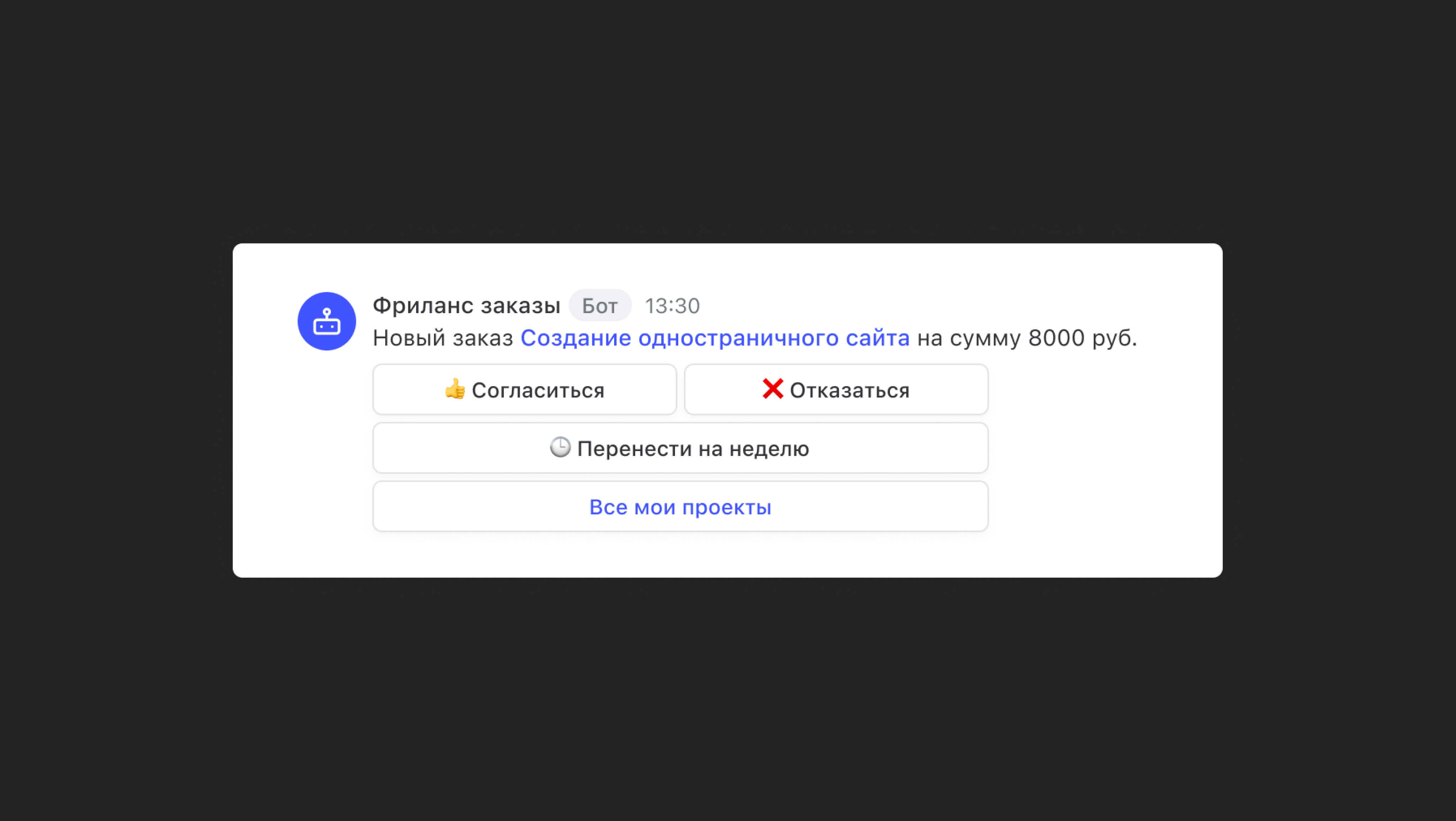
You can create bots with URL buttons for links and data buttons for collecting input from users. Buttons make it easy to run polls, review training requests or respond to client requests.
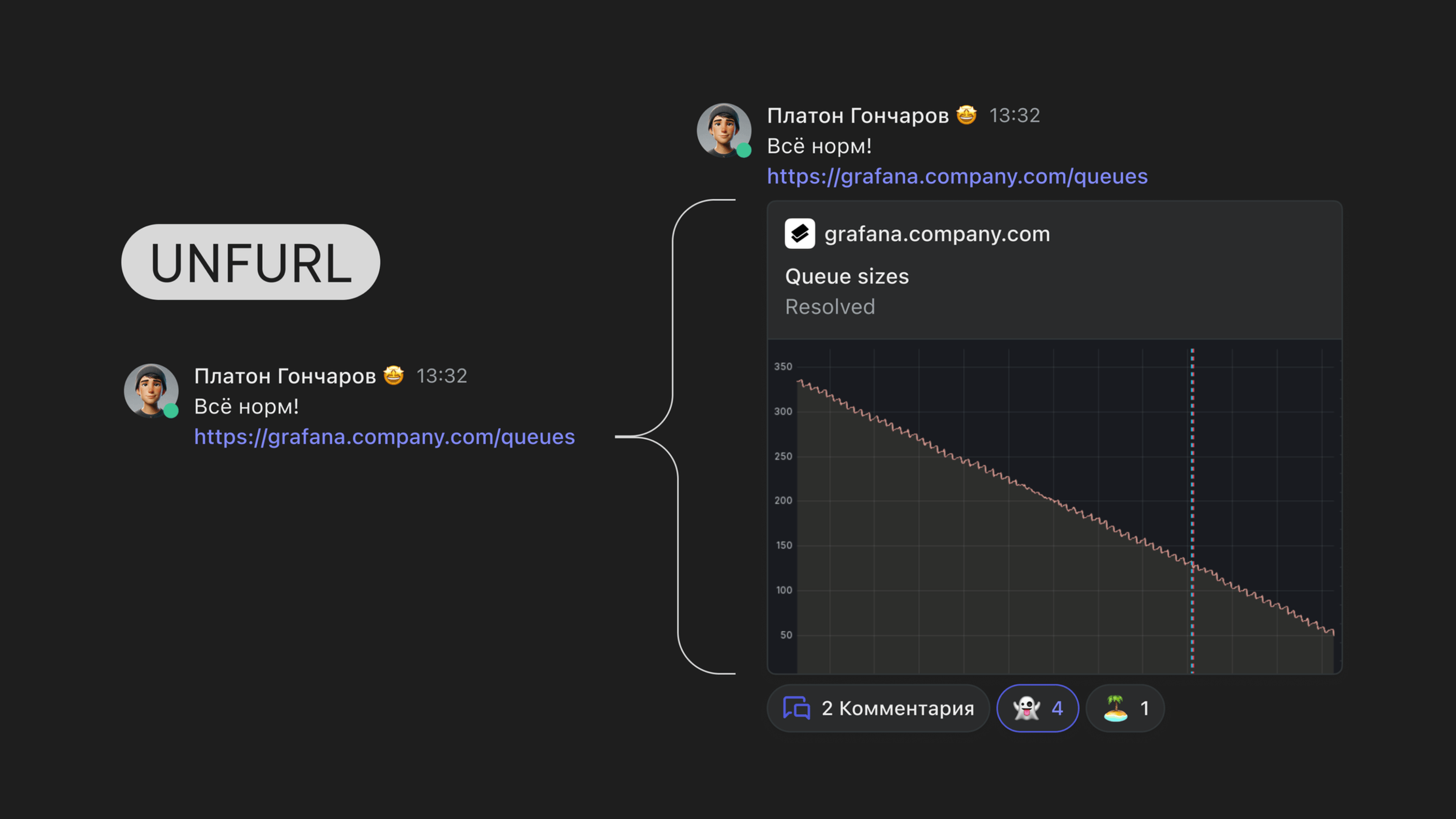
11. Unfurl, or link previews
Here's how Unfurl works in Pachca:
- a workspace administrator creates an Unfurl bot
- the bot gets a webhook when someone sends a message with a link
- a public API method creates the link preview
All the instructions are here.
So when a user sends a link to a chat, Unfurl shows a preview of what's behind it, including the title, description and image.
12. Forwarding messages with the original author and source chat

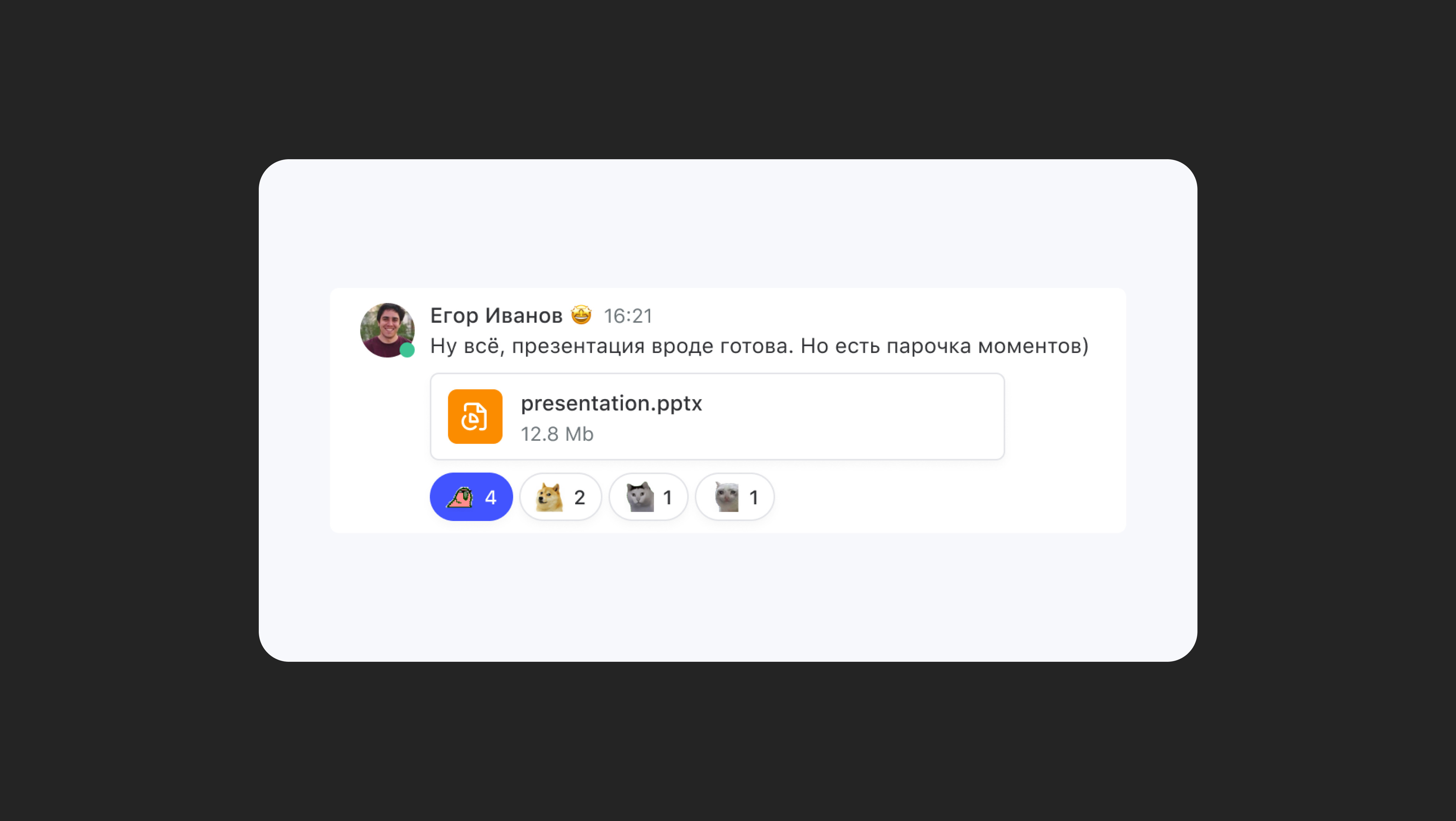
13. Custom reactions
Workspace settings now have an Emoji section. It shows the custom emoji you've already added, and you can create your own there too.
For now, custom emoji can only be used as reactions to messages. We plan to support them in message text later.
Limit: 300 custom emoji per workspace.
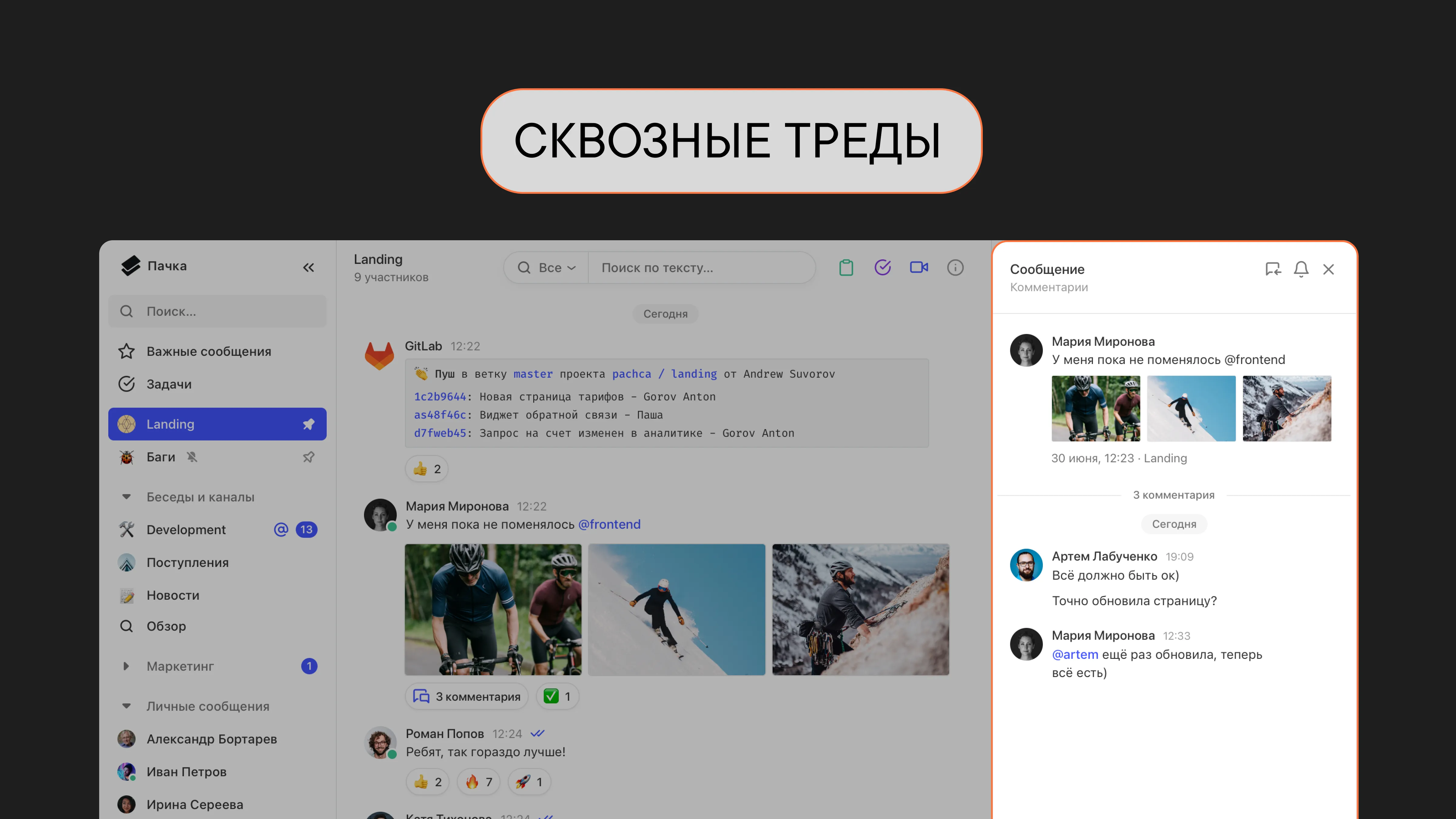
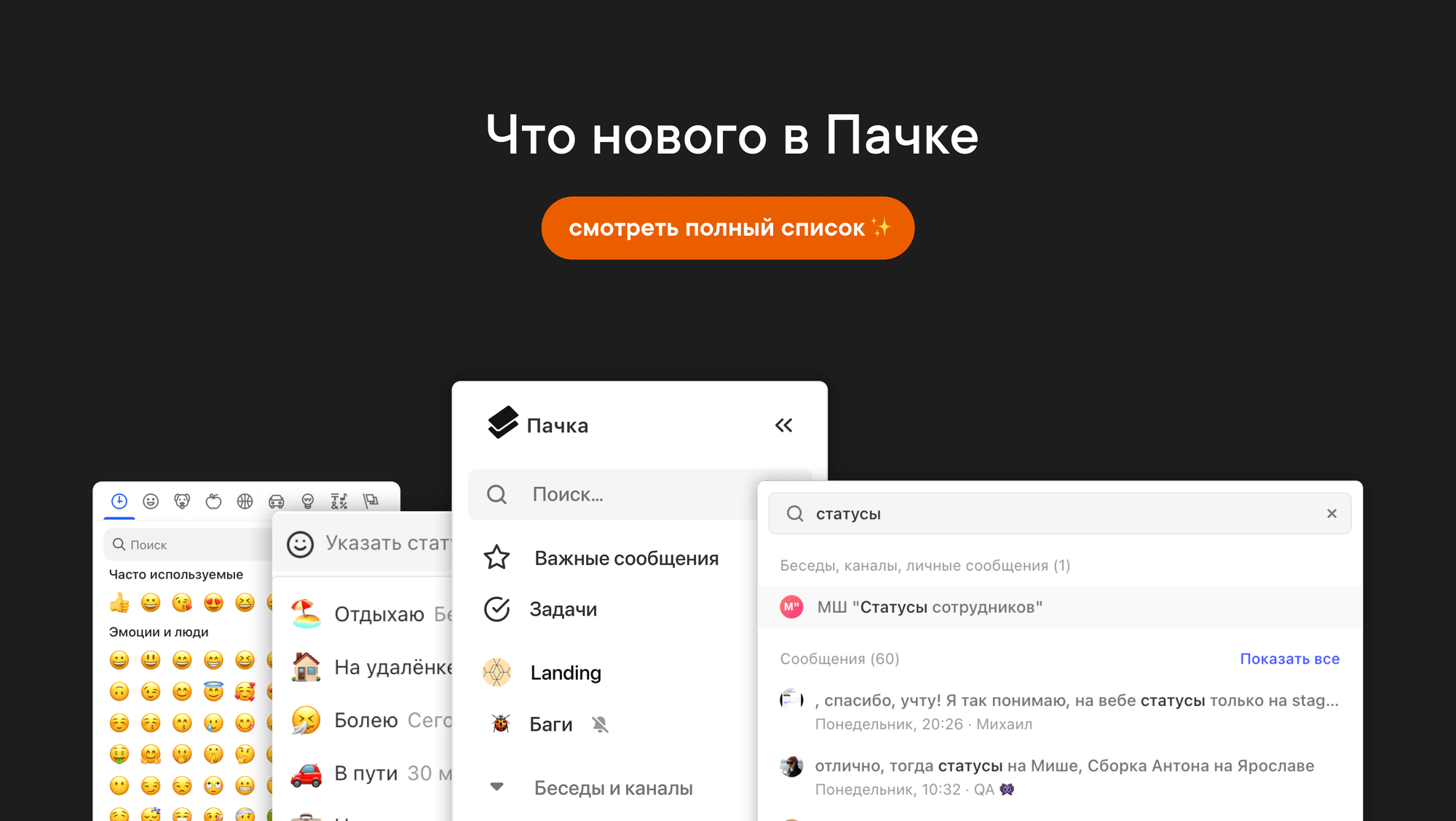
And that's far from everything. We kept improving cross-chat threads, global search, tags and bots. We fixed bugs and added API methods. And of course, we worked on making the interface clean and easy to use :)
Let's keep growing together! Happy 2025.
With love, Pachca