Pachca + Pingera integration
Step-by-step guide to setting up the Pingera integration with Pachca to get outage notifications

Webhook setup, payload format and integration examples
The Pachca × Pingera integration keeps your team up to date on the status of your systems and services in real time.
Here's how it works
- You create a chatbot in Pachca that receives information about the service's status.
- You set up a template inside the bot and write its messages. When something goes wrong, the bot posts notifications about it to the chat.
- Then you add the bot to any chat, and it posts messages there about incidents.
Step 1. Create and set up a bot in Pachca
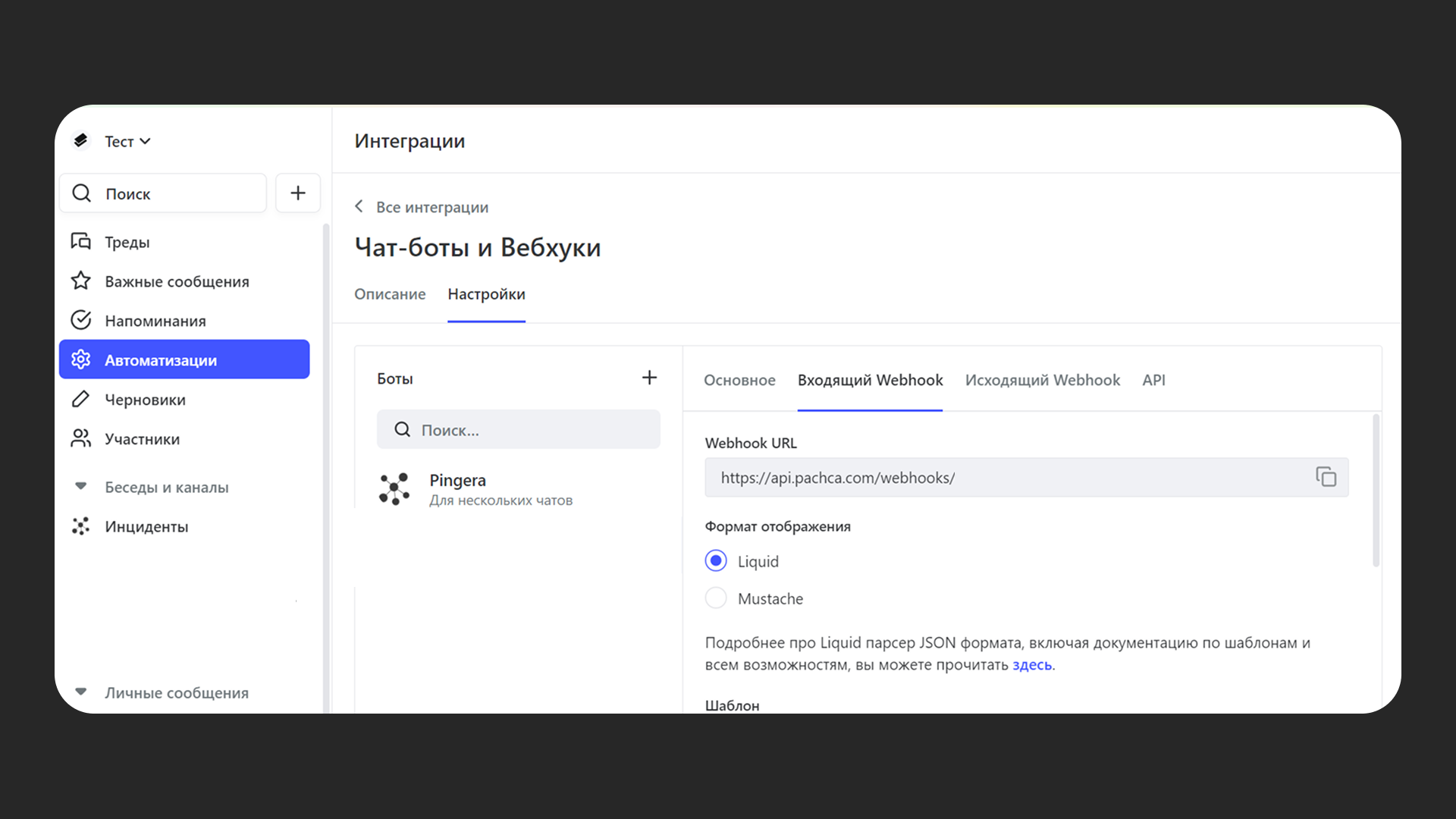
Create a new bot in Pachca:
- Go to "Automations" → "Integrations"
- Select "Chatbots and webhooks"
- Click "+"
- Name your bot and add the Pingera logo or any other avatar
- Choose who can configure the bot. They'll see it in their Integrations section and can change its settings.
- Choose who can add your bot to chats. These users can add the bot to chats and receive its messages
- Open the section and set up the message template: how exactly messages from Status Pages will look in the chat.
A message template you can use in Pachca:
Copy the Webhook URL (you'll need it to set things up in Pingera)
- Open the "Incoming webhook" section in the bot settings window
- Find the "Webhook URL" field and copy the link in it
Add the bot you created to a chat
- Open the chat you need
- Go to "Chat settings" → "Add members" → "Integrations"
Step 2. Create a Pingera status page
-
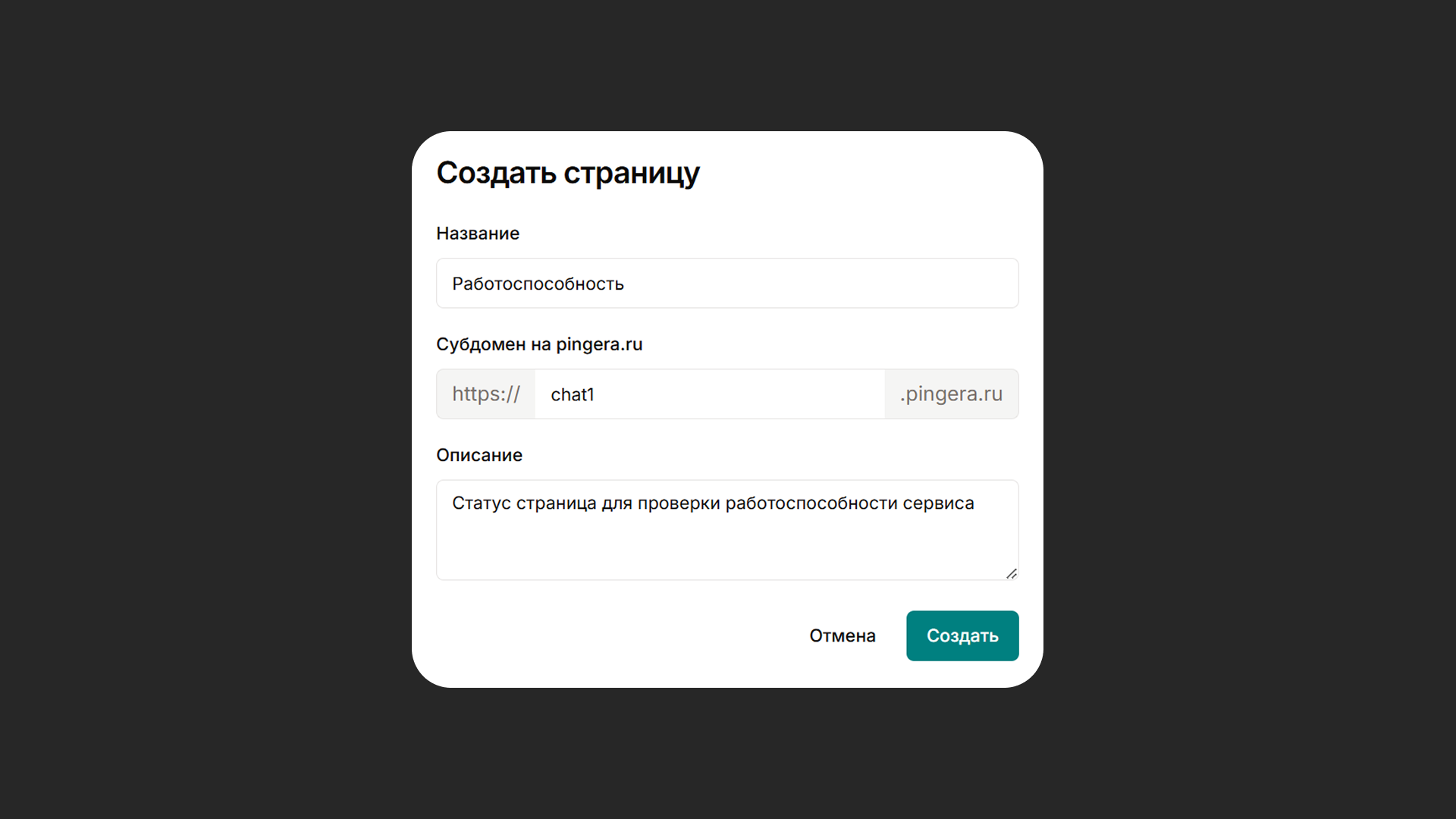
Sign up or log in to your Pingera account Create a Status Page for your service
-
Choose a name for your status page
-
Enter a subdomain for the service. It must start and end with a letter or number, with no special characters
-
Write a description for the Status Page and click "Create"
-
Set up the status page. Add extra settings, choose how it's displayed and so on.
-
Publish the status page for all users in the settings and open the link from your account dashboard.
Step 3. Set up the integration in Pingera
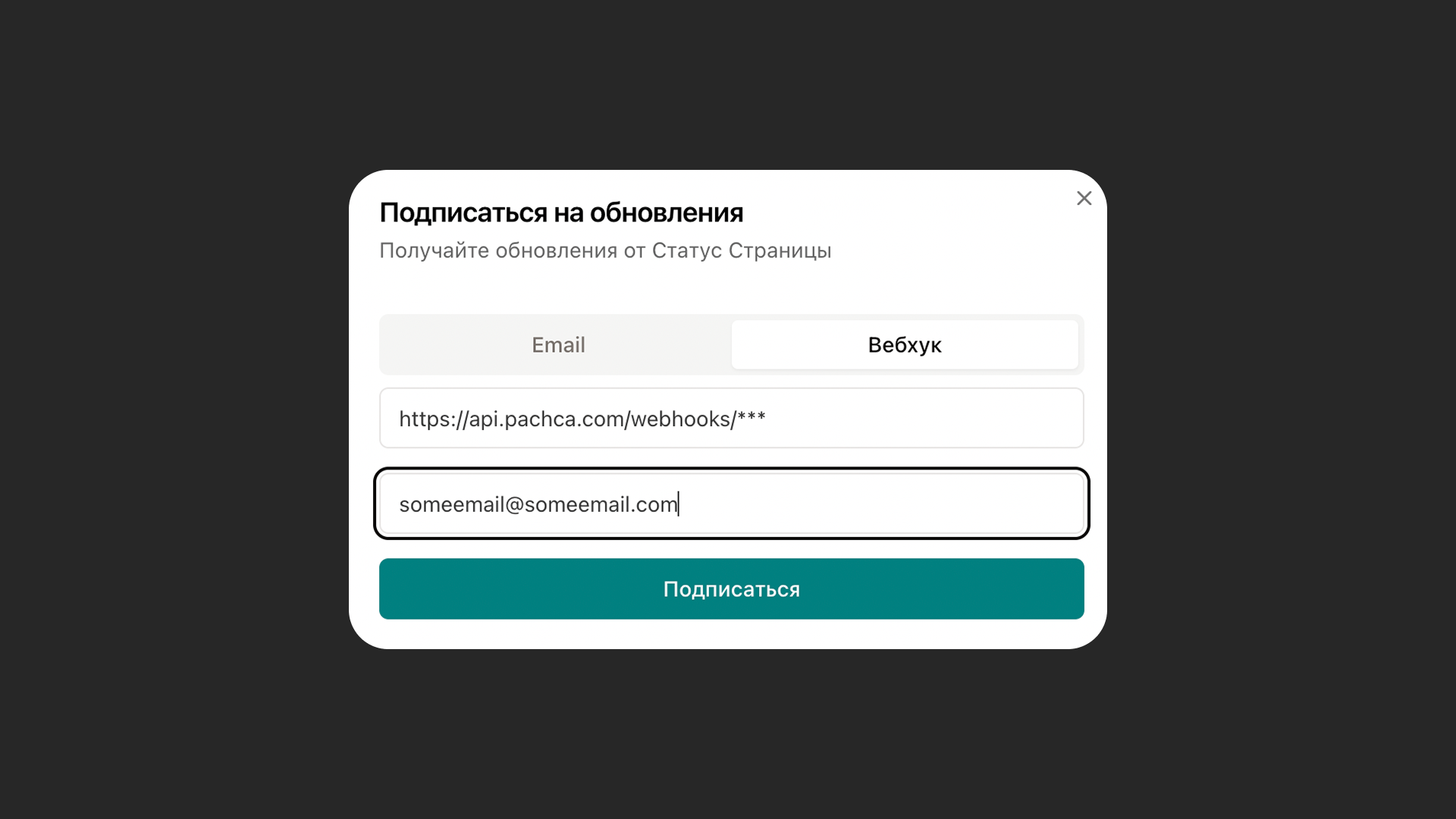
To get incident notifications via webhooks, go to the Status Page, click "Subscribe" and select "Webhook".
-
Enter the "Webhook URL" you copied earlier
-
Enter your email address
-
Click "Subscribe"
-
Once you confirm your email, you'll start getting notifications in Pachca.
-
Done!
If you want to automate more than outage notifications, check out what n8n is and which no-code workflows you can build with Pachca in it.