How to organize communication in your team chat app
Which chats to create, how to name them and how to structure them

In this article, we'll show you how to organize work chats in Pachca to make your team even more productive.
Naming chats
Good chat names are key to organized communication. They save people from wasting time hunting for the right chat or channel.
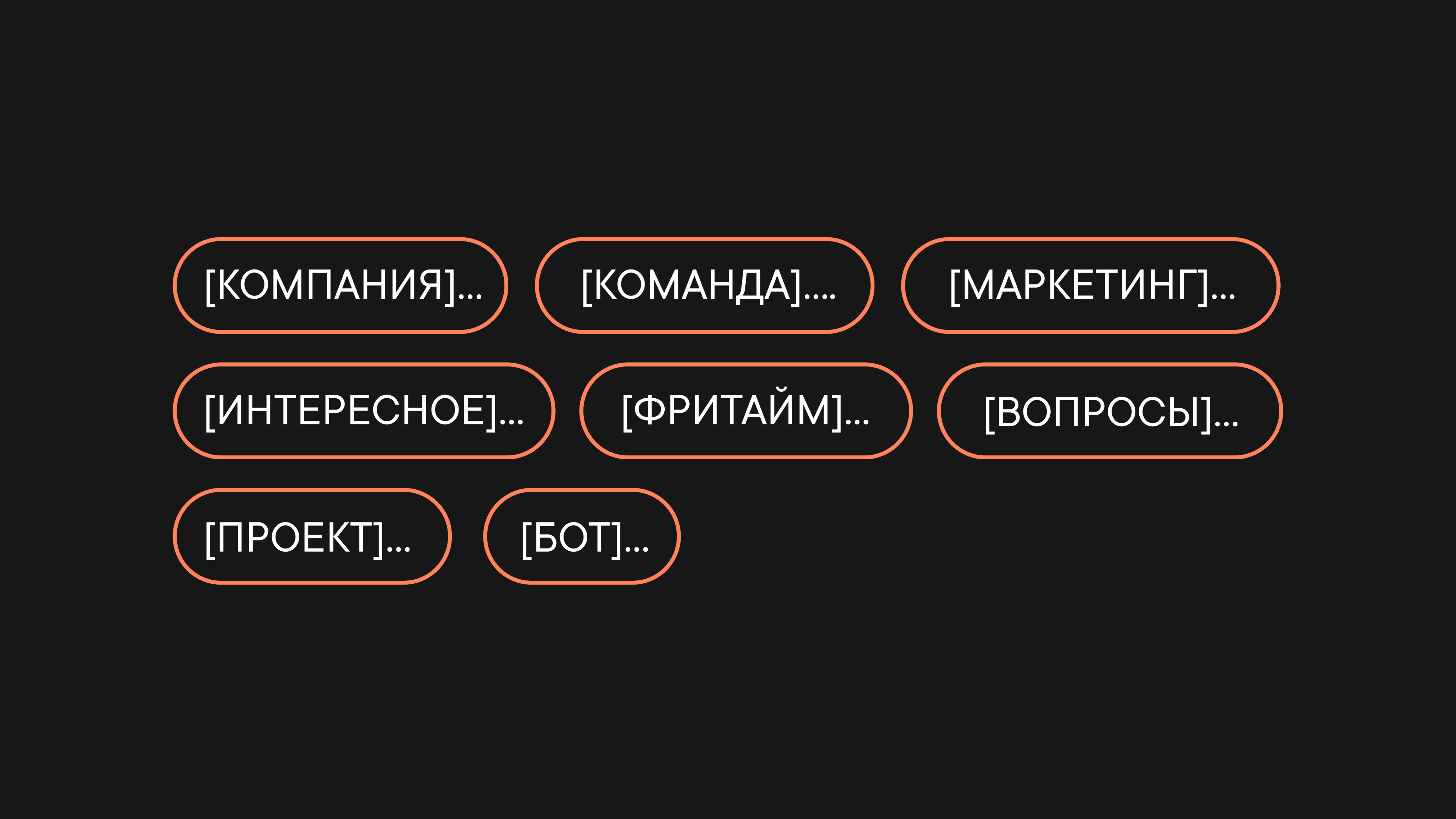
That's where prefixes come in. Here are the most common ones:
- "[Company]" for chats with information for everyone in the company. For example, "[Company] News".
- "[Team]" for chats of specific teams (departments). For example, "[Team] Support", "[Team] Marketing".
- "[Marketing]", "[Sales]" and so on for chats about specific areas of a team's work. For example, "[Marketing] Ads", "[Marketing] Landing page".
- "[Project]" for project chats that involve people from different teams. For example, "[Project] Referrals", "[Project] Billing".
- "[Questions]" for chats where you ask a specific team questions. For example, "[Questions] Engineering", "[Questions] Accounting".
- "[Bot]" for chats with integrations. For example, "[Bot] Webflow", "[Bot] Gitlab".
- "[Interesting]" for chats with useful information (industry news, best practices). For example, "[Interesting] Sales", "[Interesting] Design".
- "[Free time]" for casual chats. For example, "[Free time] Sports", "[Free time] Travel".
Use these examples to build your own internal naming rules. Most importantly, don't forget to share them with the whole team. For example, you can post the list of prefixes in a general chat and pin the message.
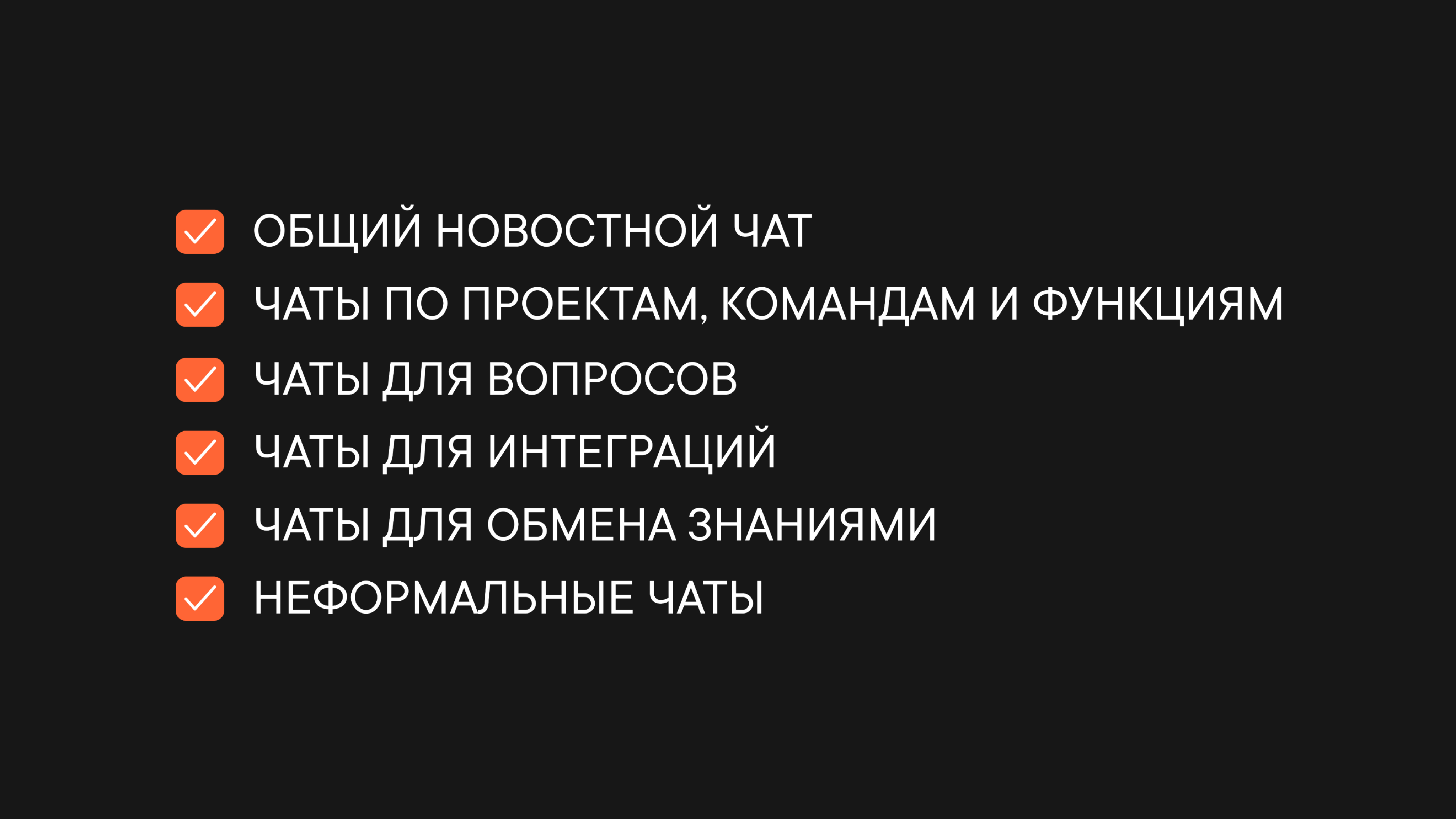
Next, let's take a closer look at each of these chats: why to create them and what to keep in mind.
More on the chats worth creating
Company news chat
This chat keeps everyone up to date on what's happening in the company. It can be either a company-wide chat or a company-wide channel.
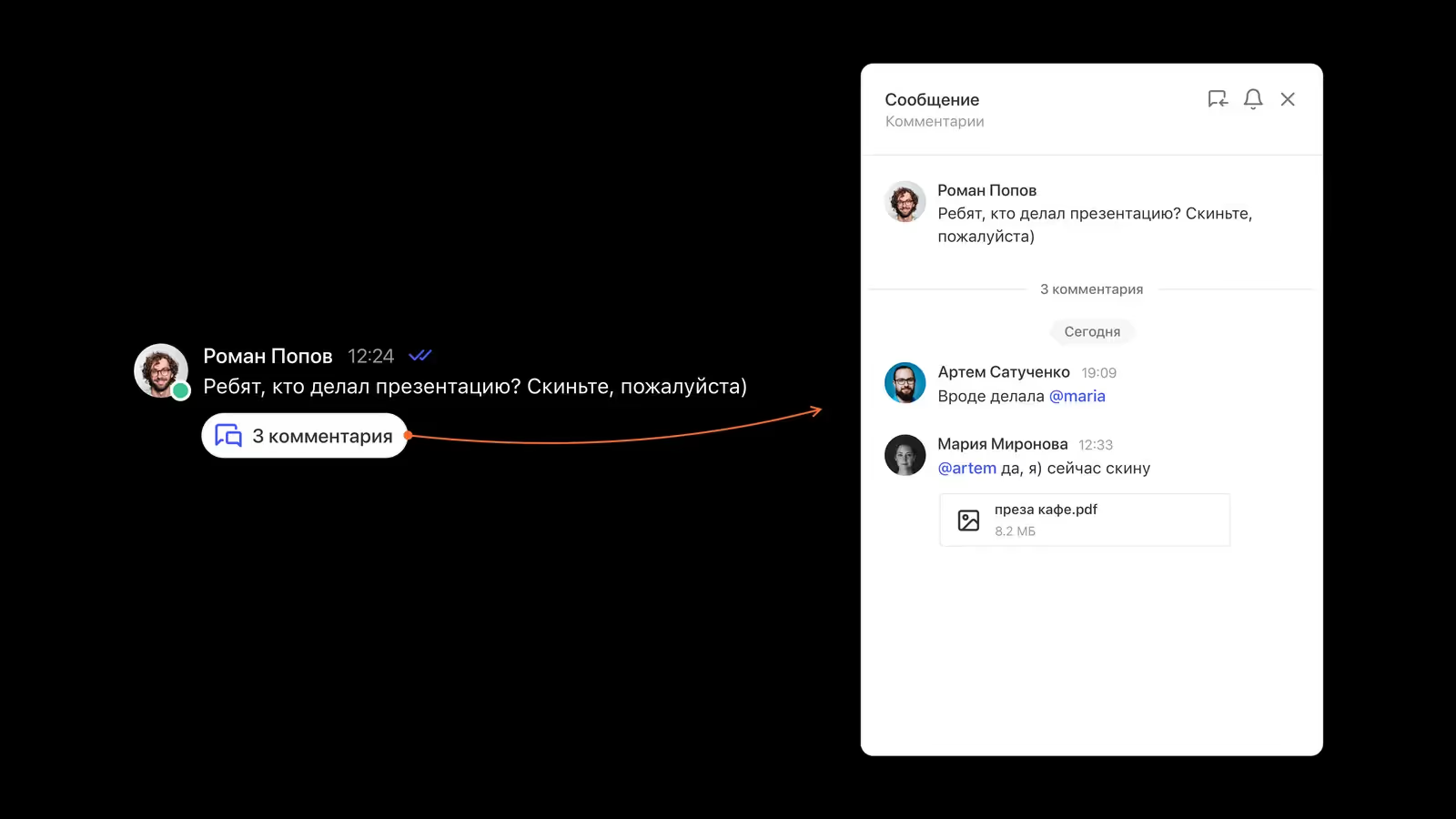
In a channel, only editors can post, and everyone else can add reactions and comments. A channel works well for a news digest, for example.
In a chat, every member can post. You can use one for sharing news too, especially if news comes in regularly from different departments.
You can add members to both a chat and a channel in just a couple of clicks using tags (for example, an "Entire company" tag). Learn more about tags in Pachca here.
Chats for projects, teams and functions
These chats are for discussing work directly. Chats work best here, so everyone can join the conversation.
Here are the three most common examples:
- Team (department) chats for discussing general questions within the team ("[Team] Marketing", "[Team] Design")
- Function chats for discussing specific areas of the team's work ("[Marketing] Ads", "[Marketing] Landing page").
- Project chats for discussing projects that involve people from different teams ("[Project] Referrals", "[Project] Billing").
You can make all of these chats private and add the right colleagues using tags (for example, a "Marketing" or "Design" tag, or a "Billing project" tag if you plan to have several chats for that project).
Chats for questions
These chats are for quick communication between teams. Often, someone doesn't know exactly who to ask in another department: who's responsible, who's available right now and so on. They end up spending lots of time looking for the right person and distracting other colleagues along the way.
To avoid that, you can create dedicated chats where some people ask questions and others answer them. For example, "[Questions] Engineering", "[Questions] Accounting".
Public chats work best here. Add the people who may get questions using a tag (for example, "Engineering" or "Accounting"), and everyone else can find the chat through Browse and join on their own.
Chats for integrations
You can connect hundreds of work tools to Pachca and get bot notifications right in your chats. To keep all those bot updates from cluttering your main conversations, create separate chats for them.
Private channels work best here. You can add the bot as an editor and everyone else as readers (again, tags help). The bot posts updates, and members can discuss them in threads.
For example, we have channels where we collect landing page requests ([Bot] Webflow), user feedback ([Bot] WebAsk), new subscriptions ([Bot] Subscribers) and so on.
Chats for sharing knowledge
Beyond chats for work tasks, it's a good idea to create chats for sharing useful information, where colleagues can post industry news, best practices and great references.
Public chats work best here, so colleagues can find them on their own through Browse. By the way, it's a good idea to split these chats by topic ("[Interesting] Marketing", "[Interesting] Design" and so on).
Casual chats
In these chats, colleagues can share memes, talk about the latest albums, organize get-togethers and even trips.
Once again, public chats work best. You can split them by interest too (for example, "[Free time] Sports", "[Free time] Books" and so on).
The result: a great team vibe and no off-topic chatter in project chats.
How to structure your chats
By default, Pachca has two folders: Chats and channels with all your group chats, and Direct messages with all your one-on-one conversations.
Each user can set up their own chat structure: create the folders they need, arrange them in a convenient order and sort all their chats into them.
Which folders to create depends on how you work and what chats your company has. One option is to group chats with the same prefix into folders, but a different grouping may suit you better.
Two more tips:
- Pin your most important chats above all folders so they're always at hand.
- To keep track of new messages more easily, create an Unread folder that collects every chat with unread messages (learn more about it here).
What else?
Share this guide with your colleagues to make your team's communication even more productive :)