How to keep all your Slack messages
A step-by-step guide to a full chat export

How to export everything from Slack
Slack plans come with different export options. For example, the free and Pro plans only let you export messages from public channels, while Enterprise covers every type of chat. You'll find detailed export instructions and the limits for each plan here.
The catch with a standard export: it doesn't include attachments or email addresses. You can export them separately, but it takes some extra work and a bit of patience.
Below is a technical guide to doing a full export from Slack. We've spelled it out in detail so that even people who are wary of anything technical can follow along.
For a full export, you need to create a bot in Slack and get its OAuth token. Here's how:
- Go to https://api.slack.com/apps
- Click Create New App
- Select From scratch
- Name the bot "Slack exporter" and choose your workspace
- Select OAuth & Permissions and scroll down to Scopes
- Under Bot Token Scopes, select [users:read] and [users:read.email]
- Scroll back up and click Install to Workspace
- Grant the app permissions
- Copy the bot's OAuth token and keep it somewhere safe
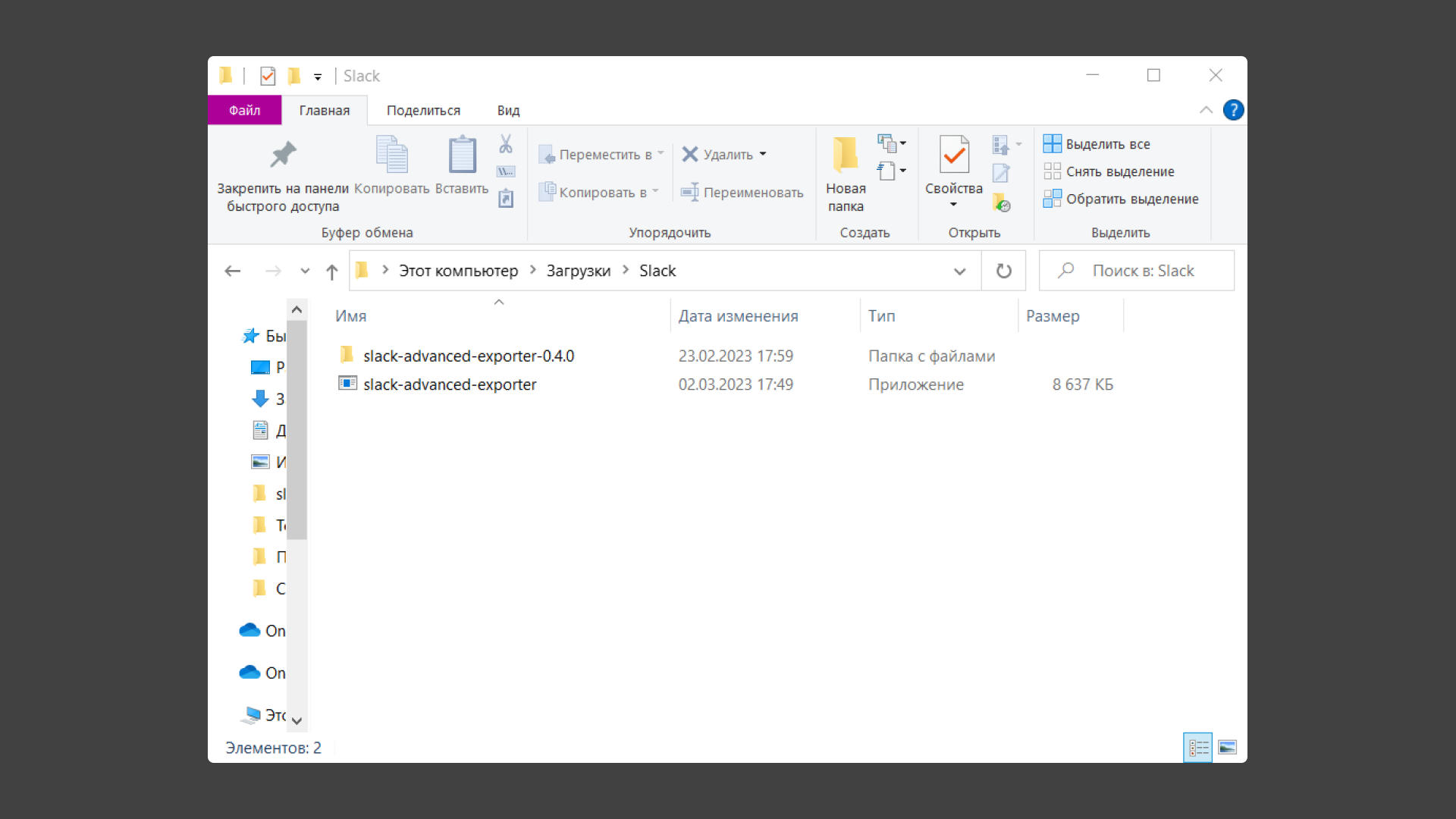
Next, to get email addresses and attachments, download slack-advanced-exporter. Unzip the archive into a separate folder. The unzipped archive should look like this:
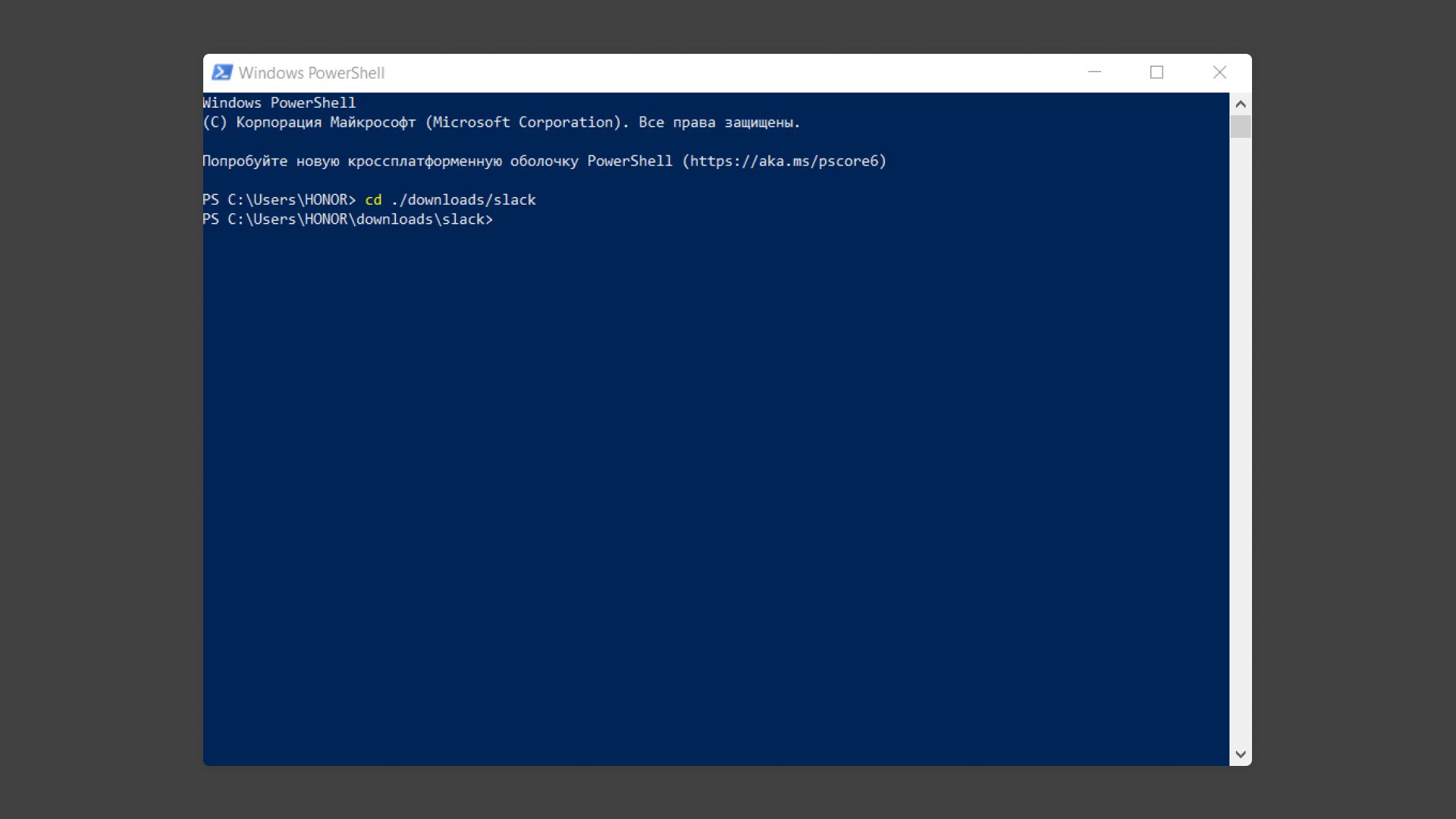
Now open PowerShell. To run the program, point PowerShell to the folder it's in with the "cd" command. It will look like this:
Once you've set the right path, run the program with the ./slack-advanced-exporter.exe command. It will start and print usage instructions like these:
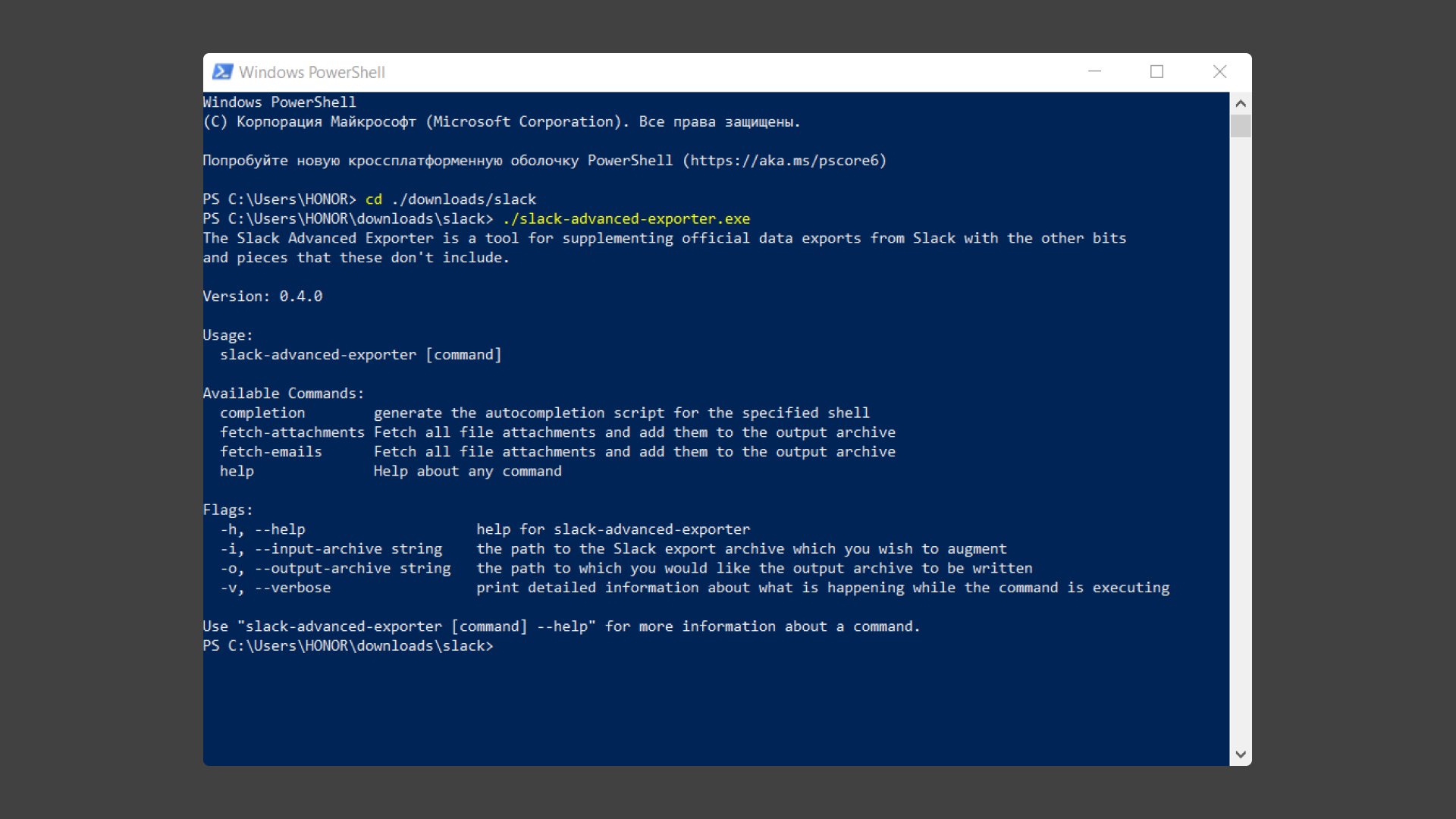
We recommend putting your standard Slack export (the one you created at the very beginning) into the folder where you unzipped slack-advanced-exporter. Now use the commands below to export email addresses and files:
./slack-advanced-exporter --input-archive <SLACK EXPORT FILE> --output-archive export-with-emails.zip fetch-emails --api-token <SLACK TOKEN>
./slack-advanced-exporter --input-archive export-with-emails.zip --output-archive export-with-emails-and-attachments.zip fetch-attachments
The first command adds email addresses to your archive. The second adds attachments to the archive with email addresses. To make it all work, replace <SLACK EXPORT FILE> with the name of your standard Slack export archive. Also replace <SLACK TOKEN> with the token you got in the previous steps. Here's what successfully completed commands look like:
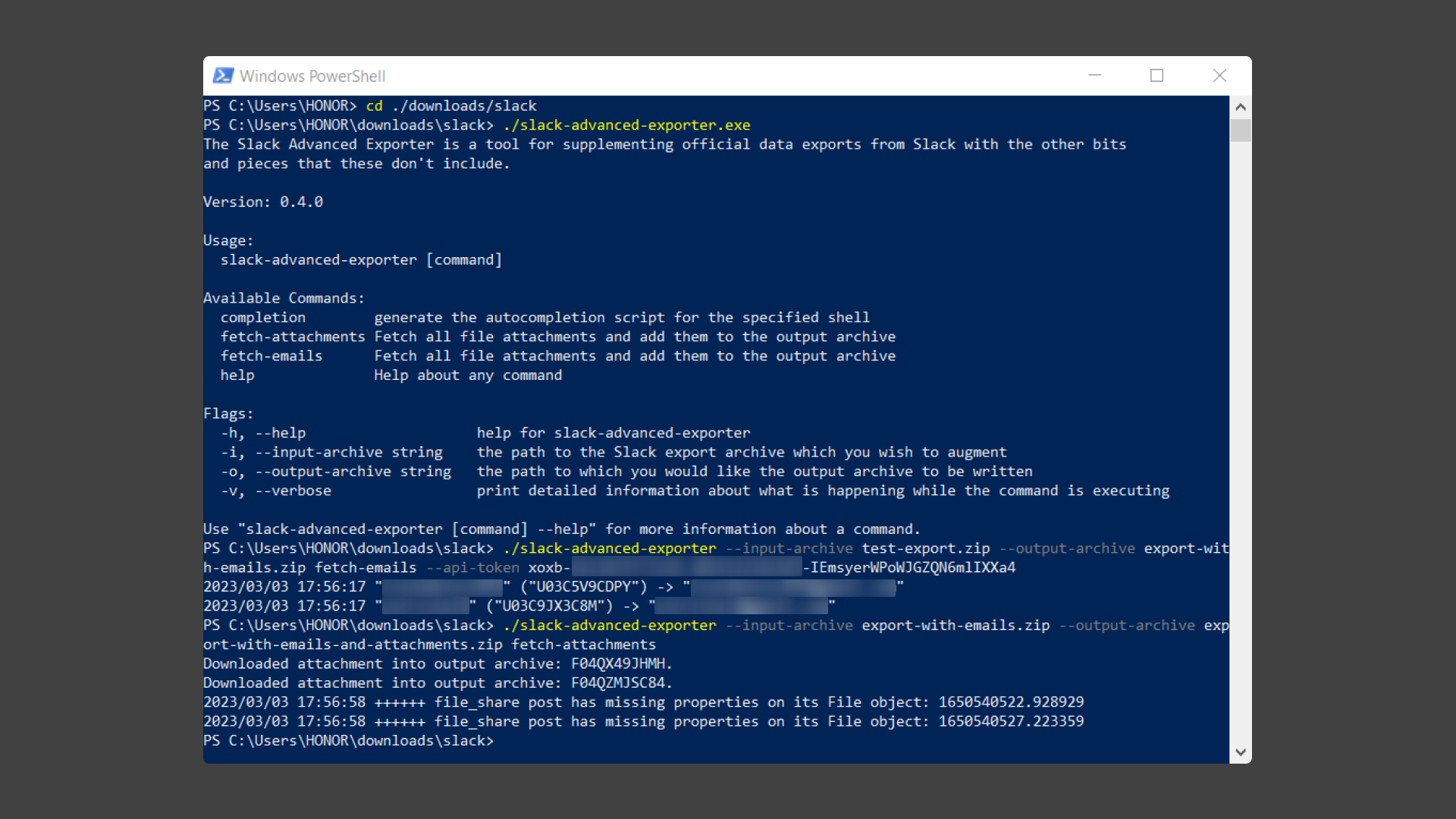
We recommend writing out the full commands (with your tokens and archive names) in a separate text editor. Doing it in PowerShell isn't very convenient.
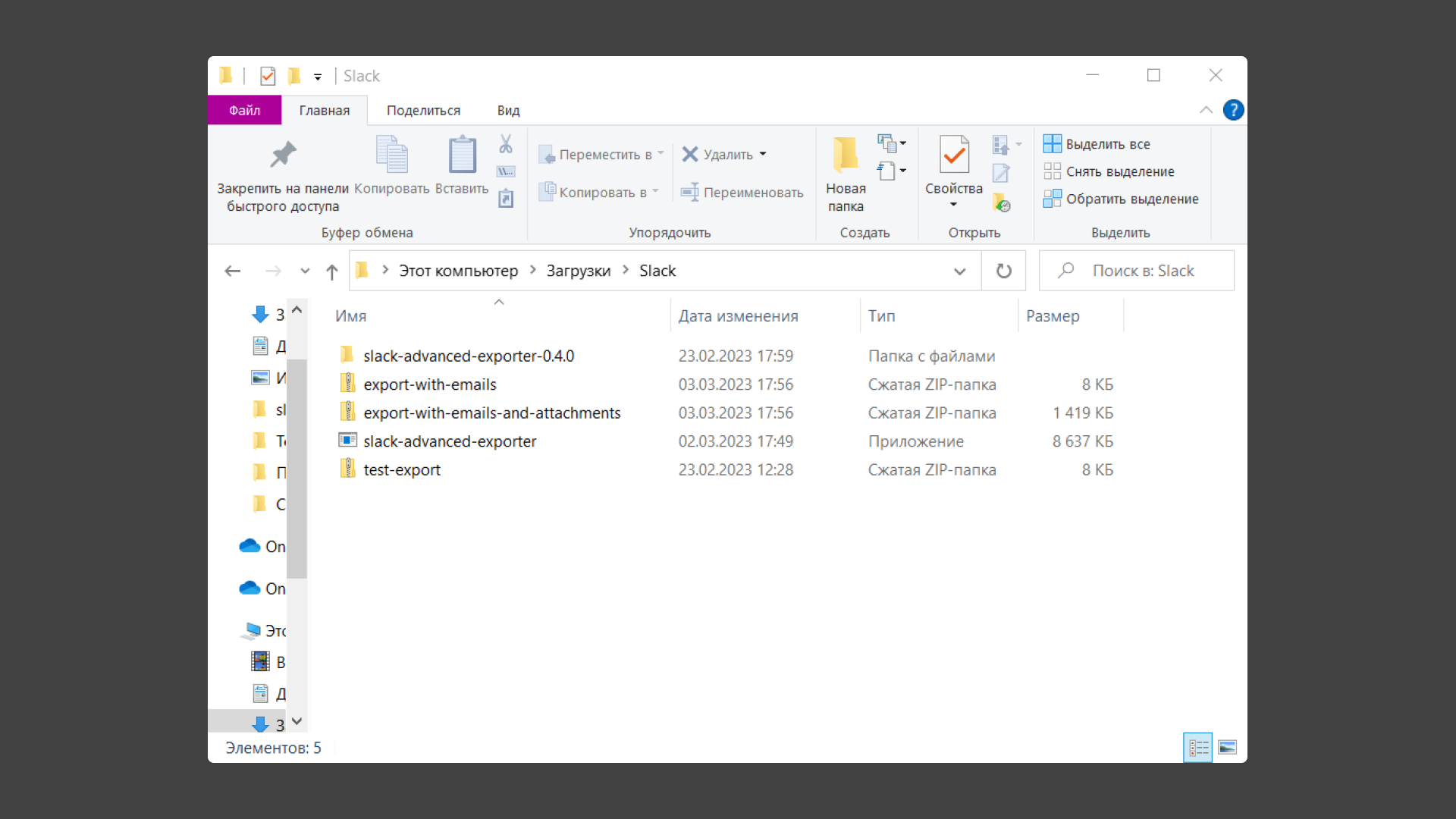
You'll end up with two files: export-with-emails.zip and export-with-emails-and-attachments.zip. The first one has no attachments, the second one includes them. After a successful export, the folder will look like this:
What to do with your Slack export
First, decide how you'll use the export. You can simply keep it as an archive, though that won't do you much good, or import it into another team chat app. By the way, you can stay on Slack if you're able to pay for it outside Russia and your whole team has already left the country. Slack has a guide to moving data from one Slack workspace to another.
If you've decided to move, keep in mind that different team chat apps accept different file types for import. So before you pick a service, check its help center. It usually explains the required format and how to convert your file.
Below are the tools you can move your Slack conversations to. Our 2026 ranking of team chat apps can help you compare the options and pick the right one.
Russian team chat apps:
International team chat apps:
- Mattermost (self-hosted version only)
- Rock
- Rocket Chat
- Zulip
A word about the international apps on this list: you can usually upload your files and keep working. But there's no guarantee they won't treat users from Russia the same way Slack did. Blocks like this have happened before, and they usually come without warning.
If you want to move your Slack conversations to Pachca, read more in our Help Center article.