How do reminders work in Pachca?
A look at tasks, plus a little secret 🤫

You can use the Tasks section in Pachca for reminders. Tasks can be linked to chats and assigned to people, you can add links and files to them, move them between days in a snap and set their priority. Here's how to put tasks to work.
How to create reminder tasks
🖍️ For reminders, it's essential to set a due date and time in the task card. Otherwise, you won't get a notification, and the task will be marked as overdue.
There are three ways:
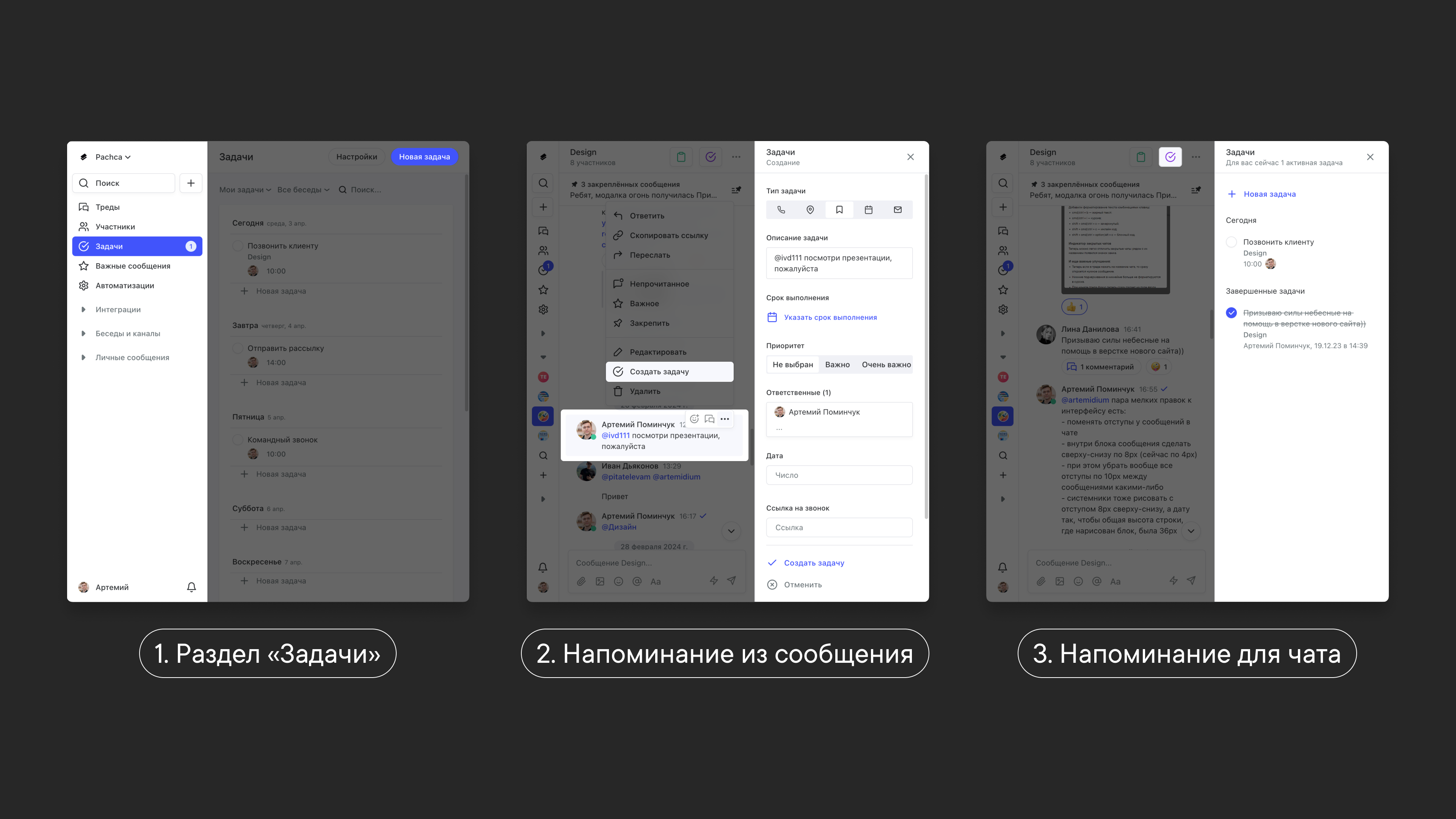
In the Tasks section, click New task in the top right corner (the + icon on mobile). You can even create a reminder without a description and add context, assignees and a chat link later.
- It's the easiest way to schedule a call for next week, remember a colleague's birthday or mark the deadline for an important task.
It's really handy to create reminders right from messages in chats. Tasks often come up mid-conversation, and chat members need to see their status and due date.
- To create a reminder from a message, hover over it, click the three-dot icon in the top right corner → Create task. The message text is copied into the task description. Once created, the task is linked to the chat you created it from.
If you need to add a reminder for everyone in a chat without linking it to a message (a direct message or a chat, but not a channel), open that chat, then:
- On desktop, click the purple checkbox icon in the top right corner, then New task. In the same section of the chat, you can always see the list of all tasks linked to it.
- On mobile, tap the checkbox icon, then +.
How reminders arrive
-
If you set a due date and an exact time, the reminder arrives at that time. You can set it down to the minute using the arrows in the time picker.
-
If you only set a due date, the reminder arrives at 10 a.m. on that day.
-
Every assignee gets the reminder. If you created a task from a chat but didn't add the members as assignees, they'll see the task but won't get a reminder for it.
-
To move a reminder, change it in its card. Or just press and hold it in the list and drag it to another day. The due time stays the same. If no time was set, it's set to 00:00.
-
Reminders land in the bell icon next to your profile on the web and arrive as push notifications in the mobile apps.
-
You can also turn on extra email notifications. In your profile, choose one or both task email options.
Who sees your reminders
- All members of a chat see the reminders (tasks) created from it and can edit them.
- Reminders that aren't linked to a chat, or that come from a direct message with another employee or a private chat, are visible only to their creators and assignees. No one else can see them.
The secret to never forgetting to reply to colleagues
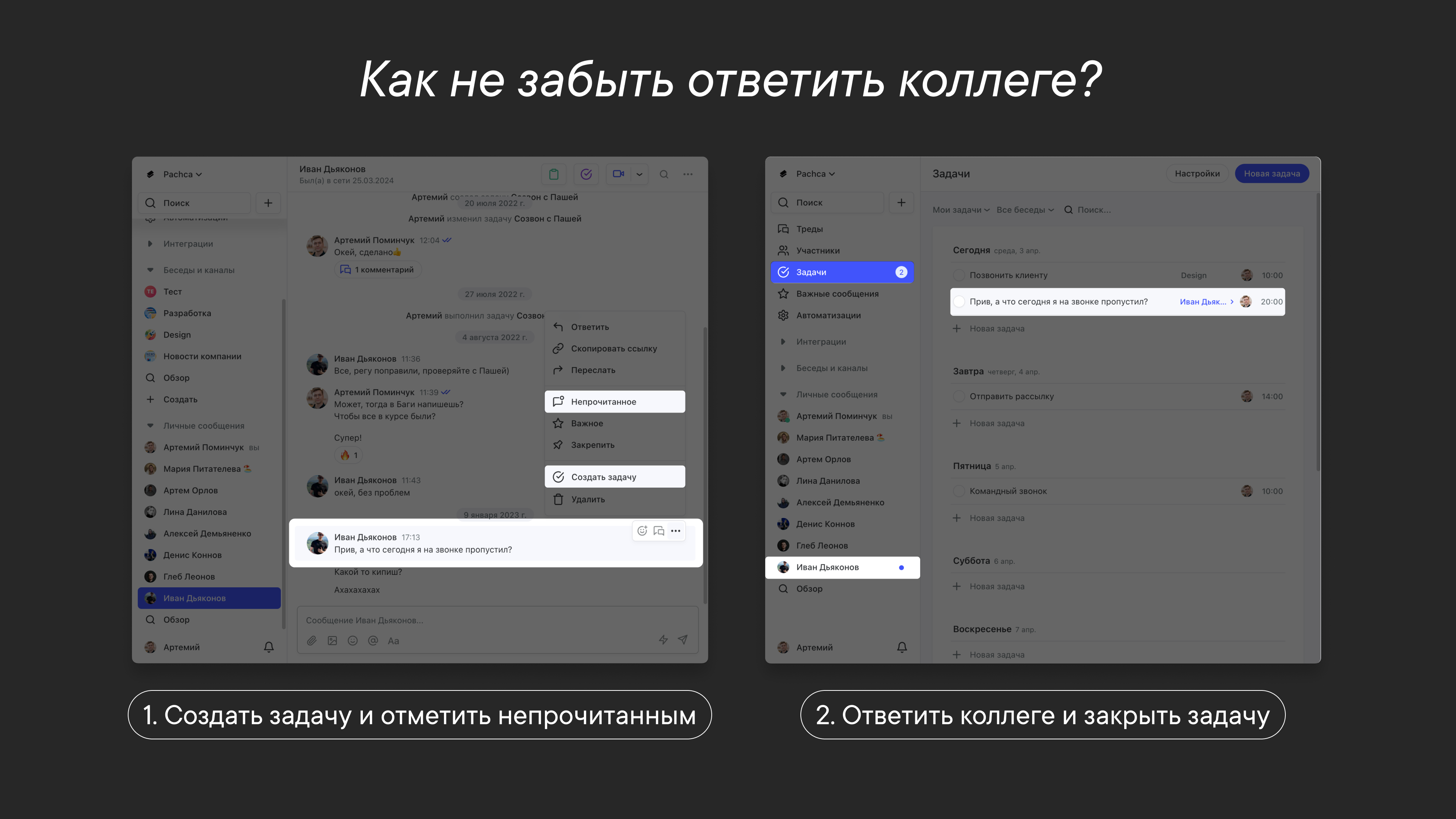
To make sure no colleague is left without a reply, set up a "double reminder":
- Create a task from the message and be sure to set a due time.
- Also mark the message as unread (right-click → Unread)
Unanswered messages will be highlighted in the chat list and next to the Tasks section. And you'll get reminders too, so no message goes unanswered.
By the way, you can hand off your task routine to an AI agent in Pachca. It lives in threads and can create tasks on its own.