What is an AI agent in a team chat app?
How an AI agent differs from a chatbot, why it works in threads and what busywork it takes off your team's plate, based on our experience with Kai, the agent we run in Pachca
Agent Skills, MCP, CLI and llms-full.txt for connecting agents
The chat discussion ended in a decision. Now someone has to move it into the tracker, write up a summary for everyone who didn't follow along and assign an owner. Usually that "someone" is a person. In Pachca, a team chat app built for AI agents, you can hand this busywork to an agent. It works in the same chats and threads as your team, sees the context of the discussion and gets the job done when you @mention it.
How is an agent different from a chatbot?
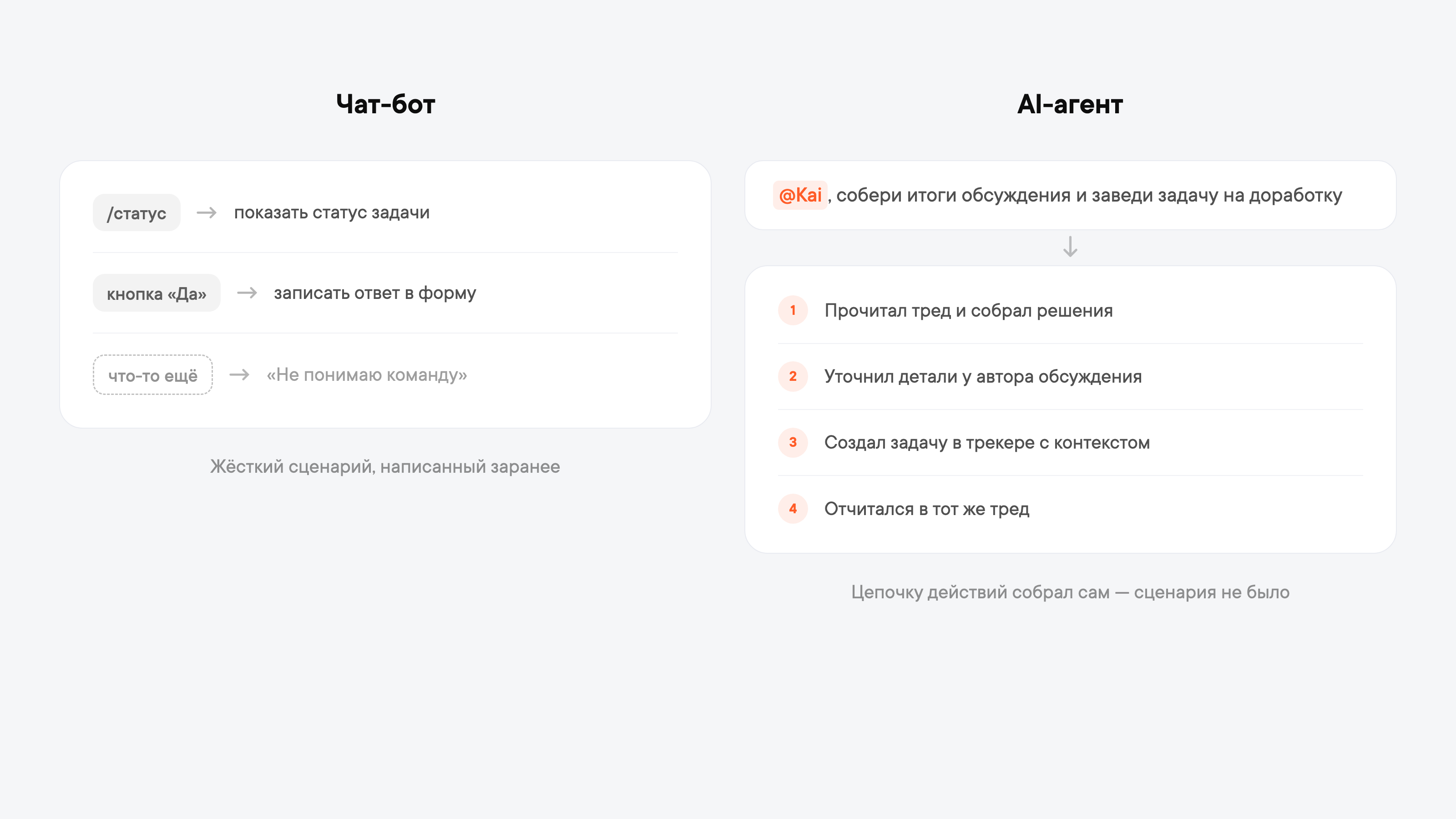
A chatbot follows a script written in advance: a command comes in, a reply goes out; someone clicks a button, an action runs. Step one inch off the script and the bot is stuck.
An AI agent works differently. It's a bot built on a language model that makes its own decisions. Give it a task and it picks the tools it needs to get it done: read the thread, ask for details, create a task in the tracker, report back in the same thread. It doesn't need a script for every situation. You just describe the outcome you want.
Why the agent works in threads
A thread is a single-topic discussion. For an agent, it's the perfect workspace: it only sees messages inside the thread, never mixes up the release discussion with the bug discussion and only replies where it's been given access. If you didn't add the agent to a private channel, that channel doesn't exist for it. Meanwhile, the chat stays clean: you can run several conversations with the agent in one channel at the same time, and they never overlap.
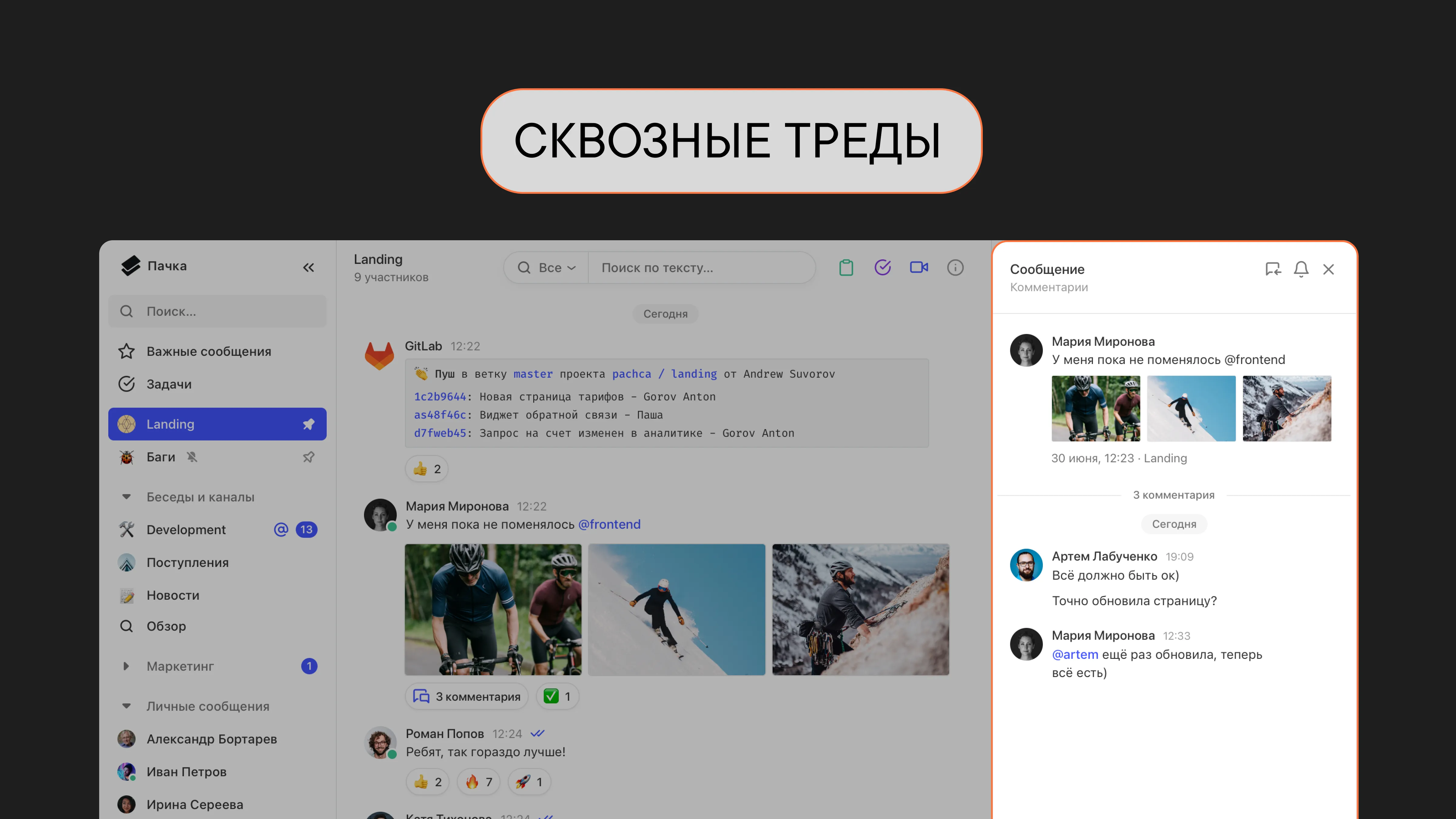
Pachca also has cross-chat threads: you can bring any colleague into a thread with an @mention, even if they aren't in the original chat. They'll see the full history, including what the agent has already done. That turns the thread into a single place where people and the agent work on a task together, with no forwarding and no explaining things all over again.
You can also start a conversation with the agent outside any chat: click "+", choose "New thread" and @mention the agent.
What busywork the agent takes on
A few typical use cases:
- Summing up a long discussion. You're back from vacation to a thread with 100+ messages. Instead of reading it from the top, @mention the agent and ask for the highlights: decisions, agreements and open questions.
- Turning a conversation into a task. The team agreed on a change right in the thread. The agent creates a task, carries over the context and assigns an owner, so nothing slips through the cracks on the way to the tracker.
- Answers from the knowledge base. The agent finds the answer in your company docs and conversations and cites the source. New hires don't have to wait for a teammate to free up.
- Summaries of documents. Send the agent a PDF, a spreadsheet or a screenshot. It pulls out the data and puts together a summary right in the thread.
- Reports and digests. The agent compiles the status of tasks and discussions into a digest and posts it to the right channel, on a schedule or on request.
What changes with an agent
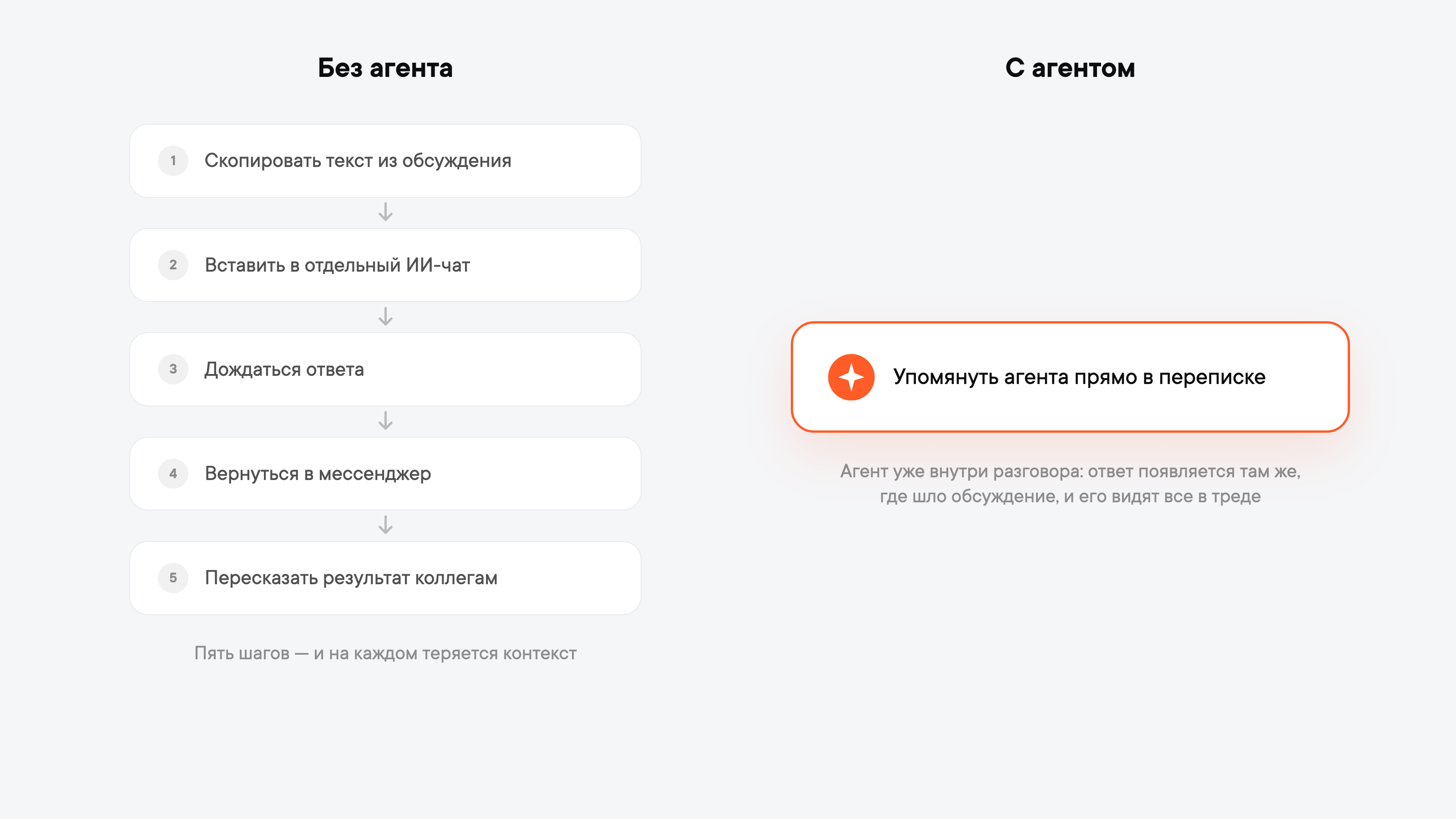
Here's how it worked without an agent: copy text from the discussion, paste it into a separate AI chat, wait for the answer, go back to your team chat app and relay the result to your colleagues. Five steps, and you lose context at every one of them.
With an agent, there's one step: @mention it right in the conversation. You don't have to explain what's going on, because it's already in the conversation. The answer shows up where the discussion happened, and everyone in the thread sees it right away. And if you need to loop in someone from another department, just bring them into the same thread.
How we use an agent ourselves
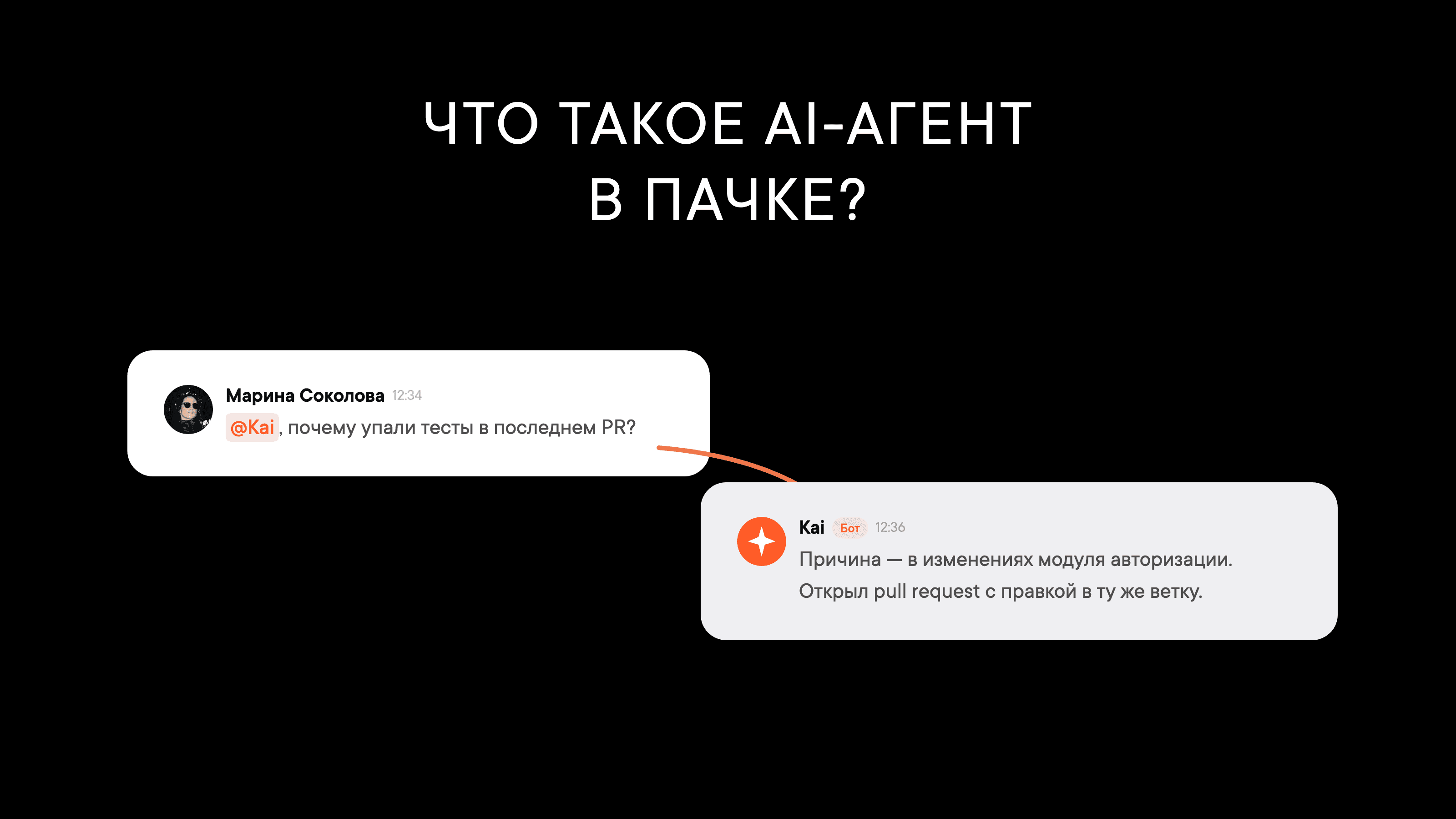
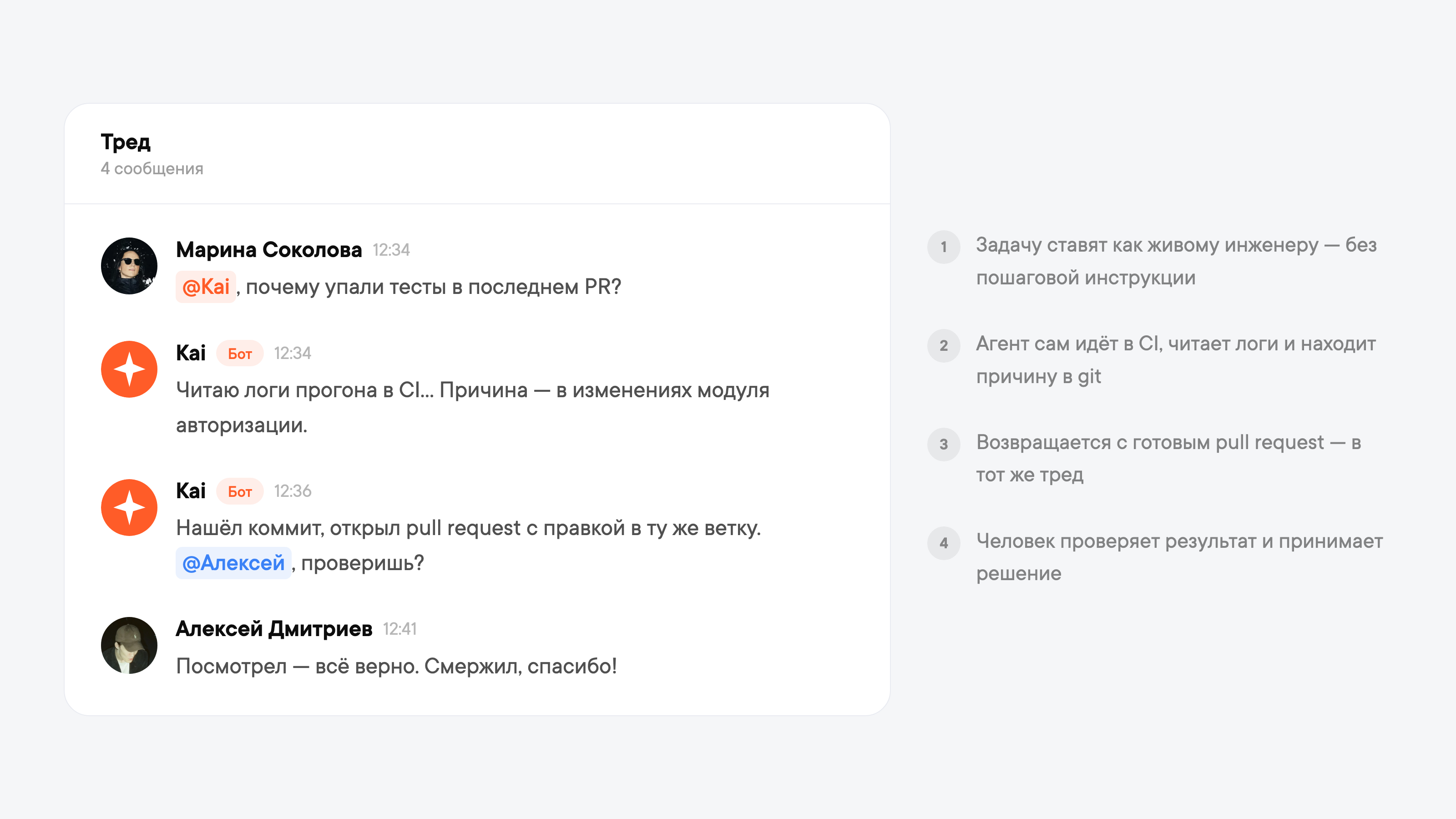
At Pachca, we work with an AI agent too. Its name is Kai. We give it tasks the same way we would a human engineer, without step-by-step instructions. Someone writes in a thread: "@Kai, why did the tests fail in the latest PR?" From there, it goes to CI on its own, reads the run logs, traces the cause to changes in the auth module, checks the git history and opens a pull request with the fix on the same branch. At every step, it decides which tool to use and what to do with the result of the previous one.
Kai handles the same kind of multi-system tasks outside of code too. It builds reports from tracker data, the knowledge base and documents; sorts incoming requests, matches them to companies and outputs a table; and makes content edits on the website, from the request in chat to the finished change.
Kai doesn't get access to everything at once, only as needed. If it needs the tracker, it sends a sign-in link, and a person approves the connection. The agent only acts when someone asks. It never kicks anything off on its own.
A few of our internal numbers. The agent handles about 90% of content tasks for the website, and requests to the engineering team have been cut in half. In support, most answers to technical questions now take 2 minutes to prepare instead of 30. That's 15 times faster: Kai reviews the request, finds the answer in the knowledge base and writes a draft, and a teammate just has to check it and hit send.
How secure is it?
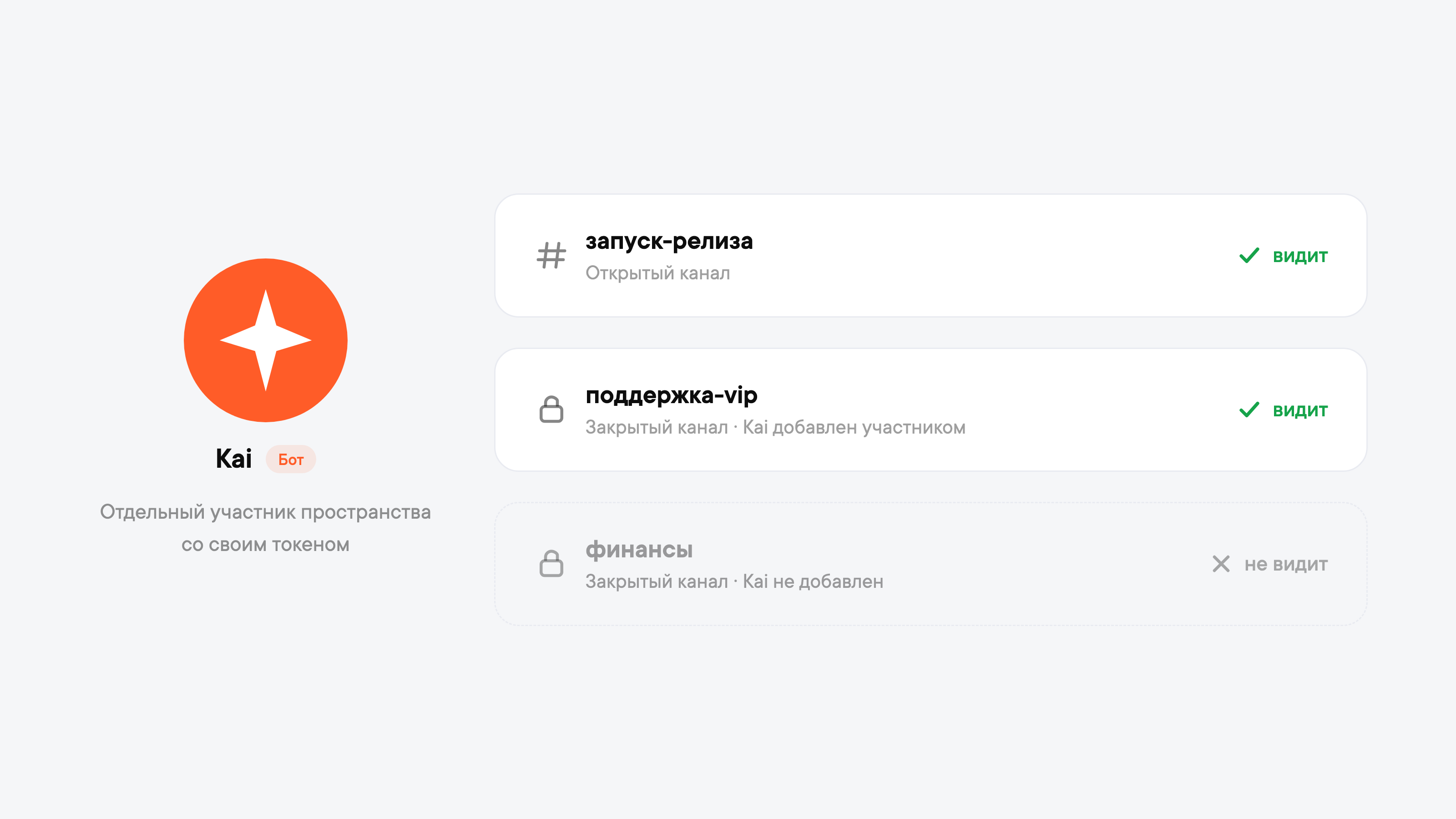
In Pachca, the agent works as a bot: a separate workspace member with its own name, avatar and token. The agent only sees what it's been invited to. Its messages are signed with its name, so you can always tell what a person did and what the agent did.
What the agent can see depends on chat membership: it sees the workspace's public channels, but only the private channels, chats and threads it's been explicitly added to as a member. If you didn't add the agent to a private channel, that channel doesn't exist for it.
The agent only responds when someone reaches out to it: @mentions it or replies to it in a thread. It doesn't process the rest of the conversation.
Administrators stay in control: the "Who can use the API" workspace setting decides whether members can connect integrations and agents on their own. Remove the agent from a chat and it loses access immediately. Disable the bot and the agent stops completely. For how Pachca works for large companies (SSO, DLP, audit log), see the Enterprise page. Every action taken through the API is recorded in the audit log.
If you want to connect an agent just for yourself, here's how to connect a personal agent: Claude Code, Cursor or Codex, with three commands in the terminal. For how a personal agent differs from a team agent, see our separate breakdown.
Connecting a team agent is a job for a developer or administrator. The instructions are in the docs for AI agents. If you get stuck, contact support and we'll help you sort it out. For your first use cases, we recommend starting small: add the agent to a discussion thread and ask it to summarize a long conversation.