How to connect your personal AI agent to Pachca
Claude Code, Cursor, Codex or your own agent: three terminal commands, and your agent reads your chats, reports back in threads and creates tasks on your behalf
CLI, Agent Skills, MCP and llms.txt: every way to connect an agent to Pachca
Connecting an AI agent to Pachca takes two minutes: install the CLI and log in. After that, Claude Code, Cursor, Codex or your own agent is no longer cut off from your team's conversations. On request, it pulls a task's context from a thread, reports finished work in a chat and creates a task based on a discussion.
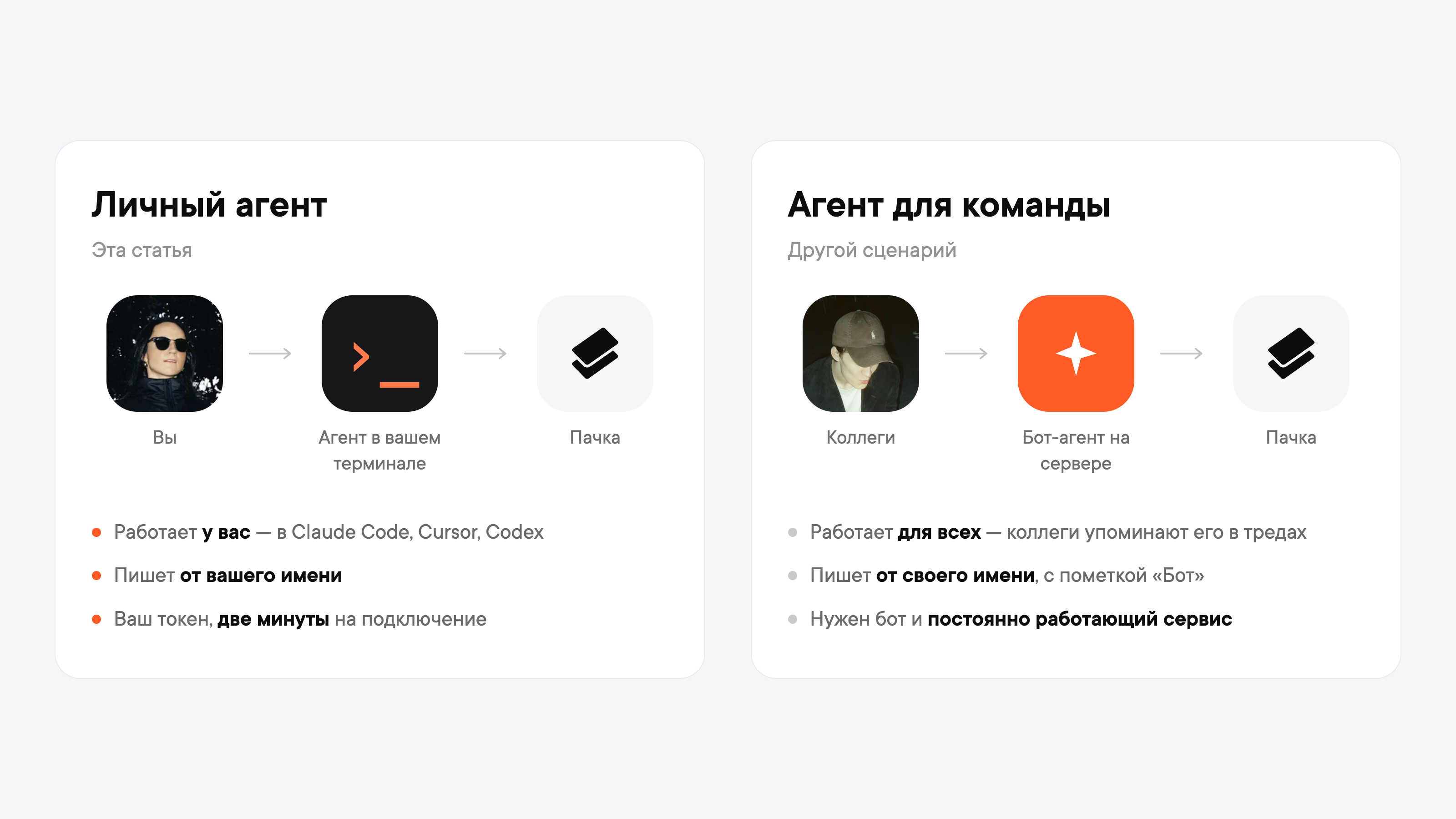
This guide is about a personal agent that runs in your terminal or in an app for working with agents. If you need a shared agent for the whole team, one your colleagues @mention in threads and get answers from in the same place, that's a different setup: it needs a separate bot and an always-on service.
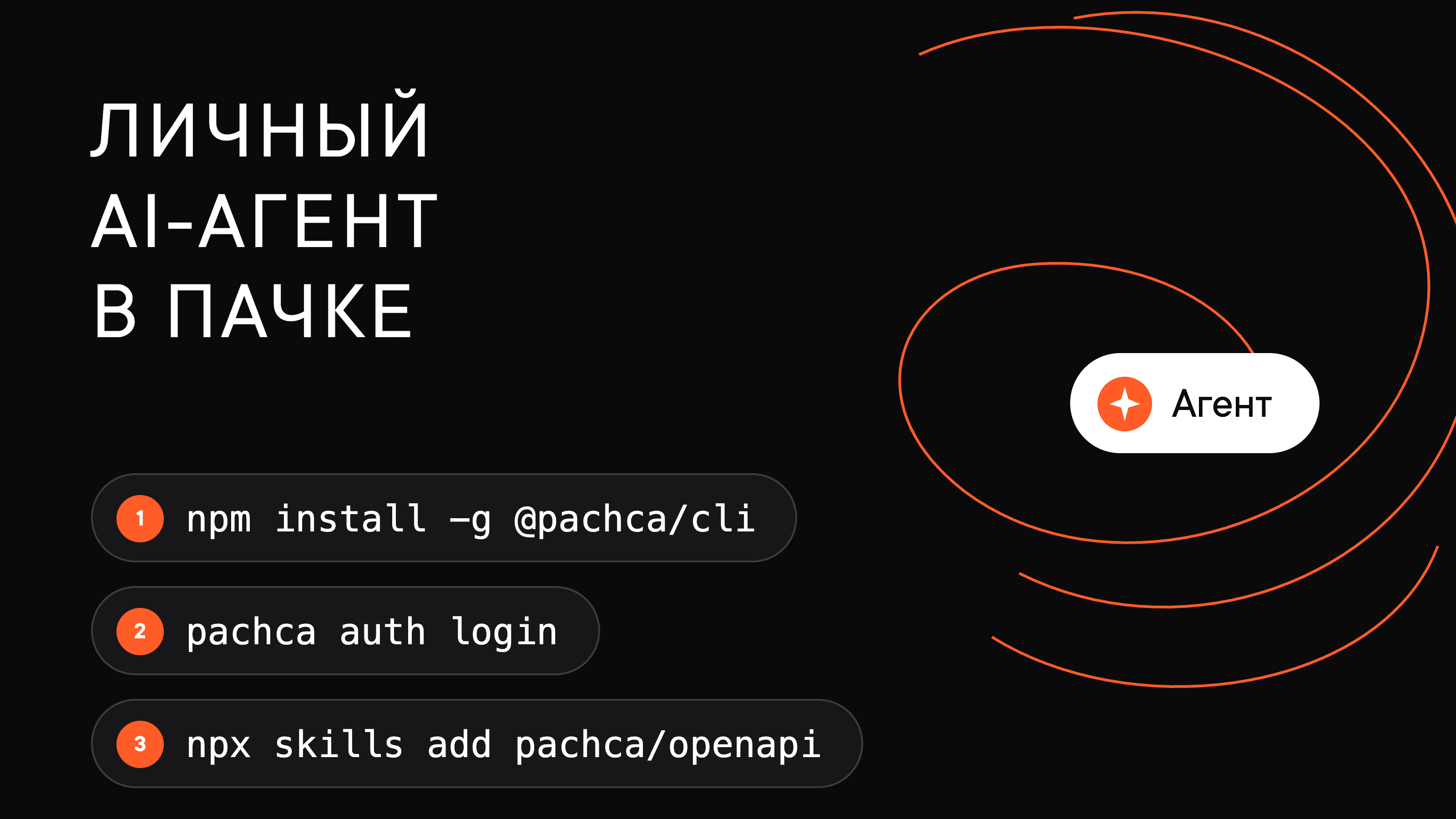
Step 1. Install the CLI and log in
Pachca CLI is the same Pachca API, just as commands. It's more convenient for an agent: you don't need to load docs into the session, because the agent learns what the CLI can do right from the terminal.
npm install -g @pachca/cli
Get a token in Pachca under Automations → API and pass it to the next command. Written this way, the token doesn't end up in your terminal history:
echo "YOUR_TOKEN" | pachca auth login --token -
Check that everything worked:
pachca auth status
The command shows which user you're logged in as.
If you can't create a token, it may be your workspace settings: the owner decides who can use the API. Ask an administrator to give you access, or to create a service account and issue a token for it.
Step 2. Teach your agent to use Pachca
All that's left is to teach your agent what it can do in Pachca. One command is enough:
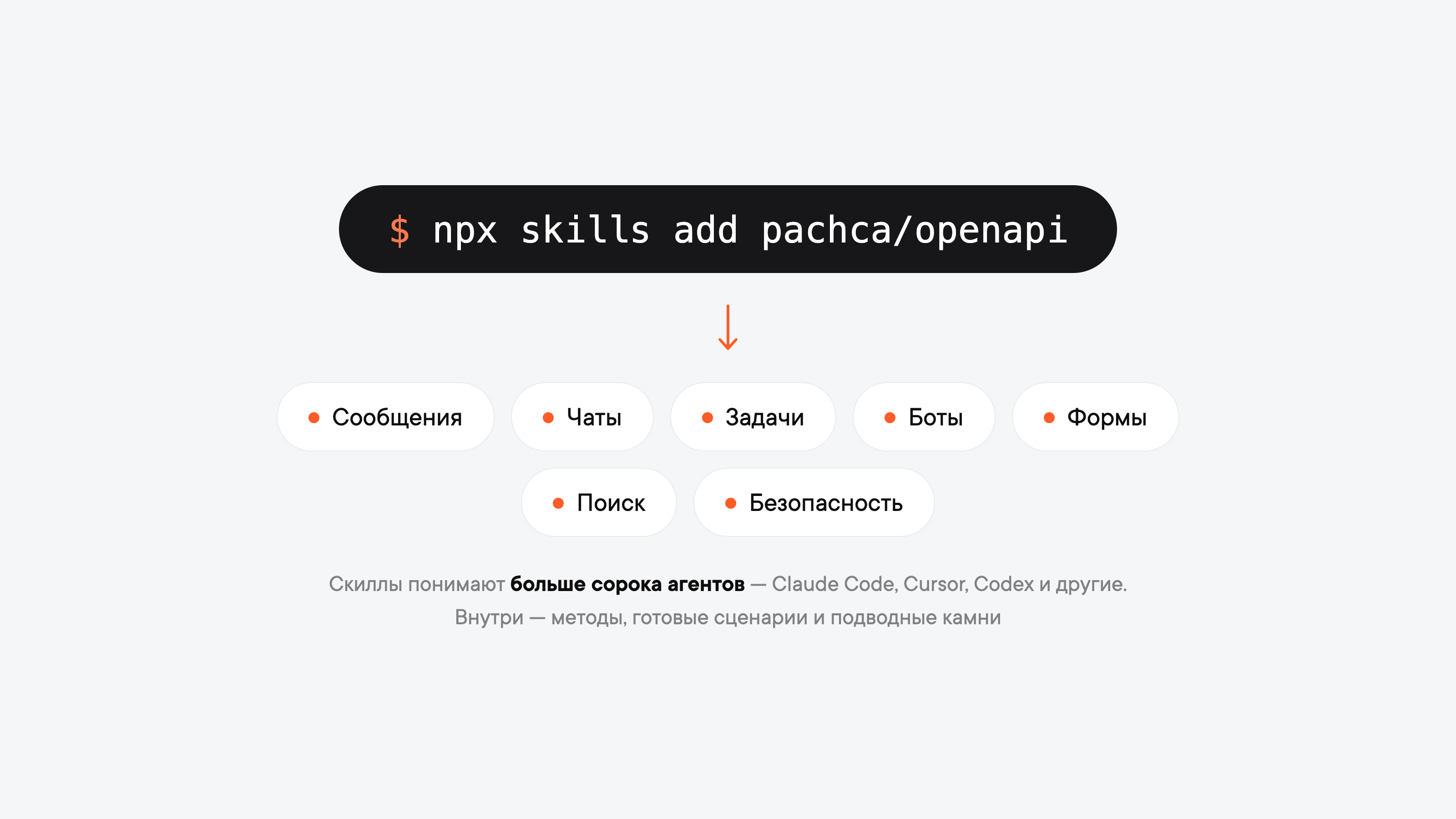
npx skills add pachca/openapi
It detects which agents are installed on your device and adds Agent Skills to them. More than 40 agents support them, including Claude Code, Cursor and Codex. The skills are split by area: messages, chats, tasks, bots, forms, search and security. Each one includes methods, ready-made recipes and the common pitfalls people usually run into.
From there, the agent figures out which tools to use on its own: it lists commands with pachca commands and gets details on any of them with --help. No need to load docs into its context.
If your agent doesn't have terminal access, there are other ways to teach it about Pachca: an MCP server with the docs, llms.txt and the OpenAPI spec. You'll find them all in the docs for AI agents.
Step 3. Give your agent its first task
Now you can ask your agent to do something in Pachca. Start with something short and easy to check, like summarizing your conversations:
Look through my Pachca chats from the last three days.
Tell me what important stuff I missed and where people are waiting on my reply.
The agent goes through your chats, pulls out the highlights and sums them up for you.
What to hand off to a personal agent
A personal agent helps wherever you'd usually switch between code and chat:
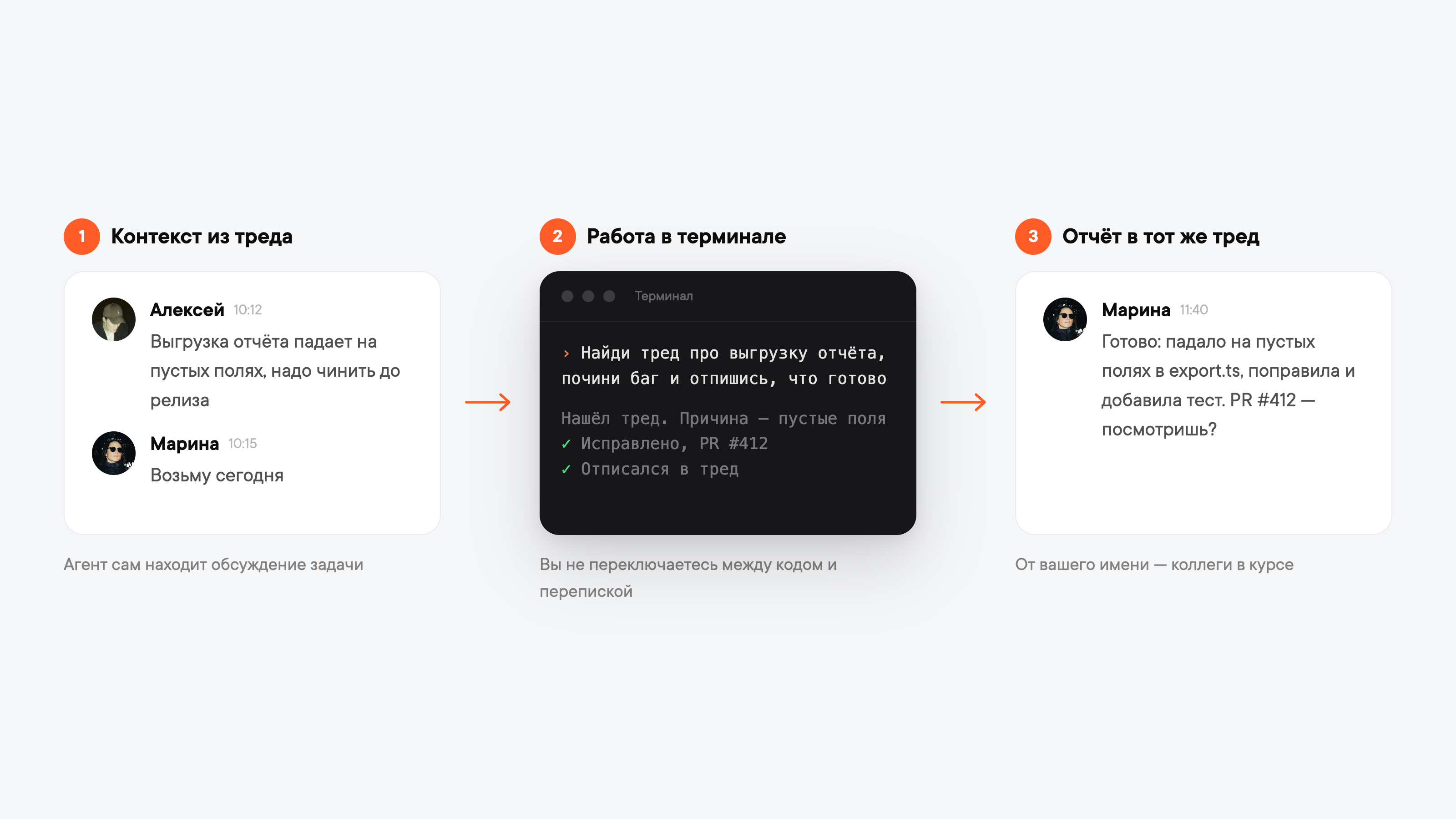
- Gather context before you start. If the task was already discussed in Pachca, give the agent the chat or thread ID, or ask it to find the discussion itself.
- Report on the work. When the agent finishes a task, it posts in the chat what's done and what changed. You don't have to switch contexts, and your team stays in the loop.
- Catch up after vacation or a meeting. Get a recap of your chats for any time period.
- Create a task from a discussion. "Create a task for what we agreed on in this thread and carry over the context."
Beyond that, it comes down to what you do by hand most often. With this setup, you can automate routine workflows or get your personal agent working together with your colleagues' agents.
About security
The agent acts on your behalf and sees exactly what you see: the token inherits your visibility and adds nothing to it. pachca auth status shows exactly what's been granted.
The token doesn't expire, so treat it like a password and store it securely. You can revoke access at any time: run pachca auth logout or delete the token under Automations → API.
One thing to keep in mind: messages the agent sends come from you. That's handy for reports on your own work. But if you need people to see that the agent wrote a message, not you, set up a separate bot. That's a team agent. For how it differs from a personal one and what to give each of them, see our breakdown of personal and team agents. For how a team agent works in threads, see our article on what an AI agent is. Security team requirements (token scopes, audit log, SSO) are covered on the Enterprise page.
Frequently asked questions
Claude Code, Cursor, Codex and other agents that support Agent Skills. There
are more than 40 of them. Your own agent works too: it connects to Pachca
through the same Pachca CLI or API. The setup is the same for all of them:
install the CLI, log in with your token and add the skills with npx skills add pachca/openapi.
Pachca CLI (@pachca/cli) is the Pachca API as terminal commands. It's more
convenient for an agent than calling the API directly: there's no need to
load docs into its context, because the agent gets the list of commands and
their parameters from pachca commands and --help.
A personal agent runs in your terminal, uses your token and posts on your behalf. A team agent is a separate bot on a server: colleagues @mention it in threads, and its messages are signed with the bot's name. A team agent needs a bot and an always-on service.
The agent sees exactly what you see: the token inherits your visibility and
adds nothing to it. The token doesn't expire, so store it like a password.
You can revoke access at any time: run pachca auth logout or delete the
token under Automations → API.