Pachca MCP server: how to connect an agent
Claude, ChatGPT, Cursor and other apps that support MCP: how to connect, what the agent can do, permissions and revoking access
Overview, connection and the server's tools
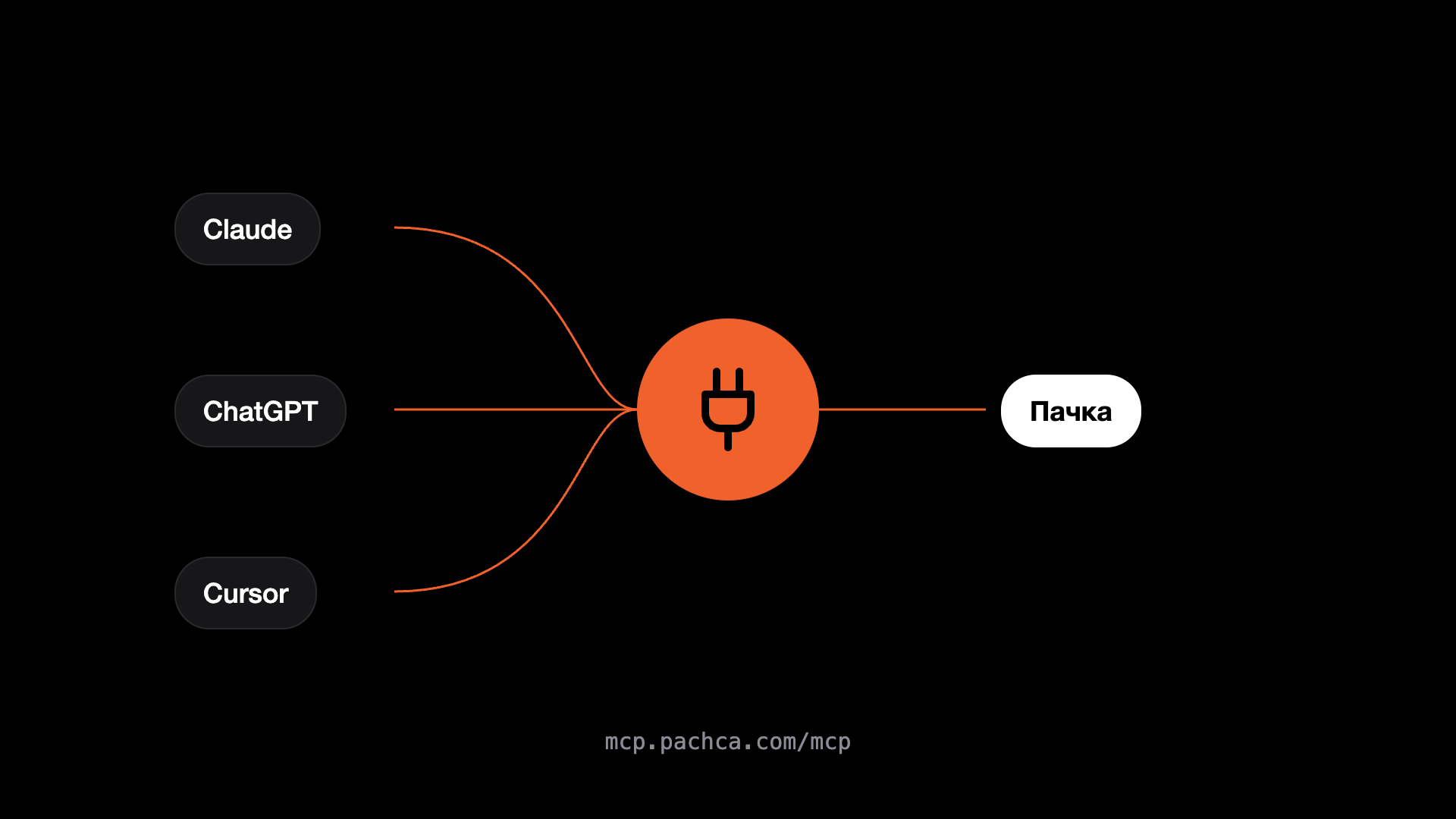
An agent in Claude, ChatGPT, Cursor or any other app that supports MCP can work with your Pachca chats: find what you agreed with a customer, sum up a discussion, tell teammates what got done. To set it up, add the address of Pachca's MCP server to the app and allow access. The agent sees only the chats you can see and acts on your behalf.
How to connect
One server address for every app: https://mcp.pachca.com/mcp
Claude.ai
- Open Customize → Connectors and click "Add custom connector".
- Enter the name Pachca and the address https://mcp.pachca.com/mcp.
- Allow access on the Pachca screen. In a chat, turn the connector on via "+" → Connectors.
Claude Code
- Open the terminal and run this command. It adds the Pachca server to Claude Code:
claude mcp add --transport http pachca https://mcp.pachca.com/mcp
- Start Claude Code with the claude command, type /mcp and pick pachca. A Pachca sign-in window opens in your browser.
- Allow access on the Pachca screen.
ChatGPT
- In ChatGPT settings, add an MCP server: name Pachca, address https://mcp.pachca.com/mcp, sign in through the browser.
- Allow access on the Pachca screen.
The connection works in regular chat. Deep research and company knowledge modes don't see Pachca.
Other app
Works for Cursor, VS Code, Windsurf, n8n, JetBrains and any app that supports MCP.
- In the app's settings, find where MCP servers are added. The section may be called MCP, Connectors or Integrations.
- Add a server with the address https://mcp.pachca.com/mcp. If the app opens a Pachca sign-in window, allow access and you're done.
- If no sign-in window opens, the app needs a token. Create one in Pachca: Automations → API → "Create new token".
- Paste the token into the app's settings file (Cursor: .cursor/mcp.json, VS Code: .vscode/mcp.json, Windsurf: mcp_config.json) or into the form fields if the app is set up through its interface.
Example settings file. Replace YOUR_TOKEN with the token from Pachca; in VS Code the section is called servers, not mcpServers:
{
  "mcpServers": {
    "pachca": {
      "url": "https://mcp.pachca.com/mcp",
      "headers": { "Authorization": "Bearer YOUR_TOKEN" }
    }
  }
}
Consent screen
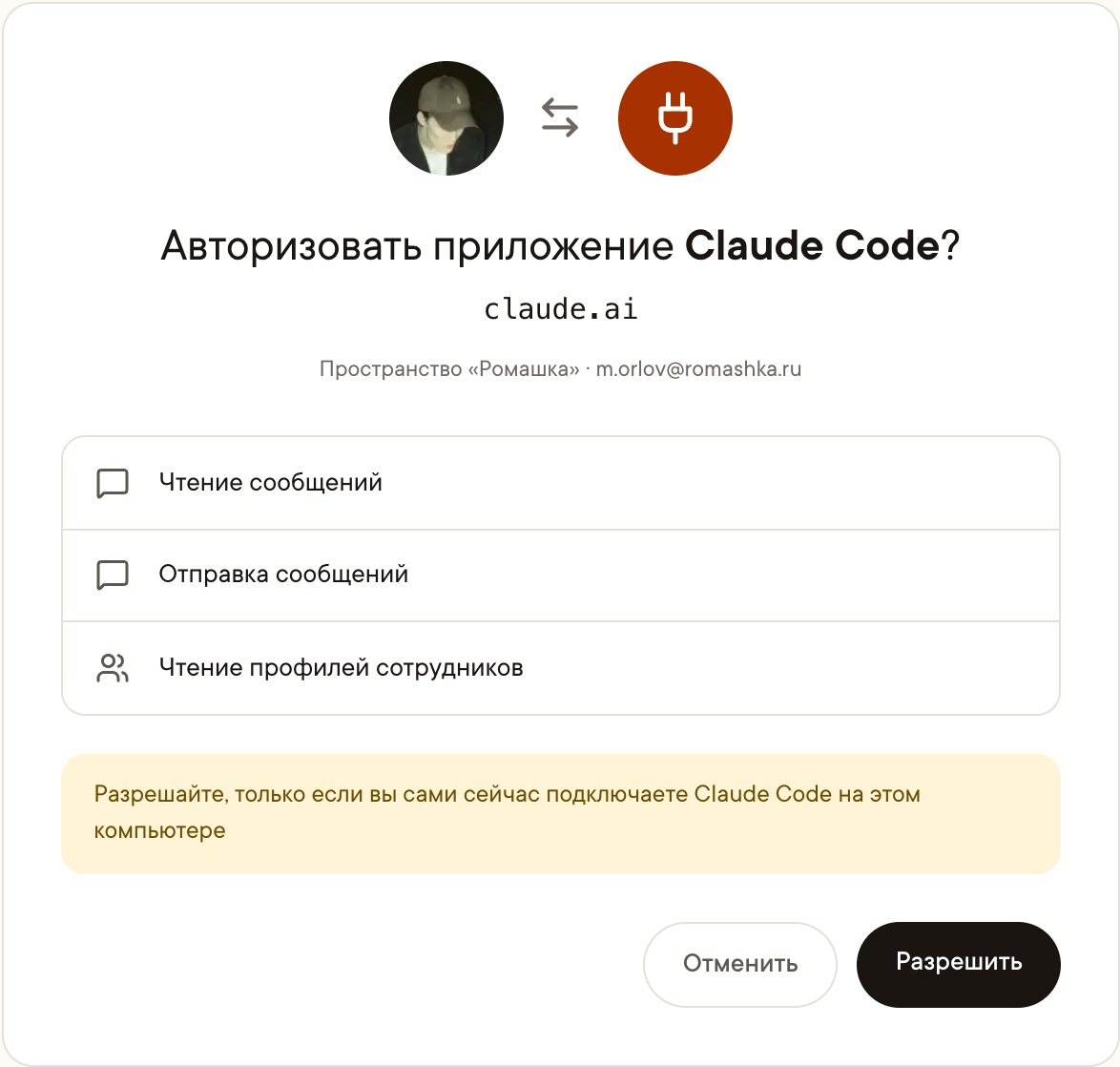
When you sign in through the browser, Pachca shows which app is asking for access, from which domain, to which workspace and with what permissions. If the app runs on this same computer, Pachca warns you. If it all checks out, click Allow. With a token connection there is no consent screen.
What to hand to an agent
- Find what you agreed before a customer meeting. The agent pulls from your chats when the pilot starts, what comes after it and which dates are still being discussed.
- Fix a bug from a thread discussion. Give the agent a link to the thread: it reads the discussion, makes the change in the code and posts in the same thread what changed and what to check.
- Set reminders from a discussion. The agent finds your tasks in the chats and creates reminders with dates from the discussion and a link to the thread.
Permissions and security
- Access within your role. Connected on your behalf, the agent sees only the chats and threads you can see. Pachca checks permissions on every action. With a bot token, the bot's permissions apply.
- Confirmation before sending and deleting. In the app you use with your agent, turn on confirmation before sending and deleting messages. That way you stay in control of every important action the agent wants to take.
- Commands in chats. The MCP server tells the agent to treat messages from Pachca as material for the task. That doesn't guarantee the model will ignore a stray command in a chat, so keep confirmation for sending and deleting on.
- What data the agent gets. Only what it requests for the task, such as the messages it found and the contents of threads. How the service stores and uses that data depends on its policies. Check the terms of the service you use before connecting.
How to revoke access
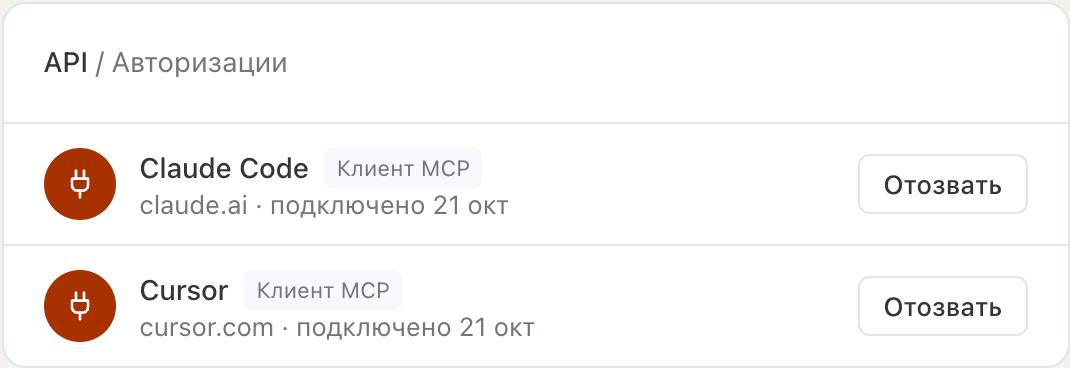
Open Automations → API, the Authorizations section. Connected apps are marked as MCP client. Click Revoke: every connection of that app loses access to Pachca.
What's next
Connect the agent and give it a first task from your chats: ask it to sum up what you missed in the last few days, or to find what you agreed with a customer. For developers: the server's tools mirror the Pachca API methods, described at dev.pachca.com/guides/mcp/overview. If something didn't connect, message support and we'll sort it out together.