
Gitlab integration
How to connect Gitlab to Pachca and get notifications about commits and merge requests
About the integration
The Pachca×Gitlab integration sends events from your Gitlab straight to Pachca chats.
Here's how it works: you create a bot in Pachca that pulls information from a Gitlab project you choose. Then you add this bot to any chat, and it posts messages there about events in that project.
You can create as many bots as you need and add them to any number of chats.
Events the bot reports
1. Push Hook: pushes to branches and merge requests

The bot posts a message to the chat with:
- the branch that was pushed to
- the project that was pushed to
- who pushed
- the number of commits
- for each commit: commit ID, commit link, commit title and commit author
2. Pipeline Hook: CI/CD (deploys, success or failure)

The bot posts a message to the chat with:
- whether the build succeeded
- the branch
- the project
- who started it
- the pipeline name
- the failed stage, if there was an error
3. Note Hook: comments (on merge requests, discussions, commits and more)

The bot posts a message to the chat with:
- the type of item that was commented on (merge request, discussion or commit)
- the item name
- the project name
- the comment author
- the comment text
4. Issue events: issues (created or closed)
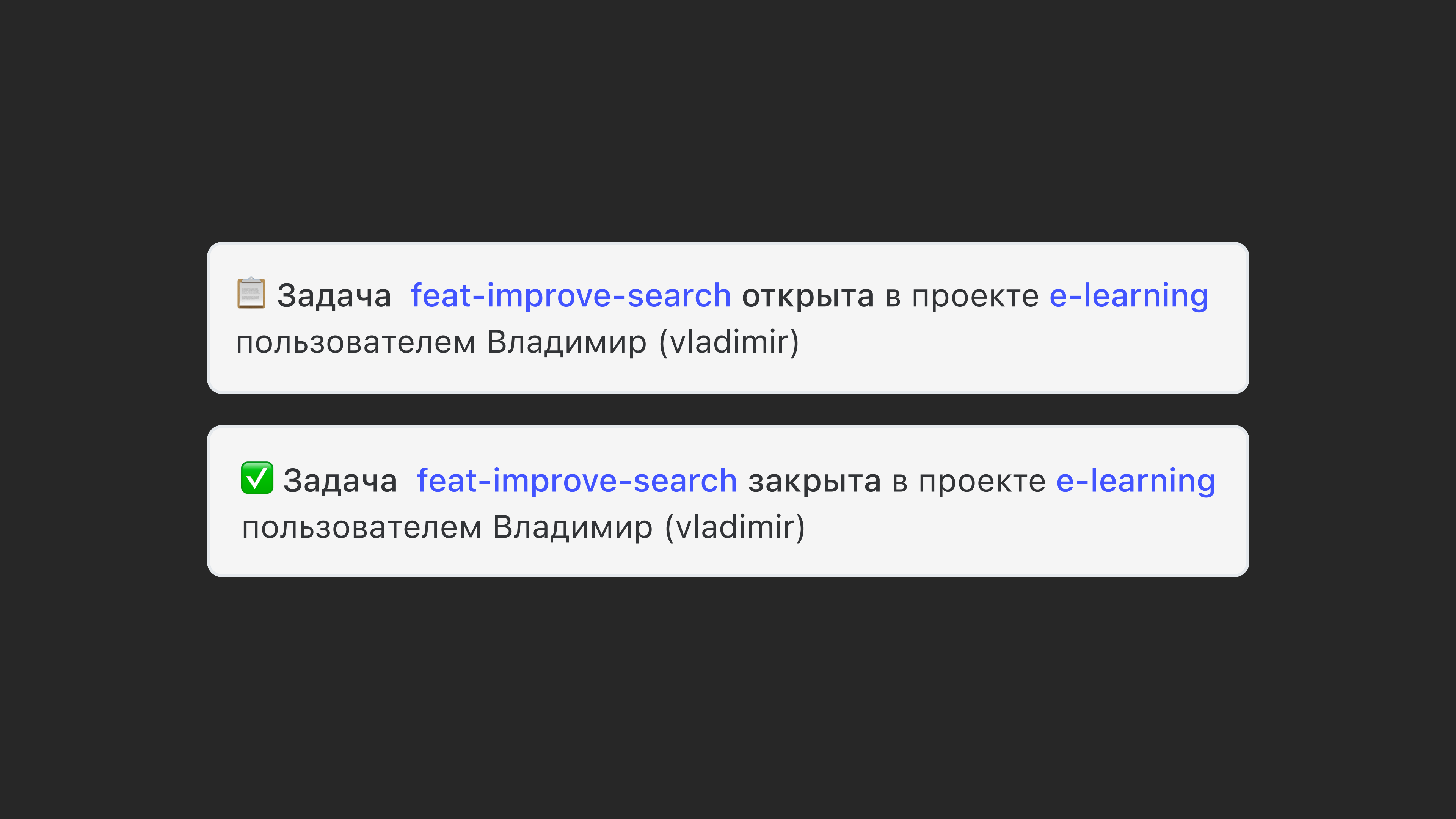
The bot posts a message to the chat with:
- the issue title
- the issue status
- the issue author
Who can create Gitlab integrations
Any member can create an integration. They can keep it private or let their teammates use it. You control this in the integration settings, covered below.
Only a chat admin or the chat creator can add an integration to a chat or remove it. So if you want an integration just for yourself, create a new chat and add it there.
How to set up the Pachca×Gitlab integration
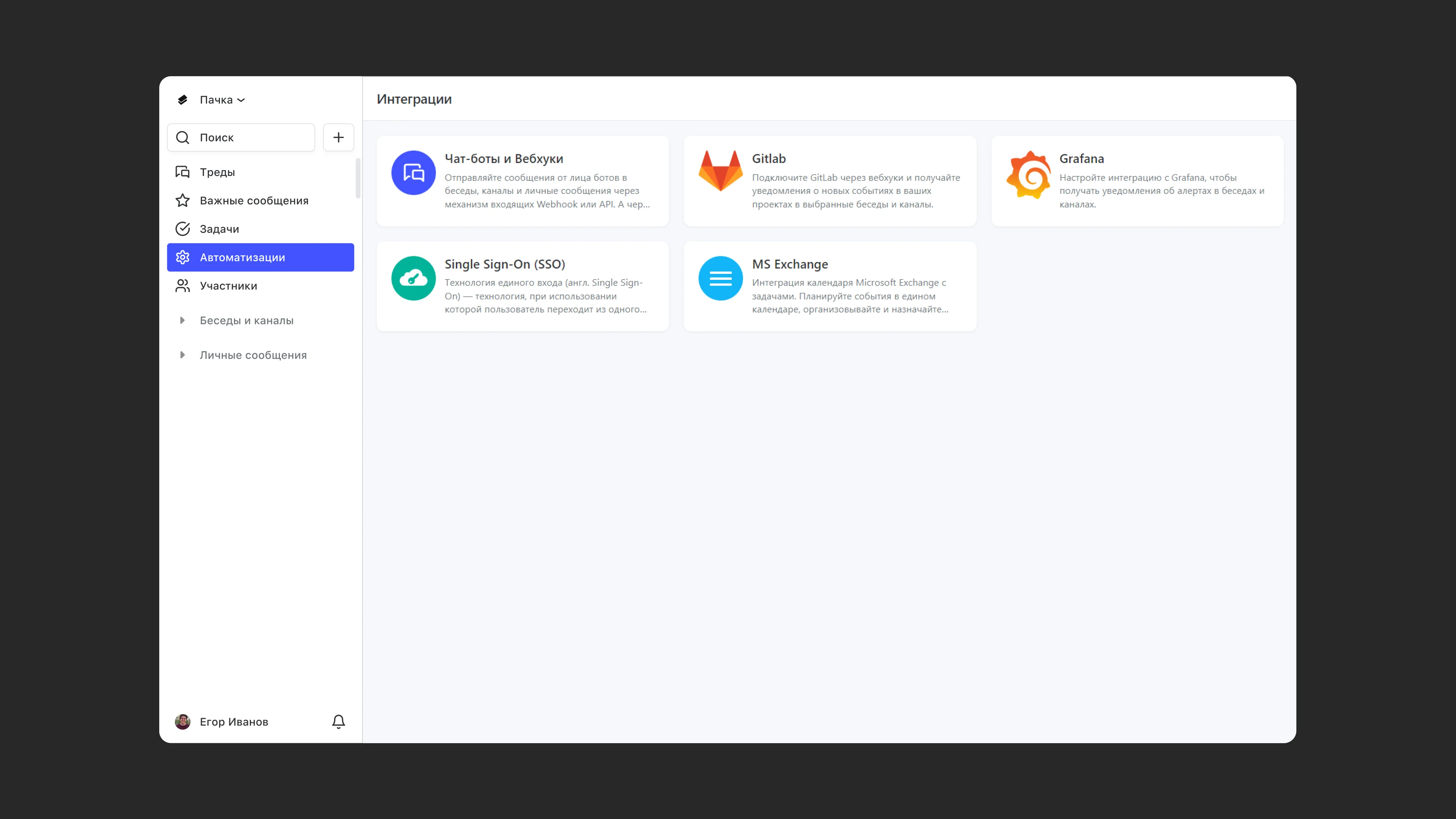
1. Create a new Gitlab integration:
1.1 Open Automations in the left sidebar
1.2 Go to Integrations
1.3 Find Gitlab in the integrations gallery and click its card
1.4 Click + to add a new integration
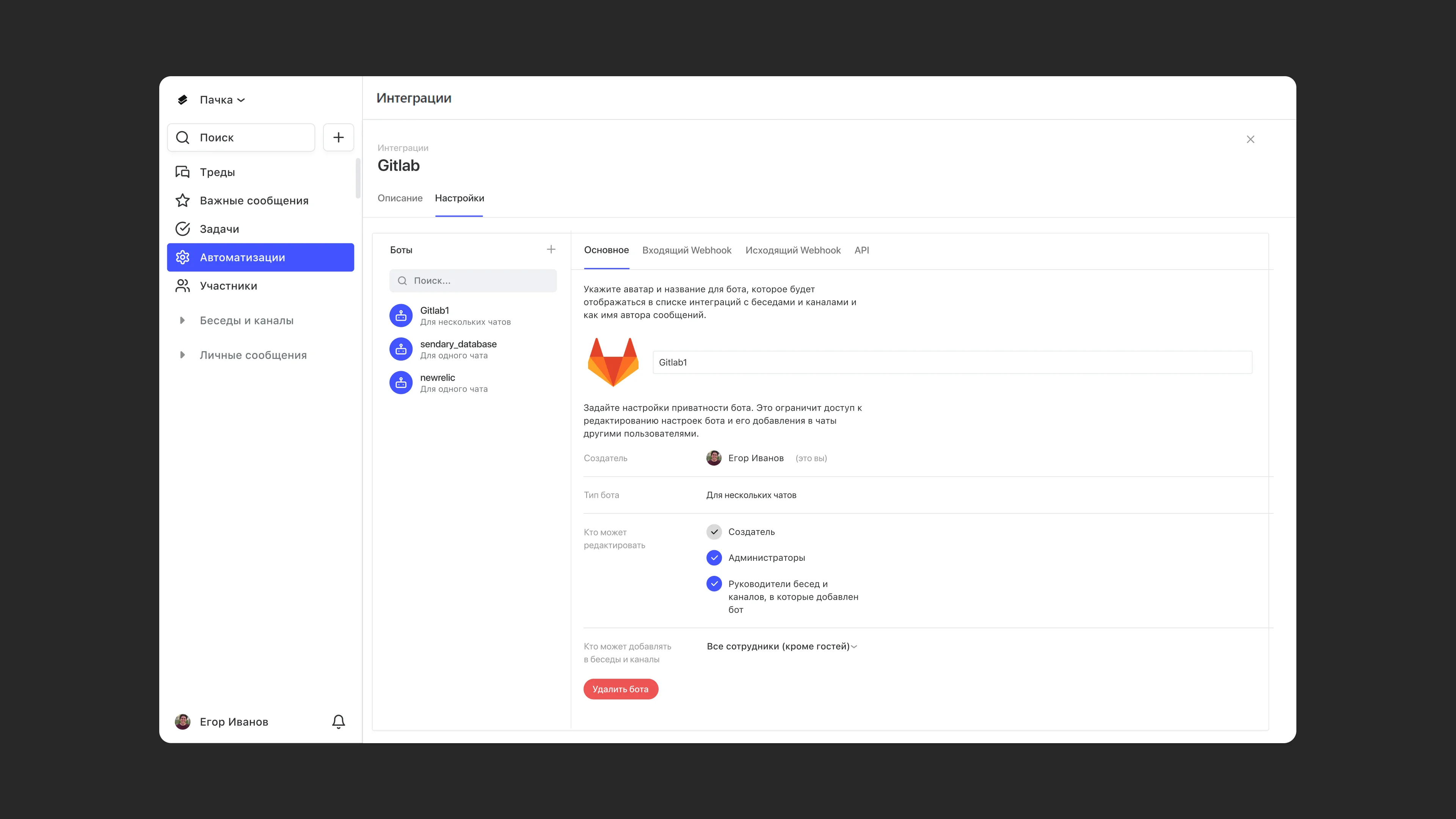
2. Set up the integration in Pachca
2.1 Name your bot. It works like a username: it makes the bot easy to add to a chat and to recognize when it posts messages
2.2 Copy the Webhook URL from Pachca
2.3 Choose where the bot will be used: in one chat or in several.
2.4 Choose who can configure the bot. They'll see it in their integrations and can change its settings.
2.5 Choose who can add your bot to chats. These people can add the bot to chats and get messages from it.
3. Set up the integration in Gitlab
3.1 Log in to your Gitlab dashboard and go to Project > Settings > Webhooks
3.2 Paste the URL you copied when setting up the integration in Pachca.
3.3 Select the checkboxes for the Gitlab events you want to send to Pachca as notifications
4. Add the integration to a chat
4.1 Open the chat settings (the gray icon in the top-right corner of the chat)
4.2 Select Integrations
4.3 Add the integration you created
