Personal access tokens: setting up scopes for secure API access
Limit token access for secure automations to minimize risk and protect your data
Full list of scopes and how to set up token access
When you connect your team chat app to other tools, whether it's a CRM, a task tracker or an analytics system, you need to keep access to your account secure. Personal access tokens (PATs) are a convenient and secure way to do that. But how effective and secure they are depends directly on setting up scopes correctly, that is, on limiting their access rights.
What scopes are and why they matter
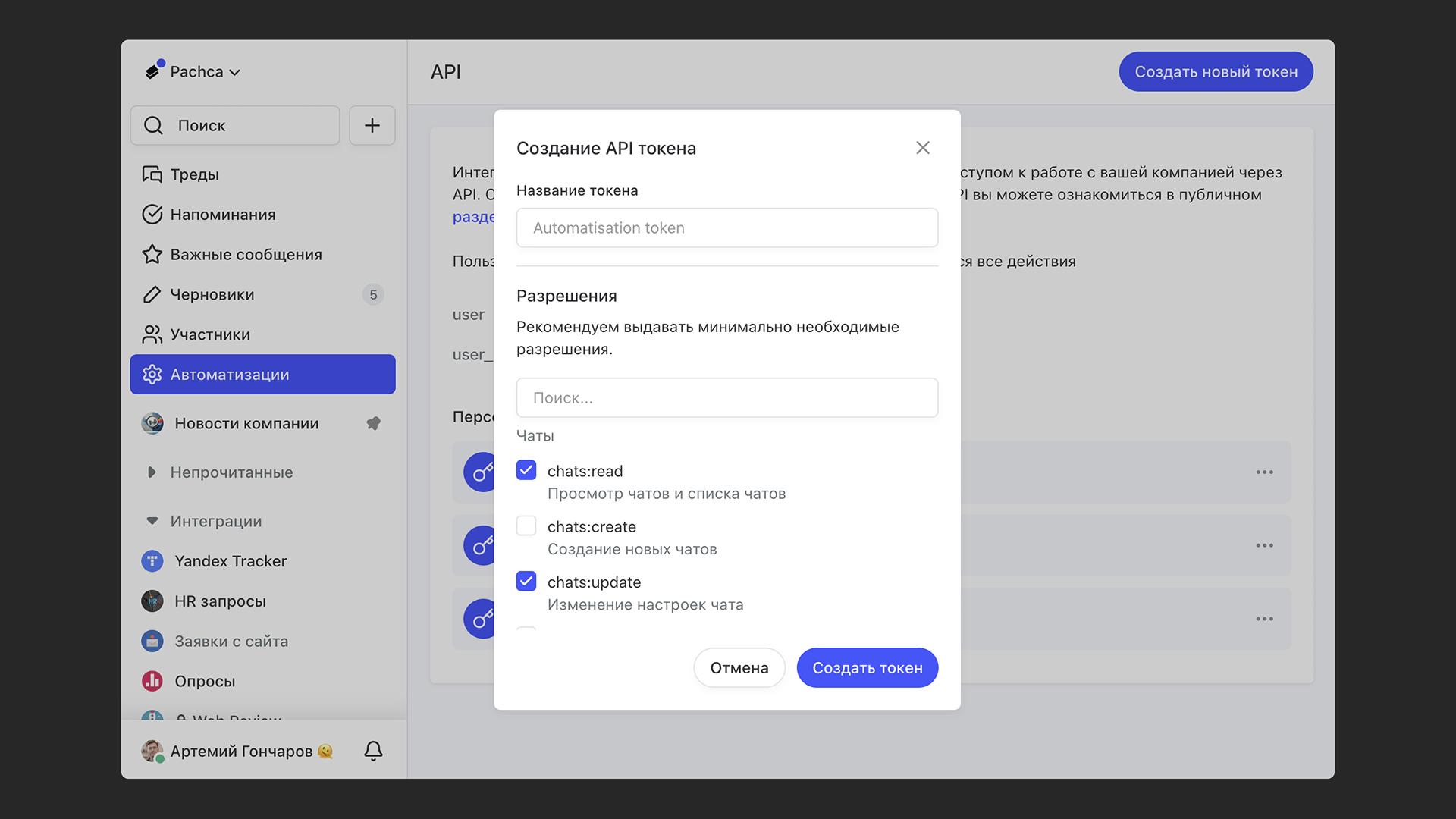
Scopes are a set of permissions you give a specific token. Instead of giving a token access to everything the API can do, you can limit it to just the actions it needs for a specific task. This greatly reduces risk, even if the token accidentally falls into the wrong hands.
For example, if a token is used to send notifications from other services automatically, it shouldn't be able to manage users or create new chats. Scopes let you set boundaries as narrow as you need.
Tokens with limited permissions are also safer to share within your team. If a teammate needs to help with a task, you can share a token whose access is strictly limited to that task. Then you don't have to worry about data the token can't access.
Token scopes in Pachca
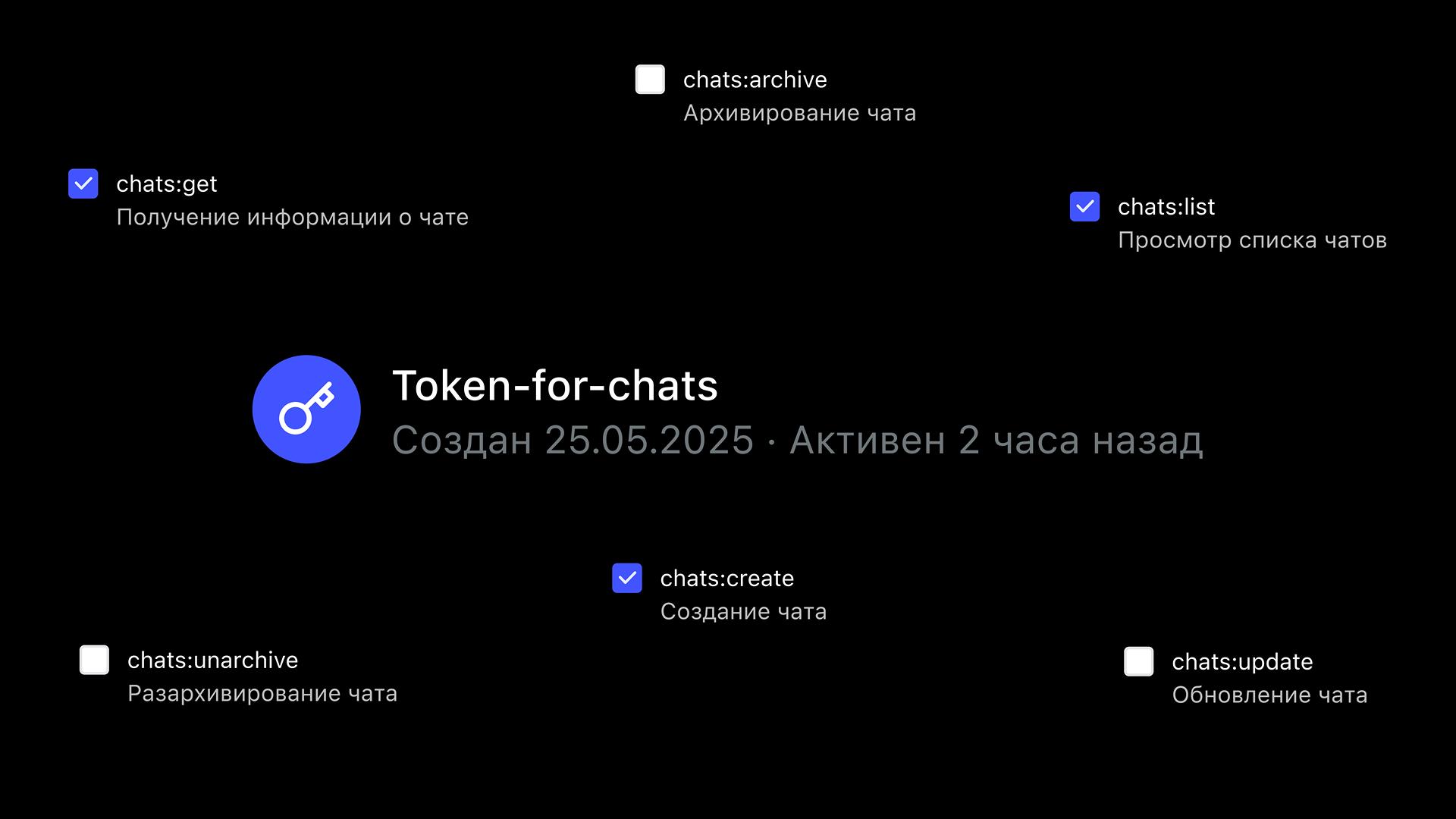
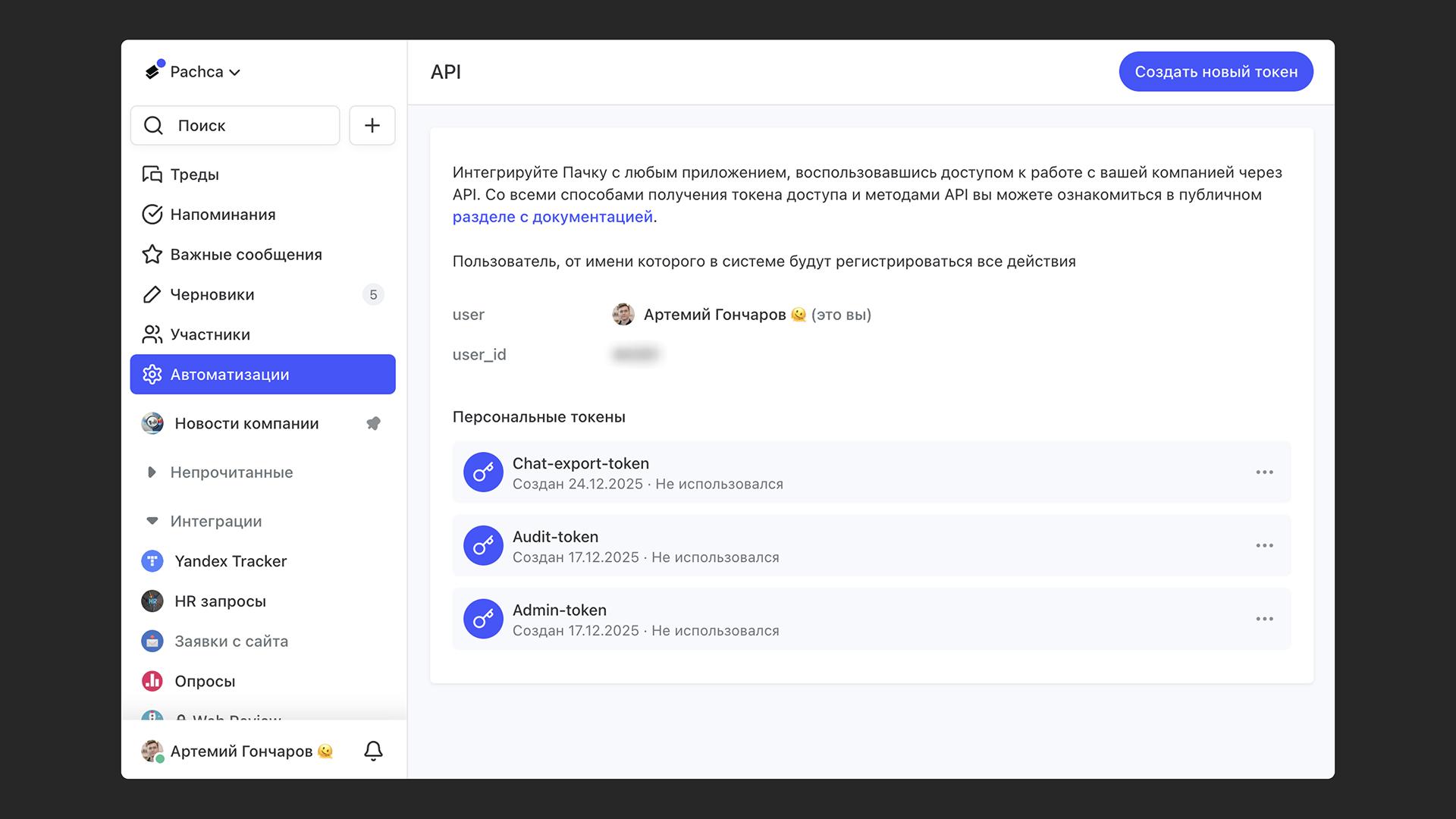
Right now, you can grant permissions for the same actions that are available in our public API. The token creation screen also shows when each token was created and whether it has been used. This helps you keep your integrations and token access up to date.
The list of permissions grows along with the API. For example, working with drafts and scheduled messages added the drafts:read and drafts:write scopes. They're available only to personal tokens, and bots can't work with drafts.
How do I set scopes for a token?
- In the sidebar, open Automations → API.
- Click Create new token in the top-right corner.
- Enter a name for your token and choose the permissions it will get. We recommend granting only the minimum permissions the task needs.
- Create the token. Be sure to copy it, since it's shown only once. Store it somewhere safe to prevent potential leaks.