
Grafana integration
Integrate Grafana with Pachca: get alerts and monitoring events in your team chats
The Pachca×Grafana integration sends events from your Grafana account straight to your Pachca chats.
Here's how it works: you create a bot in Pachca that pulls information from the Grafana project you choose. Then you can add this bot to any chat, and it will post messages there about events in that project.
You can create any number of bots and add them to chats.
Events the bot posts
1. Push Hook: event notifications

The bot posts a message to the chat that includes:
- the "message" field
Who can create Grafana integrations
Any member can create an integration. They can keep it private or let their teammates use it. You do this in the settings, which we cover below.
Only a chat admin or the chat creator can add an integration to a chat or remove it. So if you want to create an integration just for yourself, create a new chat and add it there.
How to set up the Pachca×Grafana integration
1. Create a new Grafana integration:
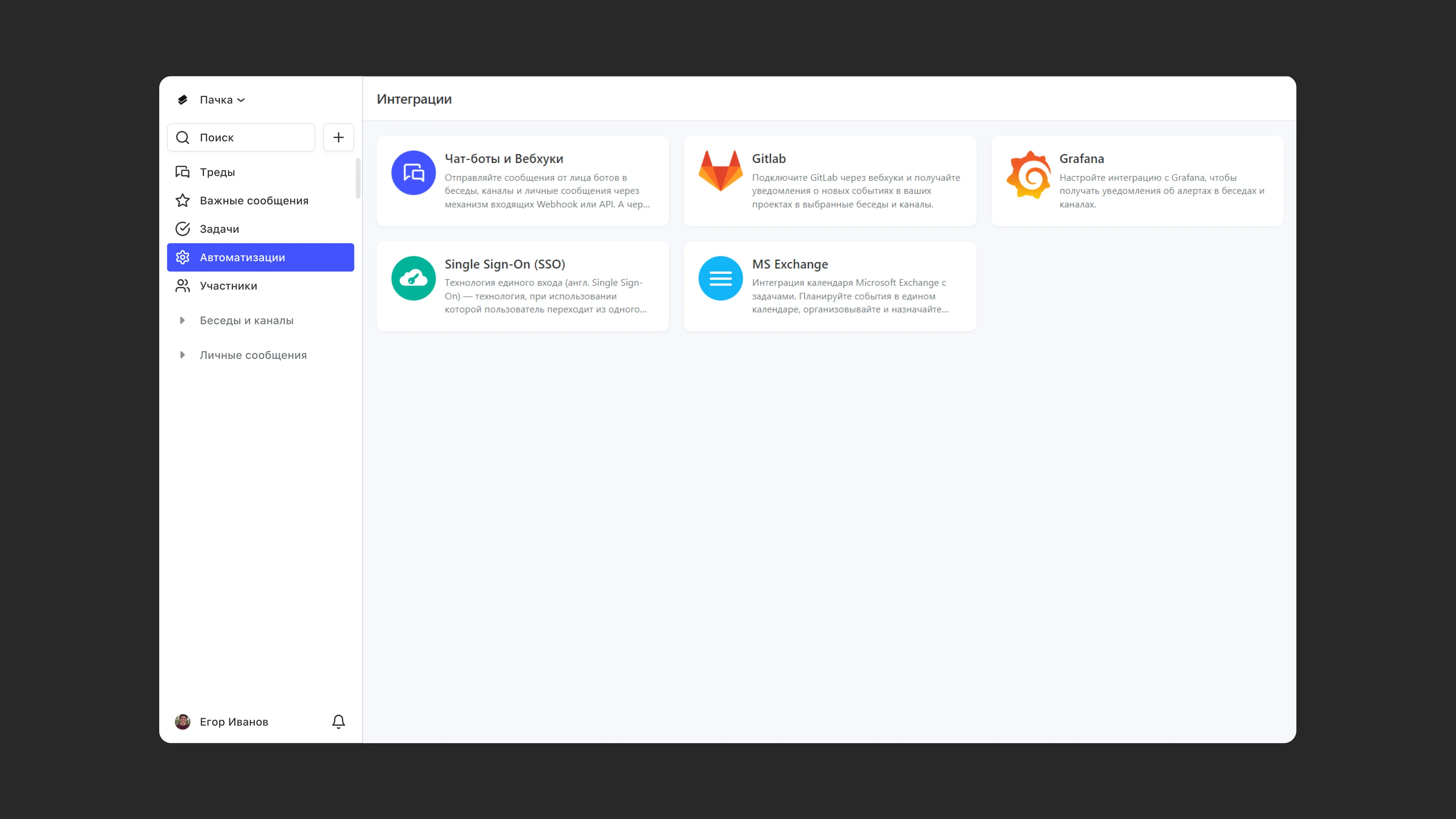
1.1. Open Automations in the left sidebar
1.2. Select Integrations
1.3. Find Grafana in the integration catalog and click its card
1.4. Click + to add a new integration
2. Set up the integration in Pachca
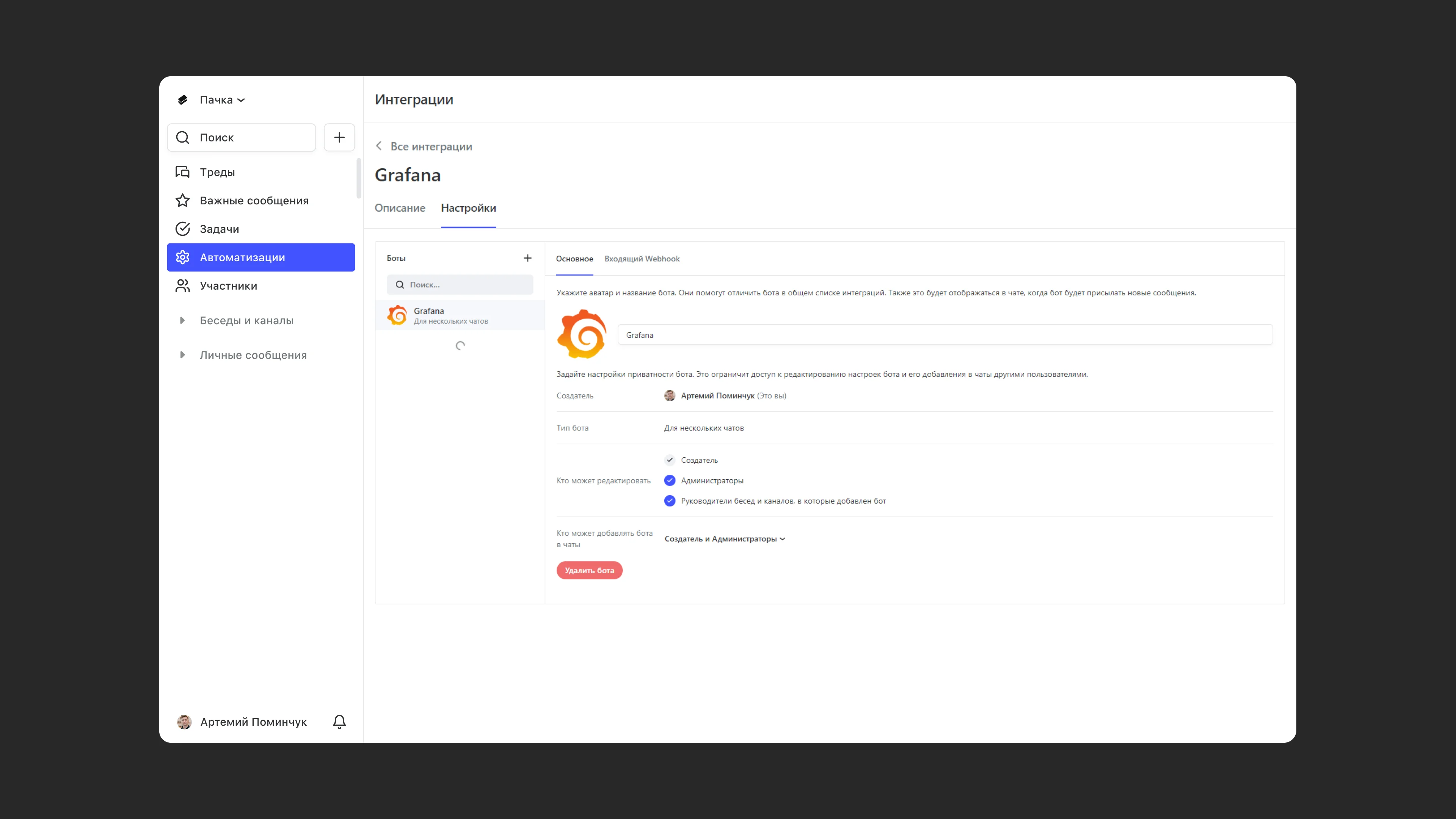
2.1 Give the bot a name. It works like a username: it makes the bot easy to add to a chat and to recognize when it posts messages
2.2 Copy the Webhook URL from Pachca
2.3. Choose where the bot will be used: in one chat or several.
2.4. Choose who can configure the bot. They'll see it in their integrations section and can change its settings.
2.5. Choose who can add your bot to chats. These users can add the bot to chats and receive its messages.
3. Set up the integration in Grafana
3.1. Open the Grafana menu and go to Alerting > Contact points > New contact point
3.2. Select Webhook under Contact point type
3.3. Paste the URL you copied when setting up the integration in Pachca.
4. Add the integration to a chat
4.1. Open the chat settings (the gray icon in the top-right corner of the chat)
4.2. Select Integrations
4.3. Add the integration you created
