How to run learning in a team chat app
What Pachca offers education organizations

Why are more and more education organizations choosing to communicate in a team chat app? In a dedicated space, nothing distracts from learning: no memes, no news, no personal chats with friends. And since the workspace is private, random people can't end up in chats with course materials.
Pachca is a team chat app and a real work tool for many companies. So using Pachca while studying builds a skill students will need at their future jobs, even if their employer uses a different tool for work communication.
This post covers what Pachca offers education organizations.
Easy to get started
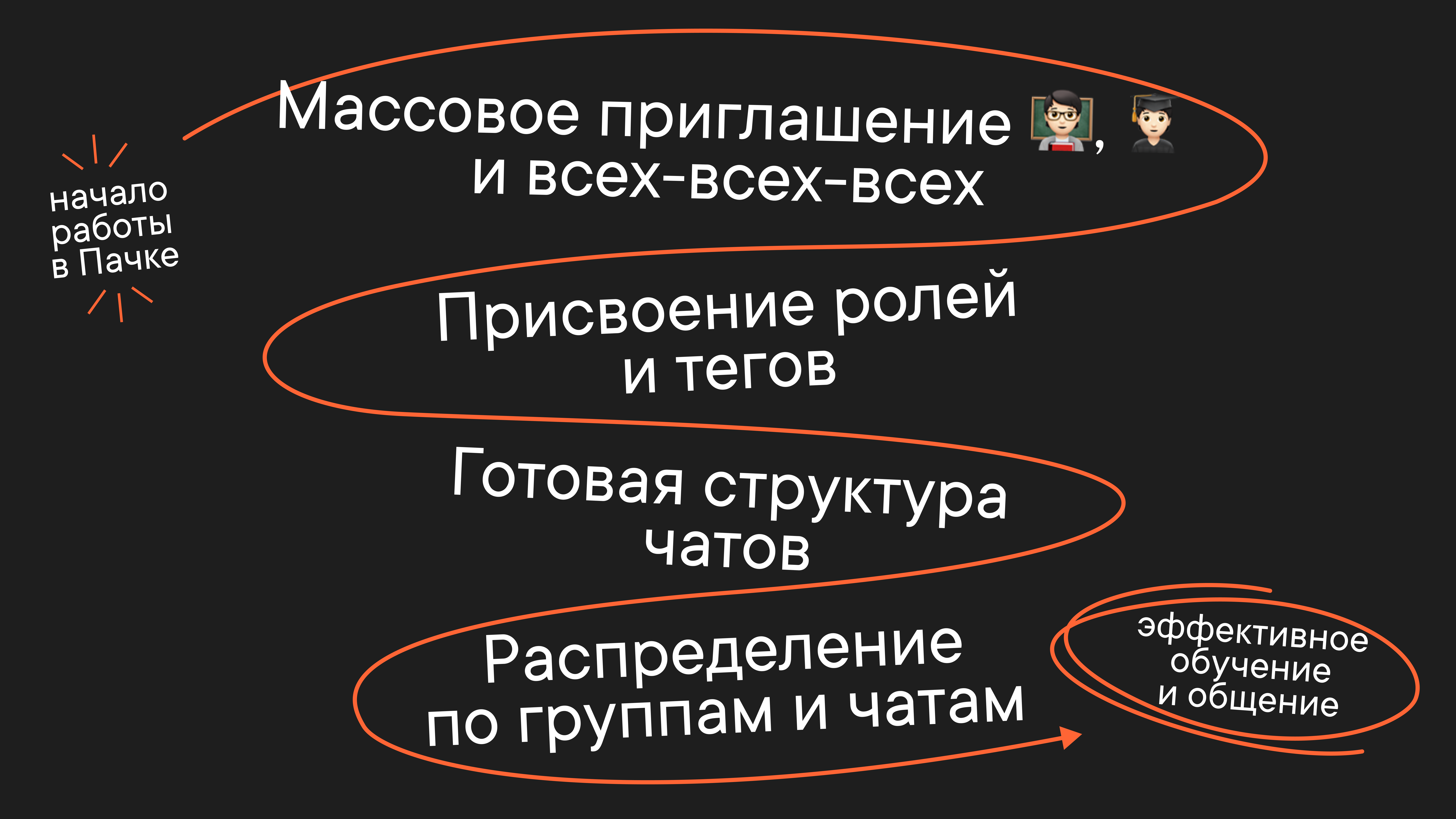
Communication in any team chat app starts with filling your workspace: sending invitations, setting up administration and creating chats.
Setting up a learning workspace in Pachca is really simple, and there are dedicated tools for it:
- Invite staff and students in bulk by email. Invited students and staff just follow the link in the email, enter their name and land right in your Pachca workspace.
- Invite via the API. You can add a new user and fill in extra fields from the ones your organization has already created. Besides first and last name, you can fill in contact details and tags, set an access level and more. See all the methods here.
- Teachers and other staff can be pulled into Pachca through the Active Directory integration.
For students, Pachca has a special role: multi-guest. It has every permission they need (they can talk only in the chats they've been invited to, with the teachers and students there) but no access to anything outside those chats. For example, students won't see teachers' or classmates' personal data (emails, phone numbers), and they can't join chats for other cohorts or courses, or your internal chats, or anywhere else they haven't been invited.
When students and teachers join Pachca, a ready-made chat structure will be waiting for them: announcement channels for each cohort, chats for each group and course and so on. You can easily create all of this in advance via the API and add students and teachers to chats in bulk using tags (more on tags here) or the API (and more on the API here). It takes much less time than in Telegram, for example. And the chance of missing a chat, inviting the wrong student or letting in an outsider is minimal.
By the way, tags also help when a new student signs up for a course. Instead of adding them to every course chat by hand, just assign a tag, and they'll be added automatically. Moving a student from one course to another is just as easy: simply change the tag in their profile.
Both students and teachers will find their way around Pachca easily:
- The app works a lot like Telegram, which many people already know;
- Simple navigation and a clean design;
- Fast support that usually replies within 15 minutes;
- An open Help Center with 100+ articles on Pachca features;
- A customizable workspace: create folders and sort chats into them, pin key chats, save important messages, set notification sounds, pick a theme and interface colors;
- Access from any device: besides the web version, there are desktop apps (macOS, Windows and Linux) and mobile apps (iOS, Android). See and download them here.
Plenty of ways to communicate
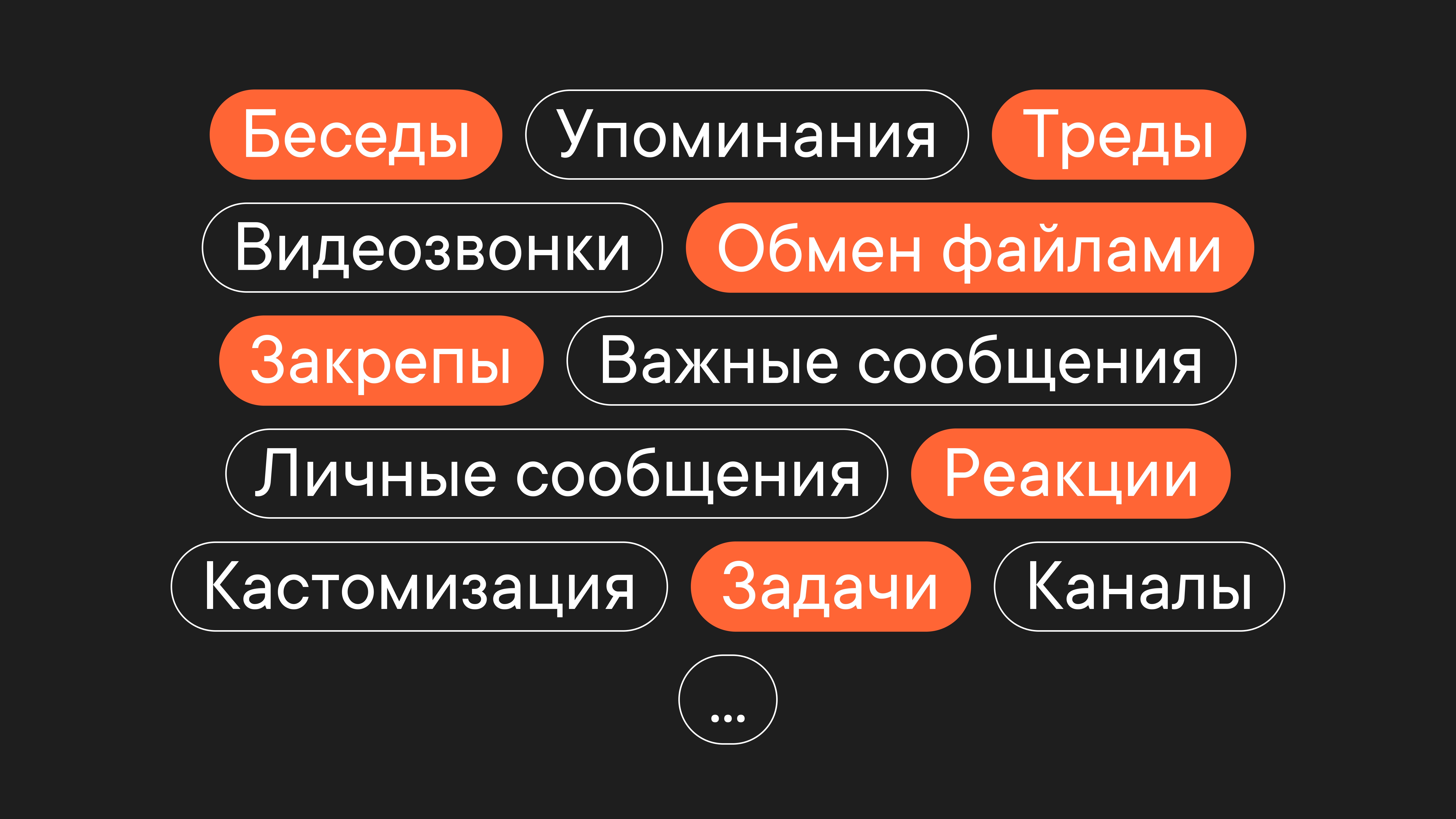
In Pachca, you can set up the communication flows that fit your learning process.
Communication in Pachca happens in two types of chats:
- Chats are regular group chats where every member can post. You can create them for cohorts, study groups or projects.
- Channels are where only editors and admins post, while everyone else can comment. This format works well for news, announcements, general information and onboarding.
You can format any message nicely (bold, italics and more) and @mention the right people so they don't miss anything important. In chats, you can also pin messages to the top, add them to Favorites (easy to get back to from a tab in the left sidebar), react and send files. These features come in handy in all kinds of learning scenarios.
Threads keep every chat organized. A thread is a set of comments under the first message in a chat. Threads help keep your learning workspace tidy and discussions focused. For example, a teacher posts a message with homework, and students attach their finished work in the thread under it.
You can also talk one-on-one. Teachers can start a chat with any student or colleague, and students can message the teachers they know and their classmates. In direct messages, you can give a student feedback on their homework, for example.
And if you need to explain something quickly by voice, you can hop on a call in Pachca. It works in both direct messages and group chats.
You don't have to worry about anyone, especially teachers and mentors, getting lost in the sea of chats: that's what folders and pinning your most important chats are for.
To avoid forgetting about a lesson or a homework deadline, you can set yourself a reminder task. You can set a due date and time and a priority, add custom fields and even attach a document. You can link a task to a chat, which is handy for group projects. The reminder arrives in Pachca, and if that's not enough, you can set up extra email reminders.
Automations and analytics
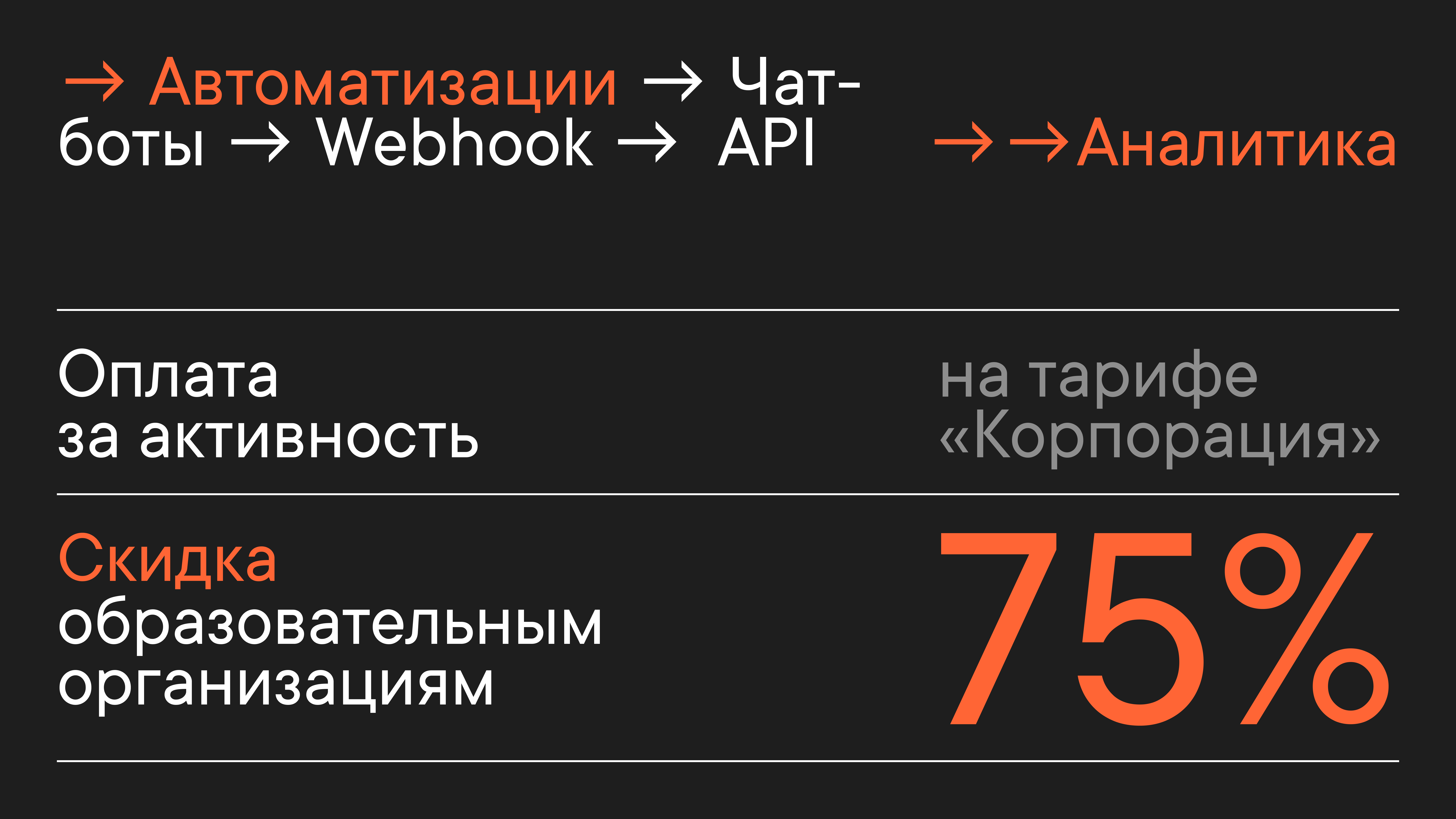
Teachers and mentors work several times faster in Pachca thanks to integrations that connect your work tools to the team chat app and send notifications straight to Pachca.
There's an advanced bot platform for that:
- You can create chatbots and connect them to third-party services or custom programs via webhooks and the API.
- For example, you can connect Pachca to the service mentors use to review homework. A notification about a new assignment to review arrives right in a Pachca chat. You can also do the reverse and send teachers' replies from Pachca to third-party software.
- You can also send a bulk message to students with announcements and news, and even send out diplomas after graduation.
With these integrations, custom scripts and plugins, you can build other workflows too. For example, you can find people who paid for a course but never joined your Pachca workspace. That keeps Pachca as closely in sync with your learning process as possible.
Pachca also lets you collect analytics on staff workload and how quickly students get answers. You can do this via the API, for example. You create a bot, add it to the chats you need, and the bot exports the message history using a script you write (for public chats, you don't need to add the bot). From there, the sky's the limit: you can analyze how many replies a mentor or tutor sends, how much outreach they initiate, how active students are and more.
Activity-based billing
On the Corporation plan, you pay only for the users who actually communicate in Pachca. If a student (or any other user) goes inactive during a billing period, the payment is recalculated, and the money you paid for them goes back to your account as credits toward your next payment.
We also offer education organizations a 75% discount on the plan they choose. You'll find the terms on the education discount page.