Two-factor authentication (2FA)
How to turn on two-factor authentication in Pachca for extra account security
Two-factor authentication adds an extra layer of security to your account with temporary one-time codes.
You can turn on two-factor authentication only if you signed up for Pachca with your email. Each user turns it on for themselves. The workspace owner can't make it mandatory, but they can see which teammates use it to log in. 2FA applies to your whole account, so you can't have it on in one workspace and off in another.
Apps for generating 2FA codes
To generate temporary codes, install an authenticator app on your device. You can pick one from the list below.
Android: Google Authenticator, Microsoft Authenticator, Yandex Key, FreeOTP or Twilio Authy.
iOS: Google Authenticator, Microsoft Authenticator, Yandex Key, FreeOTP, Step Two or Twilio Authy.
Windows: WinAuth.
macOS: Step Two.
Linux: Keysmith.
Turn on two-factor authentication
Go to your profile and click Set up code generation in the Two-factor authentication (2FA) section.
Download an authenticator app and add your Pachca account to it. You can scan the QR code or enter the setup key manually. The app shows a generated code right away. Click Continue in Pachca and enter the code.
That's it: two-factor authentication is set up.
Backup codes
Backup codes come in handy if you need to log in to Pachca but don't have access to your authenticator app.
To get them, go to the same Two-factor authentication (2FA) section and click Get backup codes. Enter a generated or temporary code again, and you'll see a new list of backup codes.
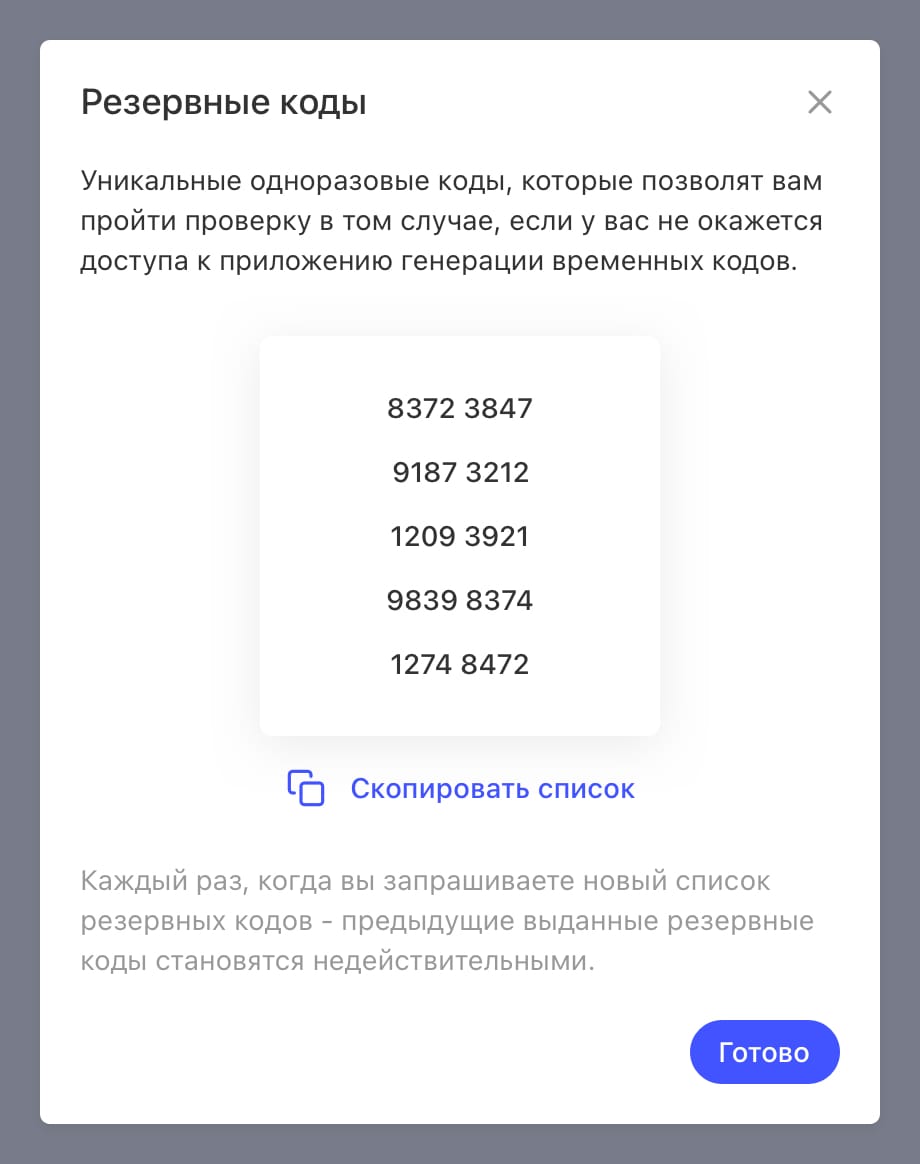
Each backup code is unique and works only once. If you run out of backup codes, you can request a new list.
Every time you request a new list, all previously issued backup codes stop working.
Log in with two-factor authentication
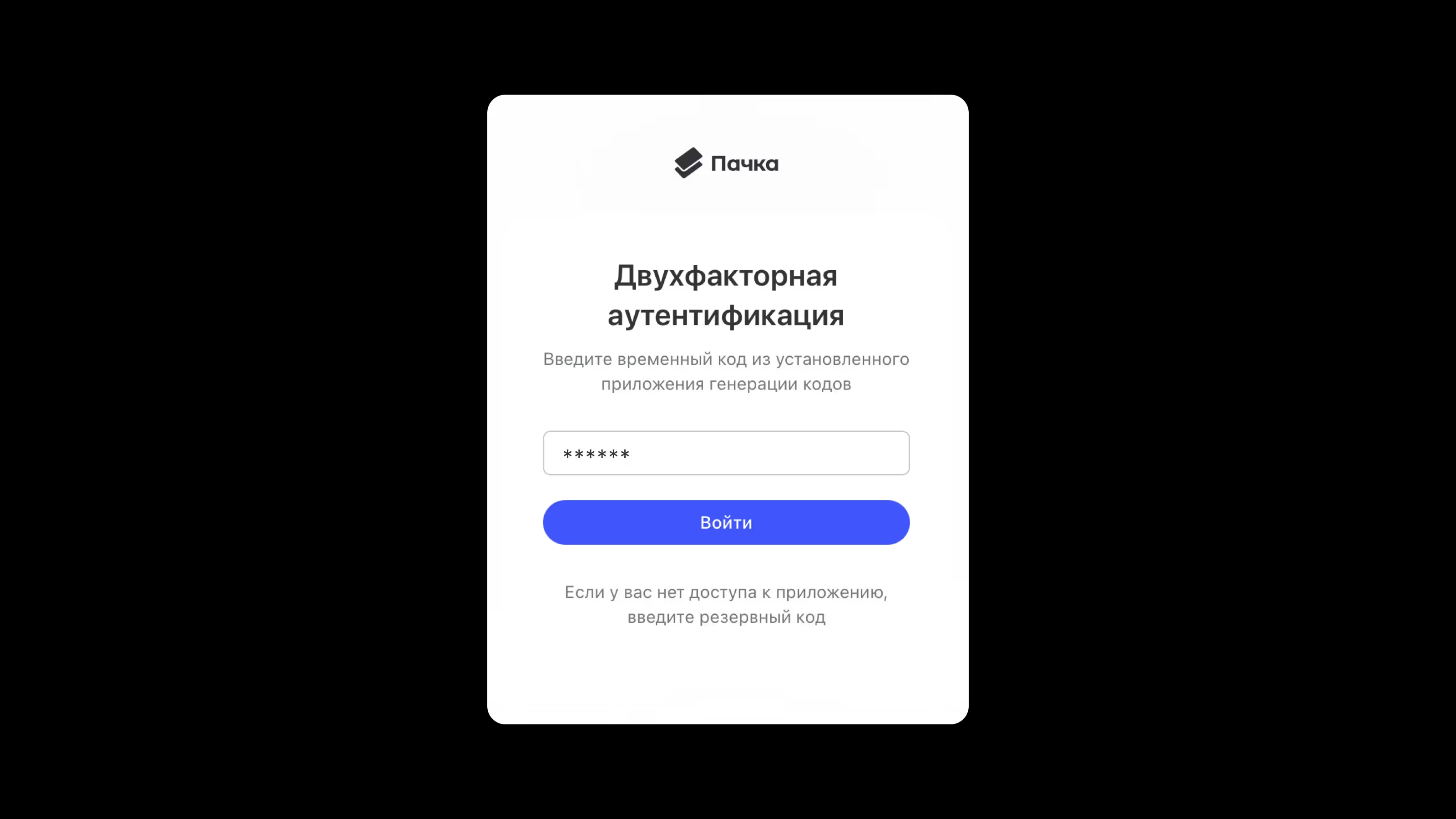
After you enter and confirm your email, you'll see a screen asking for a code. Open your authenticator app and enter the code it shows in Pachca (or enter a backup code).
Turn off two-factor authentication
To turn off two-factor authentication, click Turn off verification in the Two-factor authentication (2FA) section. Then enter a generated or backup code and confirm.