
Sign up and log in
All the ways to log in to Pachca
Pachca offers several ways to sign up and log in. This article covers all of them.
Sign up on your own
Signing up for Pachca creates an account that you can later link several workspaces to. You can create multiple accounts, and each one can have up to 10 workspaces.
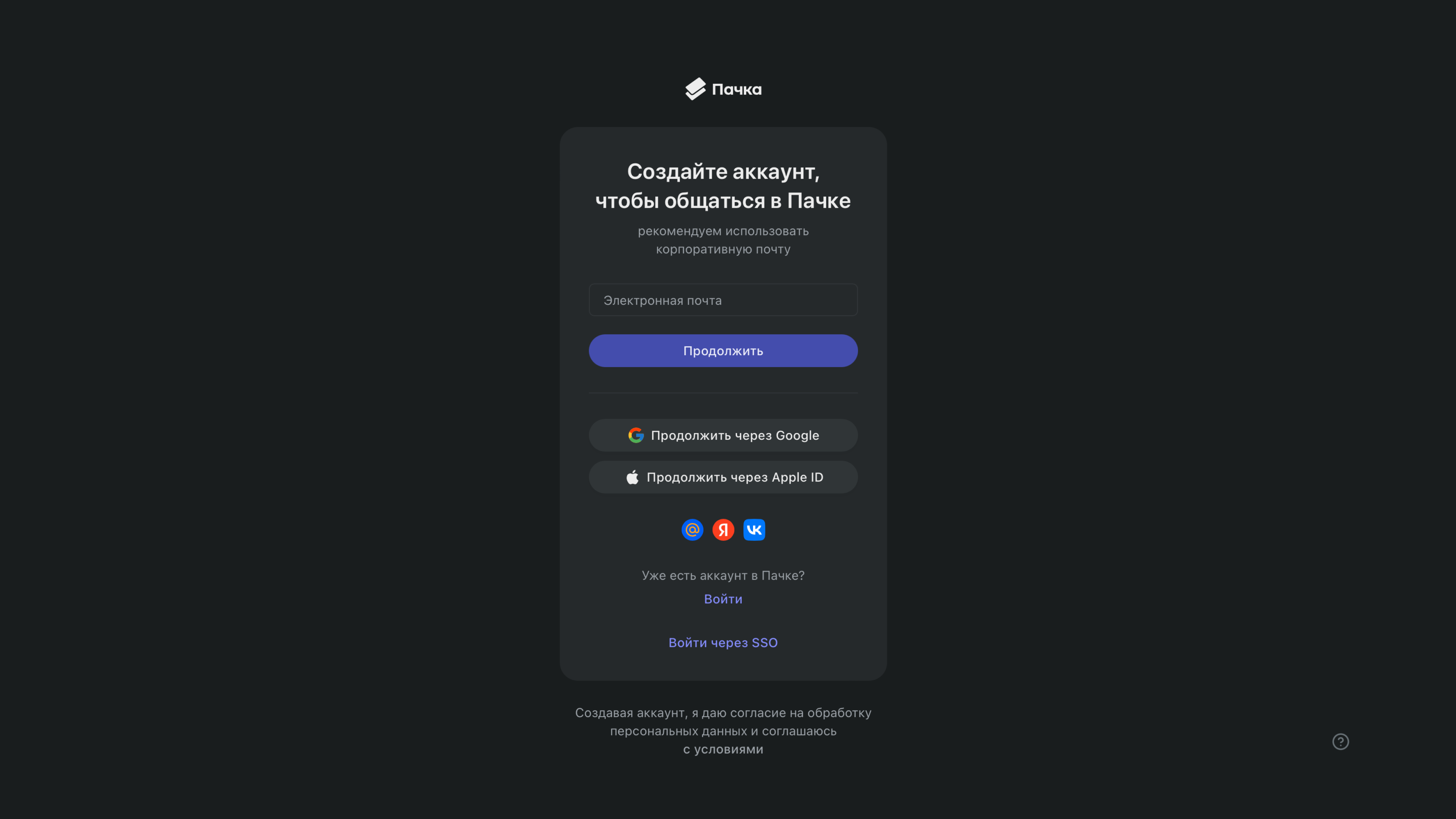
How to sign up:
- On the sign-up page, enter your email address
- Enter the code we send to that address
- Enter a workspace name and choose your company size
- Enter your first and last name
- Invite your colleagues with an invite link or paste up to 100 email addresses into the field (you can skip this step)
- You've created an account and a workspace linked to it. Now you can invite your colleagues.
You can also sign up with a third-party service (VK or Yandex).
Sign up by invitation
If you want to join your company's existing workspace, you don't need to sign up on the Pachca website yourself. There are two ways to join your company in Pachca:
Email invitation
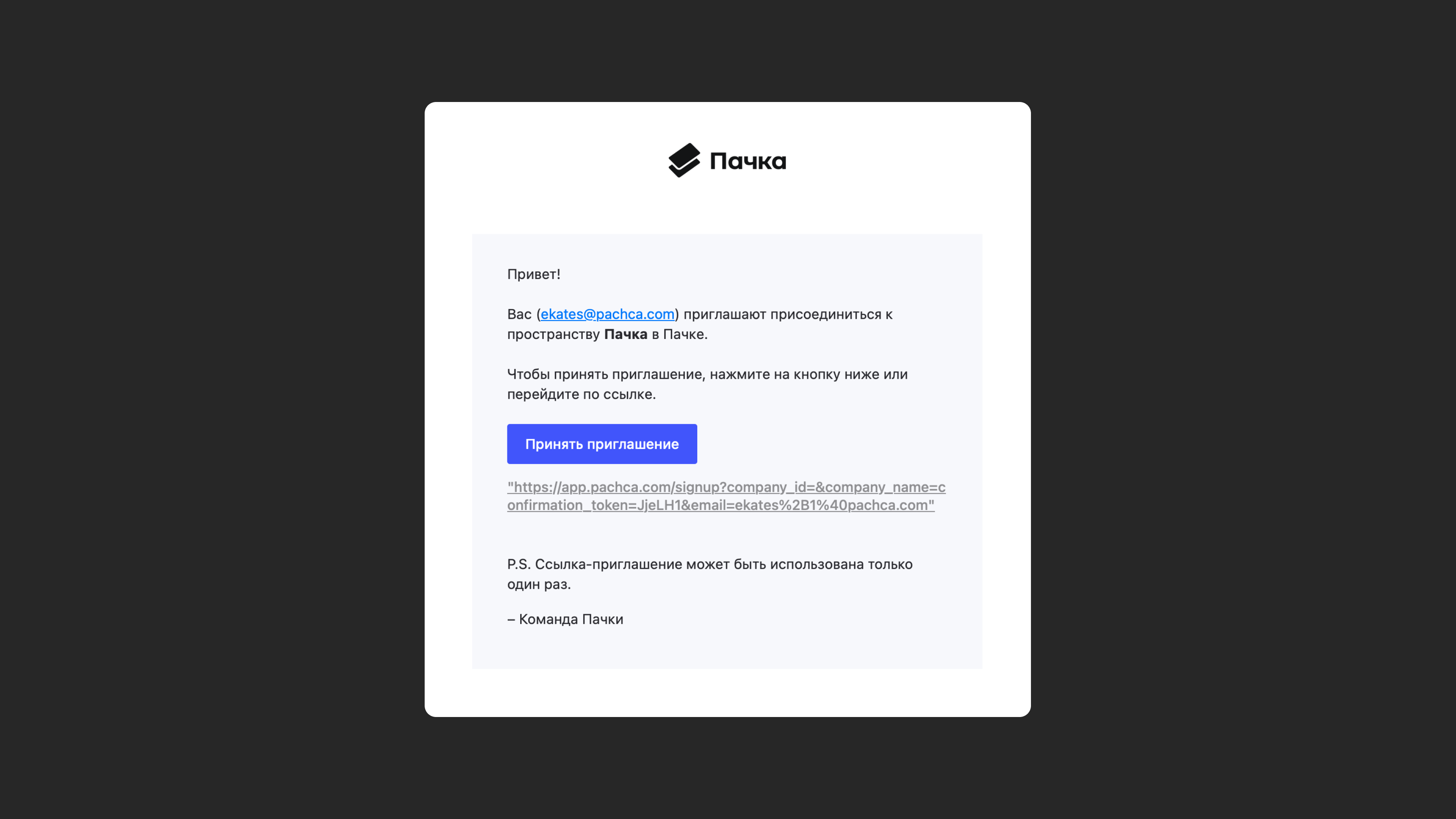
You've received an email inviting you to Pachca. Click the link, then enter the code we send to the same email address. Fill in the Name field. The email address the invitation was sent to is the one you'll use to log in to Pachca.
From then on, you'll log in to Pachca with a code we send to your email each time you log in (that is, when you sign in to your account, not every time you open Pachca).
Invite link
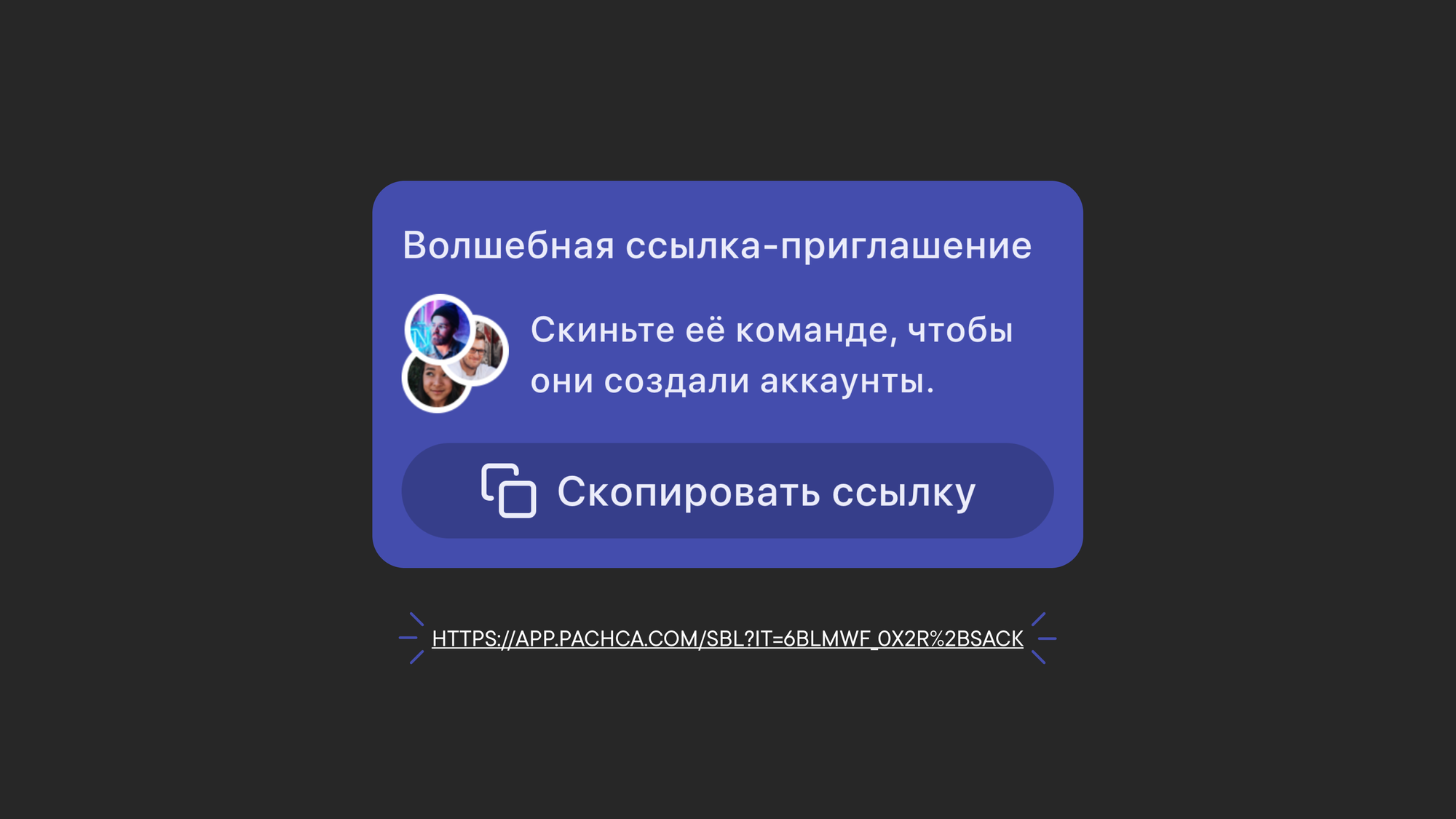
You've received a link to sign up for Pachca. Follow the link and enter your email address (you'll use it to log in to Pachca), then the code we send to it, and your Name. You'll go straight to your company's workspace in Pachca.
From then on, you'll log in to Pachca with a code we send to your email each time you log in (that is, when you sign in to your account, not every time you open Pachca).
Note: this link is valid for only 14 days and is meant for inviting employees in bulk. It's for signing up only. To log in, use this page.
How to log in to Pachca
Log in with the email address you used to sign up (or the one your invitation was sent to). If you signed up by invitation or with a link, please don't log in through third-party services (Yandex Mail, mail.ru, VK).
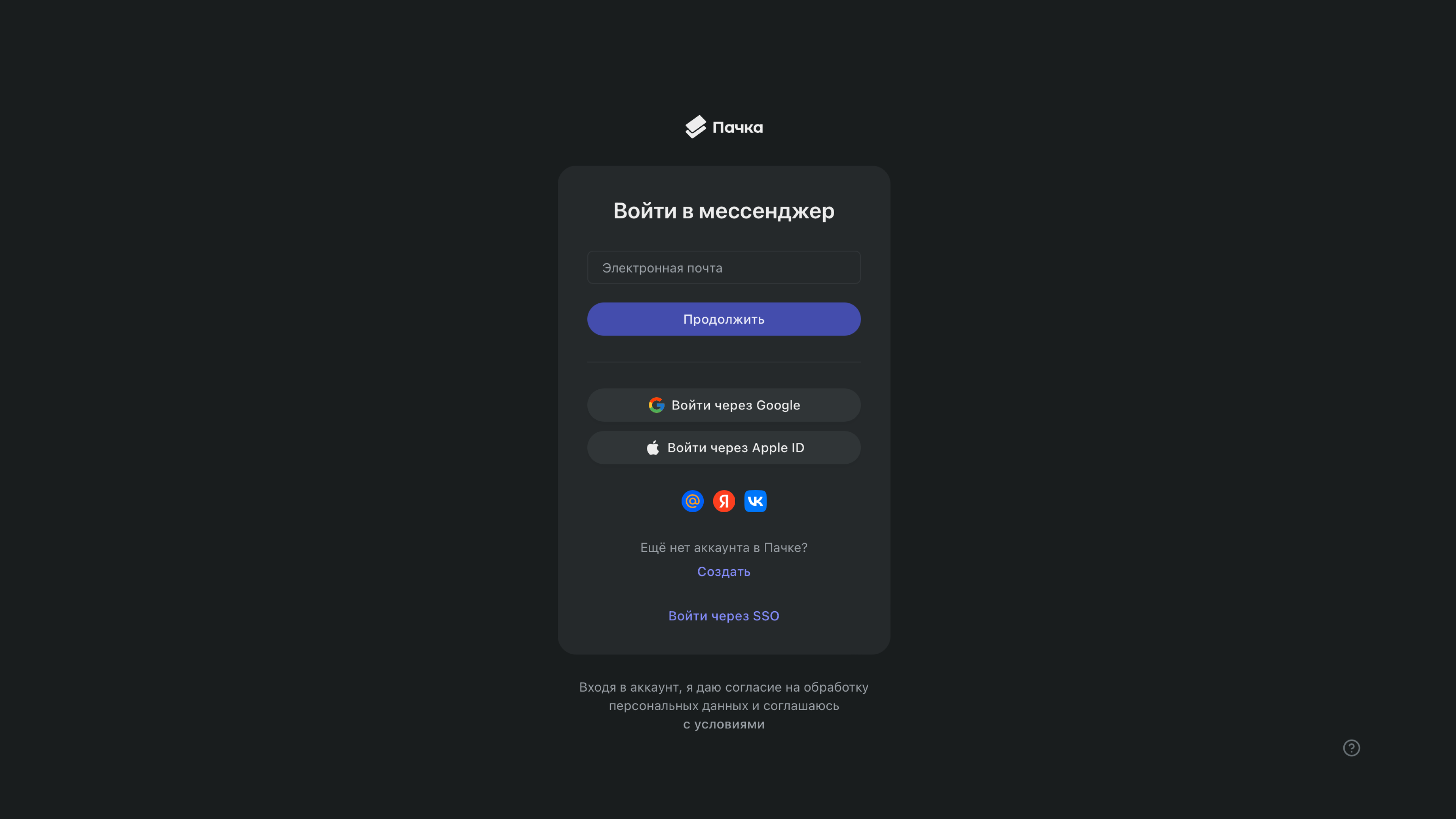
Ways to log in:
- Log in with an email code: the main way to log in. In most cases, it's more secure than a password because the code is temporary. On the login page, enter your email address, then the code we send to it.
- Log in with Yandex, VK or mail.ru: if you can access your email in one of these services, you can access your Pachca account too. If your email is hidden in that service's settings, you'll see an error with an explanation on the Pachca login screen.
Log in with SSO
Use the separate button on the login screen. You'll need your work email address.
You can't create a workspace with SSO login on your own. Only a company can enable SSO for its domain. The same email can be used both for SSO login (one company workspace only) and for regular login (a non-SSO account with up to 10 workspaces).
Important: if you log in to Pachca with the same email on the regular login screen, a new workspace will be created. You can be logged in with an email code and separately with SSO at the same time. These will be two different accounts (the SSO account has a special label in the lobby).
You can also switch between workspaces and accounts in the lobby or in the workspace menu. Learn more about workspaces in this article.