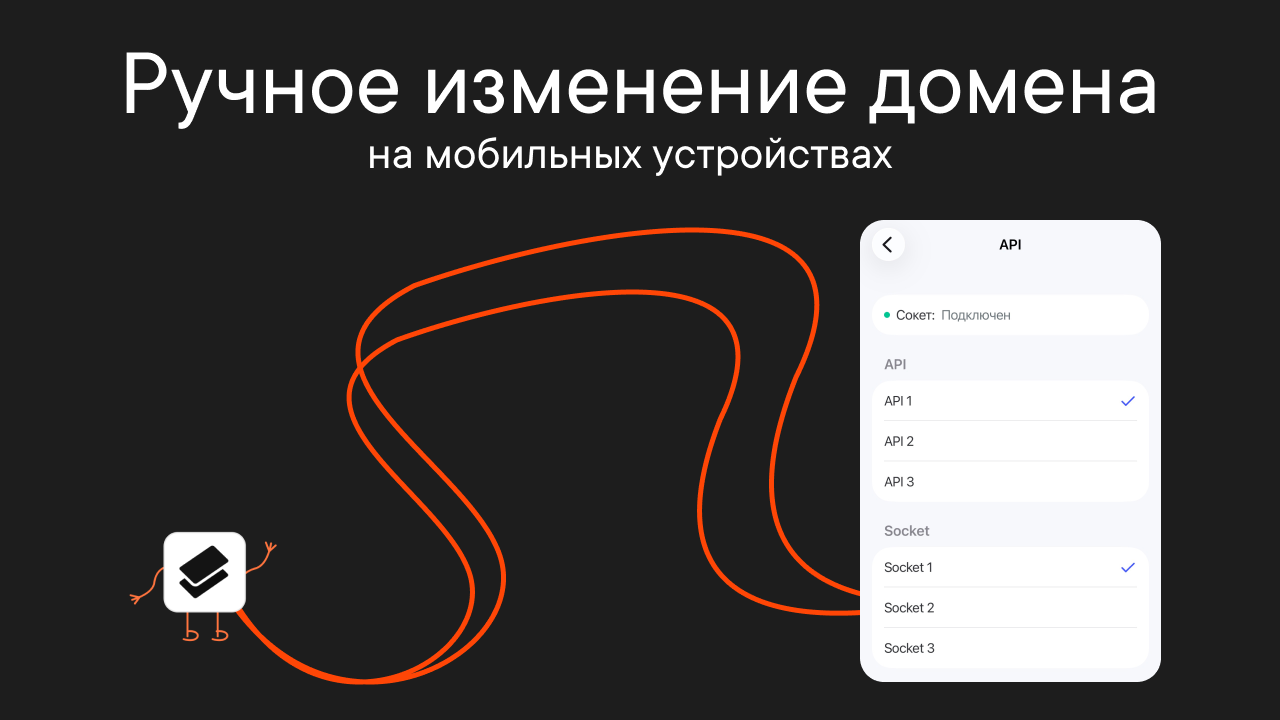
Switch domains if you have connection issues
How to switch domains manually on mobile devices if Pachca won't load even though your connection is stable
If Pachca won't load even though your connection is stable, try switching domains manually. It may fix the problem. Here's how to do it.
How it works
In Pachca, you can switch the API domain. This helps when one of the addresses is unavailable. If the block is at the level of your internet provider or corporate network, we can help. But if your network only allows allowlisted apps, switching domains probably won't help. The app works through several domains and usually switches between them on its own. On desktop and web, this happens automatically. On mobile, you can choose the domain manually.
It's important to know that the app uses two types of connections:
API loads data: it opens chats and fetches messages, your profile and settings.
Sockets handle everything that happens in real time: new messages, statuses, "typing...".
If Pachca won't open or takes a long time to load, the problem is usually the API. In this case, switching domains may help. You don't need to change the sockets. Here's how to do it:
Mobile devices
⚠️ Only switch domains when your connection is stable and the app is available. If you change the settings without network access, they won't be saved.
iOS
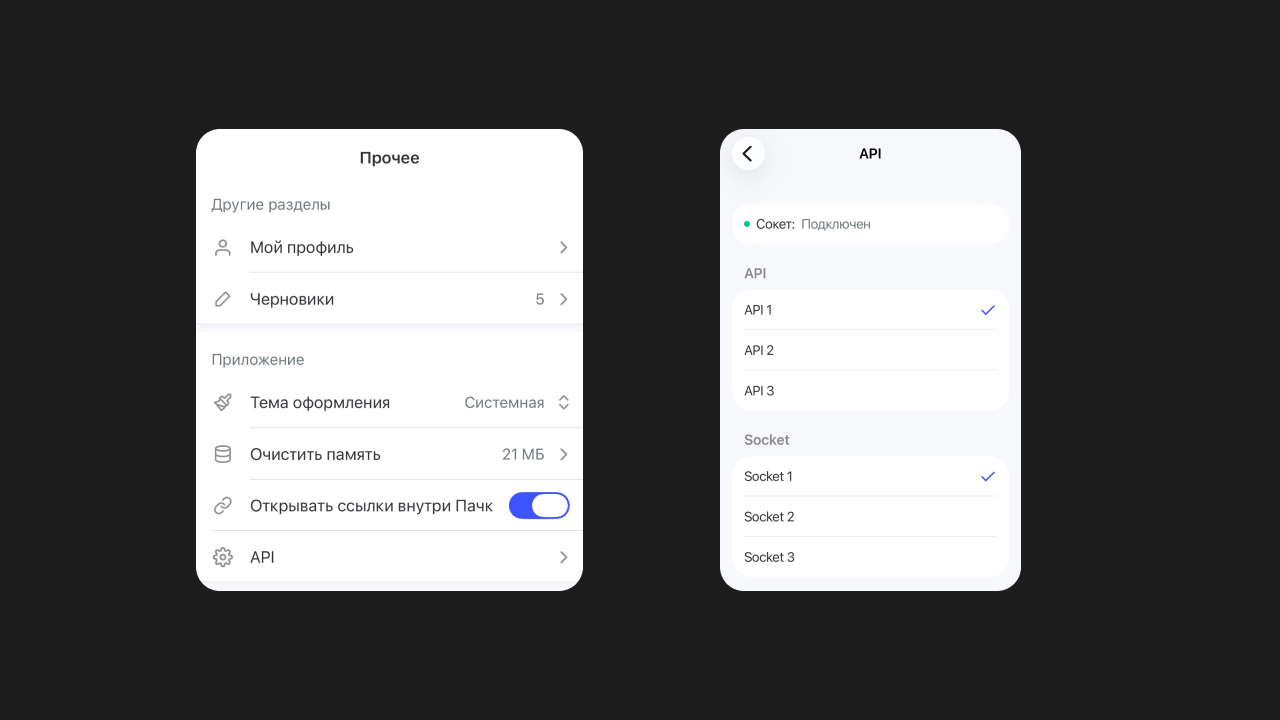
- Open the Pachca app and make sure your connection is stable.
- Go to More → API.
- Choose a domain from the list of available options: api1, api2 or api3.
- api1 is the default.
- If you notice connection issues, switch to api2 or api3. You don't need to change the sockets.
- If you don't see these fields, contact support.
Android
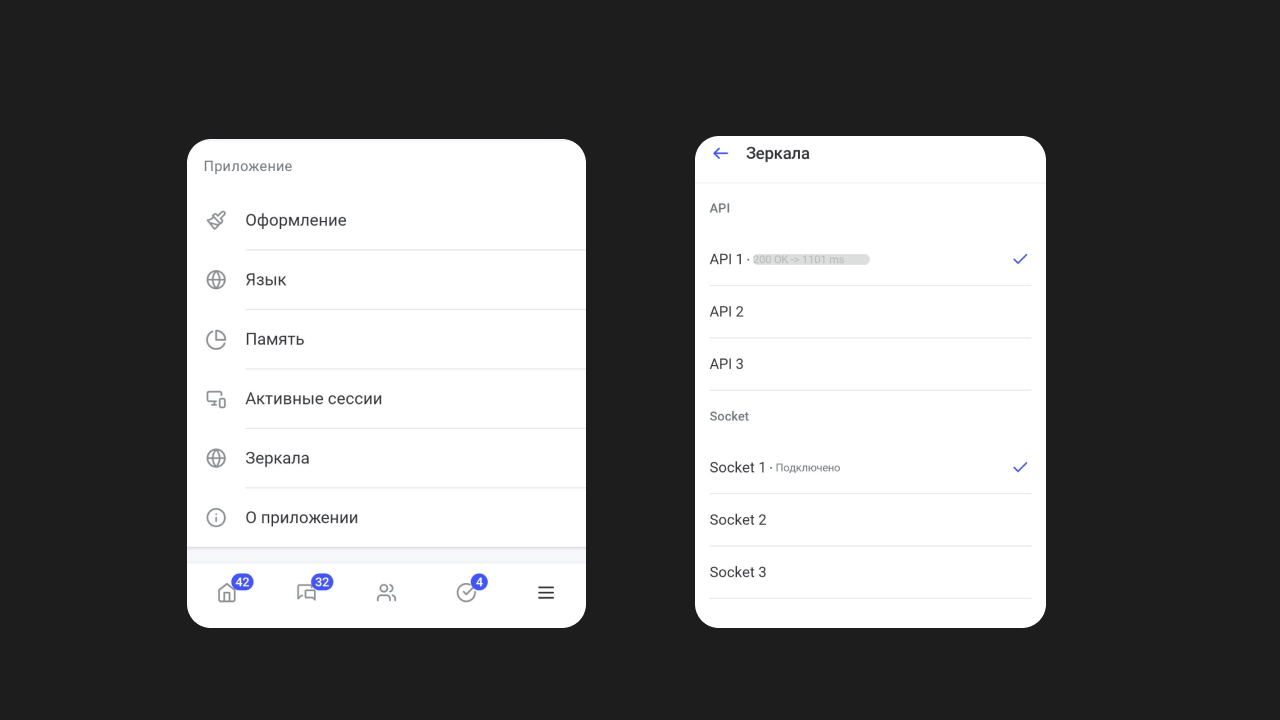
- Open the Pachca app and make sure your connection is stable.
- Go to Profile → Mirrors.
- Choose a domain from the list of available options: api1, api2 or api3.
- api1 is the default.
- If you notice connection issues, switch to api2 or api3. You don't need to change the sockets.
- If you don't see these fields, contact support.
Switching domains helps when one of the servers is temporarily unavailable. But if the blocks apply to the entire network, for example when allowlists are turned on, switching domains may not fix the problem.
In that case, check your corporate network or firewall settings. You'll find the list of required addresses and ports in a separate article.
If the problem persists, contact support.