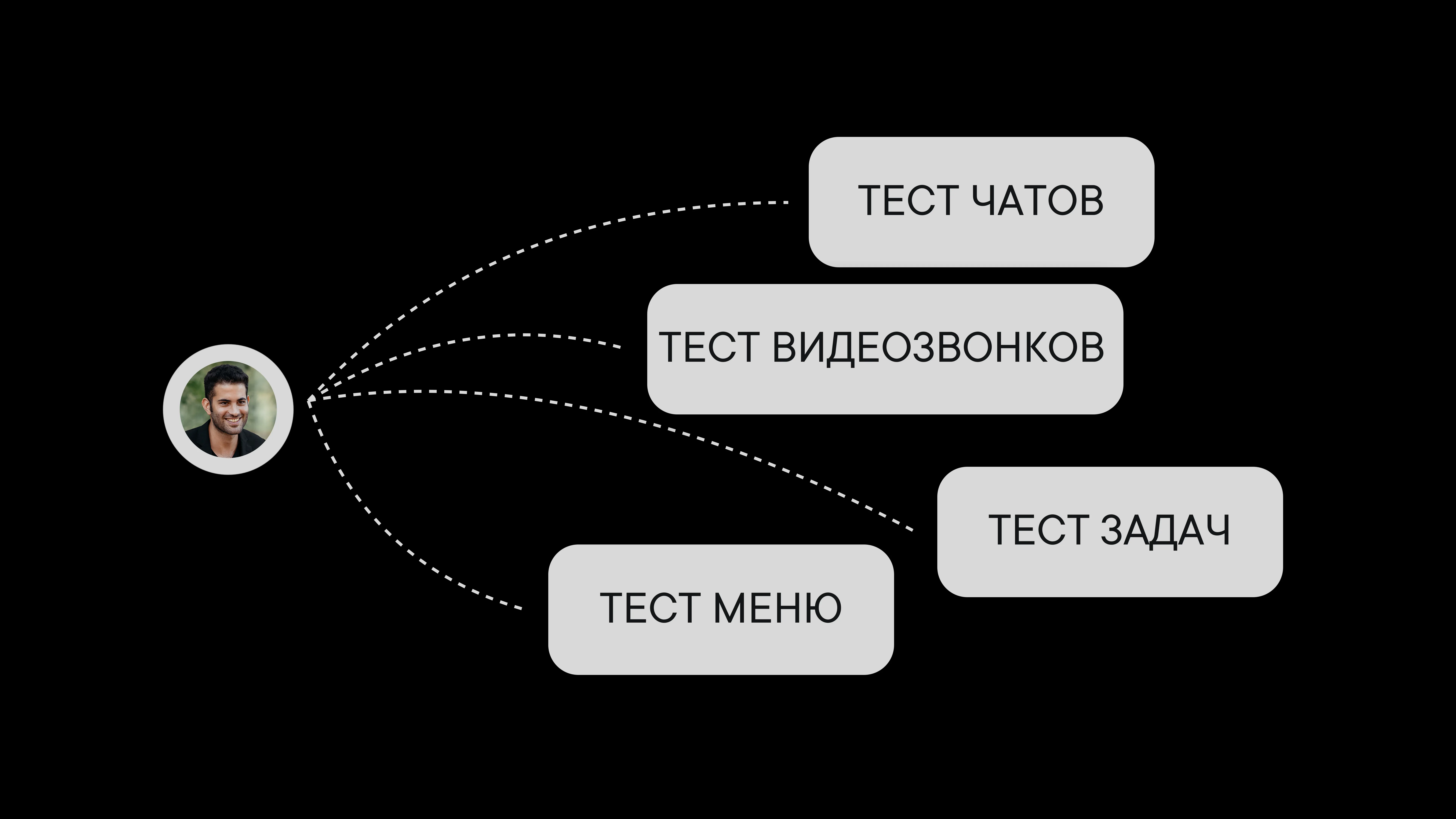
How to test a team chat app
How to test a team chat app before rolling it out: a checklist and tips for choosing the right one
In this article, we'll show you how to set up your testing process and how our team can help along the way.
Sign up or book a demo
You can sign up for Pachca on your own or book a demo. Our team will walk you through the product in detail and answer all your questions.
Test with a small group
After signing up or attending the demo, start testing on your own or with a small team of 3–5 people. This helps you see if the product fits your needs and if you're ready for a bigger test.
For large companies, we help run a full pilot: two weeks with a team of 20–50 people, testing key use cases and collecting feedback. To start a pilot, contact support or email sales@pachca.com.
To add teammates to the test, go to Members in the sidebar and send an invitation by email or share an invite link.
Our support team is here to help throughout the entire test. Ask them anything.
Start with Pachca's core features (up to 20 minutes):
Chats
One chat is enough to try most chat features. Send a few messages and see what you can do with them.
Try mentioning a teammate, replying in threads, adding a reaction, sending an image and everything else you find in the chat.

Every chat also has a video call room. You can test it even if you're the only one in Pachca so far: just send the room link to anyone outside your workspace, and they'll join the call. Check the call quality and try out all the features.

Sidebar
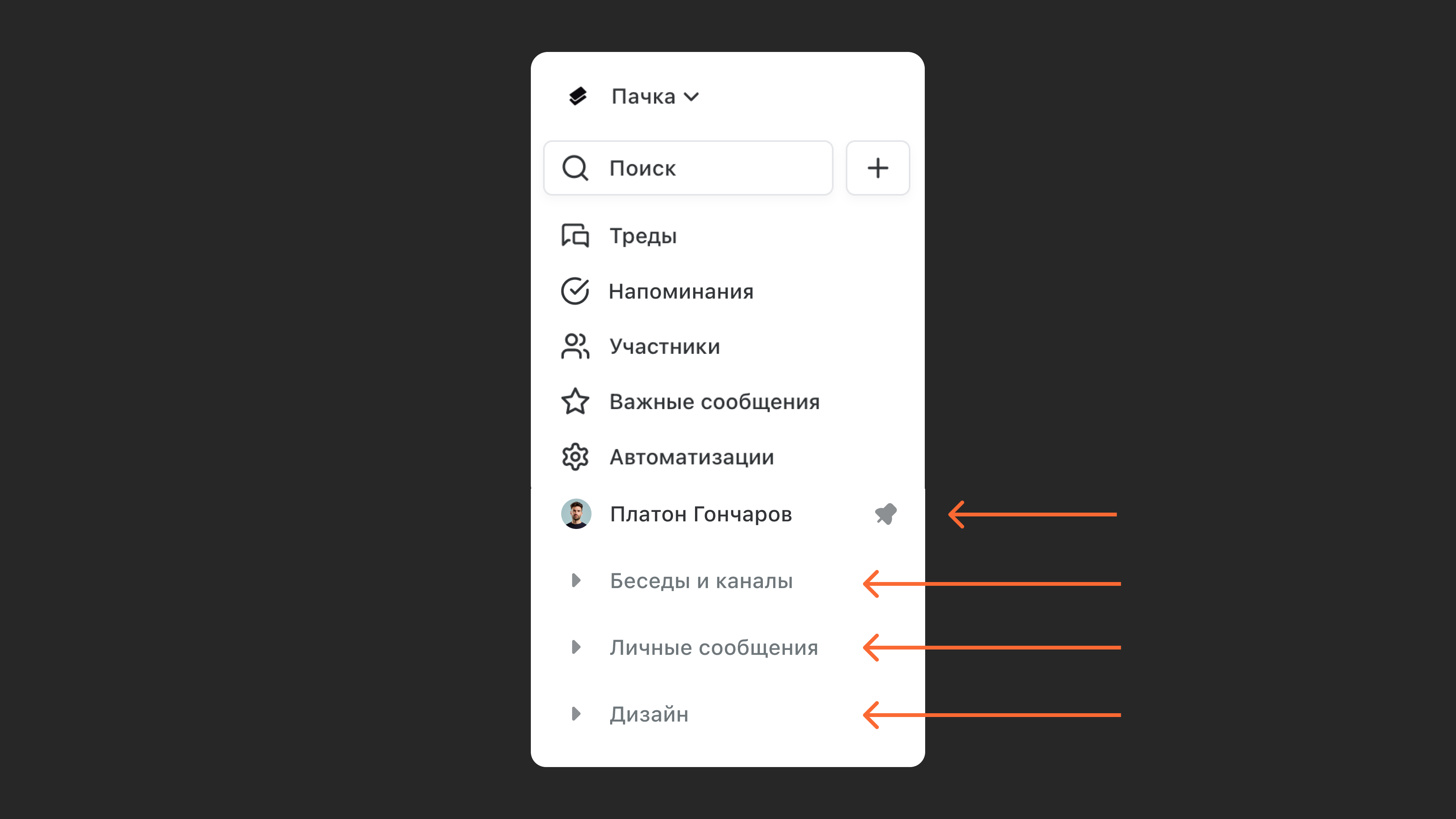
The sidebar has folders for grouping your chats. To try this out, create a few folders. Rearrange them and move chats from one folder to another. You can also pin a chat above your folders.
Reminders
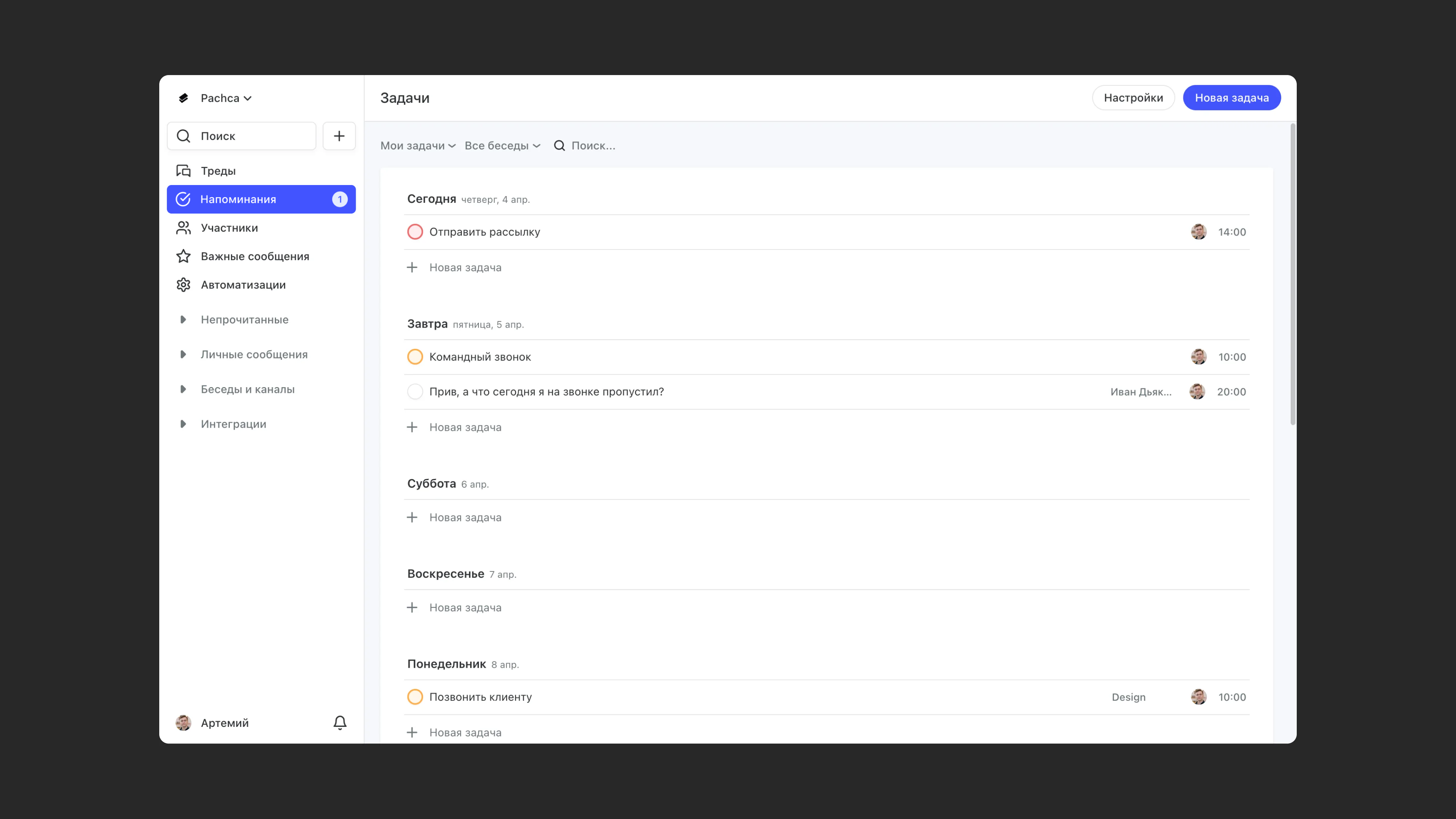
Check out Reminders, where everyone can plan their own work. Create one or two reminders for yourself.
Other features
Click through the rest of the sidebar. For example, set a status in your profile and invite people from your company profile.

Try Pachca on different platforms
For Apple phones and tablets:
- Pachca on the App Store: https://apps.apple.com/ru/app/id1498667276
For phones with Google services:
- Pachca on Google Play: https://pachca.com/android-app
For phones without Google services:
- Pachca on RuStore: https://www.rustore.ru/catalog/app/com.pachca.app
- Pachca on AppGallery (Huawei): https://appgallery.huawei.com/app/C105778079
Move on to testing with a larger group (4–5 business days)
Once you've tested the core features, bring more of your team into Pachca and try using it for your day-to-day work. This shows how well the product works for you in the long run.
The easiest way is to move a few teams or departments to Pachca for a while.
How you run this test depends on whether you need AD/SSO integration. If you do, send a request in our support chats, and our team will help you set it up.
Checklist for testing with your team
-
Describe how your team communicates: which chats you use and who uses them.
-
Create the chats you need in advance, or let people create them once you've added them.
-
Add people to the member list. If you want to test Pachca's integration with your company's internal directories, send a connection request to support in Telegram or MAX.
-
Create tags in the member list and assign them to people. This saves time when adding people to the right chats. It's easiest to create tags by department or team. For example, give your sales team the "sales" tag.
-
Add the tags and people you need to each chat.
Wrap up testing
At this stage, you decide whether to keep using the product and which plan to choose. Learn more about our plans on our website
You can pay by simply adding a card in the app or by requesting an invoice (for licenses of 3 months or longer). We can also sign a custom contract and an NDA (available on the Corporation plan).