Getting started guide for new members
A guide for new employees: how to get up to speed quickly in Pachca, the team chat app
Hi there! This guide will help you settle into Pachca. Let's get you acquainted:
What is Pachca
Pachca is a team chat app for teams that value their time. Used the right way, Pachca frees up time for other work and for yourself, and makes team communication faster and more effective.
Pachca keeps work chats, a task tracker and video calls in one place, so you don't have to jump between a bunch of apps and lose focus.
Three ways to join Pachca
To get into your company's workspace, you don't need to sign up on the Pachca website yourself. If you haven't used Pachca before, there are three ways to join your team: an email invitation, sign-up via link and SSO login.
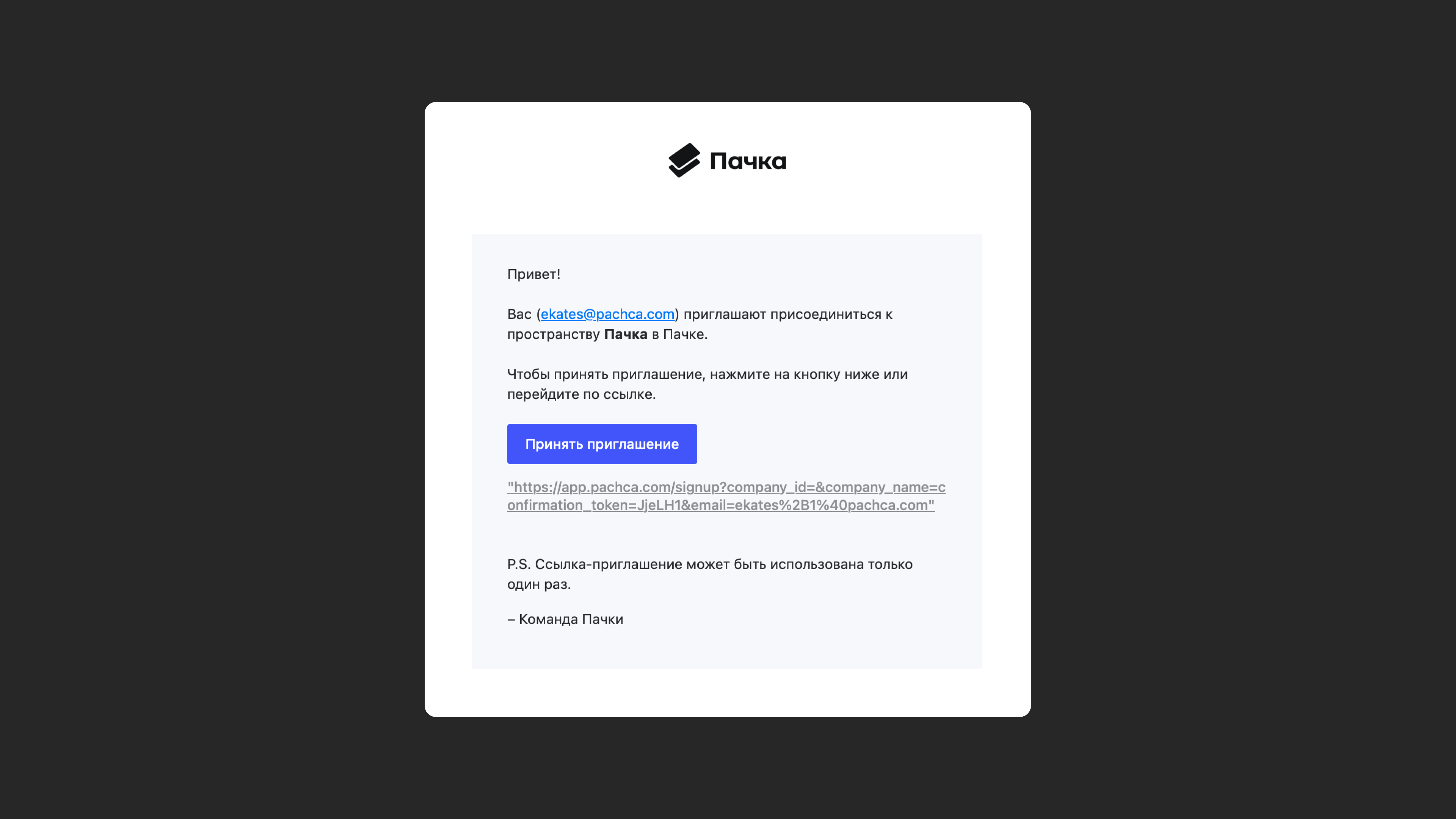
1. Email invitation
You got an invitation to Pachca by email. Follow the link and enter the code we send to the same email address. Fill in the Name field. The email address that received the invitation is the one you'll use to log in to Pachca.
Next time, you'll log in to Pachca with a code we send to your email when you sign in (when you log in to your account, not every time you open Pachca).
2. Sign-up via link
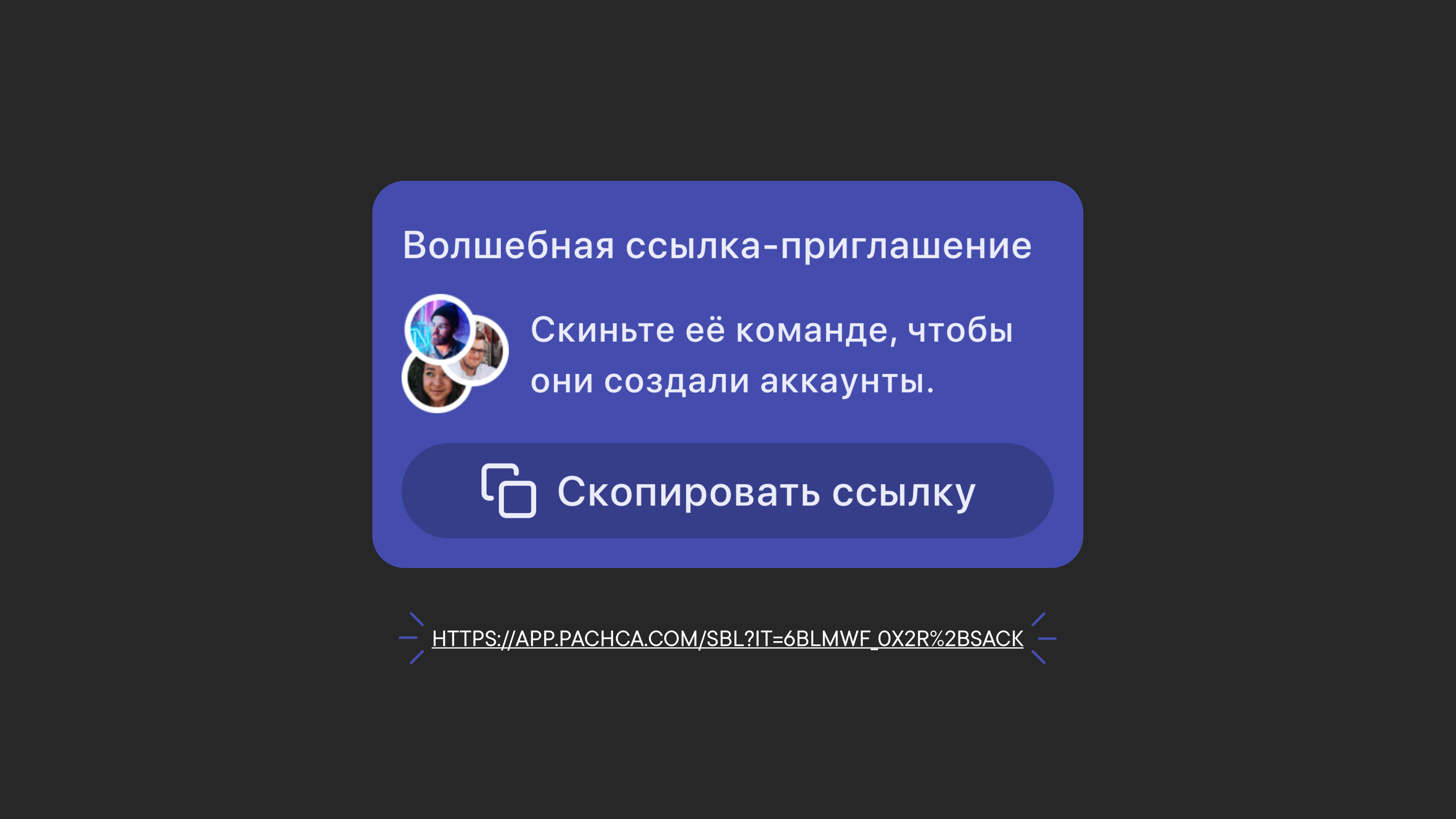
You got a sign-up link for Pachca. Follow the link and enter your email (you'll use it to log in to Pachca), then the code we send to it and your Name. You'll land right in your company's Pachca workspace.
Next time, you'll log in to Pachca with a code we send to your email when you sign in (when you log in to your account, not every time you open Pachca).
Note: this link is valid for 14 days only and is used to invite employees in bulk. It's for signing up only. To log in, use this page.
3. SSO login
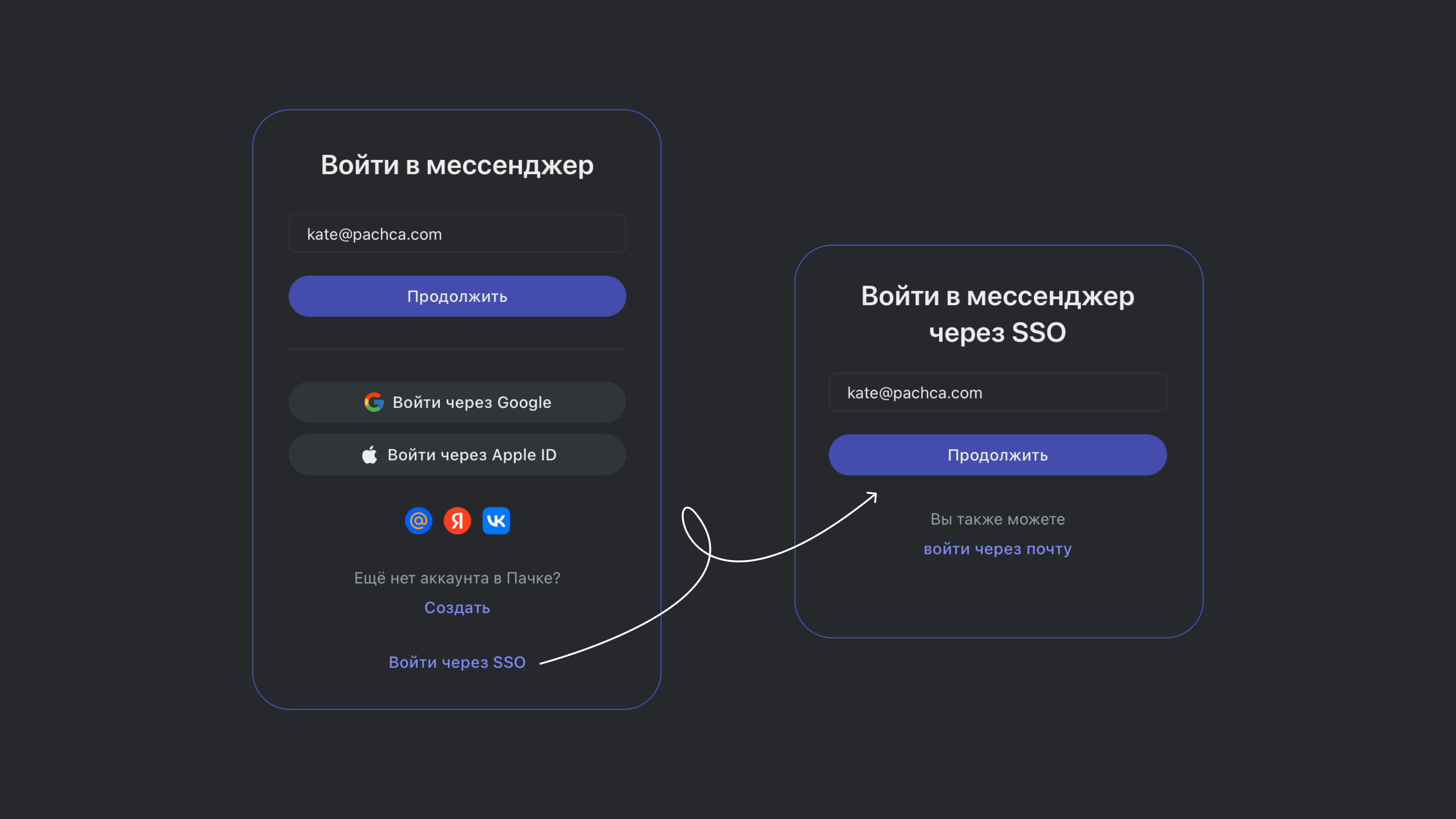
If your company has SSO set up, log in to the workspace with the Log in with SSO button below the login form on the website. Your colleagues should let you know if this applies to you.
How to log in to Pachca
Every time you log in to Pachca after that, use the email address you signed up with (or the one that received the invitation). If you signed up by invitation or link, please don't log in with third-party services (Yandex ID, mail.ru, VK).
You'll need your work email address to log in with SSO. Note that SSO login happens on a dedicated page.
You may be invited to several workspaces, and they can be linked to different accounts (email addresses). In that case, you'll see the lobby screen when you log in. Learn more about the lobby and workspaces here.
Tell your team about yourself: your member profile
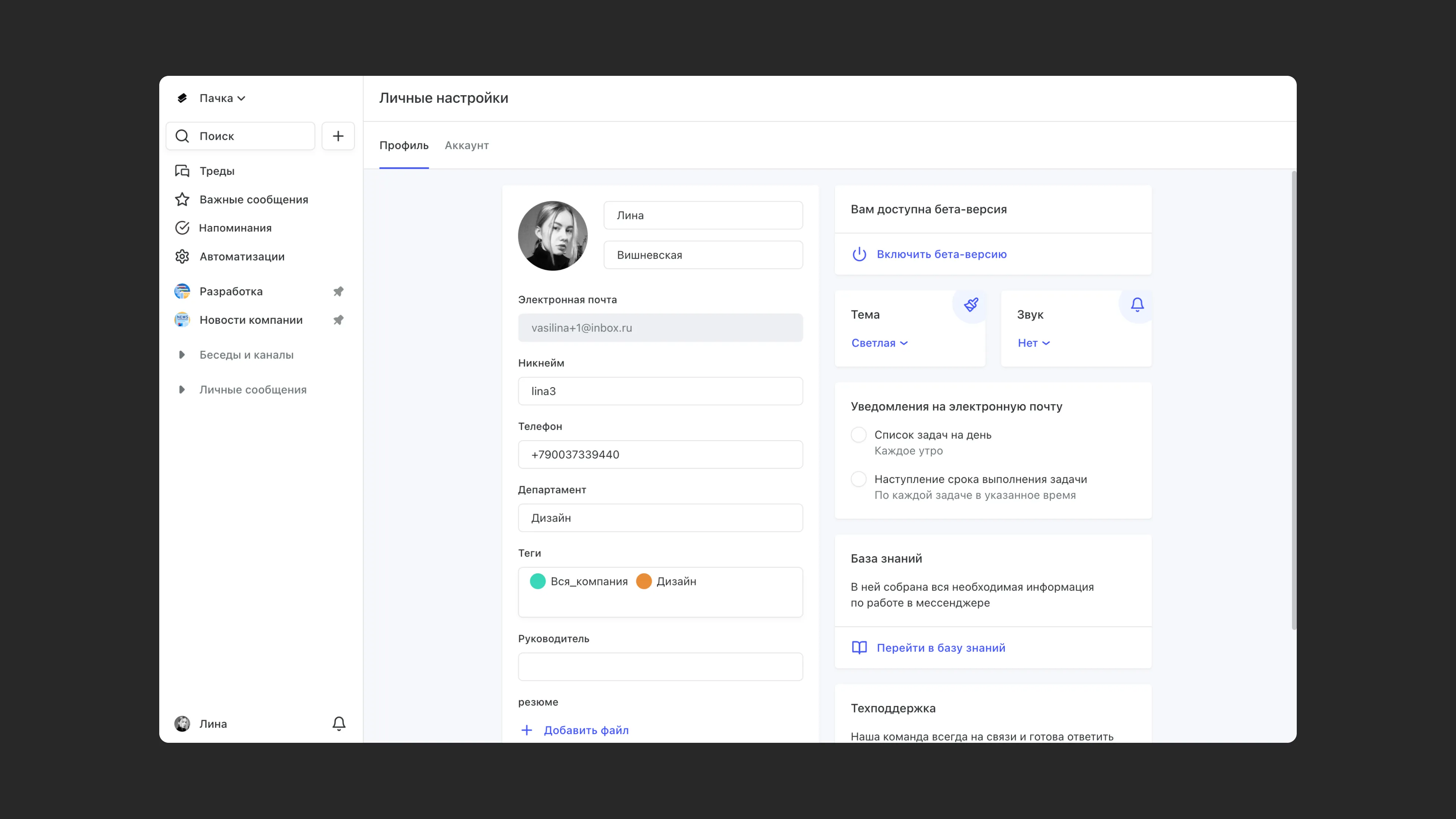
To help your colleagues get to know you, find your profile in the bottom-left corner of the screen, open it and fill in all the fields. This way, others will know who they're talking to.
Make your Pachca workspace your own
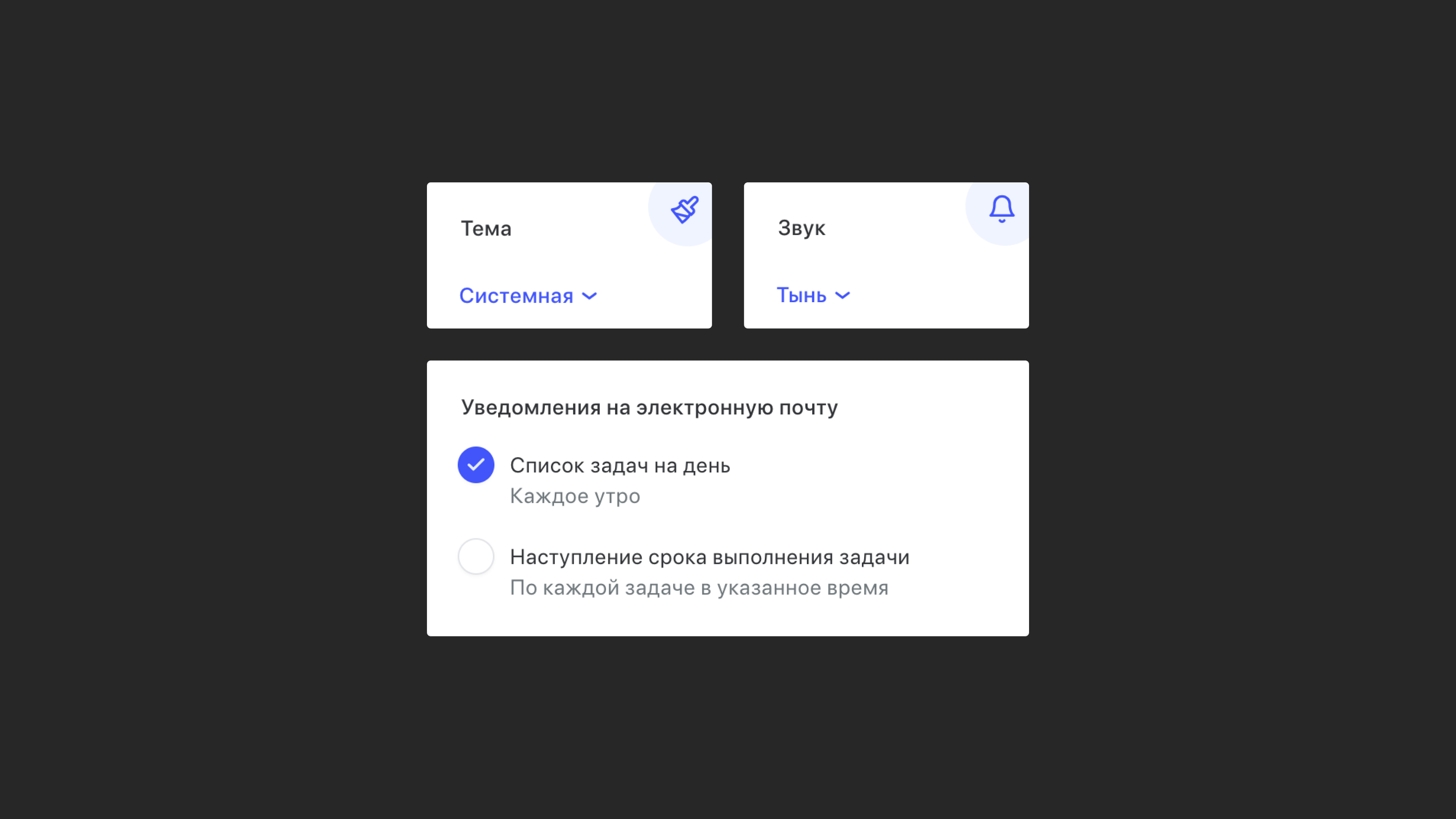
On the right side of your profile, find the Theme field and pick the one you like best. Next to it is the notification sound setting: choose a sound you like or turn sound alerts off.
Worried about missing task deadlines? Subscribe to email notifications: choose the options you need in the field in the bottom-right corner of your profile.
Set up two-factor authentication
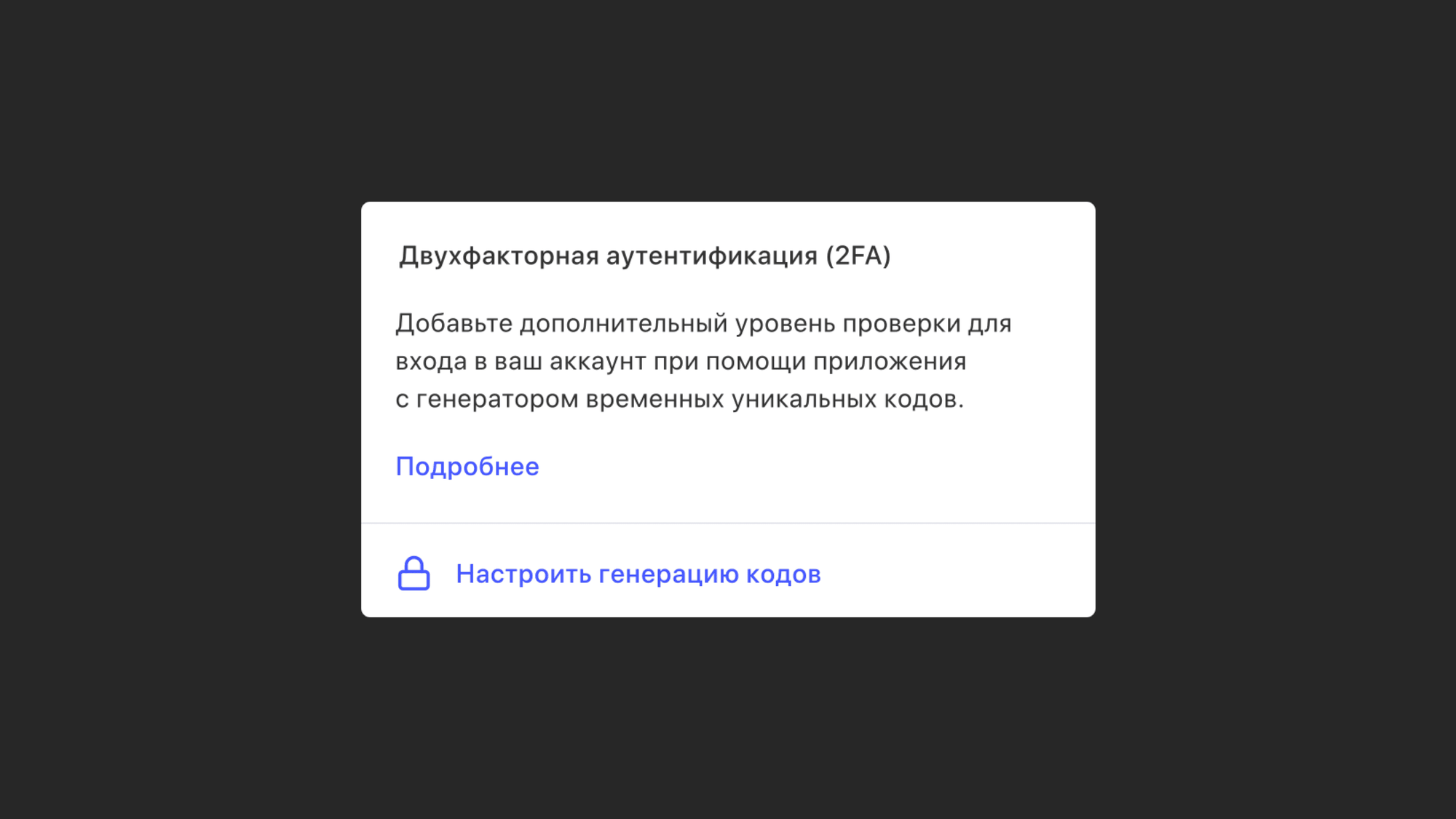
The security of your account is the security of your whole team. To make sure no one but you can get into your account, set up two-factor authentication. In your profile, go to the Account tab and click Set up code generation.
Watch a quick video overview of Pachca
For a quick introduction to Pachca, watch the demo (3 min), which covers all the main features of the app, or read other articles in our Help Center.
Learn the basics of communicating in Pachca: messages and threads
All communication in Pachca happens in chats, channels and threads.
Chats and channels work differently. In chats, every member can post messages. In channels, only the channel creator and the editors they assign can post.
We also recommend creating folders, sorting your chats into them and adding an Unread folder. Folders help you build a chat structure that works for you and get through incoming messages faster.
Learn more about chats and channels here.
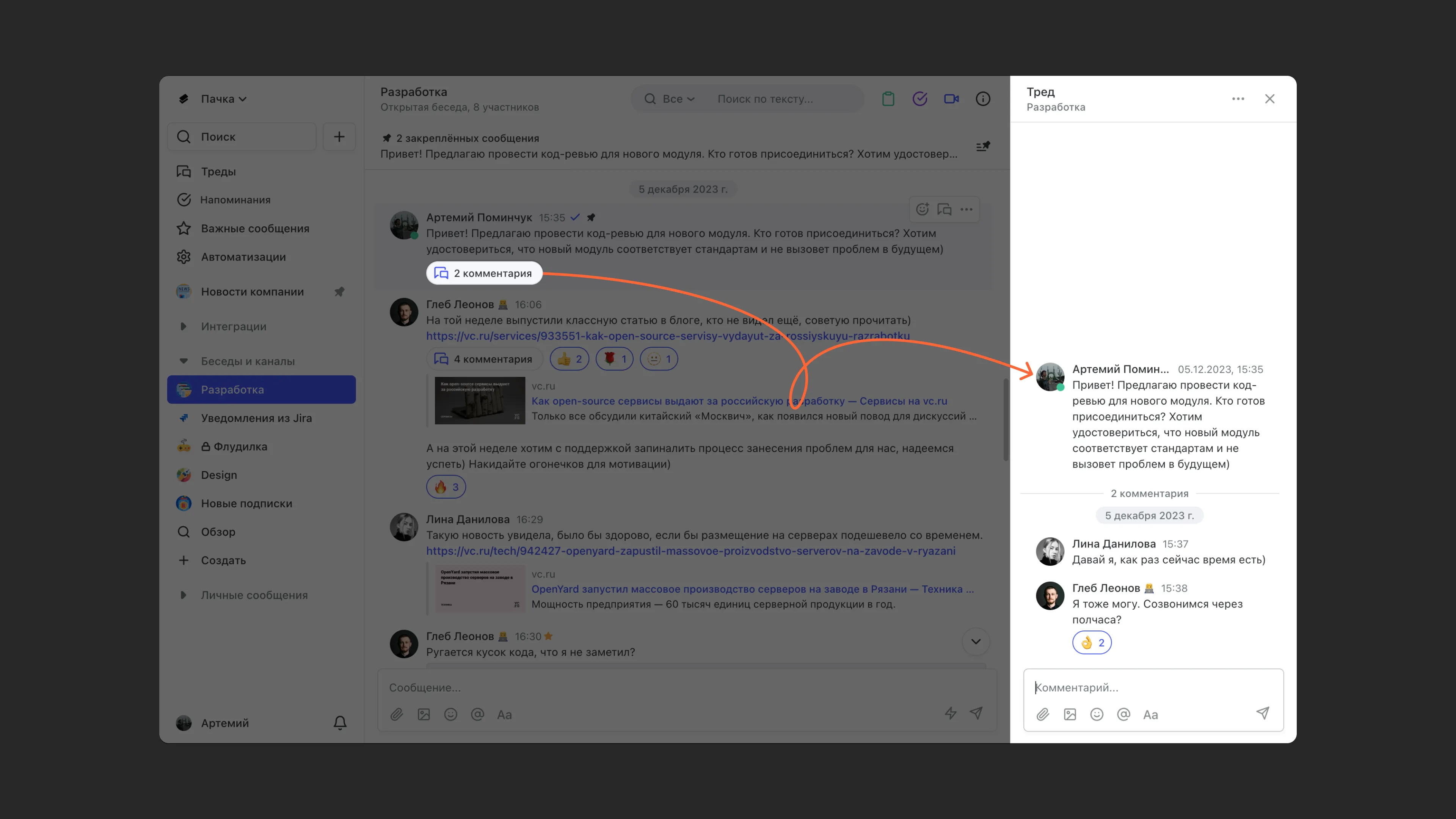
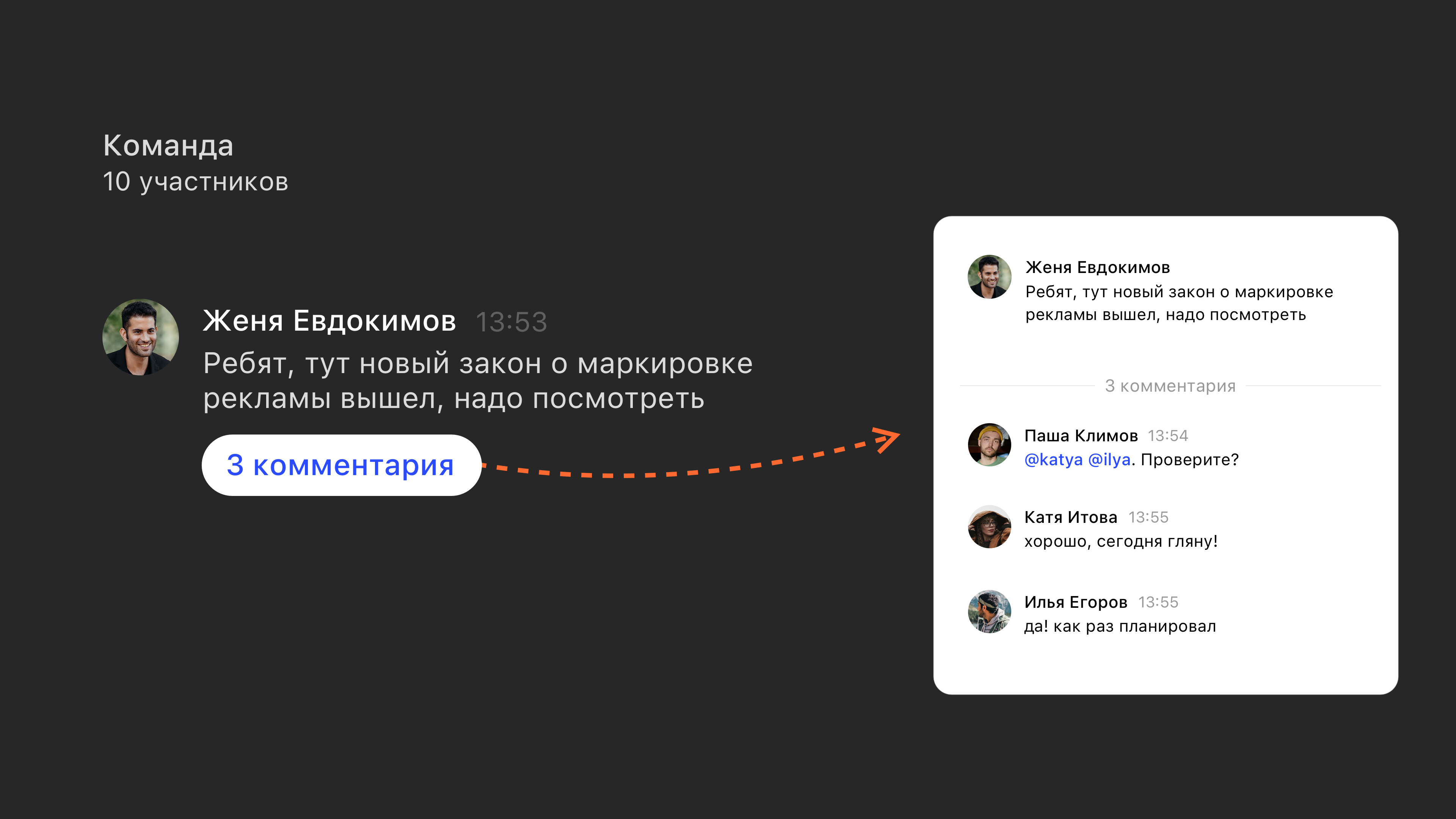
Threads are the best way to communicate: post your question as a message in a chat, and keep the whole discussion in a thread, as comments under that message. Just like in the picture.
Learn more about advanced ways to use threads in this article.
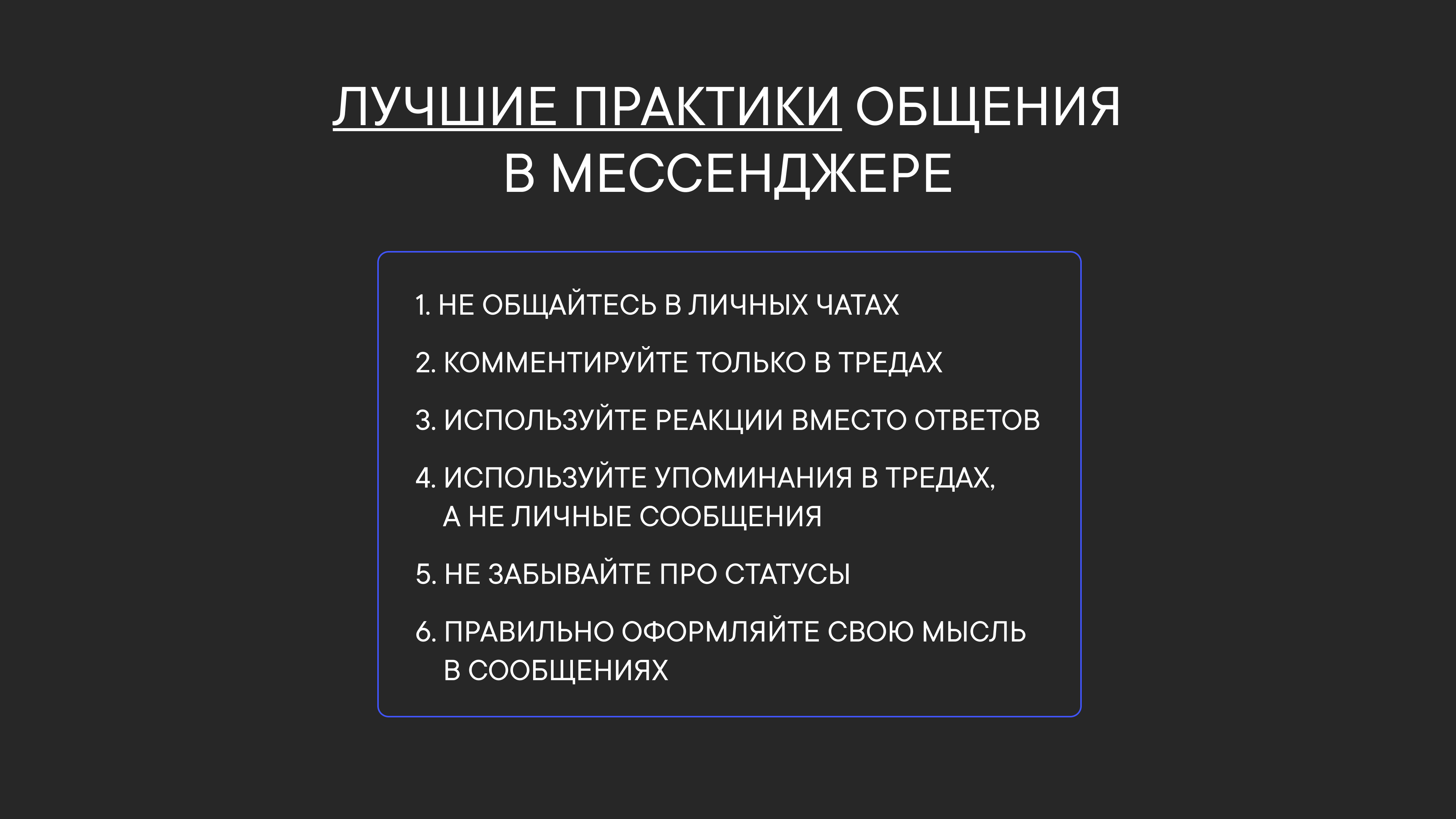
Learn best practices for team chat
There's plenty of advice on how to communicate with colleagues in chats. Drawing on experience with different team chat apps, we've put together best practices to help you get work done more effectively in Pachca.
Install the mobile apps
To stay in the loop and get notifications instantly, download the apps for iOS and Android. Desktop apps are also available for Windows, macOS and Linux.
For Apple smartphones and tablets:
- Pachca on the App Store: https://apps.apple.com/ru/app/id1498667276
For smartphones with Google services:
- Pachca on Google Play: https://pachca.com/android-app
For smartphones without Google services:
- Pachca on RuStore: https://www.rustore.ru/catalog/app/com.pachca.app
- Pachca on AppGallery (Huawei): https://appgallery.huawei.com/app/C105778079
Pachca's top features
1. Cross-chat threads
Pachca has an unusual and very handy feature: cross-chat threads. In a cross-chat thread, you can loop in any colleague, even if they aren't in the chat. They won't see the chat history, but they can post in the thread they were invited to.
Cross-chat threads let you talk to colleagues directly, so you don't need extra chats or forwarding messages back and forth.
Learn more about cross-chat threads here.
2. Custom statuses
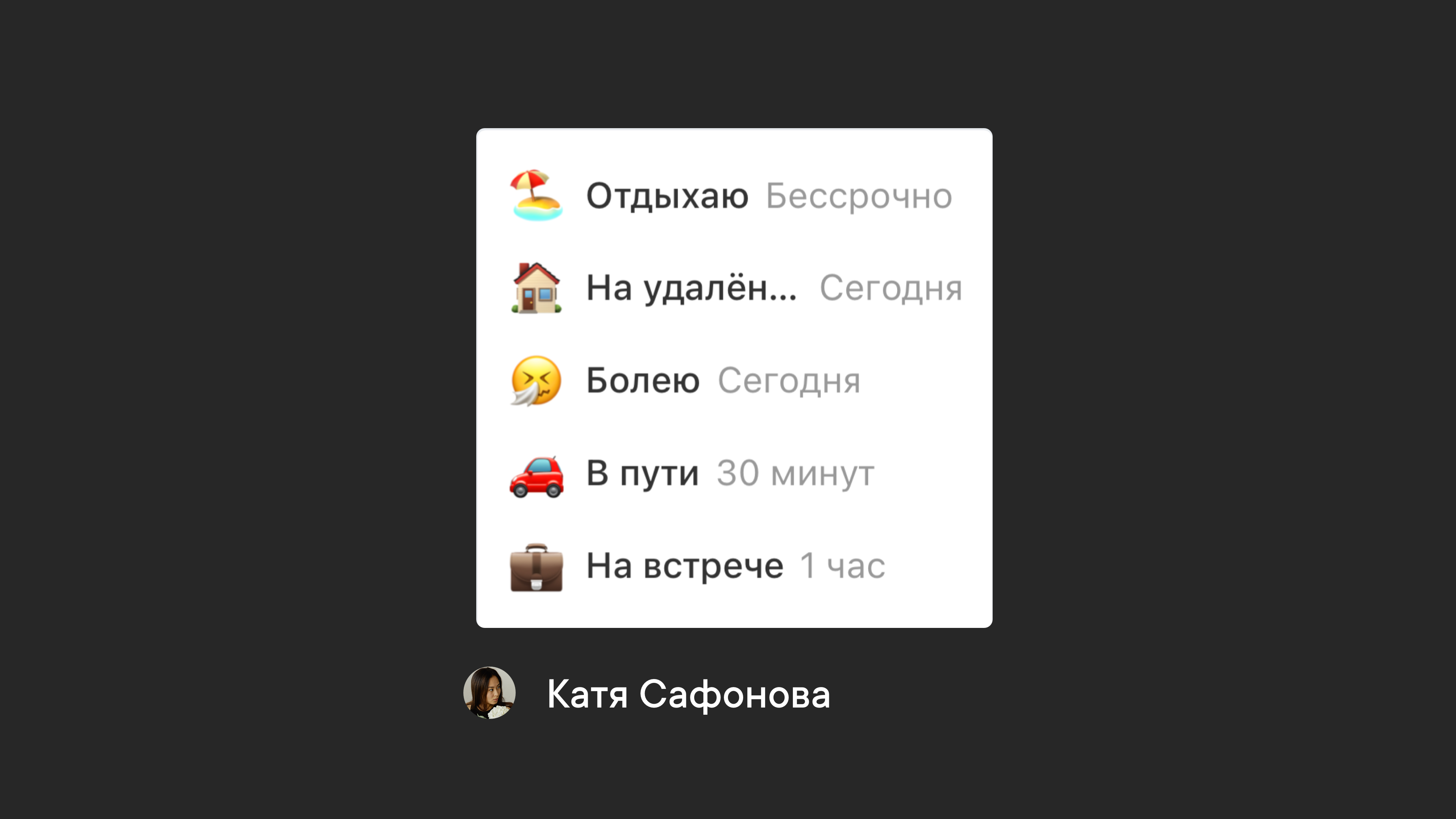
Your colleagues can always see whether you're online or offline, but sometimes that's not enough. You can let them know you're on vacation, in a meeting or out sick without interrupting them with chat messages. Pick one of Pachca's default statuses or create your own.
See how to do it here.
3. Formatting
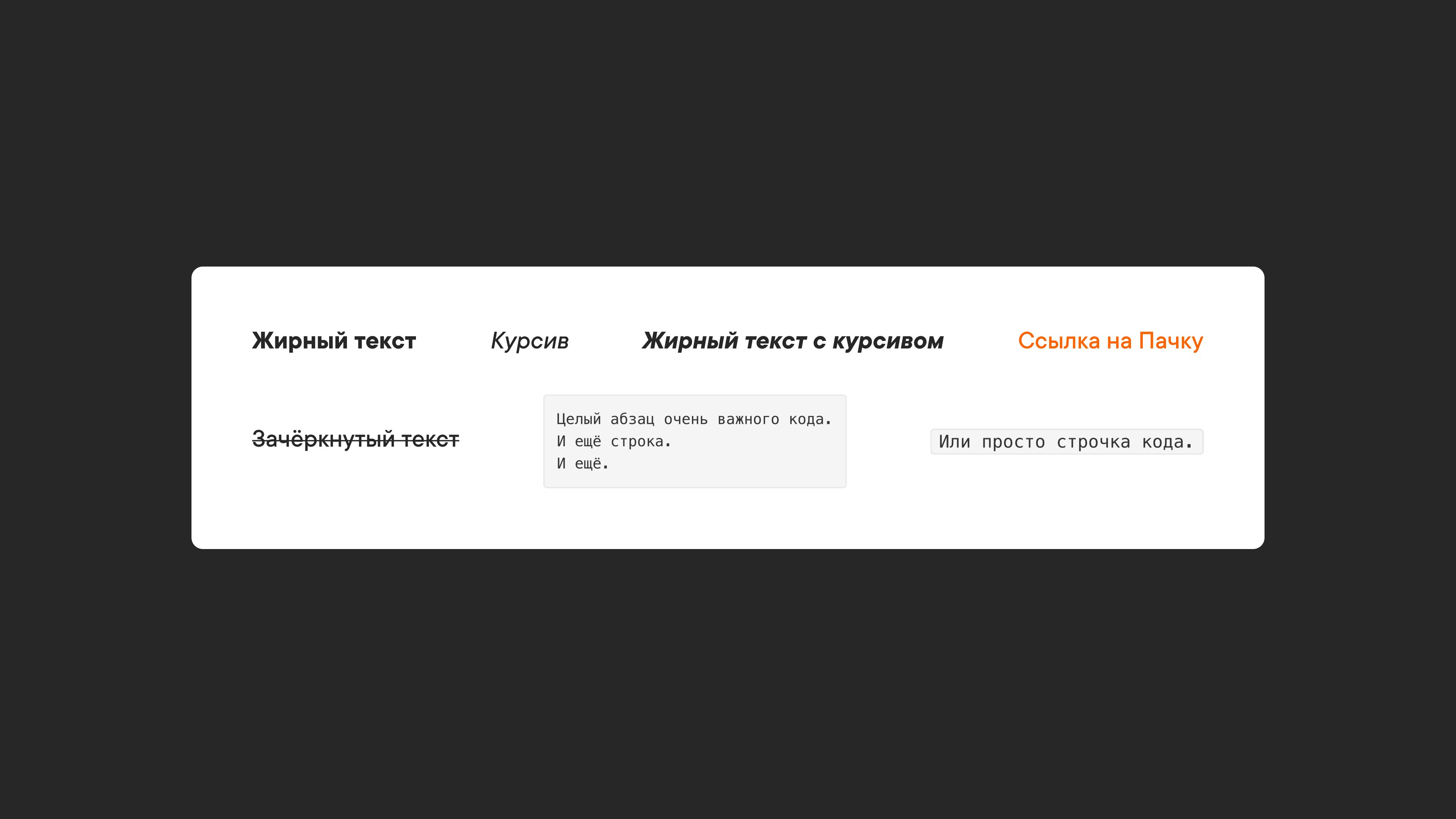
Click the Aa icon below the message field to open the formatting toolbar. You can also select a piece of text you've written and choose a formatting option. Styles appear right in the message field, and once sent, your message looks the same on every platform. If you prefer, you can wrap text in Markdown characters by hand or use keyboard shortcuts.
You can use any of these three ways to format text. Learn more about formatting here.
4. Reactions
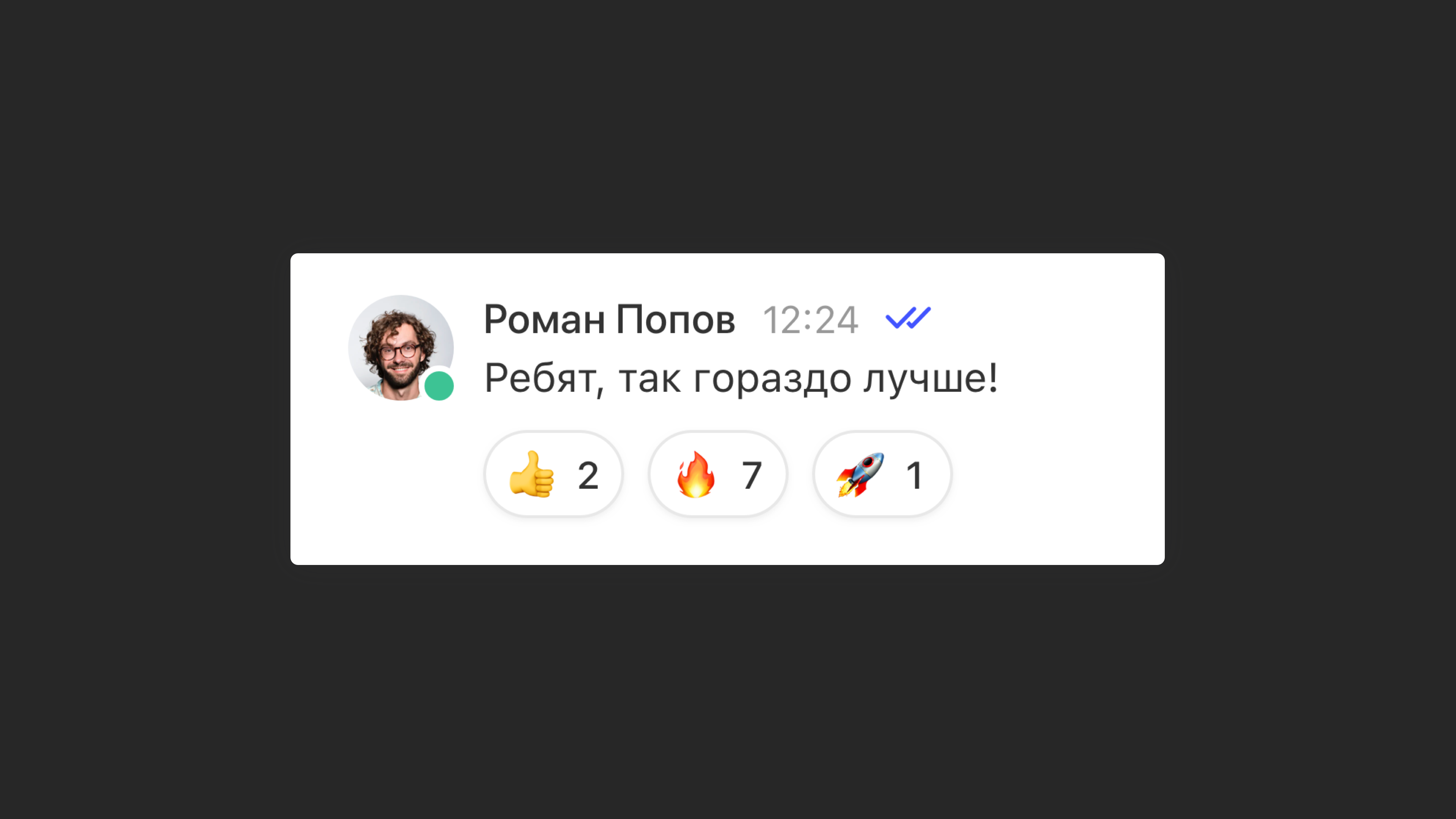
In work chats, reactions are a top feature. They come in handy in lots of situations. For example, you share the results of your work in a group chat and get feedback from colleagues as reactions. Reactions also save time and keep chats free of clutter.
This article covers message actions and how to use reactions.
And here we share a few more ideas for using emoji and reactions in Pachca.
Reach out if you need help
We'll help you get settled and answer all your questions. Message us on Telegram or MAX. During business hours, we reply within 15 minutes on average.
