What's in Pachca
A quick tour of the app
Pachca is a team chat app for modern teams. It brings work chats, a members directory, a task tracker and video calls into one place, so you don't have to jump between a dozen apps and lose focus. Pachca is easy to pick up, and this quick tour will help. It covers all the main sections and the most useful features inside chats.
Sidebar
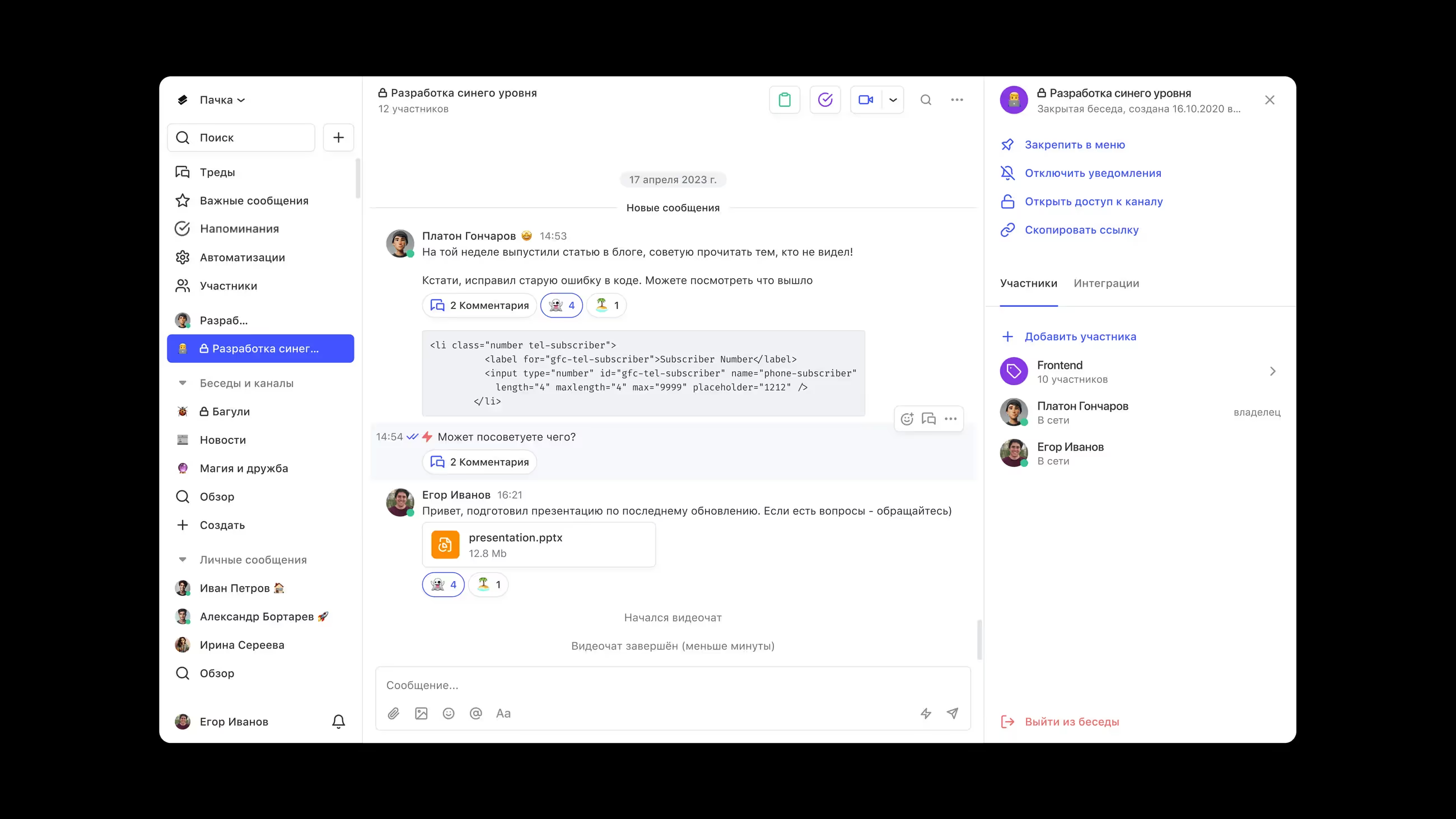
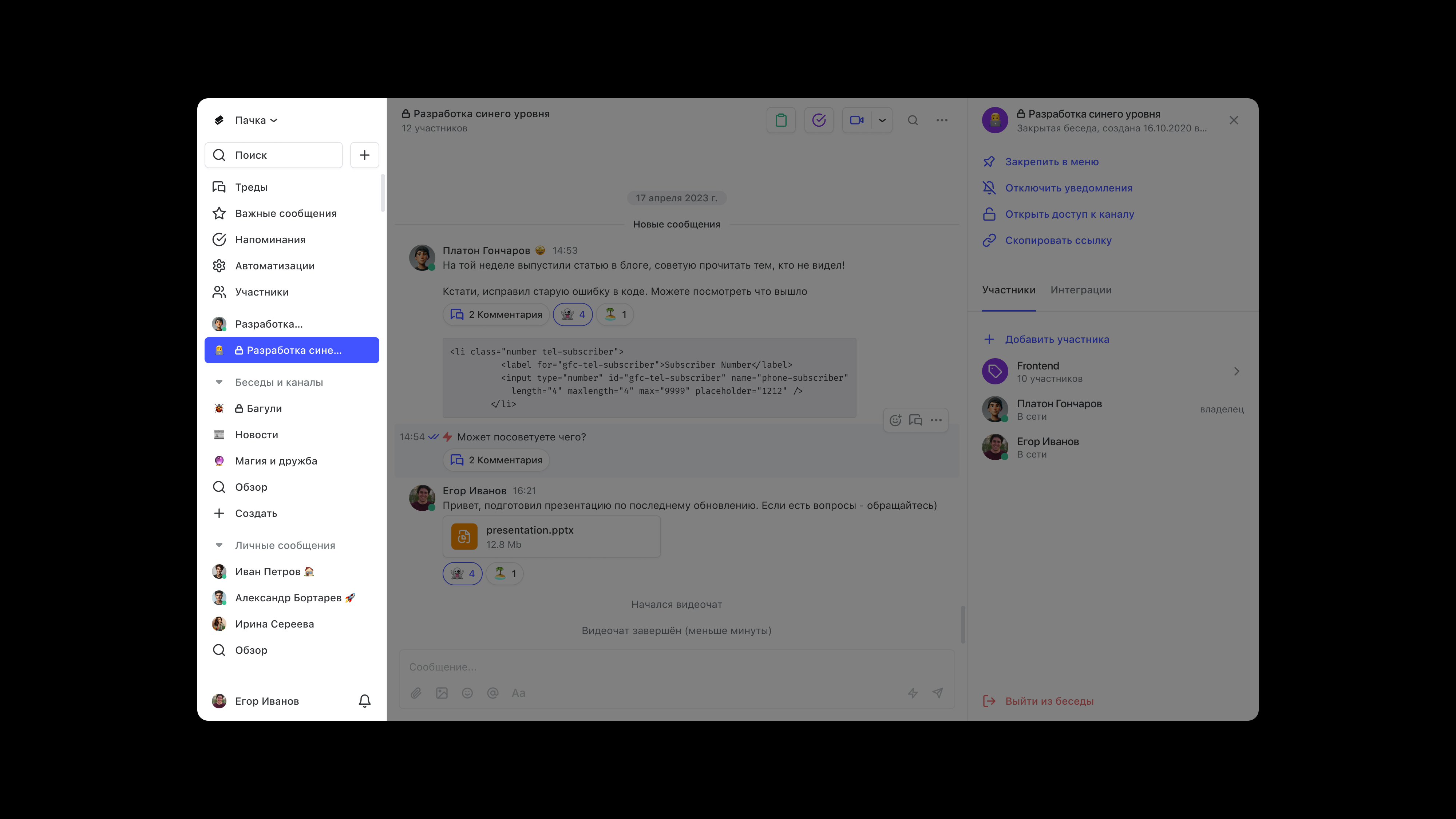
In the sidebar, you'll find your workspaces, search, threads, favorites, tasks, automations, members, drafts, your chat list, your profile and system notifications.
Chat types
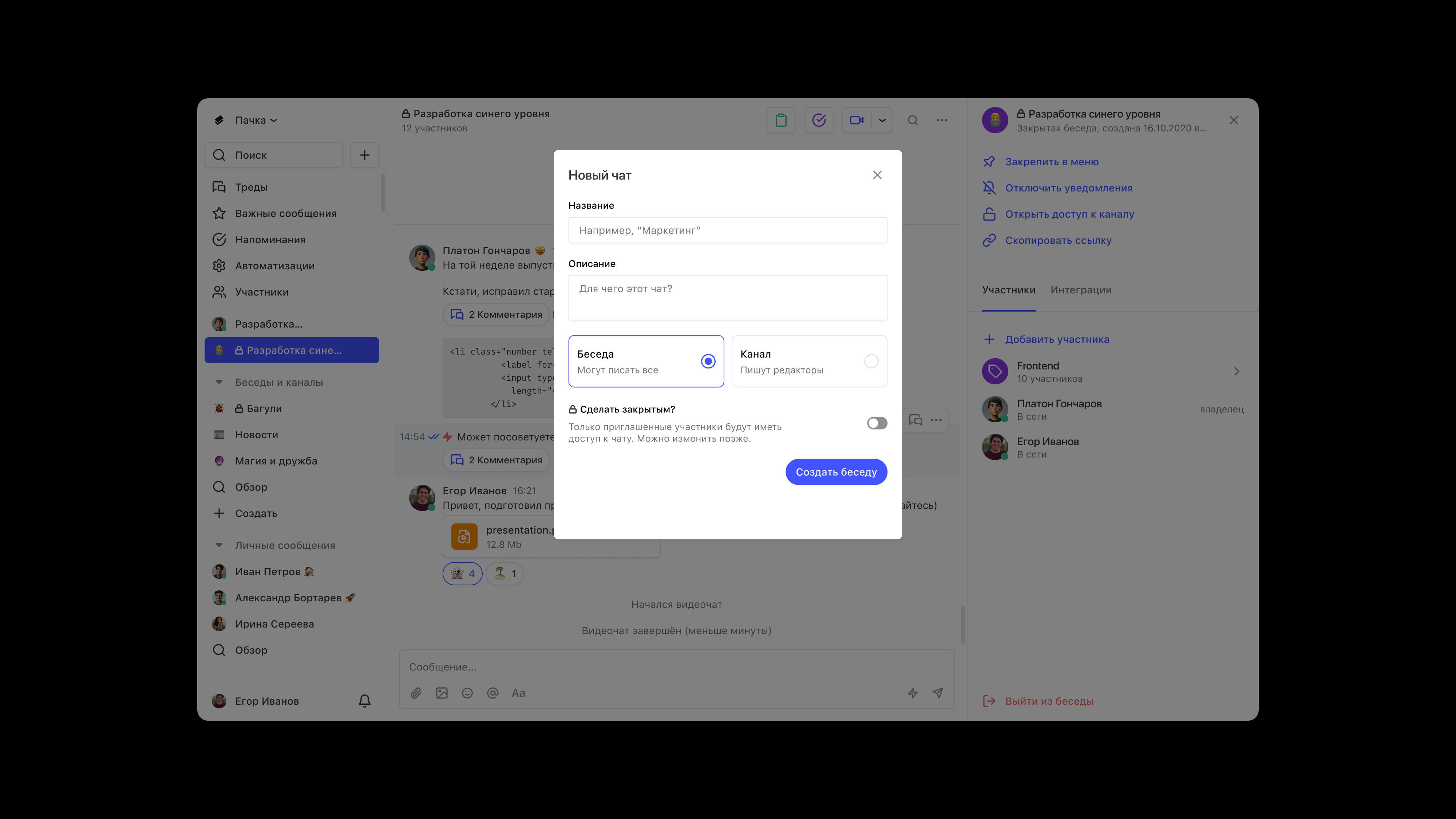
Pachca has private and public chats. Both come in two formats: chats, where everyone can post, and channels, where only editors can post. Anyone can join a public chat. Only invited members can join a private one.
Organizing chats
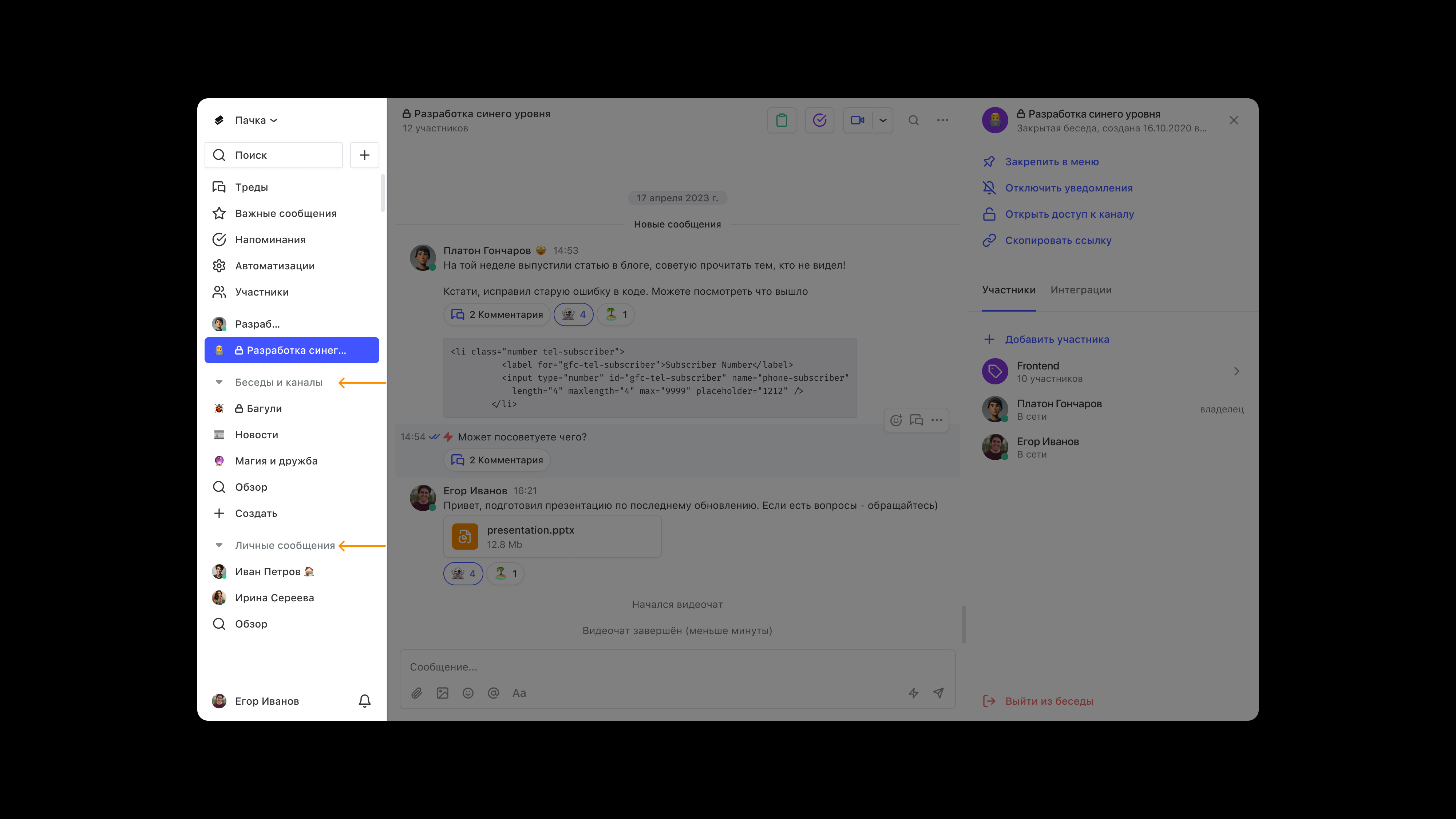
Chats, channels and direct messages each have their own group in the sidebar. You can also organize any chats into folders. To add a chat to a folder, just drag it there. Your folders are visible only to you.
Chat settings
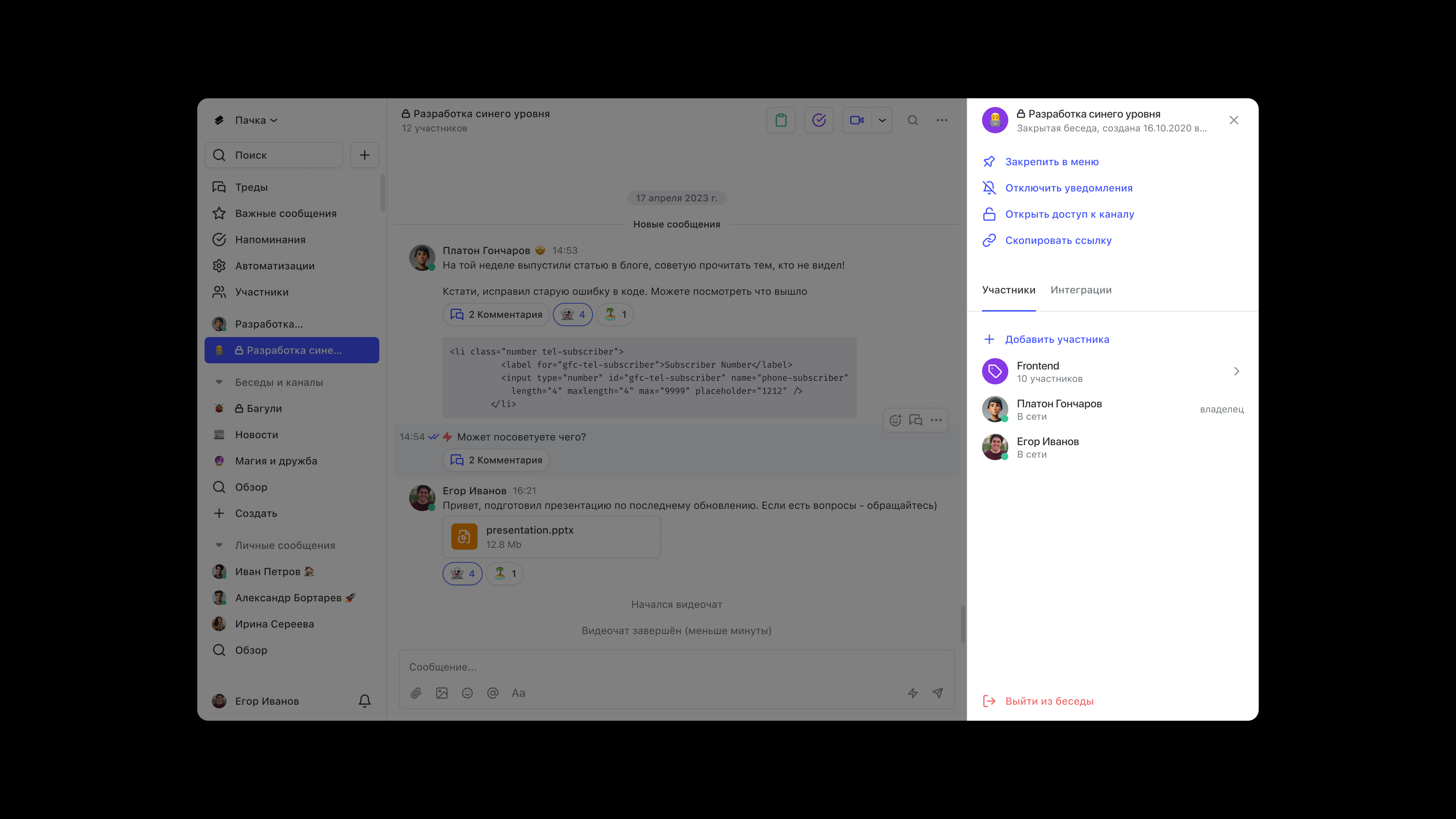
On the right side of the screen, there's a separate panel for managing the chat. Here you can turn notifications on or off, so only what matters gets your attention. You can also make a channel private or public and invite new members to the chat.
Threads
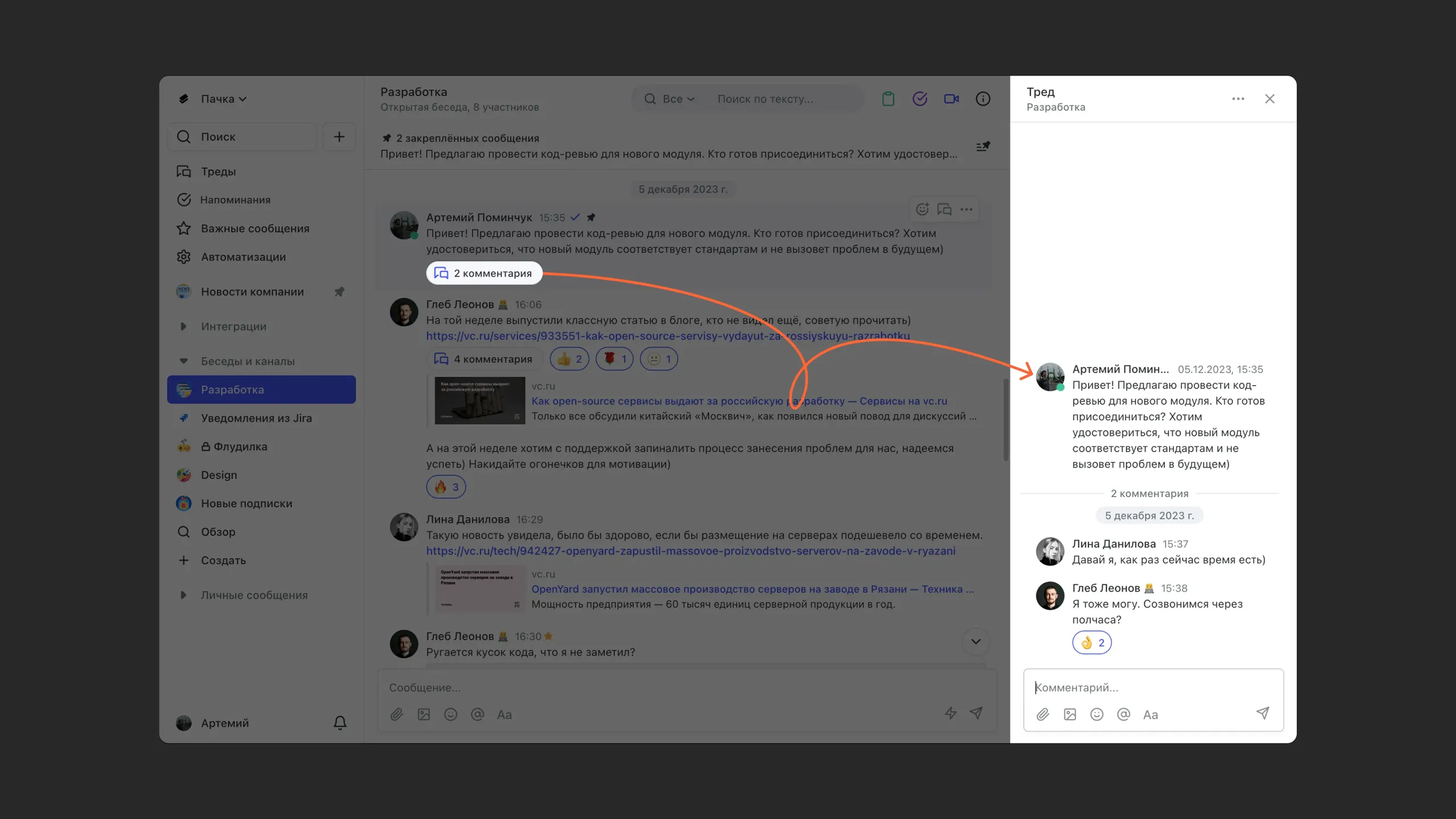
You can comment on any message in a chat and start a full discussion. The whole discussion stays in the thread, while the chat keeps only what matters most. Notifications about new comments in threads appear in the Threads tab in the sidebar.
Emoji and reactions
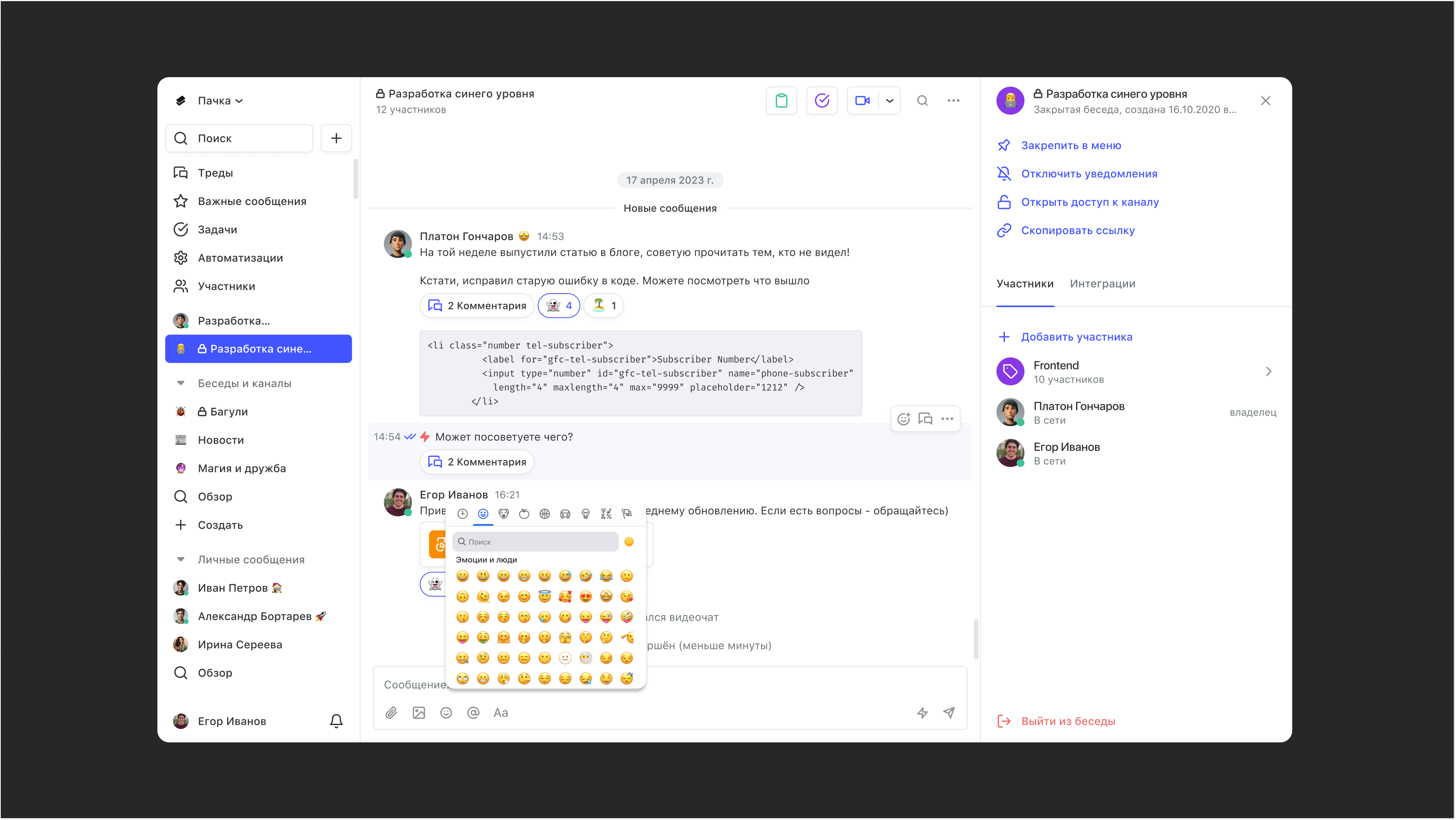
People often use emoji or react to messages. To pick an emoji, click the emoji icon at the bottom of the chat. To quickly add a reaction, right-click the message, or hover over it and click the reaction icon. On mobile, long-press a message to do any of this.
Message statuses
Gray check mark: the message has been delivered. Blue check mark: the message has been read. Hover over the check mark to see who has read it.
Drafts
A separate section for all your unsent messages. Your drafts are saved here, so you can easily come back and finish them on any device.
Teamwork features
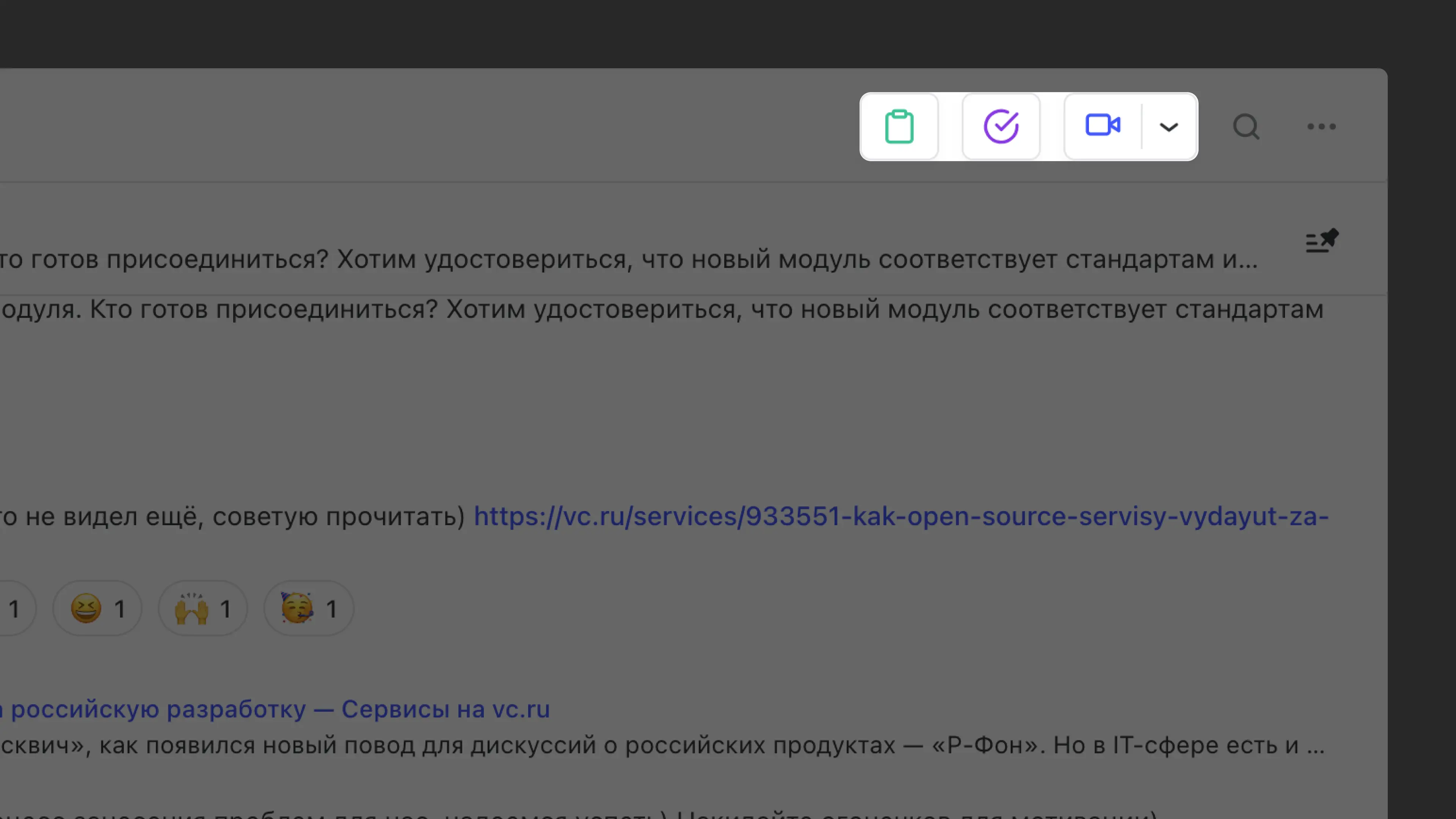
In the top right corner of every chat, there are 4 sections: the public note, tasks, video calls and chat info. We've already covered chat info, so here's a look at the rest.
Public note
You can write any text in the public note. It stays there permanently and is visible to all chat members. Use it for quick access to useful links, plans or any other text.
Reminders
Reminders help you plan your workday. You can set a reminder for a specific chat and add a time, a description and the people to remind. Reminders from all your chats are collected in the Reminders section in the sidebar.
Video calls
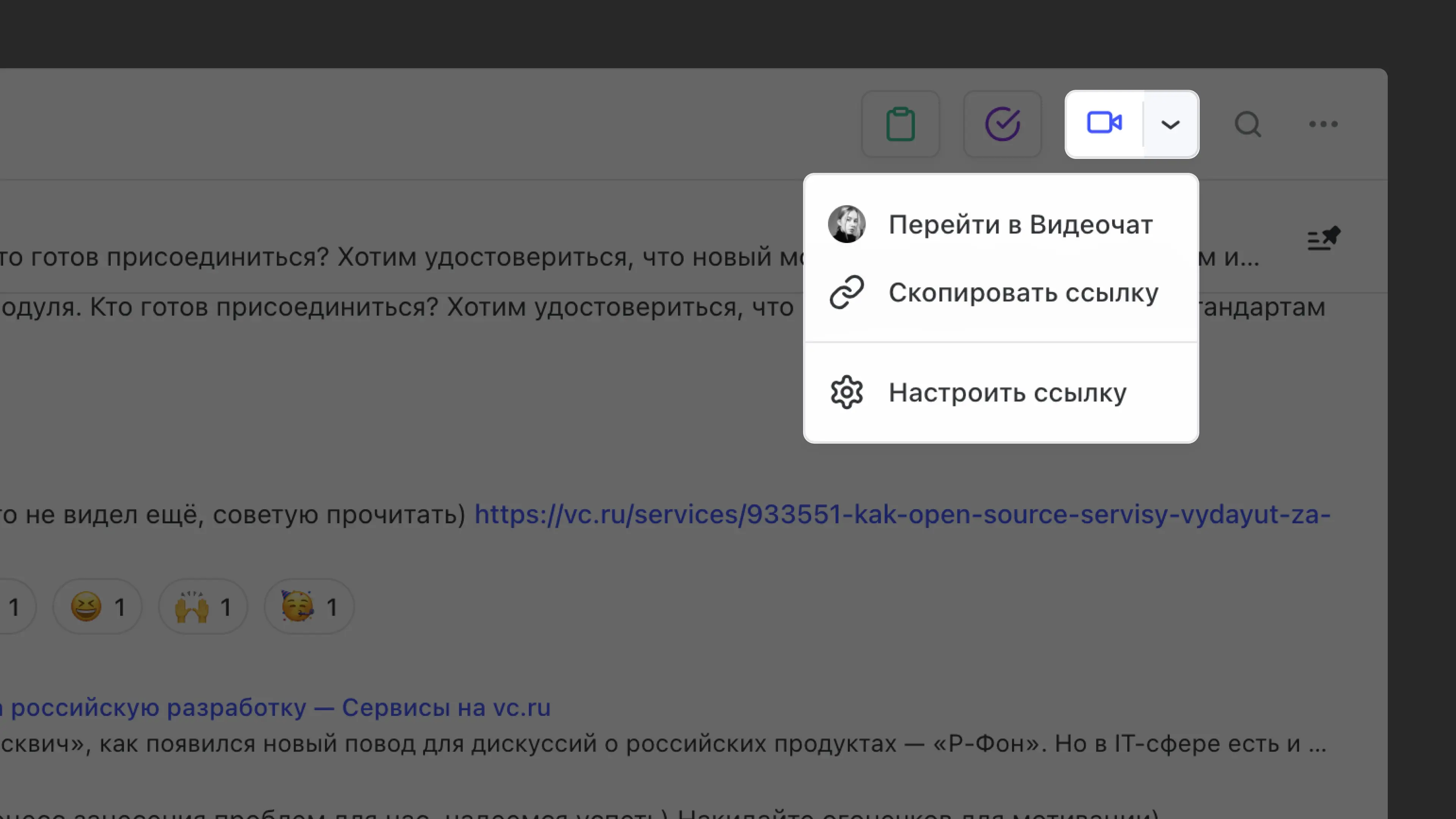
Calls currently support up to 1,000 participants. They include screen sharing, recording and a chat in a thread. Group video calls also have moderators who help run large meetings. Learn more in New video calls in Pachca.
To start a video call, click the video call button in a chat → Go to video call. To join an ongoing call, hover over the call icon next to the chat in the sidebar, or click the Join call system button in the chat. To share a link to the call, click the call icon → Copy link and send it. To keep the call private, regenerate the link from time to time in the Link settings window.
Workspaces
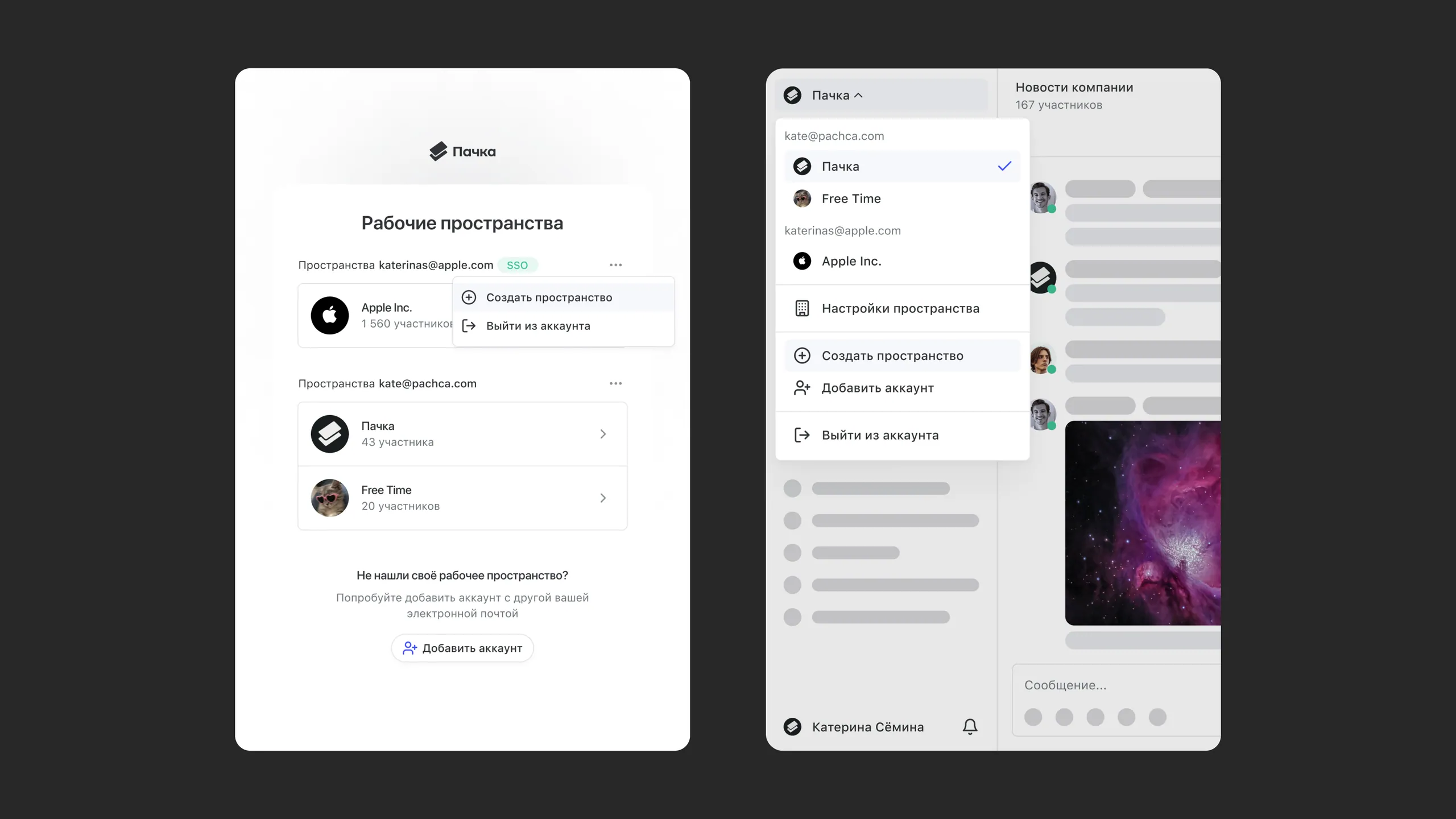
In Pachca, you can be a member of several workspaces and quickly switch between them. You don't need to enter a one-time code every time you switch accounts.
This comes in handy if, for example, you use Pachca both for work and for online courses.
To add a new workspace or manage your current one, click your company name in the top left corner of the screen. A dropdown menu with actions and settings will appear.
Inviting your team
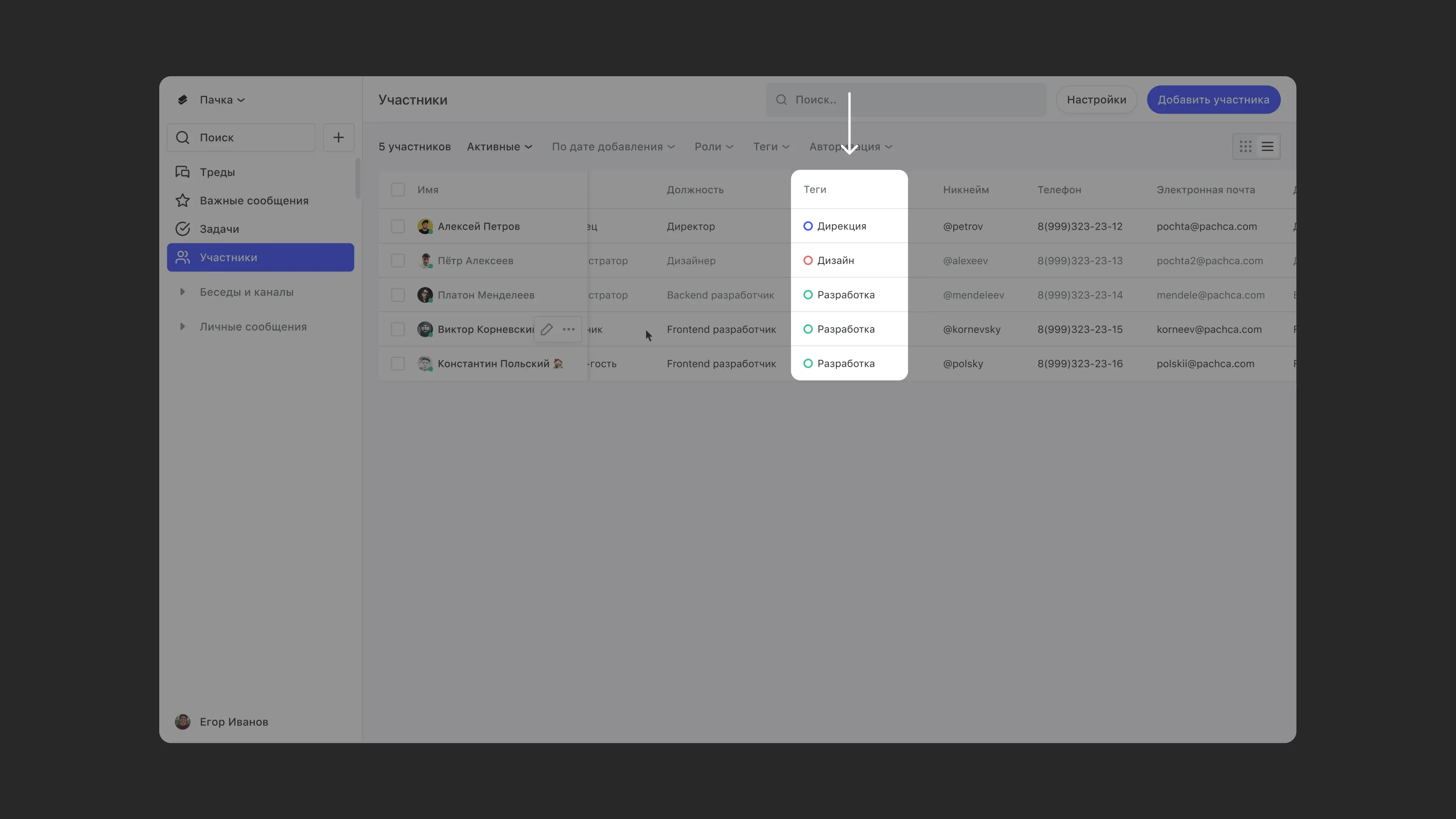
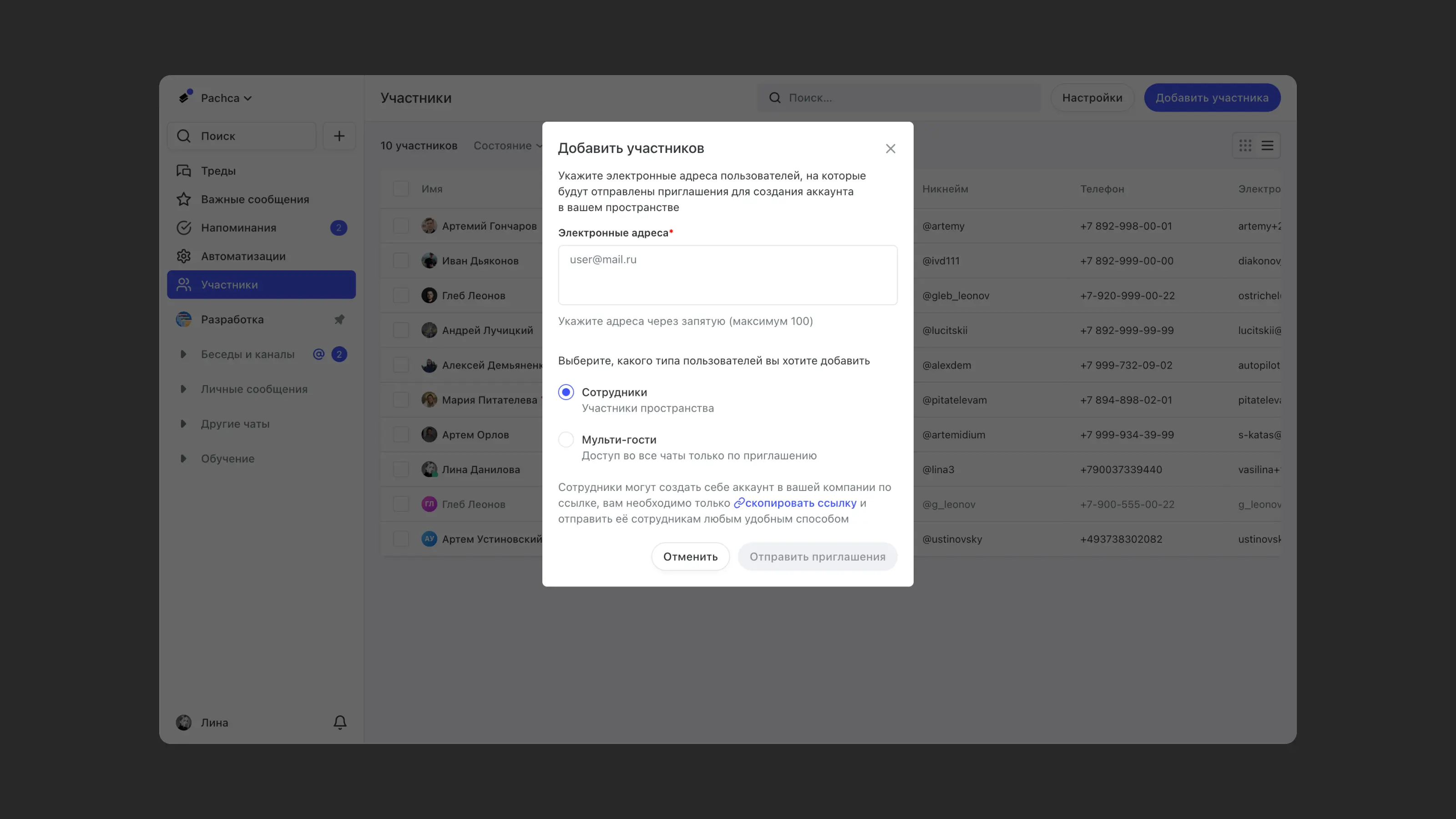
A team chat app works best with your whole team in it. There are two ways to invite people: by email or with a link. Go to Members in the sidebar → click Add member.
Group tags
For example, a "Sales" group tag can give someone access to all the chats for sales managers. Just add the tag to the chats and assign it to the member. Learn more about tags in this article.