SSO options in Pachca
Single sign-on (SSO) in Pachca: SAML, LDAP and Keycloak connection options and step-by-step guides
Single Sign-On (SSO) lets you manage large numbers of employees in Pachca at scale. This feature is available on the Corporation plan. To request the integration, contact Pachca support in Telegram or MAX.
What SSO gives you
With SSO, employees can log in to Pachca with their corporate accounts. This makes administration easier: you don't need to send an invitation to each employee and keep track of whether they've signed up. Everyone automatically gets access to Pachca.
Here's how it works: Pachca connects to your company directories, and employee accounts appear in the members table in Pachca.
You can also set up employee profiles to be filled in automatically with information from your directories. For example, you can assign tags and automatically add people to chats based on their department, or add any information from your company directories to their profiles.
Here's how it works: you set up attribute mapping on your side, so attributes are automatically written to employee profiles and synced each time someone logs in with SSO.
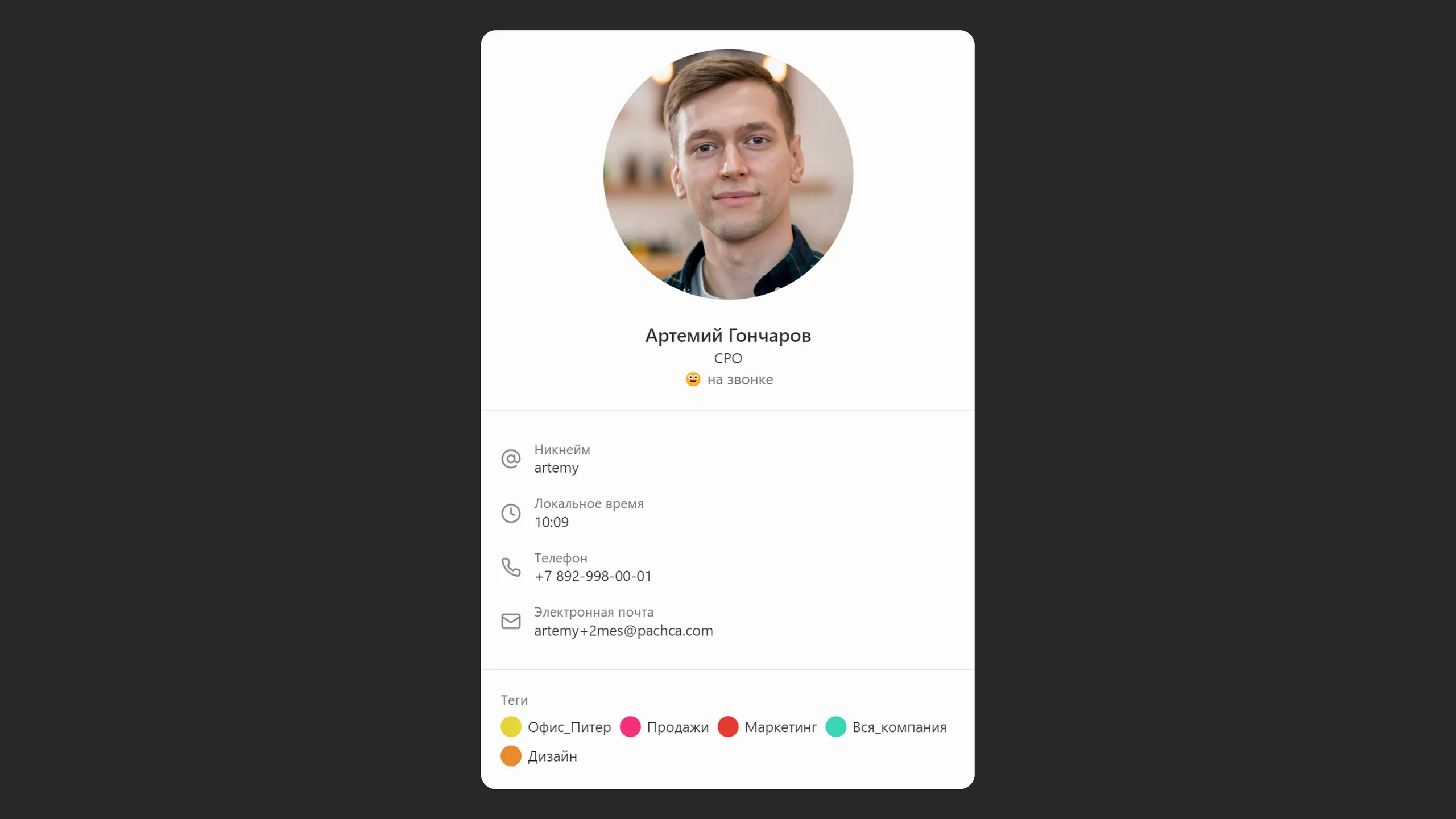
Standard profile fields you can pass to Pachca:
- Email, first name, last name (filled in by default)
- Phone
- Job title
- Department
- Group tags (learn more about this feature)
You can also fill in any other text fields in employee profiles from your directory, like an employee's manager or birthday.
To learn more about setting up mapping, see the guide for your SSO method.
Pachca also supports Backchannel logout: when an employee logs out of their account in the SSO provider, their Pachca session ends automatically. The Keycloak setup is described in this guide.
How to get connected
- Request SSO in the Pachca support chat (Telegram or MAX).
- To connect the integration, you'll need to sign an agreement with no payment obligation. You only pay for Pachca if the trial is successful.
- Complete the setup following the guide for your SSO option.
- Send the parameters listed in the guide to the support chat.
- Our engineering team will connect SSO to your company's Pachca account.
SSO connection options
Pachca offers several ways to implement Single Sign-On, depending on the server connection type and the identity data source. These options are well tested, and we can guarantee they work reliably with Pachca.
If your connection option isn't on the list, we can try to set it up, but we can't guarantee it will work correctly.
1. Via Keycloak as an intermediary
The customer-side Keycloak setup is described in this guide.
You deploy a Keycloak server on your network and configure it following our guide. Then Pachca connects to the Keycloak server and gets data about your organization's structure through it. You control which data Pachca receives through your settings.
2. Yandex 360
The customer-side Yandex 360 connection setup is described in this guide.
You create an app in your Yandex 360 admin account and configure it following the guide above. Then Pachca connects to your Yandex 360 and gets data about your company's users for SSO login.
3. Yandex Identity Hub
The customer-side Yandex Identity Hub setup is described in this guide.
You create an app in your Yandex Identity Hub admin account and configure it following the guide above.
4. Windows Server AD FS
The customer-side Windows Server setup is described in this guide.
You connect to the authorization server over the AD FS OpenID Connect/OAuth protocols.
An employee's Pachca account is created the first time they log in. All employees aren't synced automatically.
We can agree on additional fields to sync from employee profiles.
In this setup, the ADFS endpoints must be publicly accessible from the internet. This lets employees log in to Pachca remotely without a fixed IP address.
Employee accounts in Pachca are updated each time someone successfully logs in with OpenID.
5. LDAP
The customer-side LDAP integration setup is described in this guide
You'll need to send support your Connection URL and Bind DN and grant SSH access. The rest of the setup follows the guide.
6. Google Workspace
The customer-side Google Workspace integration setup is described in this guide.
You create a new SAML app and configure it following the guide. Then the Pachca team completes the integration setup on our side.
7. IdP Azure AD, Okta
The customer-side Azure AD setup is described in this guide.
This applies if your company uses one of these services.
Pachca integrates with these cloud services following the providers' OpenID Connect guides.
8. Multifactor
The customer-side Multifactor setup is described in this guide.
Pachca integrates with the service when you add a new OAuth / OpenID app.
Employee accounts in Pachca are updated each time someone successfully logs in with OpenID.
9. Indeed IdP via SAML
The customer-side setup of SSO with Indeed IdP via SAML is described in this guide.
10. Blitz Identity Provider
The customer-side Blitz Identity Provider setup is described in this guide.
11. Authentik
The customer-side Authentik setup is described in this guide.