First steps in Pachca
Your first steps in Pachca
Get to know the sidebar
You'll start working in Pachca from the sidebar. It's pinned on the left side of the screen. Here you'll find workspaces, search, threads, members, favorites, reminders, automations, your chats and folders, your profile and system notifications.

Your company workspace
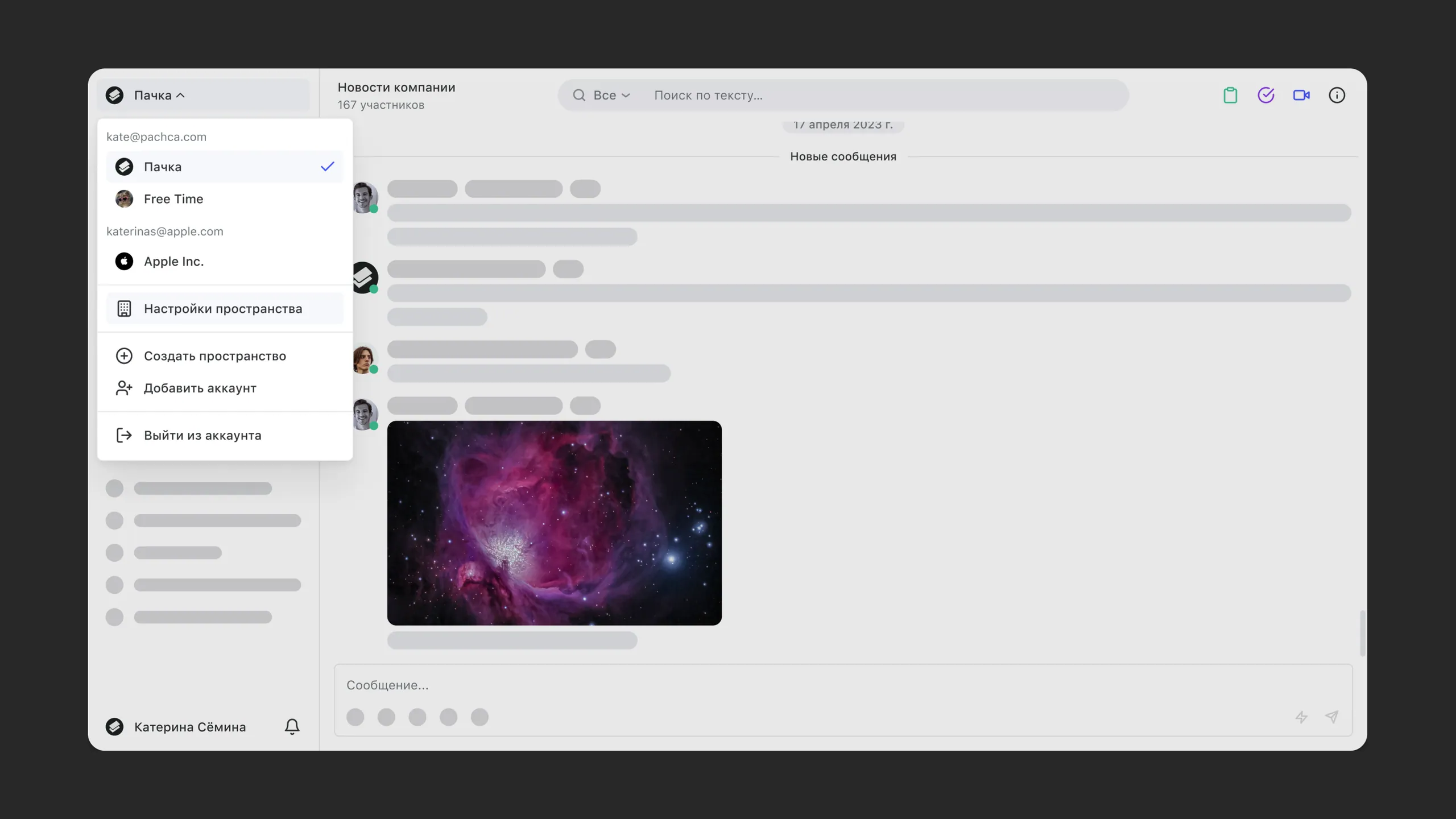
In Pachca, you can be a member of several workspaces and switch between them in a click. No need to enter your password every time you change accounts.
To add a workspace or manage the current one, click your company name in the top-left corner of the screen. A menu with available actions opens. In workspace settings, for example, you can upload your logo so everyone in the workspace sees it.
Invite your team
The free Starter plan has no limit on the number of workspace members. Bring your whole company to Pachca: it works best that way.
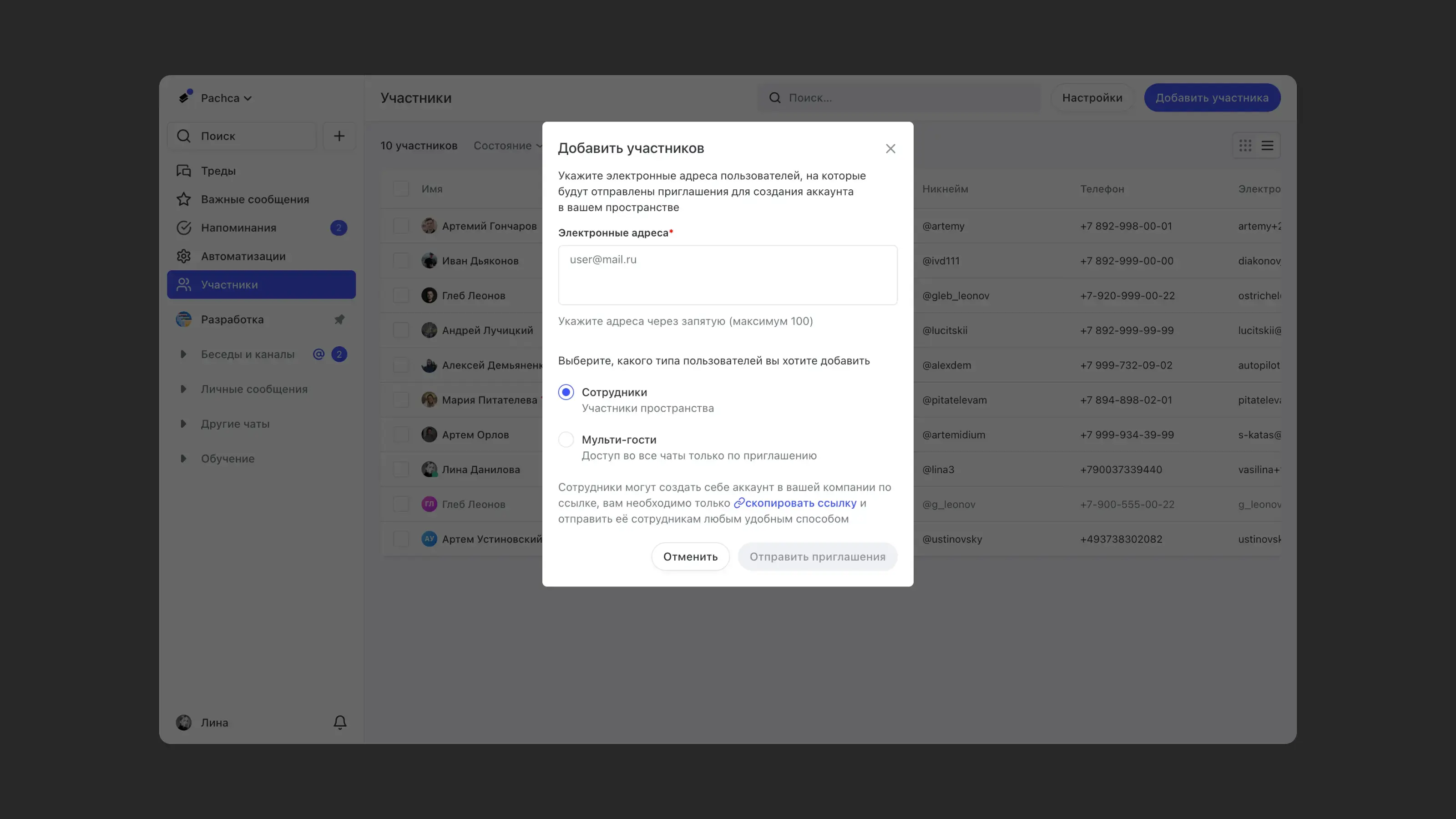
To invite your team, go to Members in the sidebar. There are two ways to do it:
-
Send invitations by email. Enter up to 100 email addresses of the people you want to invite. They'll need to finish signing up using the link in the email within 14 days.
-
Share a temporary invite link with your team. It's valid for 14 days. People follow the link and enter their details to sign up for Pachca. Once 14 days pass, the link expires, so you'll need to copy a new one to keep inviting people. For extra security, you can also reset the link at any time.
Group members with tags
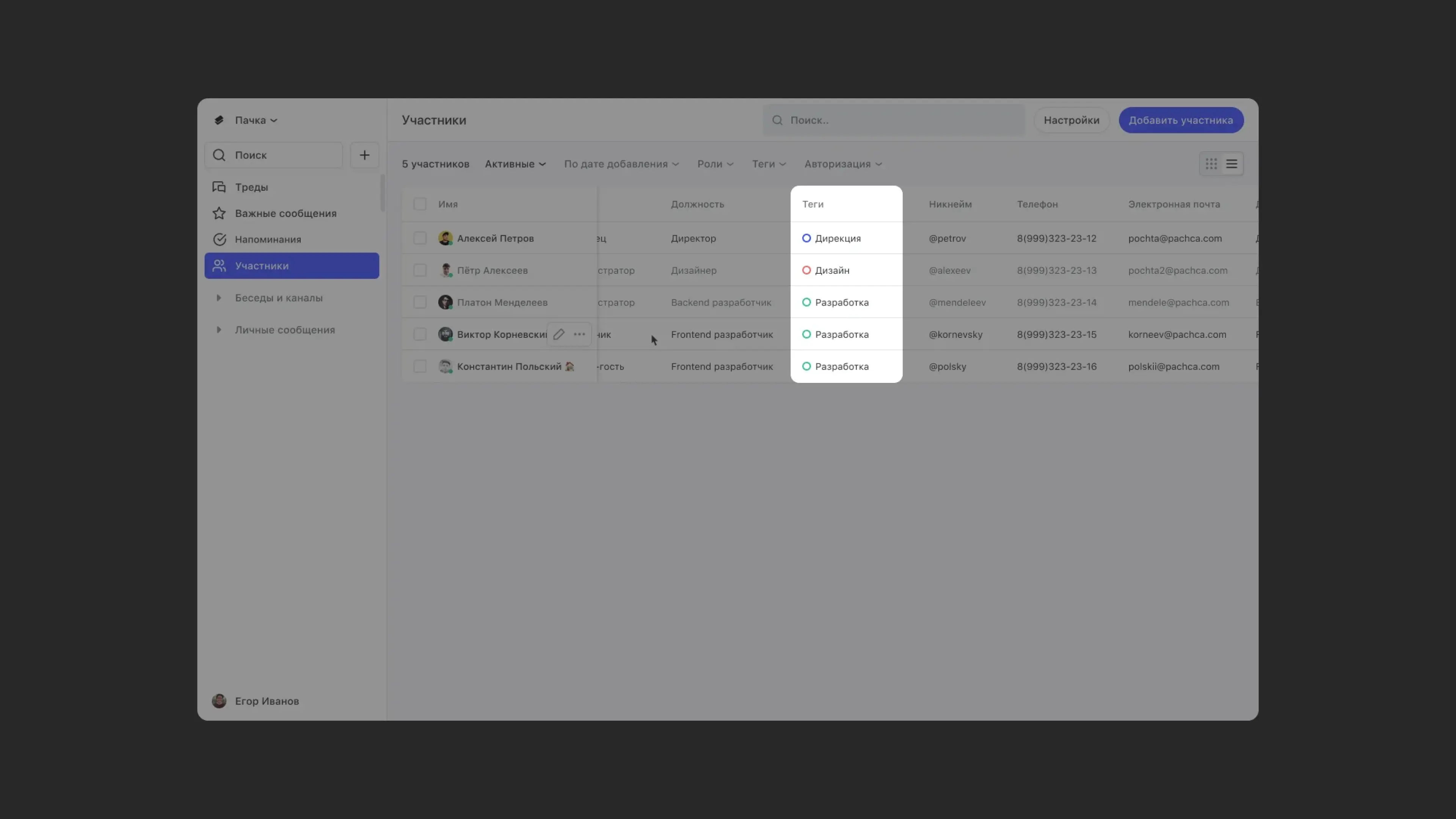
Instead of adding each teammate to your team chats one by one, assign them a group tag. The member is automatically added to every chat that has this tag. For example, create a Sales group tag for your sales team and add it to all the chats they need. Now, when you give a new sales manager the Sales tag, they'll get all the chats with that tag.
Learn more about group tags in this article.
Create your main chats and folders
Over time, you've probably piled up lots of chats nobody uses anymore. Start fresh and create chats for your core processes. For example, set up chats for the whole company, engineering, marketing, sales and support.
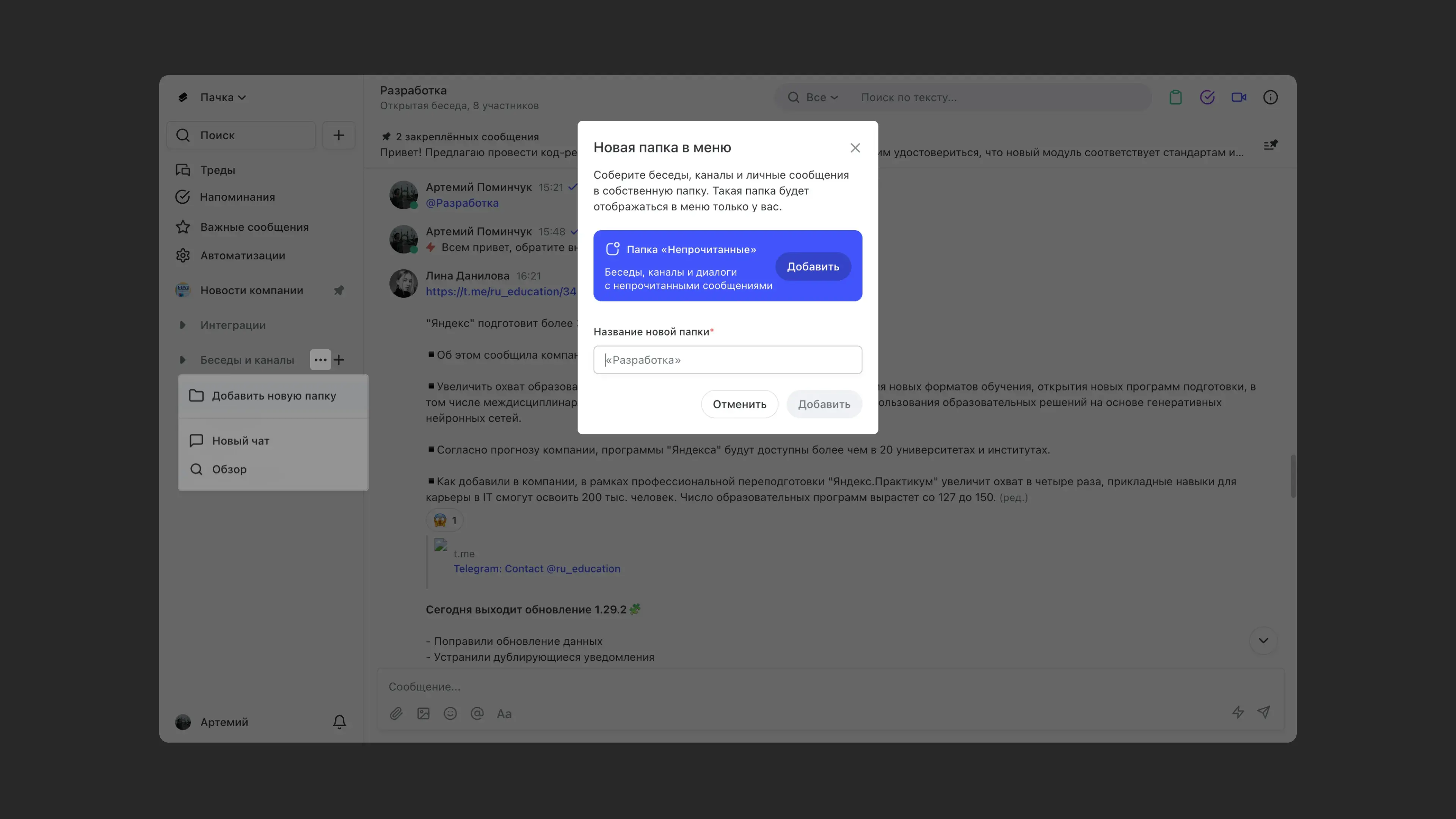
Folders help you organize your chats the way you like. Drag and drop chats to add them to folders. To keep unread chats in one place, we recommend creating an Unread folder in the folder settings. All chats with unread messages land there, and once you've caught up, they stay in the folders you originally added them to.
Which chats should you start with?
There's no one-size-fits-all structure. It grows naturally around how your team works. Still, most companies end up with a few chats from day one:
-
Company-wide chat. The place for important announcements, news and anything that concerns the whole team. It's usually set up as a channel, so it doesn't get buried in replies.
-
Watercooler / off-topic chat. A space for casual conversation: memes, birthday wishes, venting about the workday. It helps keep team spirit alive, especially on distributed teams.
-
Department chats. Separate chats for engineering, marketing, sales, support and other teams. This is where each department discusses its own work without cluttering shared channels.
-
Project chats. If your team works on projects, create a separate chat for each one. When the project wraps up, archive the chat and the whole history stays available.
Start small. A few active chats beat dozens of empty ones. The rest will appear on their own when there's a real need.
Show others how things work here
After signing up, your teammates will find themselves in a brand-new tool. To help them settle in, we've put together a short guide.
Tips for switching to a new team chat app:
- Start with just a few chats. This speeds up the switch and helps your team adapt.
- Once you start moving to Pachca, try to communicate only there. The switch goes faster and your teammates get used to the new app sooner.
- React to messages and start threads yourself, so your teammates see how the app is meant to be used.
Features for administrators
Import from Slack
Pachca lets you move your message history from the past year from your Slack account, including uploaded files.
In short, here's how it works: your Slack message history moves to Pachca, and each message keeps its original sender. For step-by-step instructions on importing your data, see this article.
Permissions and roles
Pachca has four access levels: Administrator, Employee, Multi-guest and Guest. Each one comes with different features. For example, only administrators can invite new people to the workspace, employees can use every Pachca feature except managing other workspace members, and multi-guests can't create chats on their own. See what else sets the roles apart in this article.
You can manage your teammates' access from the members table. In the web version, open Members in the sidebar. In the mobile app, go to the section with the same name. Learn more about working with the table here.
Manage members with group tags
To make it easier to manage large groups of workspace members, Pachca has group tags. Use them to add large groups of people to chats at once. Add a group tag to a chat, and everyone with that tag joins the conversation. Learn more about managing members with group tags here.
AD/SSO
Single sign-on (SSO) lets you manage large numbers of employees in Pachca at scale. With this integration, you can choose which fields are synced from your company directories to Pachca and filled in on employee profiles.
This feature is available on the Corporation plan. To request the integration, contact Pachca support (Telegram or MAX). SSO setup options are described in this article.
Admin tasks via API
Pachca lets you automate member management. Instead of manually adding people, inviting them to chats, removing them from chats and updating profile details, you can automate all of it with the Pachca open API. For more on working with the API, see this article.
Integrations via webhooks and API
Connect the tools your team uses to Pachca to get notifications right in your Pachca chats or automate parts of your workflows.
For example, incoming webhooks can post a notification to a chat when someone answers a survey or when a task is created or updated. You can also set up outgoing webhooks to send events from Pachca to another service. Learn more about how webhooks work here.
The API lets you build more flexible automations, like sending messages to users, booking tasks and more. Learn what the API can do here.
Integrations via Albato
Albato is a platform for building simple integrations between different services. With Albato, you can connect more than 250 services to Pachca (CRMs, analytics tools, task trackers and more) and get notifications right in your Pachca chats.
Notifications arrive as messages from the person who set up the integration. There's no limit on the number of integrations per chat. To learn how to set up an integration, see this article.
Support
Our support team will answer any questions about Pachca in Telegram. During business hours, we reply within 10–15 minutes on average.