How to move your team to Pachca
How to move your team to Pachca: a step-by-step migration plan and tips for helping employees adapt
When you switch from one team chat app to another, it's not always clear how to run the process so your employees don't push back on the new tool. In this article, we'll show you how to make the move an evolution, not a revolution.
Once you've finished testing and picked a tool, it's time to get your company and team ready for the move.
Preparation
Put together a migration plan. It should answer a few questions:
- Who will be in charge of the move?
- Choose a team or a person to own the move and split up the work. Decide who will map out the chat structure and who will set up the workspace.
- Will you move all employees to the new tool at once or team by team? How long will the old app keep running during and after the move?
- There are three common strategies: the old tool stops working right away; the old software keeps running alongside the new one; or work moves over from one tool to the other in stages.
- What should already be in the app when employees start using it?
- For example: the chat structure, tags, integrations and workspace branding.
- What's your timeline for the move? Which processes will the switch affect?
- List the most common use cases from your old tool. You can set them up in the new app ahead of time or give employees a heads-up about the changes.
Tell your team about the move
Nobody likes change, so it's important to tell your colleagues why you're switching, what they'll get out of the new tool and how the move will happen.
Keep in mind that a successful move often depends on leadership being convinced it's necessary and will benefit the company. Bring team leads into the process. They'll become champions of the change.

Map out the chats your company uses
At this stage, you need a list of all the chats your company uses. We recommend two ways to do this.
Option 1:
- List your departments, teams and their work chats. For example, these could be your developer, design or marketing teams.
- List all the chats these departments and the whole company use. We wrote an article on how best to name chats. You can find it here.
- Decide on the format for each chat. For example, Pachca has channels and chats, and they can be private or public.
Option 2:
- Create the core structure of shared chats and let employees create their own chats and build on that structure.
Get Pachca ready for your team
There are a few ways to do this.
Option 1:
- Go to your Pachca workspace. If you don't have one yet, sign up at https://app.pachca.com/signup
- Go to the Members section.
- Create tags for the departments/teams from the list you made earlier. To do this, select a member's checkbox in the table → at the top of the table, click the plus icon Add tag → in the window that opens, enter a name and click Create.
- Create the chats you need and add the tags of the departments that will take part in each one. Members can also do this themselves once you add them to Pachca.
Option 2:
You can import chats and employees from Slack. Learn how this feature works in this article.
Move your team over
There are different ways to do this, too.
Option 1:
- Open your workspace settings by clicking the workspace name in the top-left corner.
- Open the Members tab.
- Click Add member in the top-right corner.
- Send invitations by email or share the link with your colleagues.
- Once members are added, assign them the tags they need.
Option 2:
Set up an integration with your AD so employees can log in with SSO. Learn more about SSO in Pachca here.
Train your employees
Getting the hang of a new tool right away isn't easy. To make the transition smoother, run training sessions for your employees. By the way, when companies with 100+ users move to Pachca, we run training calls for their employees.
Create a group chat for questions about the new tool. It can become an internal knowledge base where employees find answers or ask new questions about the tool and get answers from the person in charge of the move. You can also post news about updates and handy features there.
This article will help your team get settled in Pachca.
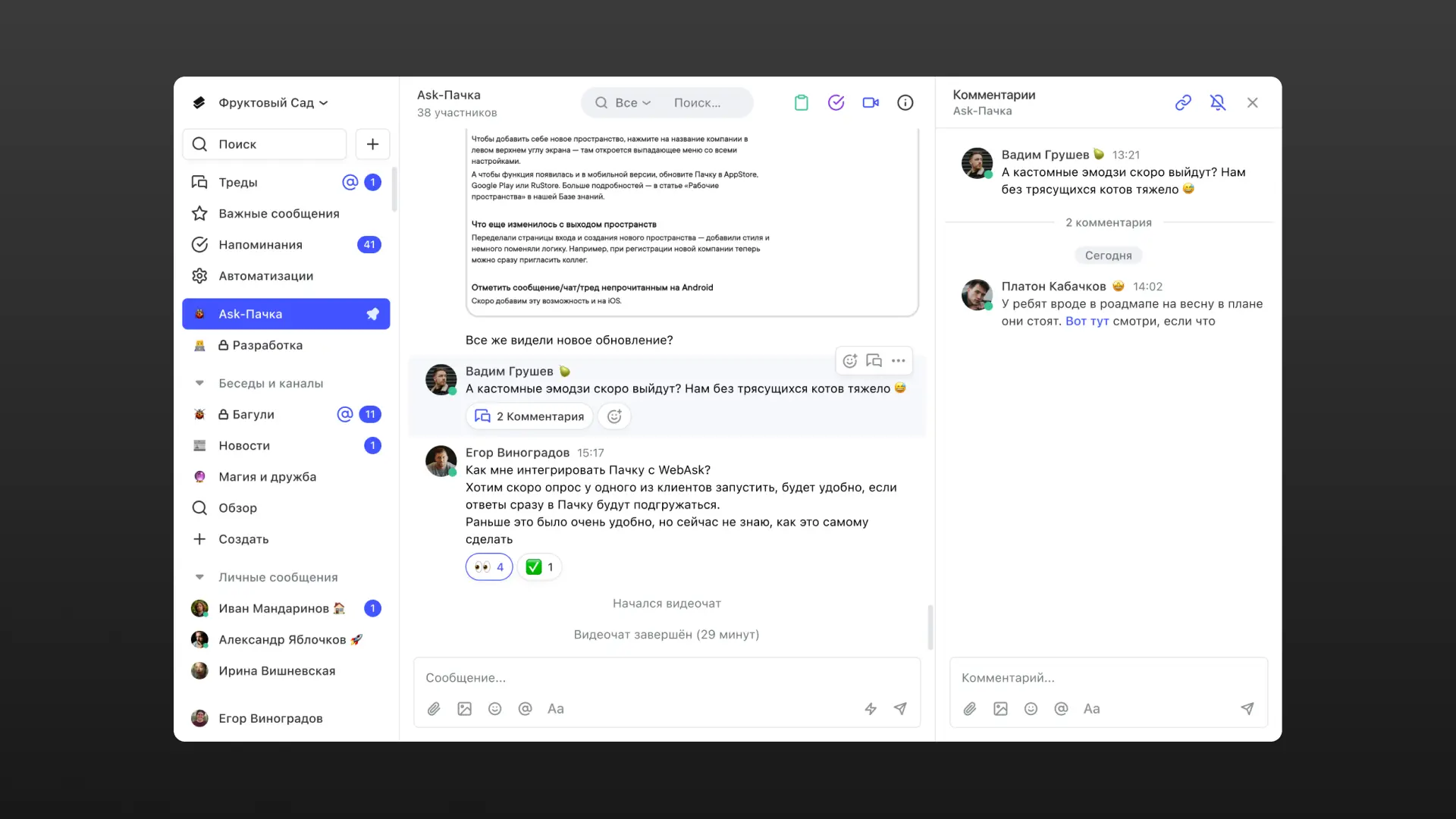
If you follow this plan, your team is more likely to get up to speed in the new tool faster and start putting its advantages to work, which can make your whole company more productive.